


Many people drink coffee, tea, listen to music or do exercises to make themselves more energetic at work every day, but this does not work for everyone. If you have an iPhone, there is a free app called Coffeewake in the App Store that is designed to remind you not to fall asleep. It will wake you up through mobile phone notifications every once in a while. It also has a built-in alarm function for taking a nap, which is quite practical.

Coffeewake App Introduction
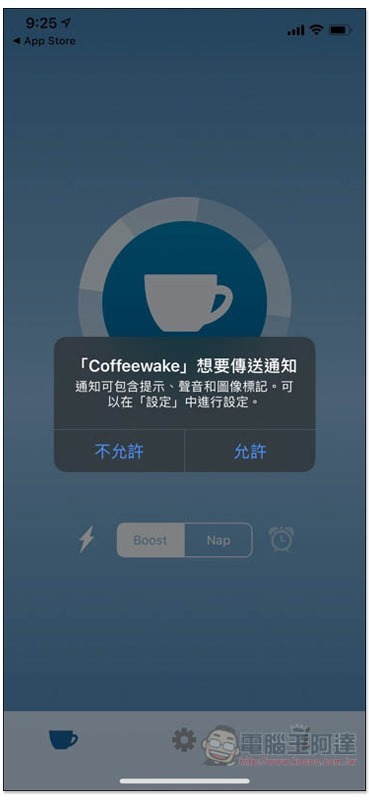
When you open the Coffeewake App for the first time, you will be asked for permission to send notifications. Remember to click Allow, otherwise it will not be able to push reminder notifications to you:
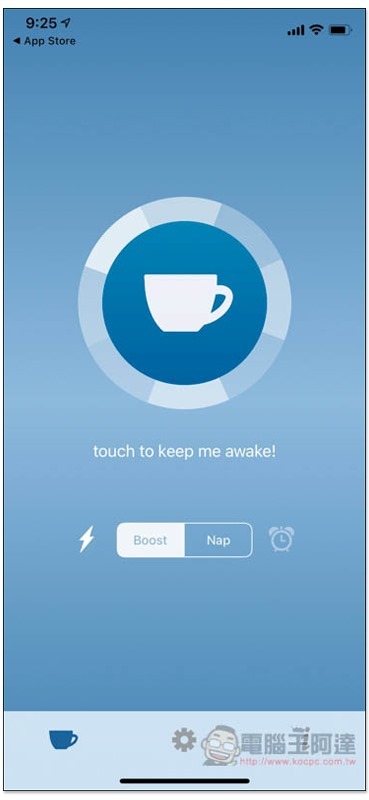
After entering the main page, you can click on the coffee cup in the middle of the screen to start timing. Boost below reminds you to stay awake at all times, and Nap is a snooze alarm clock:
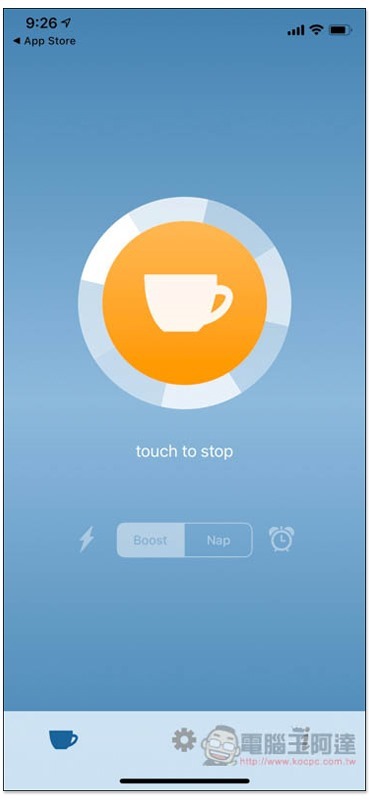
If the icon turns yellow, it means the activation is successful. At this time, you can jump out of the app and close the iPhone screen. To end, just click:
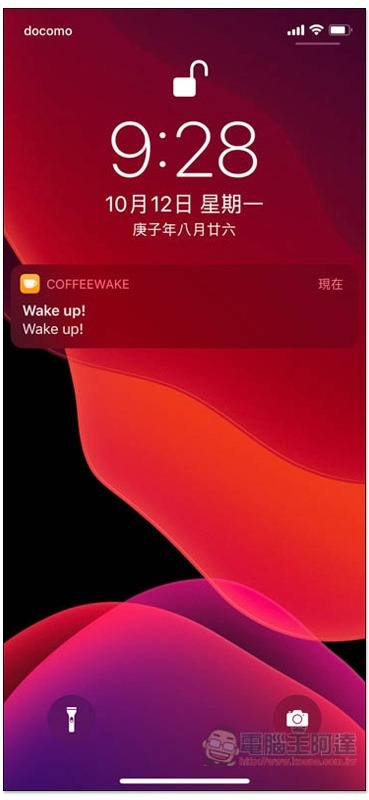
The default setting is to push a reminder notification every 2 minutes. Also remember to turn on the sound and not mute it, otherwise you will not receive the notification sound. The notification sound will also stop automatically. There is no need to manually press stop or the like. It does not keep ringing like an alarm clock:
In the settings menu on the second page, you can adjust various values, such as: you want push notifications every few minutes (Boost frequency) and notification sound effects (Sound effects). The snooze alarm mode can also adjust the time and sound:
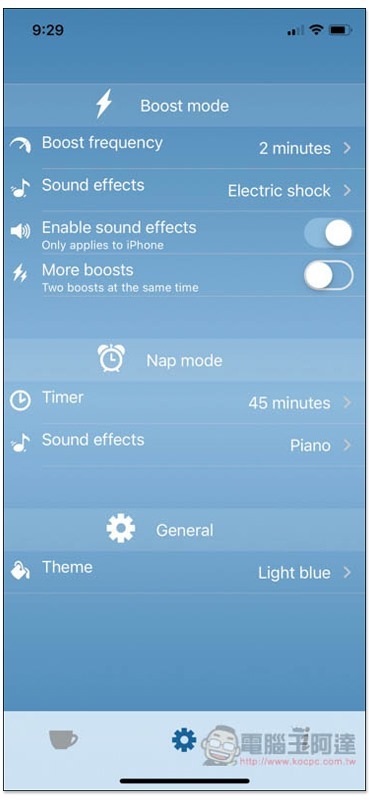
The minimum interval for push notifications is 30 seconds and the maximum interval is 20 minutes:
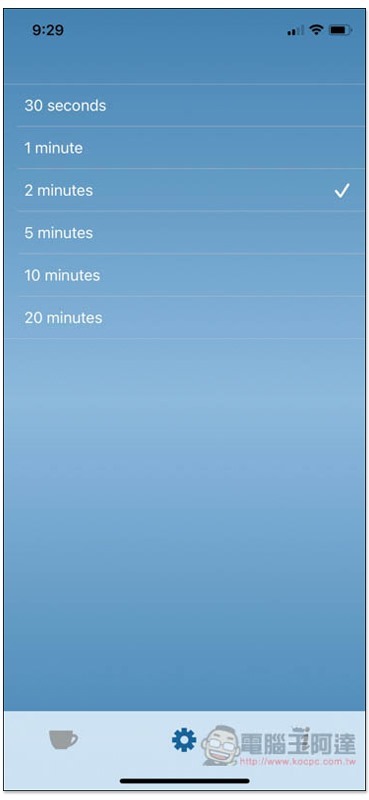
There are also a lot of ringtones to choose from, 12 in total. Click on each one to listen to it first:
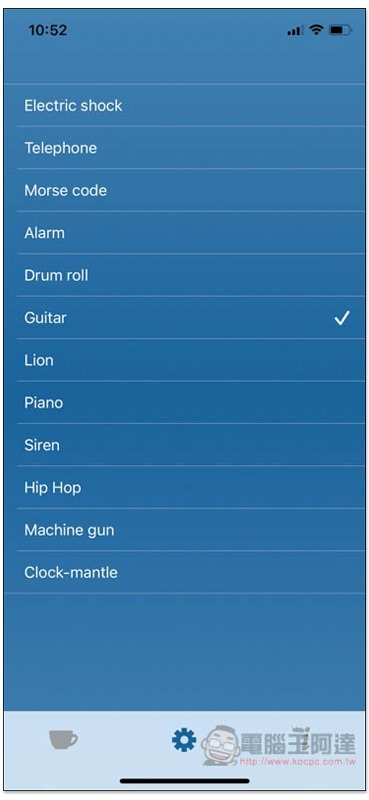
The snooze alarm time can be set to a minimum of 30 minutes and a maximum of 3 hours:
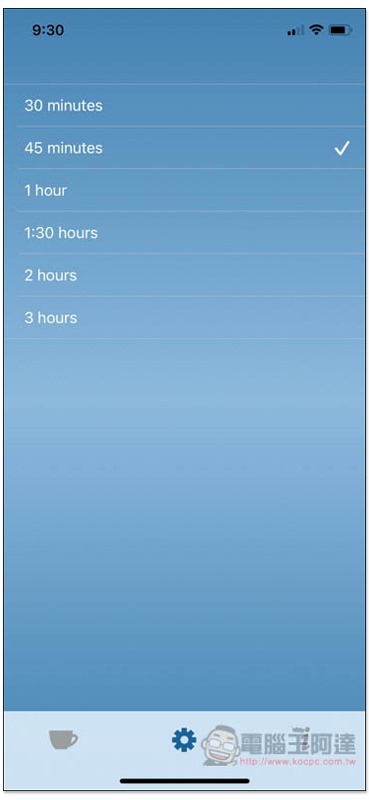
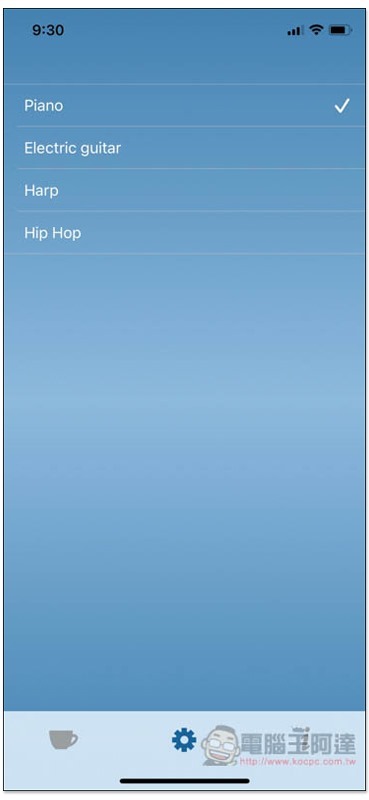
There are relatively few ringtones, only four, and unfortunately it does not support external music:
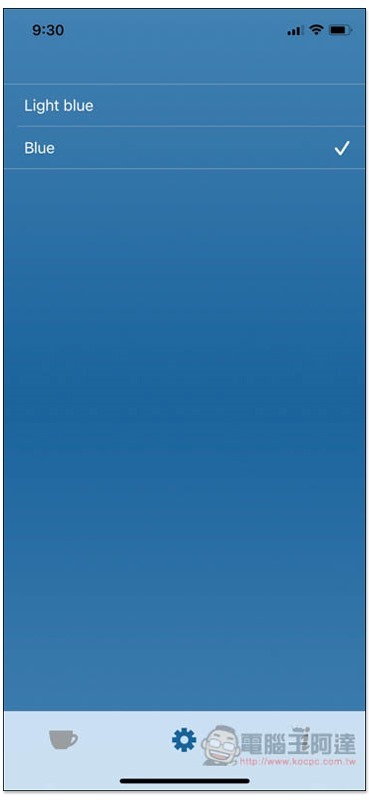
There is also another Blue theme color matching, but the blue is just a little darker:
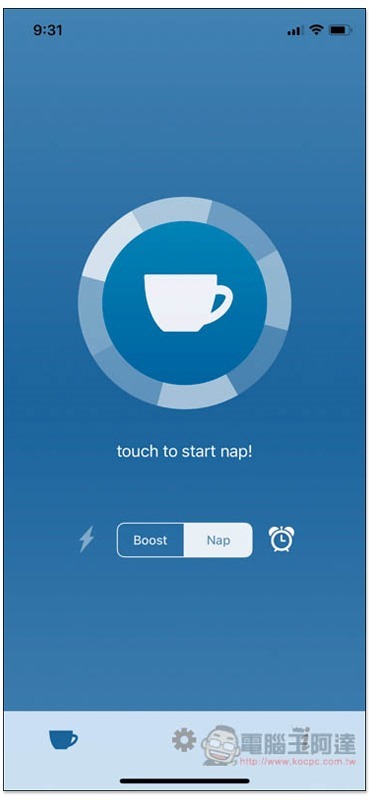
The snooze alarm clock is used in the same way. After switching to Nap mode, click the coffee cup on the screen and the timer will start:
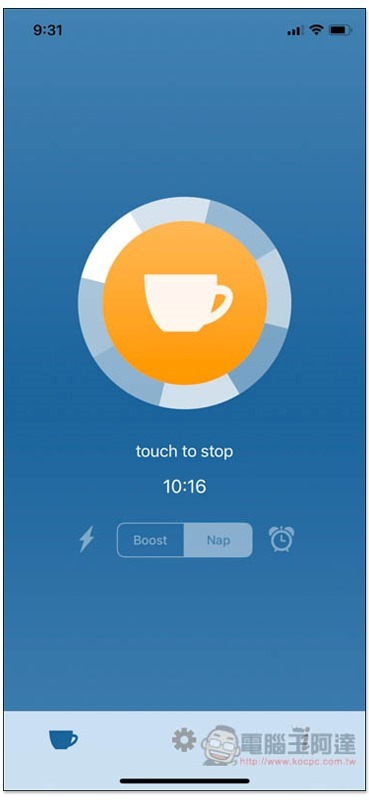
The following will also show when the alarm will be pushed:
Whether it is effective or not depends on the individual, but I think this is more suitable for personal studios or people who work at home. After all, your phone is constantly ringing with notifications, and others may think you are playing with your phone.
Supplementary information
- App name: Coffeewake
- Nature: Free
- Download page:Click here to go
Source: KOCPC Chinese