


Last year we introduced to you Tips for teaching LINE friends and privacy settings, hoping to enable readers to choose the LINE privacy settings that best suit them based on their daily LINE usage needs. Recently, many people have reported that LINE will receive harassing advertising messages from strangers from time to time. However, in fact, there are ways to avoid these messages. As long as you understand the correct privacy settings of LINE, you can effectively prevent spam advertising messages from being harassed.
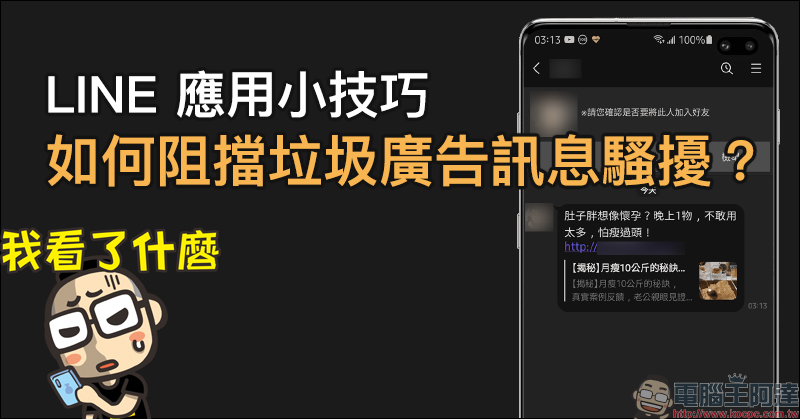
LINE application tips: How to block spam, advertisements, and fraudulent links (setting tutorial)
If you have ever received harassment messages from non-friends on LINE, such messages usually contain fraudulent links. In addition to avoiding clicking on links and reporting them on LINE, you can actually block the intrusion of these messages by adjusting some privacy settings on LINE.
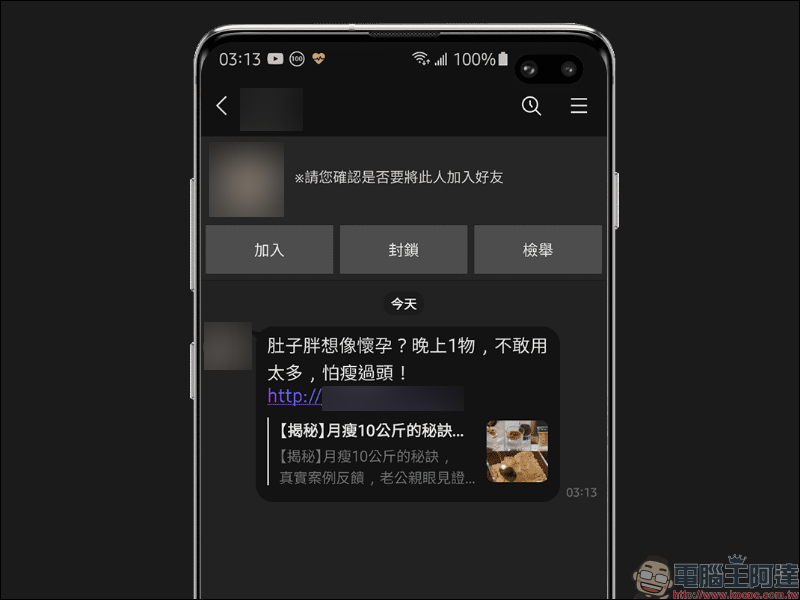
How to block advertising messages?
If you want to block LINE messages from people who are not friends, the most direct way, and what is recommended for most LINE users, is to “block messages” directly. First, select “Settings” on the LINE homepage and select “Privacy Settings” on the settings page, then turn on the “Block Messages” setting. As long as this feature is turned on, you can block messages that are not from your friends.
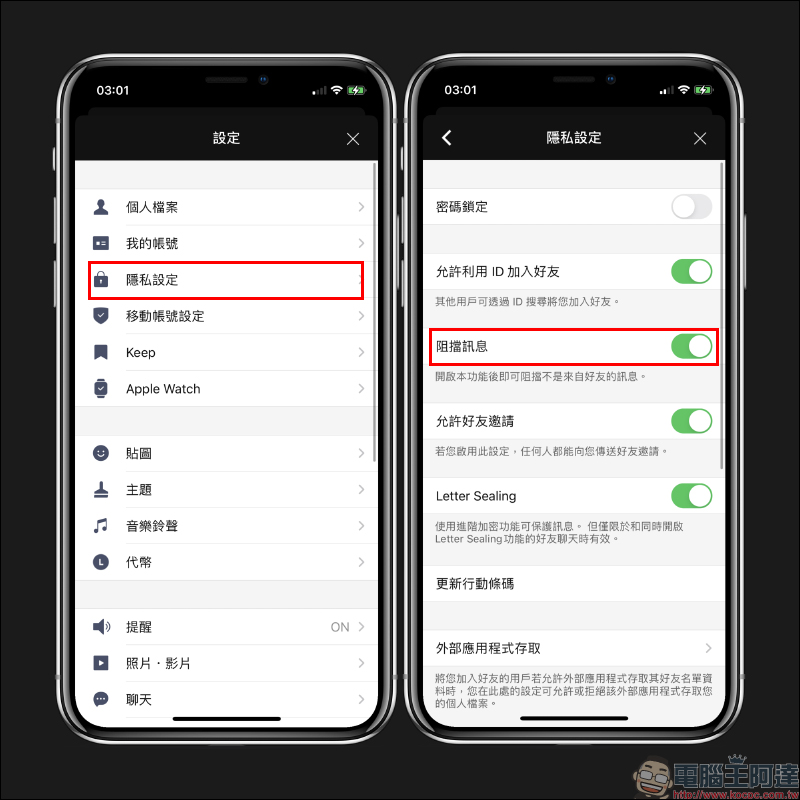
*Tips:
“Block messages” will block all LINE messages from non-friends, so if you may need to contact each other for work, but don’t want the other party to add friends, you must pay attention to this setting and you will not receive the other party’s messages at all! However, if the other party is someone they know, most people will choose to add friends first, so it has little impact on daily use.
How to prevent strangers from adding LINE friends?
After blocking messages, you no longer have to worry about being harassed by messages from non-friends. However, there must be some LINE users who are troubled by being added as friends by others. Here are two settings to avoid being actively added as LINE friends by others. The first thing is to avoid adding friends through LINE ID. After selecting “Privacy Settings” in “Settings”, turn off the setting “Allow friends to be added using ID”.
When you turn off the setting of allowing users to use ID to add friends, even if they know your LINE ID, they will not be able to add you as a friend by searching for the ID.
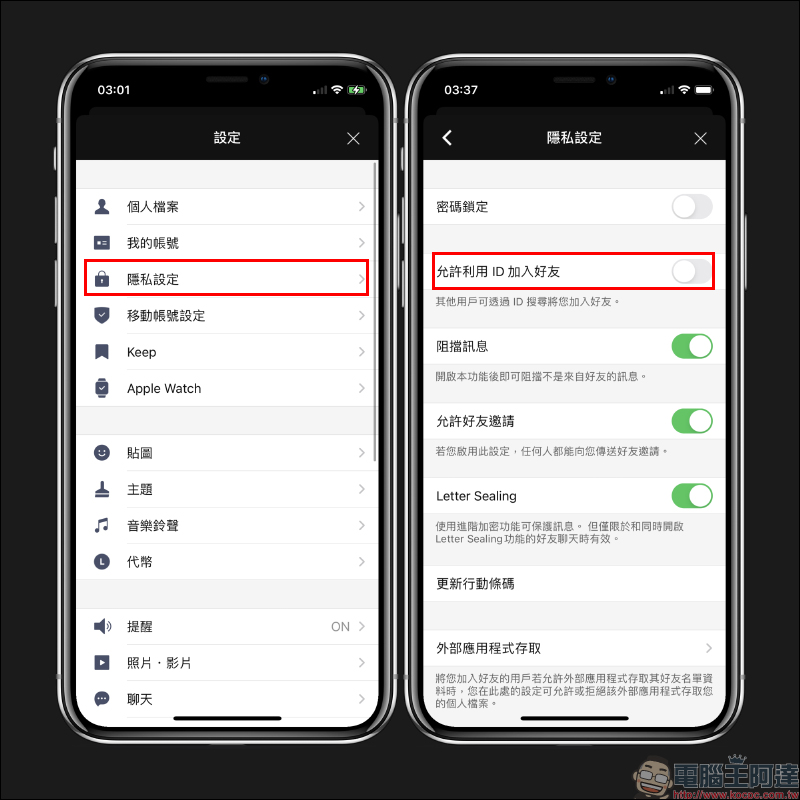
Even if you don’t allow the other party to add friends by searching for LINE ID, there is still a way to make the other party a friend. This method is through QR Code.
First, click the mobile QR code button on the LINE homepage, and then click “Show Mobile QR Code” to display your personal mobile QR Code. At this time, you can directly let the other party scan the mobile QR code to add you as a LINE friend. If the other party is not around, you can also click the download button to download the mobile QR code and provide the mobile QR code to the other party through email or other methods to read and add you as a friend.
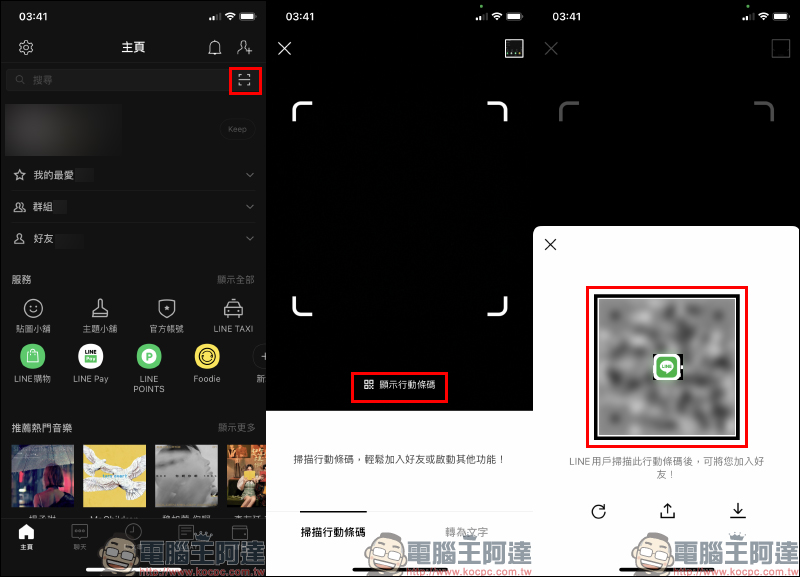
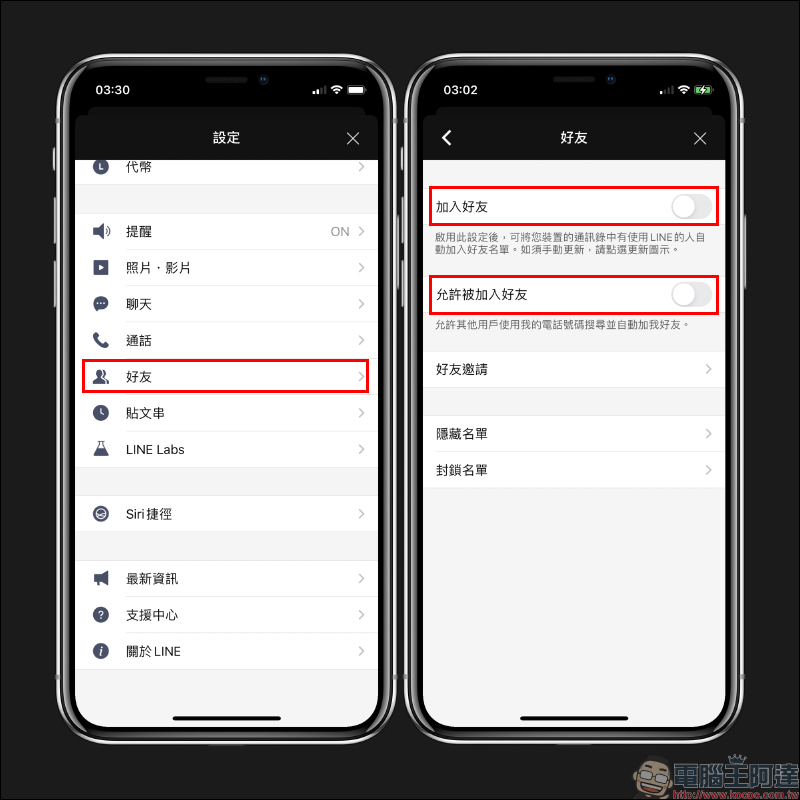
If you want to prevent others from searching for and adding friends through “phone number”, you can turn off the “Allow to be added as friend” setting on the “Friends” page of “Settings”.
The “Allow to be added as friend” setting actually allows other users to use their phone numbers to search and automatically add friends. Even if this function is turned off, you can still add friends using the above method.
When the “Add Friends” setting is enabled, people who use LINE in your phone’s address book will automatically be added to your friend list. Turning off this feature will prevent those contacts in your personal address book who have “Allow being added as friends” from being added to your LINE friend list.
Further reading:
LINE avatar new feature is here! Create an exclusive Q version avatar (operation instruction)
Source: KOCPC Chinese