


I believe that all of you with sharp eyes may have noticed that the LINE mobile version 10.16.0 version update a few days ago mentioned the new feature of “LINE Avatar”. This feature was finally officially launched earlier today! If you feel tired of ordinary selfies and are too shy to set your selfie as a photo on your LINE profile, then you might as well quickly switch to a LINE avatar, an exclusive Q-version avatar! This article will quickly introduce you to the operation tutorial of LINE avatar. Hurry up and try it out!
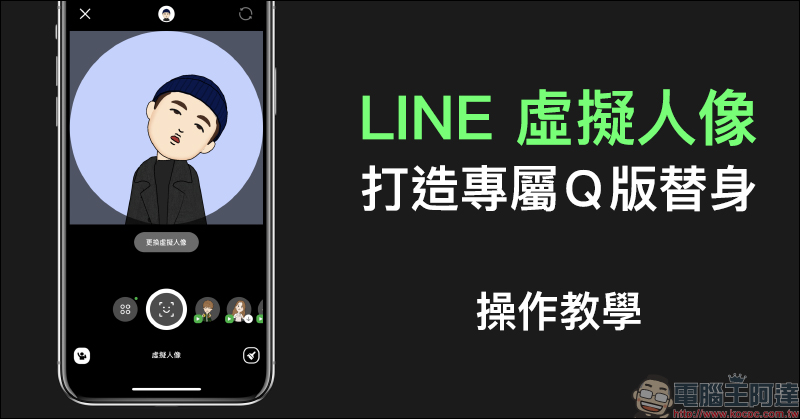
LINE avatar new feature is here! Create an exclusive Q version avatar (operation instruction)
The new LINE avatar function is officially launched in Taiwan today (28th). From now on, LINE users whether they are iOS or Android mobile phones can create their own LINE avatar in LINE. In terms of system requirements, iOS users only need to have an iPhone 6s series (inclusive) or above and update the LINE App to 10.16.0 (inclusive) or above, while Android users need to have Android 6.0 (inclusive) or above and update the LINE App to 10.16.2 (inclusive) or above (some models are not supported).

▲Picture source:LINE Taiwan official blog
As long as you meet the above system and LINE App version conditions, you can now use the LINE avatar function in the LINE App. Users only need to click the “Avatar” button on the profile page and then select “Create” to start creating an avatar:
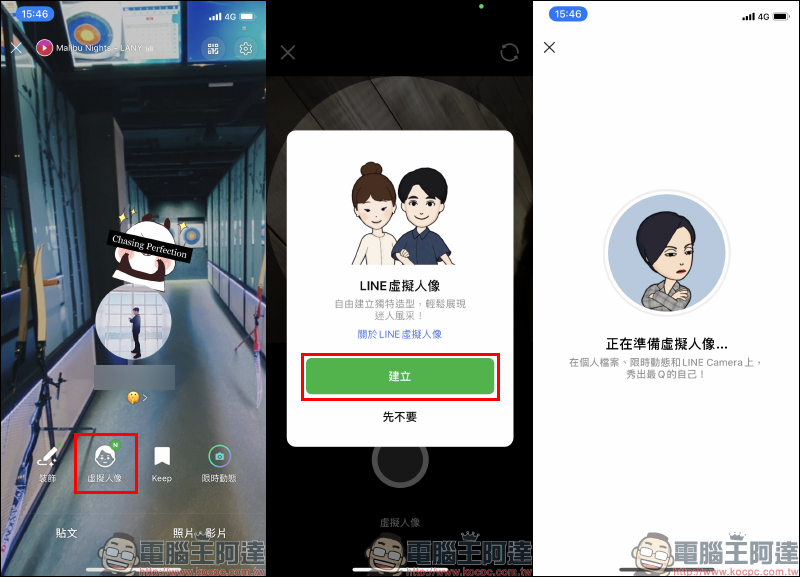
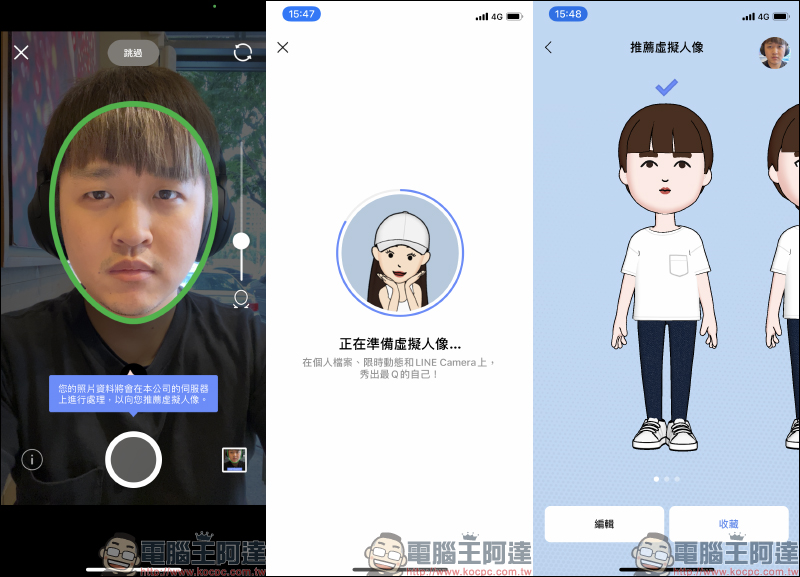
The camera will then be turned on. Just place your face in the frame of the screen and press the “shoot” button. Then wait for a few seconds of preparation time to generate several groups of recommended avatars. Even if the avatar that may be recommended at this stage does not look like yourself, it doesn’t matter. Just click “Edit” in the lower left corner of the screen to make more detailed settings:
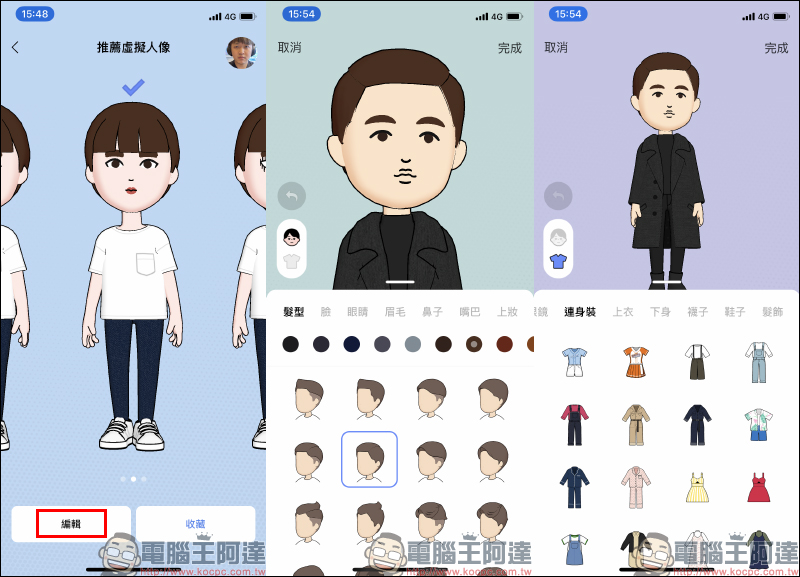
On the editing page, there are a variety of styles and colors to choose from, including the avatar’s hairstyle, face, eyes, eyebrows, nose, mouth and even makeup. In terms of clothing, you can also choose a variety of clothing to match. Once everything is set, you can click “Done” in the upper right corner of the screen:
At this time, the first LINE avatar is created. Users can also add other avatars on the “My Avatar” page. In addition, you can also click “Share” on the My Avatar page to share this set of avatars with your LINE friends. If you want to change your appearance or clothing, you can click “Edit” to modify it at any time:
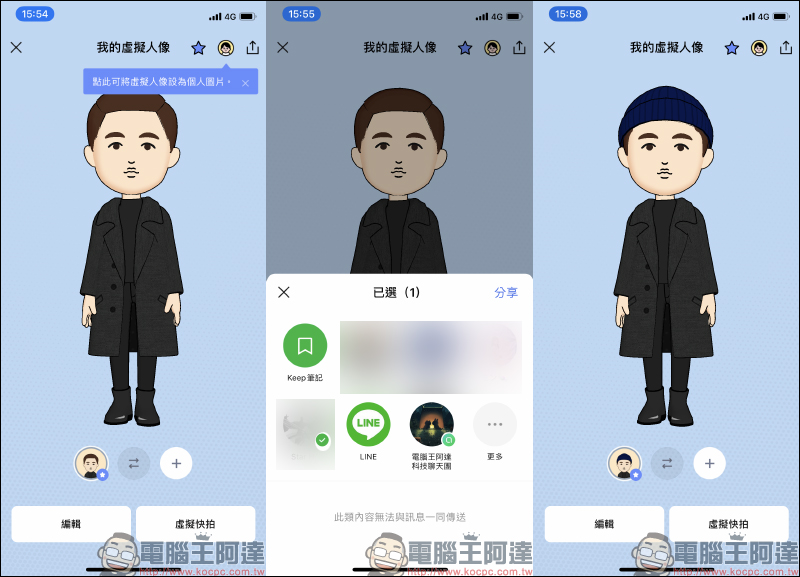
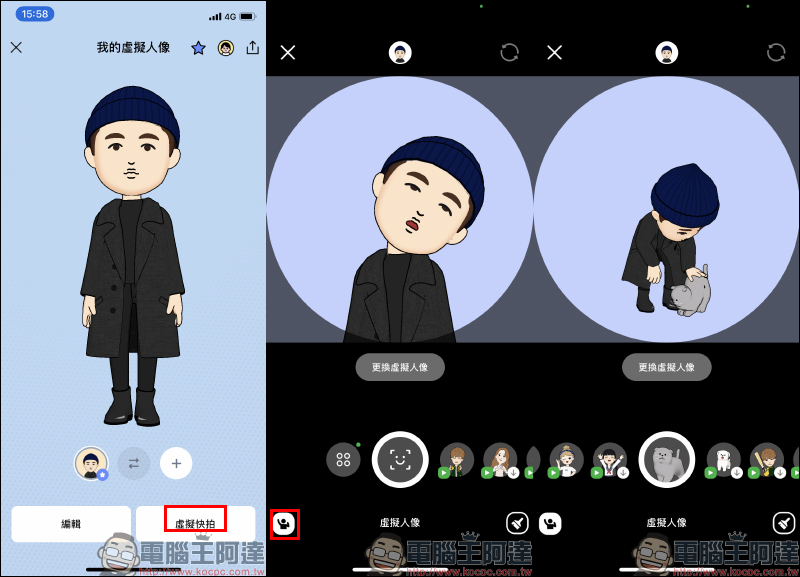
After generating the avatar, the next most important thing is to take a selfie of the avatar! Click “Virtual Snapshot” in the lower right corner of my avatar page, and you can use my avatar to take selfies with various expressions and movements. The camera will also detect the user’s facial expressions in the background and synchronize with the avatar’s self in real time. The avatar also has a variety of cute actions built-in:
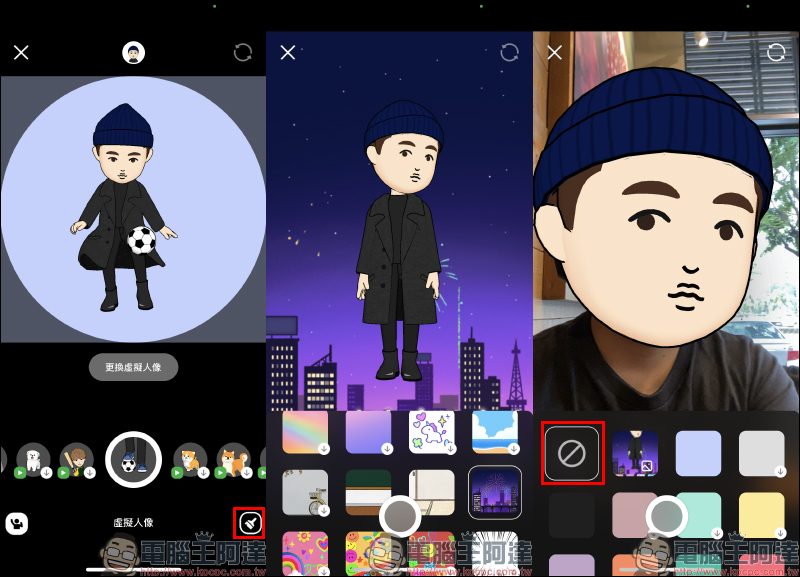
Users can also set the background for virtual portrait selfies. In addition to various theme backgrounds to choose from, they can also turn off the background for virtual portrait selfies. At this time, the front camera will be turned on for selfies, but the face will be replaced with a virtual portrait:
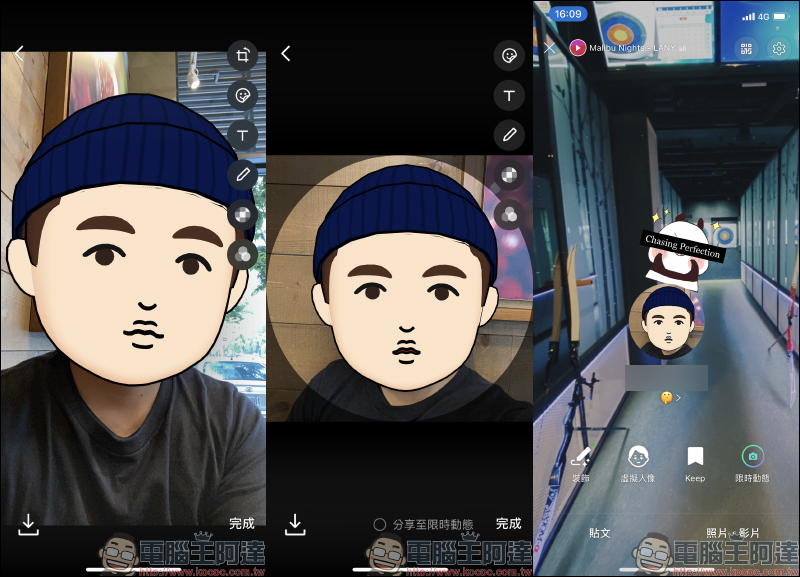
After shooting, in addition to using the camera functions in other LINE apps to cut the screen, add icons, filters, and mosaics, you can also save it to the phone’s photo album or set it as a profile picture.
Further reading:
LINE application tips: LINE chat frequency, check it immediately through the calendar function!

Source: KOCPC Chinese