


Recently, with Gemini in Chrome The functionality is getting more and more powerful, and I believe many people want to try it out right away. However, currently Google Still not available for regions outside the US. But the good news is there’s a way to enable it early! Below I’ll teach you how to do it. I tested it Windows and Mac All succeeded
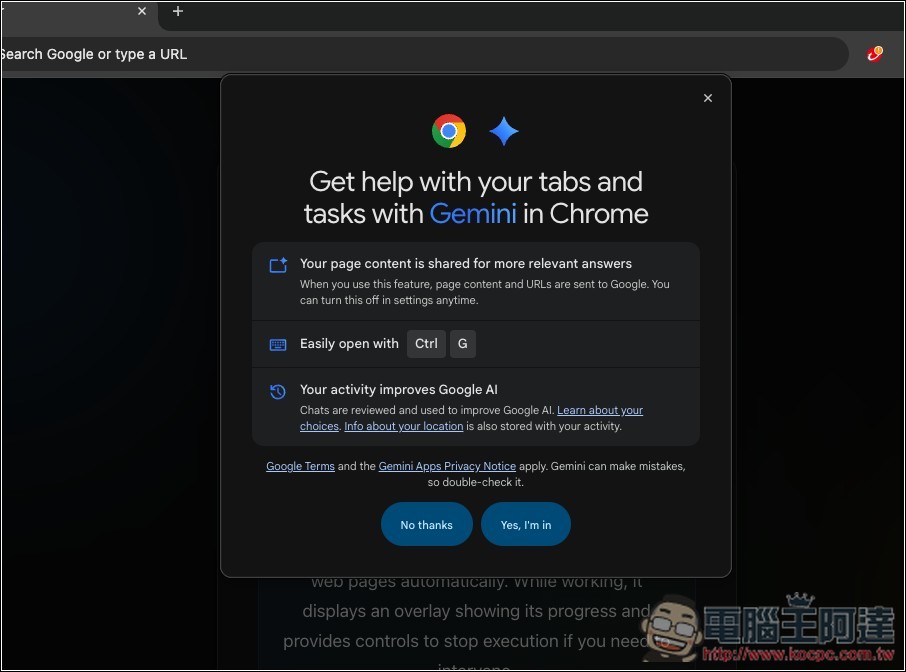
How to use Gemini in Chrome from outside the US?
If you want to enable Gemini in Chrome early outside the US, there are four key points:
- You need to have a VPN that can connect to the US (and keep it running the whole time).
- The Chrome interface needs to be set to English.
- Your Chrome must be signed in to a Google account to use Gemini
- Using on GitHub Enable-chrome-ai Projects to Enable
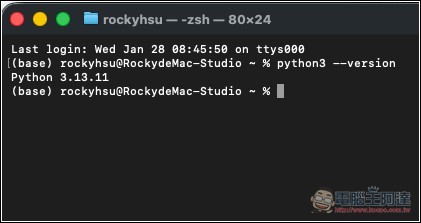
- Python 3.13 or higher—if you haven’t installed it yet, remember to do so first (Python official website), you can enter it in the terminal or command prompt
python3 --versionCheck the version
Since the process requires connecting to a US VPN, if you don’t want other apps to be affected by the VPN, you can enable the Split Tunneling feature in your VPN settings and add Chrome to the affected apps list.
This way, only Chrome will be affected by the VPN, while other applications will still use the local network.
Below, both Windows and Mac will include step-by-step tutorials. Let’s first look at Windows.
Guide to Enable Gemini in Chrome on Windows
Here’s the plain text version first. If you want to see screenshots with step-by-step instructions, scroll down.
- Install the uv tool, then in PowerShell enter:
powershell -ExecutionPolicy ByPass -c "irm https://astral.sh/uv/install.ps1 | iex" - After installation, please restart Powershell
- First, download the Enable-chrome-ai project from GitHub to your local machine
- Enter first:
git clone https://github.com/lcandy2/enable-chrome-ai.git - Go to that folder:
cd enable-chrome-ai
- Enter first:
- Install dependencies
uv sync - Run script:
uv run main.py, and you will see Chrome automatically restart - Change Chrome’s interface language to English (Settings -> Language -> Open the menu next to English and set it as the interface language)
- Remember to connect to a US VPN when you restart
- Get Started with Gemini
First, in PowerShell, enter:powershell -ExecutionPolicy ByPass -c "irm https://astral.sh/uv/install.ps1 | iex", to install the uv tool:
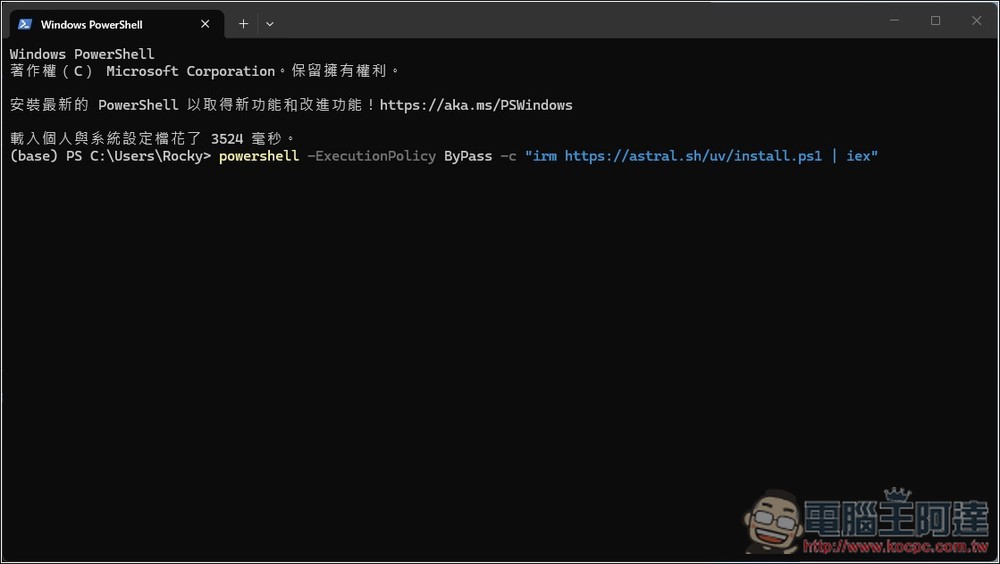
Remember to restart Powershell, otherwise you still won’t be able to use the uv command.
Then first input:git clone https://github.com/lcandy2/enable-chrome-ai.git, download the project, and go into this folder:cd enable-chrome-aiand then install dependencies:uv syncEnter after completion:uv run main.py To run the script:
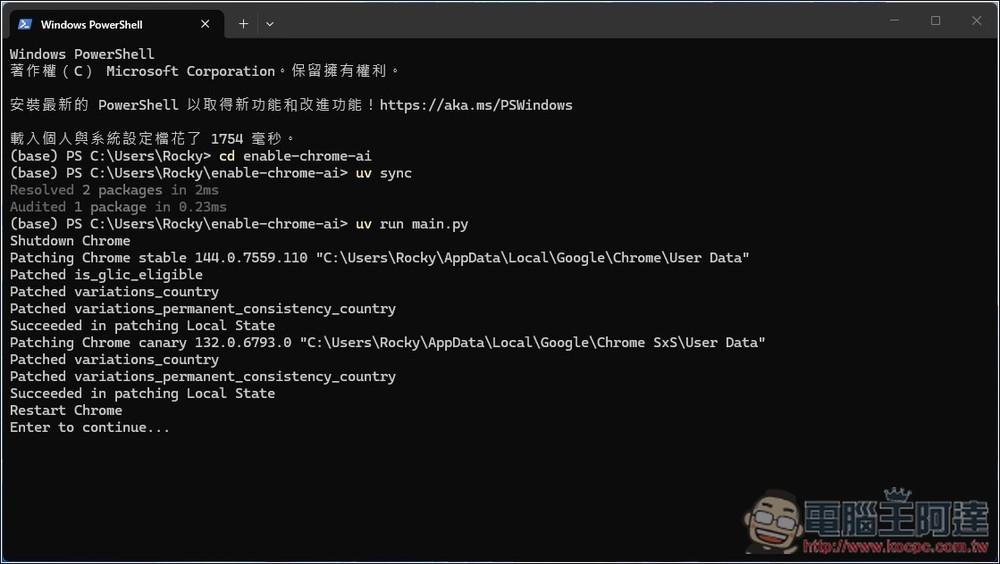
During the script execution, you’ll see Chrome automatically reopen. If the screen is black after reopening, just close Chrome completely and open it again, and it will display normally.
If you haven’t changed Chrome’s interface language yet, go to the “Settings” option in the upper right corner, then select “Language” on the left side. In the “Preferred languages” section, if you don’t have “English” yet, add it first. Open the three-dot menu on the right side of the English option, and you’ll see “Use this language to display Chrome’s interface.” Check it and restart.
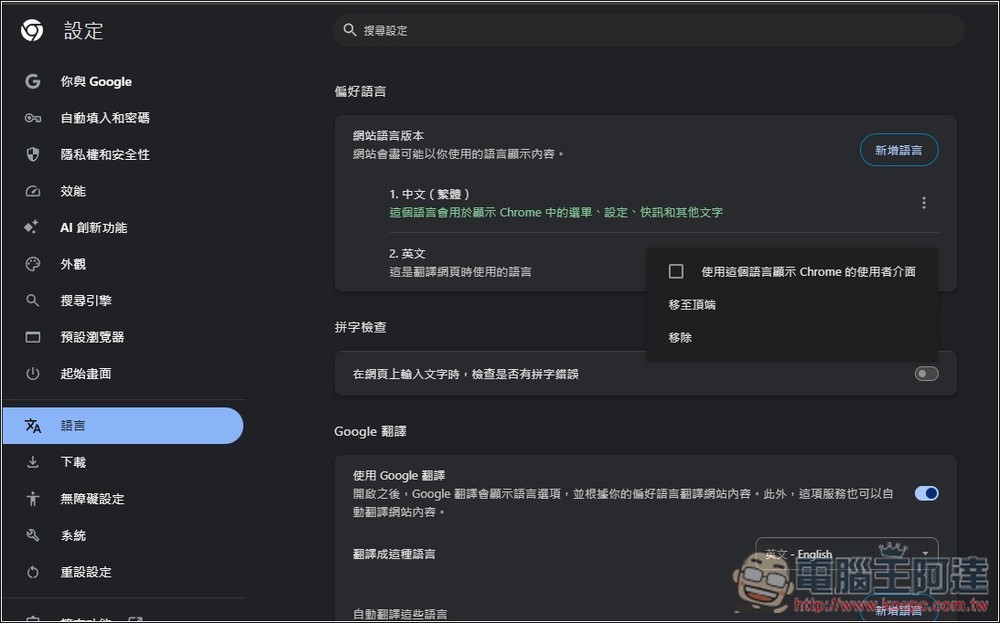
And that’s it:
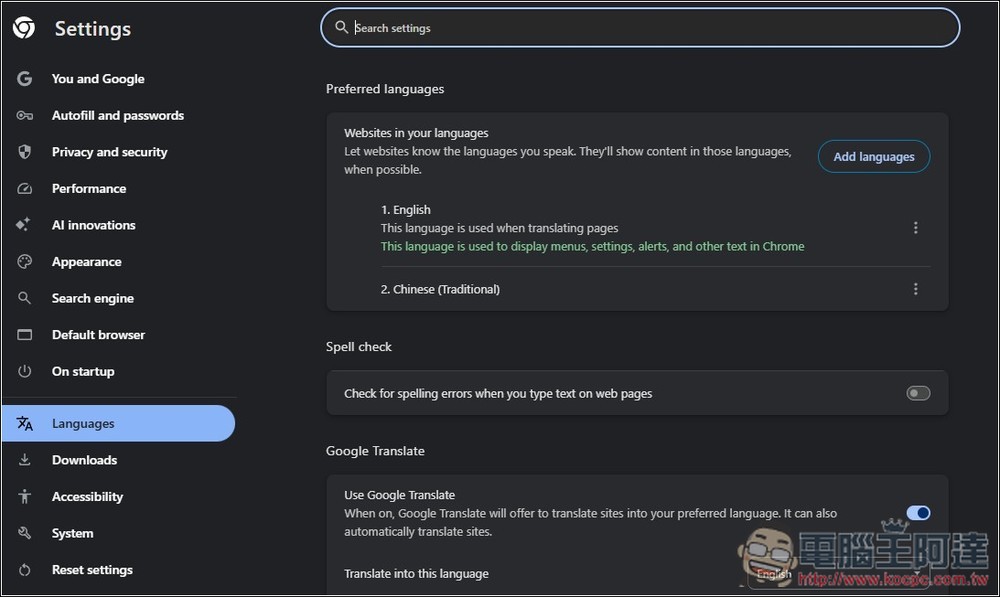
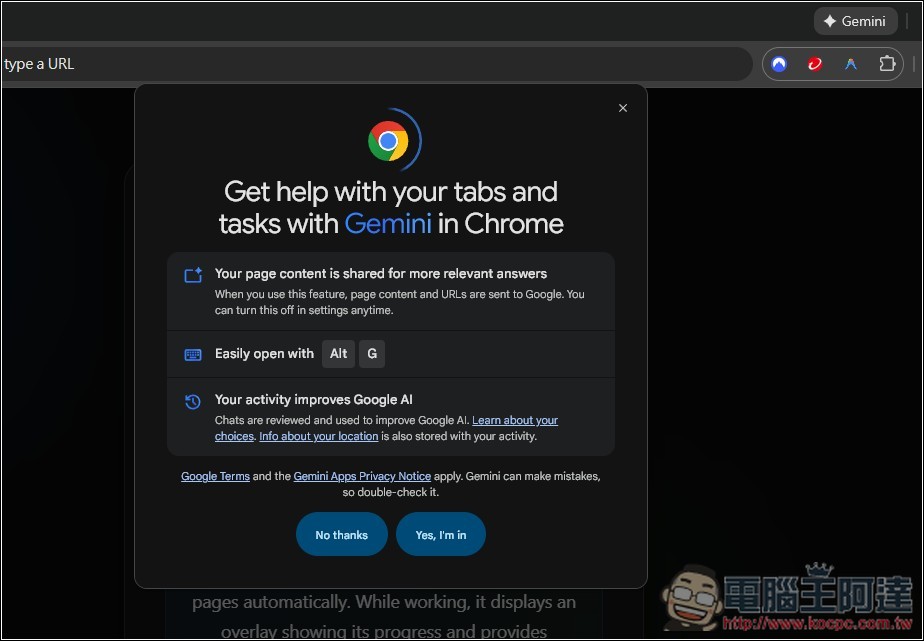
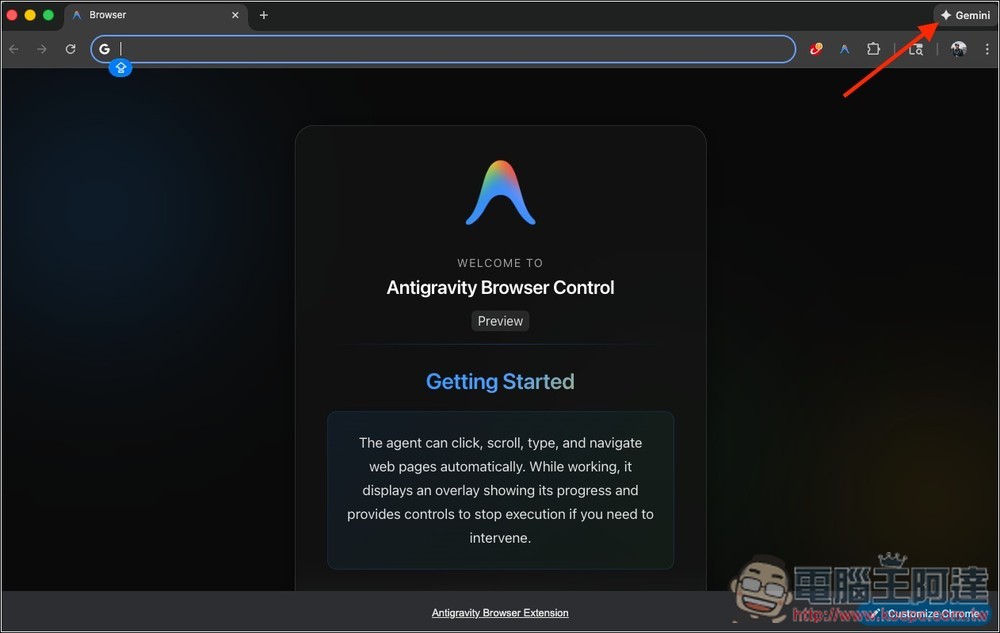
You will see the Gemini button in the upper right corner, and clicking on it will also show an introduction to Gemini in Chrome.
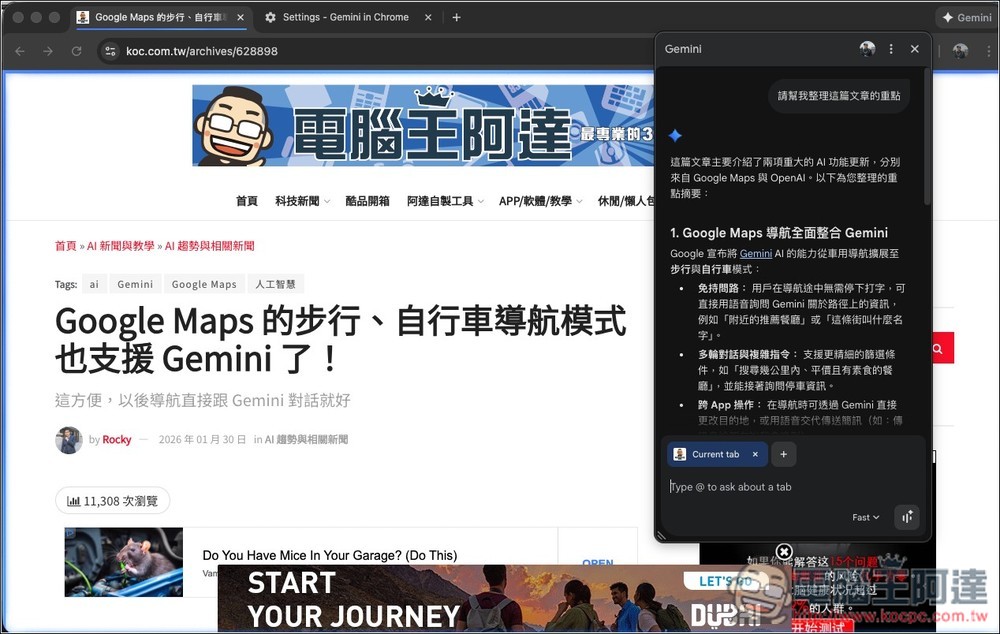
You can then chat with Gemini on any page. When you open Gemini, you’ll notice a blue border appears around the window—this indicates that Gemini is reading the current webpage:
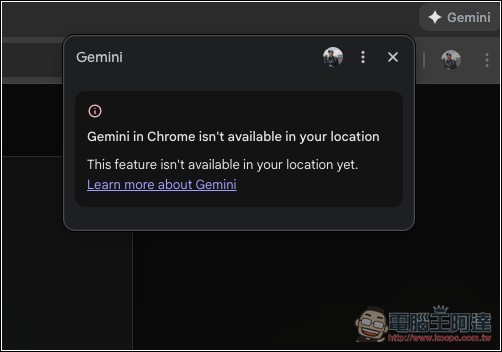
If you don’t connect to the US using a VPN, you’ll get an error message saying “Gemini isn’t available in this location.” You have to use a desktop VPN client—I’ve tested browser-based VPNs and they didn’t work.
Tutorial on enabling Gemini in Chrome on Mac
Similarly, the plain text version is provided first. Scroll down if you want to see the step-by-step instructions.
- Open the terminal to install the uv tool:
curl -LsSf https://astral.sh/uv/install.sh | sh - Mac needs environment setup
- Add uv to environment variables:
echo 'export PATH="$HOME/.local/bin:$PATH"' >> ~/.zshrc - Activate now:
source ~/.zshrc - You can verify:
uv --version
- Add uv to environment variables:
- Download the Enable-chrome-ai project from GitHub to your local machine
- First, enter:
git clone https://github.com/lcandy2/enable-chrome-ai.git - Navigate to the folder:
cd enable-chrome-ai
- First, enter:
- Install dependencies
uv sync - Run script:
uv run main.pyAt this point, you will see Chrome automatically restart. - To change Chrome’s interface language to English, open Mac System Settings -> General -> Language & Region -> Under Applications, add Chrome and set it to English.
- Remember to connect to a US VPN before restarting
- Get Started with Gemini
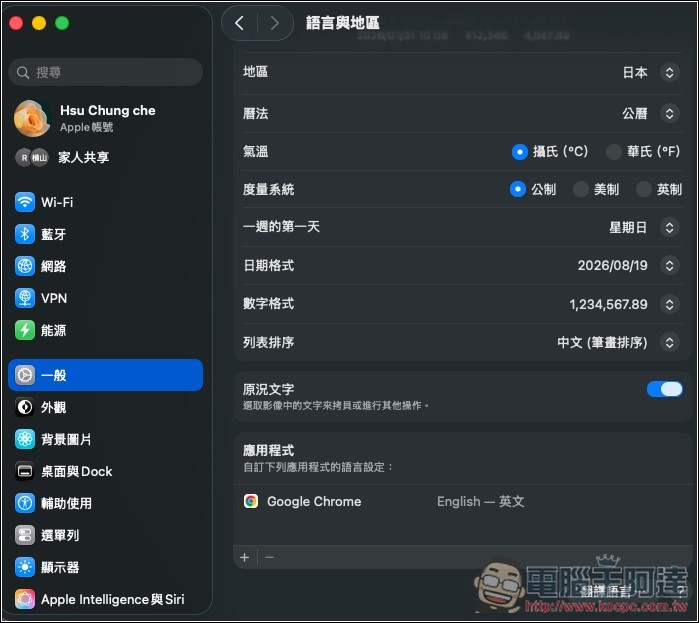
It is recommended to first change Chrome’s language to English. Open System Settings -> General -> Language & Region -> Under Apps, add Chrome and set it to English. Also, don’t forget to connect your VPN to the US:
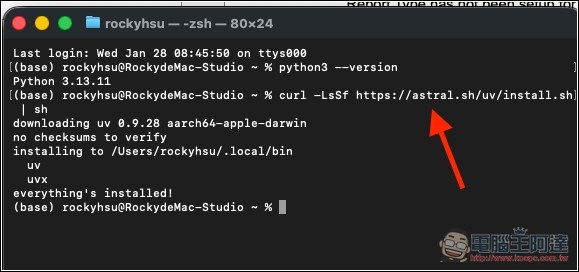
Open the terminal, then enter curl -LsSf https://astral.sh/uv/install.sh | sh, to install the uv tool:
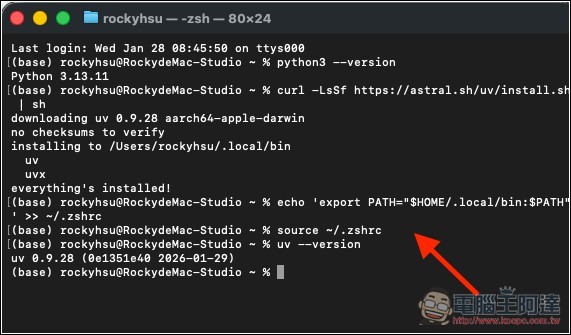
Then, to configure the environment, first enter:echo 'export PATH="$HOME/.local/bin:$PATH"' >> ~/.zshrcThen enter:source ~/.zshrc To activate, finally enter uv --version Verify whether the version has appeared:
After completion, start downloading and running the script, enter git clone https://github.com/lcandy2/enable-chrome-ai.git To download, go to cd enable-chrome-ai In the folder, enter uv syncInstall dependencies, then run the script. uv run main.pyChrome will automatically restart during the process:
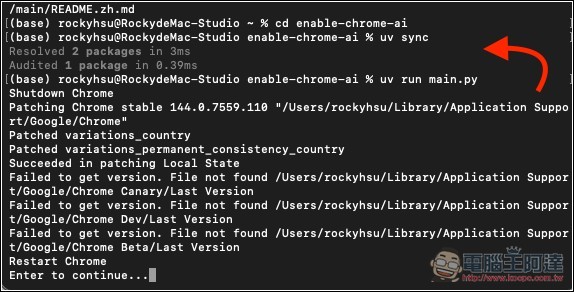
The Gemini feature will then appear in the top right corner of Chrome:
What if Gemini still doesn’t show up in Chrome after the operation?
If you still don’t see Gemini after trying the steps above, here are some other methods you can try.
Go to the chrome://flags/ menu and enable the following items:
- Tabstrip Combo Button
- Glic
- Glic Z Order Changes
- Glic actor
- Glic Pre-Warming
- Glic side panel
- Glic FRE Pre-Warming
Source: KOCPC Chinese