


updated Android 11 After that, I wonder if you have discovered any favorite feature enhancements or hidden features? After the editor’s Pixel was updated with the most advanced Google mobile system, the first thing I shared with you was the Bubbles bubble dialog function (available in Slack, Google Messages, WhatsApp, Telegram and Discord, etc.Teaching click here), but in fact there is also a very convenient quick menu at your fingertips, which has become one of the editor’s favorite Android 11 system features. I will share it with you through teaching. Continue reading Android 11’s ultra-convenient “Power Menu Quick Settings” teaches you how to use report content.
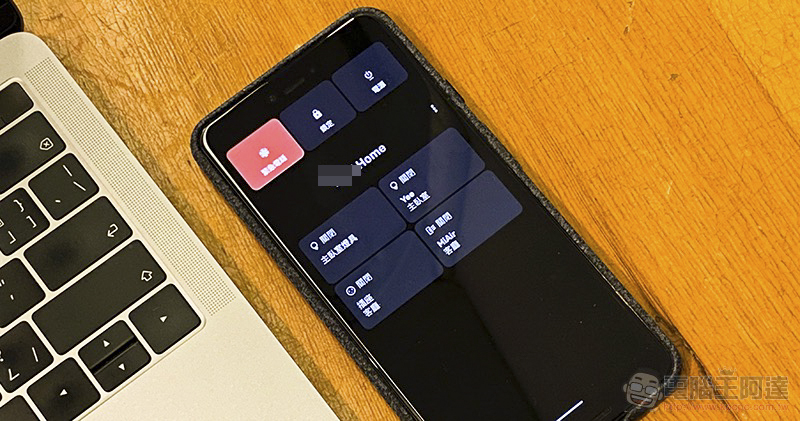
This article teaches you how to use Android 11’s super convenient “Power Menu Quick Settings” (supports Mijia!)
Although mobile phones have gradually become the “bedtime reading” + “alarm clock” for most modern people, the result is that unless the system is weird or an update requires restarting, few people are accustomed to turning off their mobile phones, which also makes the power button less and less important. Therefore, the “Power Menu” shortcut settings added by Google this time in Android 11 have become attributes with somewhat hidden functions (laughs).
Android 11 makes more effective use of the menu function of long-pressing the power button, allowing users to quickly access shortcut function options including Google Pay, Google Home / Nest Home, and even Mijia, which many people love. The editor’s impression is that this function is turned on by default. You only need to long press the power button to see the menu:
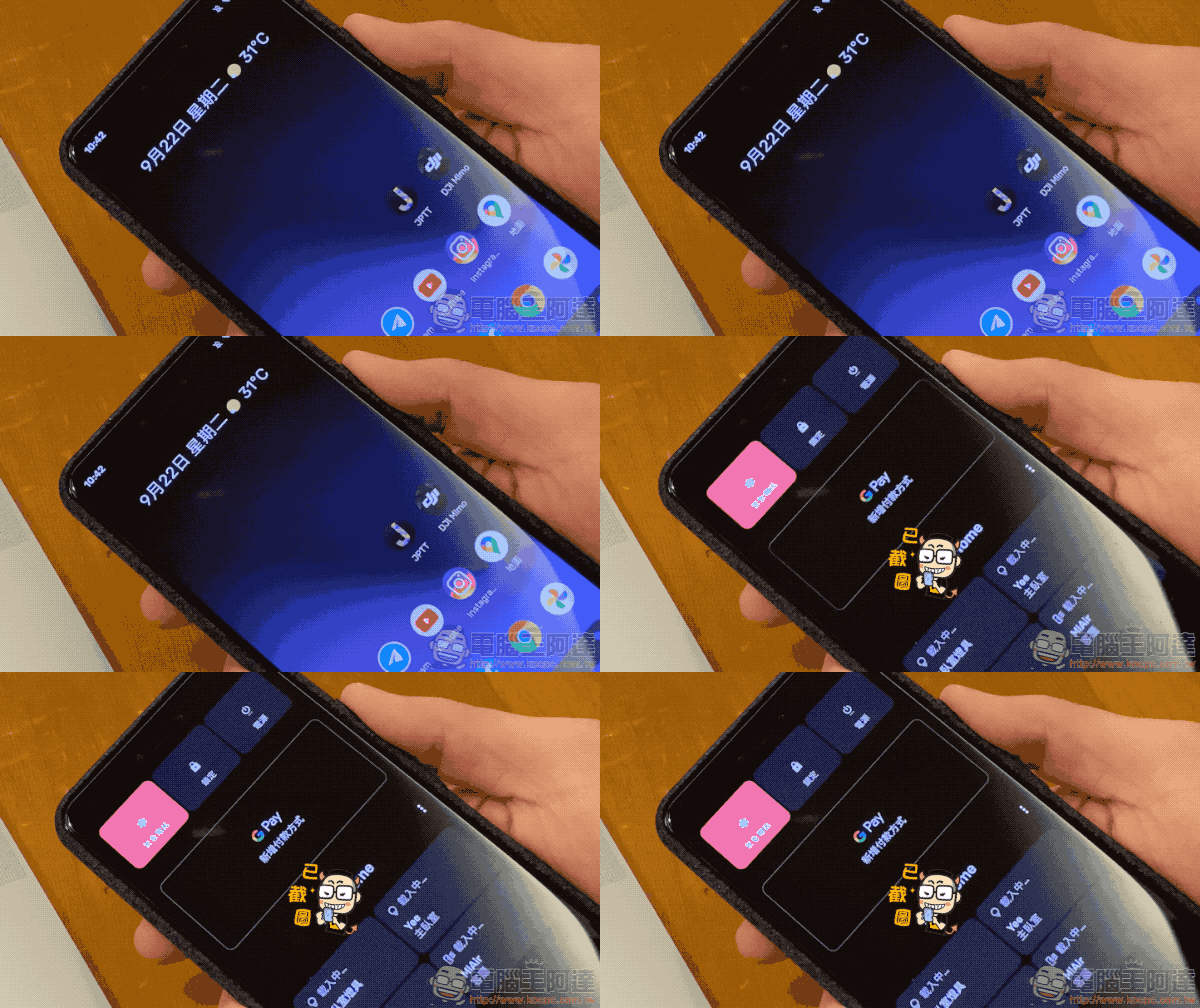
Don’t worry if you don’t see it after long pressing. Touch the fingerprint sensor and the menu will be displayed. After all, you need to control the devices at home, so you need to unlock them before you can access these information and control functions:
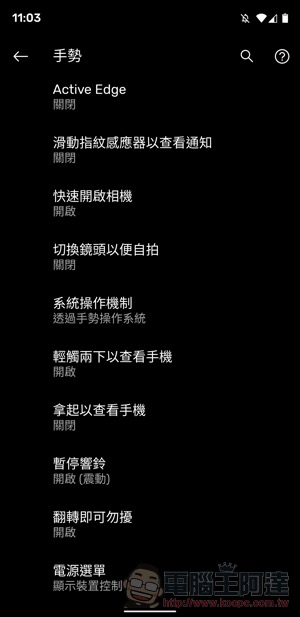
This feature can be found in “System > Gestures > Power Menu” in Android 11 settings – it’s hidden in the last item, and it’s too low-key! :
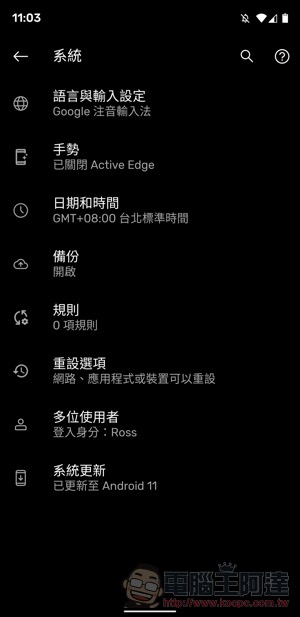
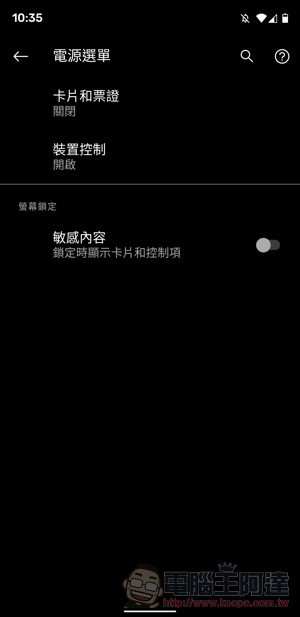
You can open the “Cards and Tickets” and “Device Control” sections respectively. If your phone is not afraid of being obtained by others, you can choose to turn on “Sensitive Content” so that you can directly access these items without unlocking it – we do not recommend it:
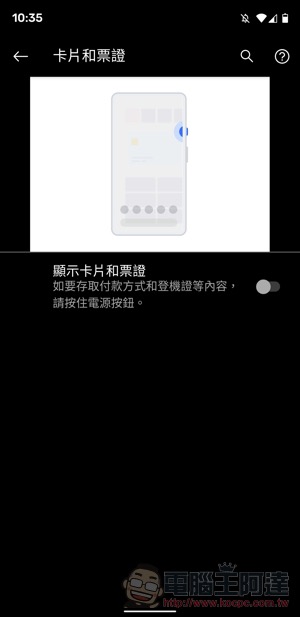
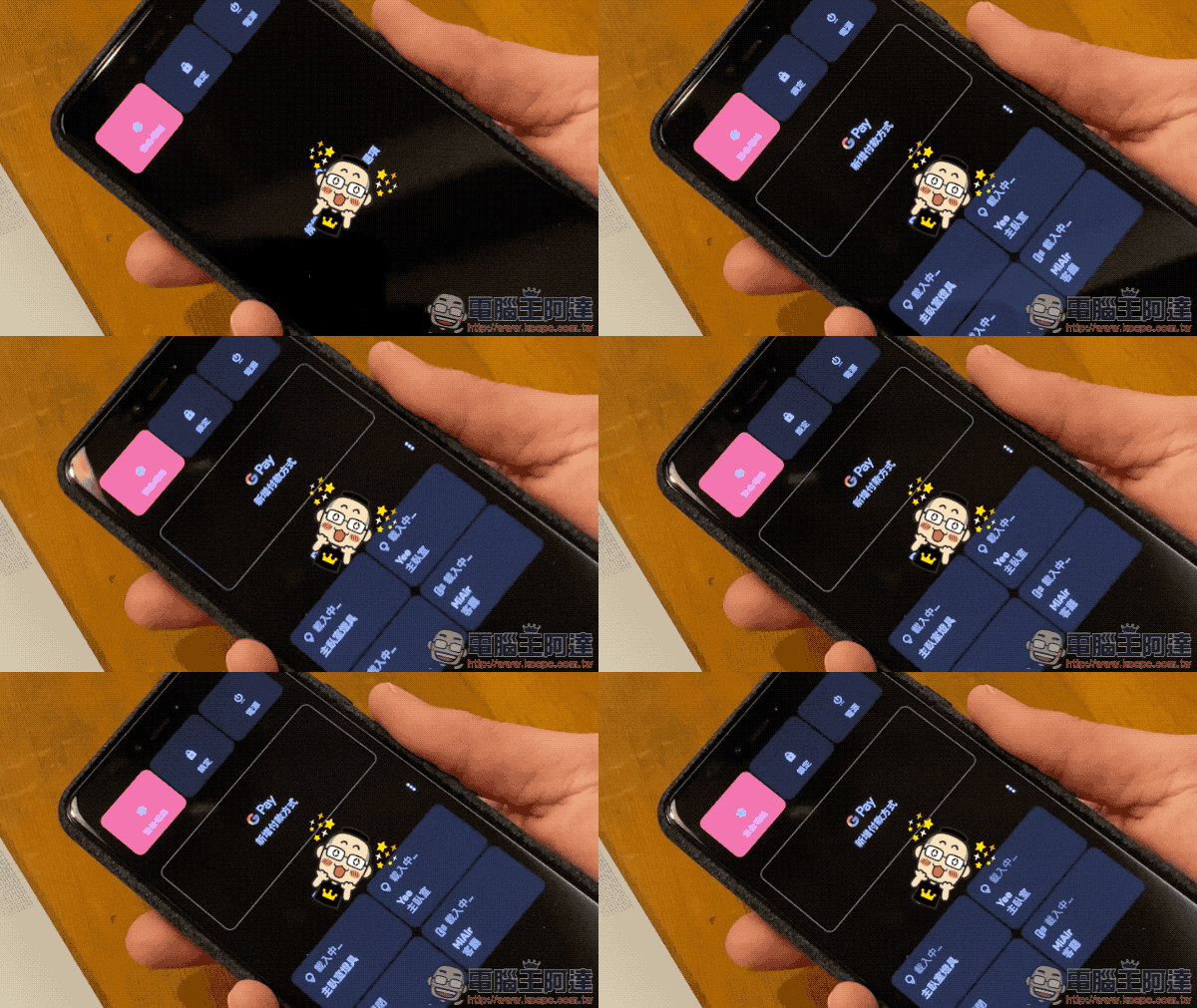
Long press the power button menu to directly see the shortcut buttons for G Pay and Google Home; through the “…” in the upper right corner, you can edit/add Google Home control buttons:
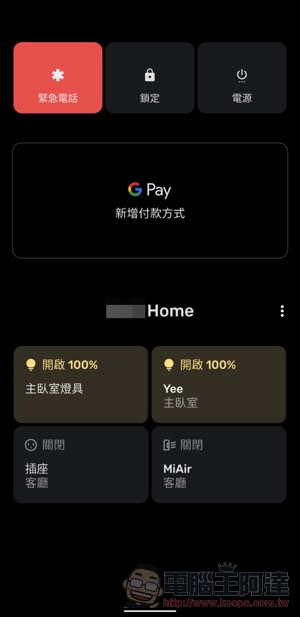
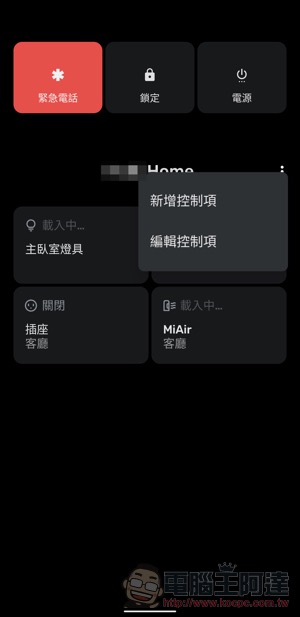
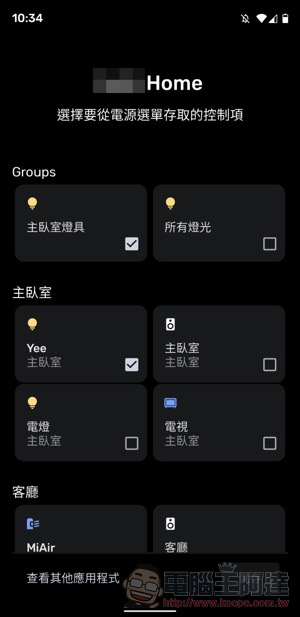
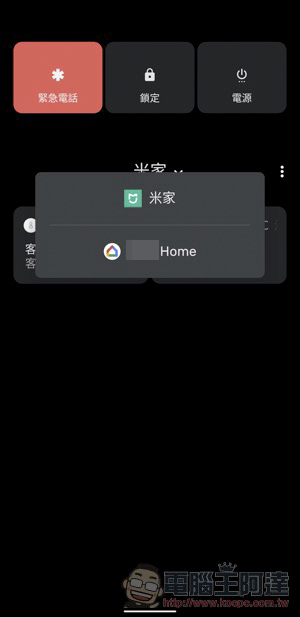
It should be noted that if you have unchecked some devices through “Edit Controls”, you will find that those unchecked control functions will disappear when you enter this menu later. At this time, remember to click “Add Control” to add it back; if you have more than one IoT system at home, there is also a “View other applications” at the bottom of this menu that you can open and take a look at, because the Mijia I use has support (super surprise):
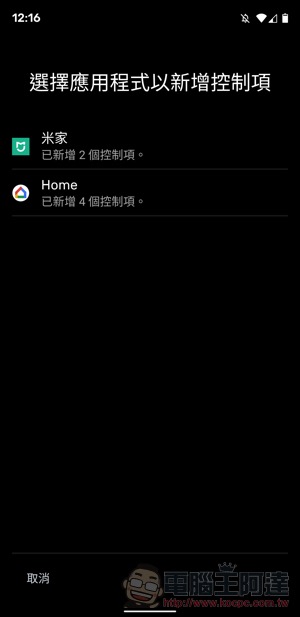
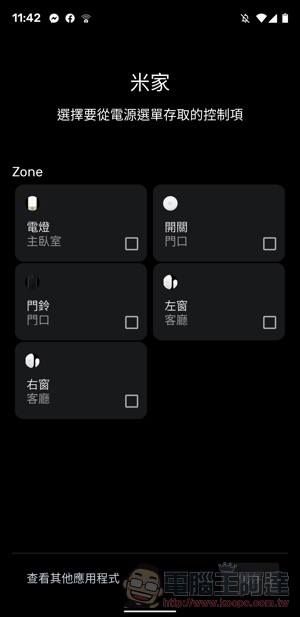
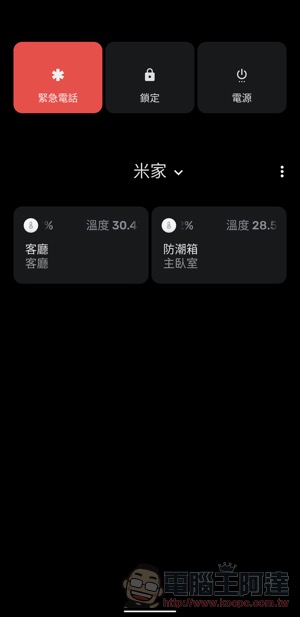
After switching, you can see the controls in Mijia that support this page – because Google Home already supports many Mijia control functions, the editor here chose the temperature and humidity display (it will be displayed with a marquee, which is actually a bit dazzling XD):
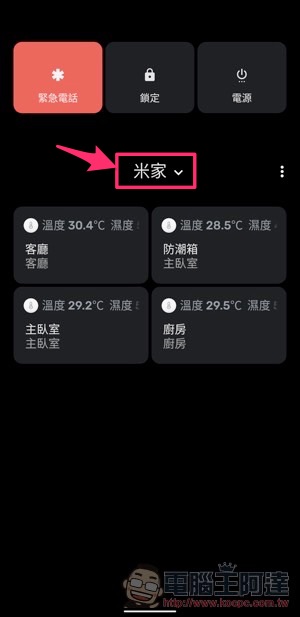
After adding more than two IoT control items, if you want to switch to different systems, you can click on the area marked in the picture below to quickly switch:
Conclusion
Seriously, although the editor’s Pixel 3 XL is not set to be used for payment, it is very useful just to turn off the lighting in the bedroom before going to bed, or to quickly turn on IoT devices such as sockets and air filters. Although it is not too troublesome to directly ask Google Home mini or Google Assistant on your mobile phone to do it for you, people are always too lazy to speak out occasionally. At this time, this shortcut function is very convenient.
Further reading:
Android 11 “Bubble Dialog” tutorial: Slack, WhatApp and Telegram can all be activated!

Gmail can be used as the default email app in iOS 14. This article will teach you how to set it up!

Source: KOCPC Chinese