


Among the many changes in the iOS 14 operating system update, there is also a new “banner” caller ID interface. Different from previous notifications that were displayed on the full screen, and users may be forced to interrupt their original actions when doing other things. Starting with iOS 14, banner notifications will float at the top of the screen like normal push notifications. If you want to wait for a while and then answer the notification, just swipe up first.
However, there must be many people who are still more accustomed to the original full-screen caller ID. Today, let’s quickly share some tips on how to set it up!
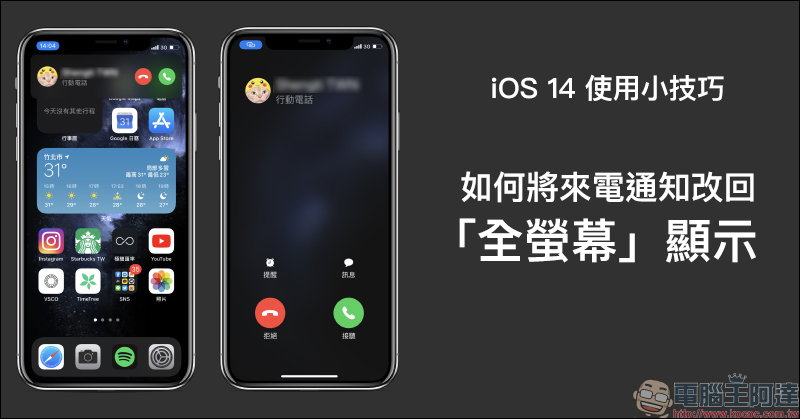
iOS 14 application tips: Tutorial on changing incoming call notifications back to “full screen” display settings
After using the full-screen caller ID screen for many years, iOS 14 now adds a banner caller ID with a small card at the top of the screen, allowing users to see the phone screen without being blocked by the screen whether they are receiving an incoming call or during a call.
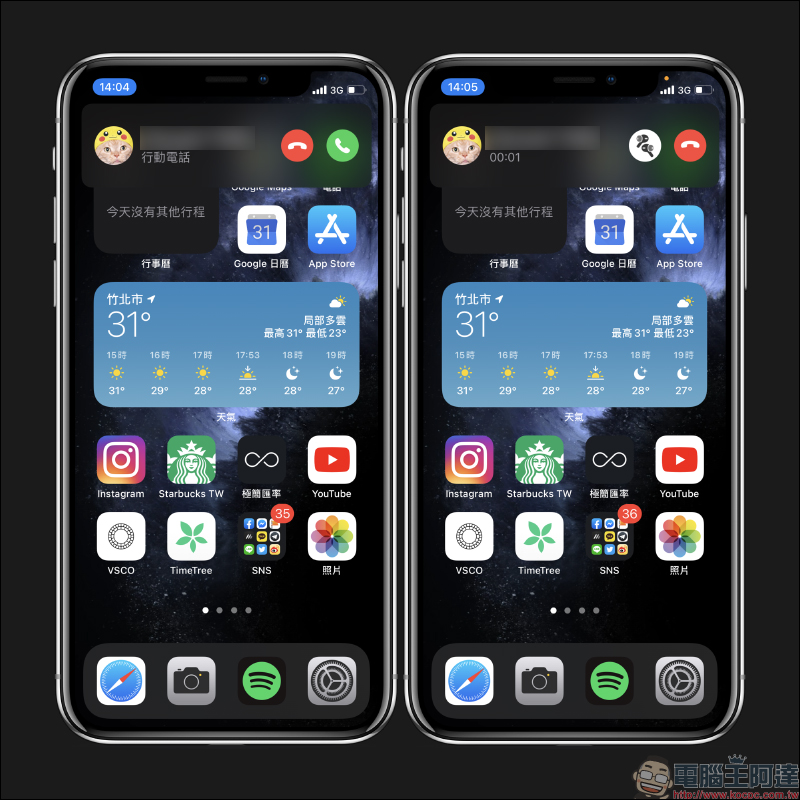
Not only that, if you don’t want to answer the call yet, just slide the banner window upwards and it will automatically hide in the upper left corner of the iOS screen and display as a phone icon. At the same time, the original vibration or ring reminder will also be muted. Just press the power button once to ignore the incoming call.
In addition, hiding the incoming call notification also means that the call is still online and waiting to be answered. If you want to answer the call, just click on the icon, and then the incoming call screen will be converted to a full-screen display.
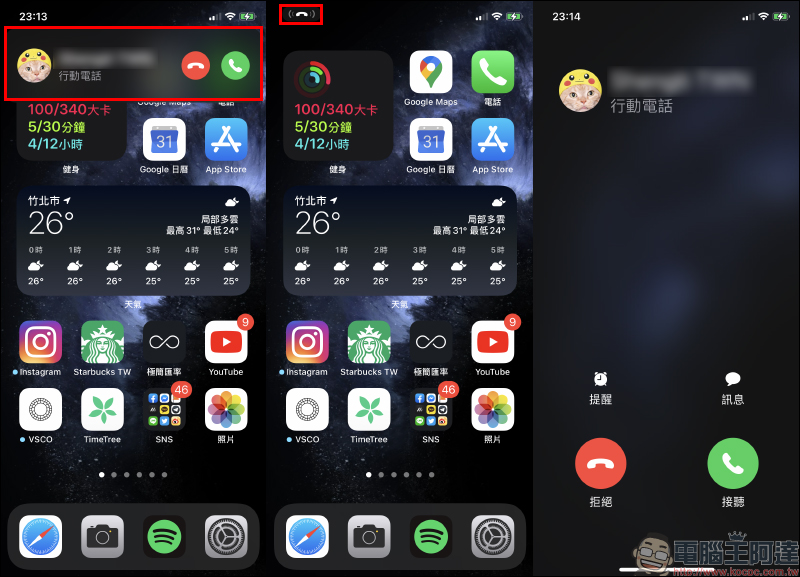
However, if the phone is locked when a call comes in, it will be displayed directly in full-screen mode. Currently, you can only press the power button once to mute it, and press it again to hang up the call.
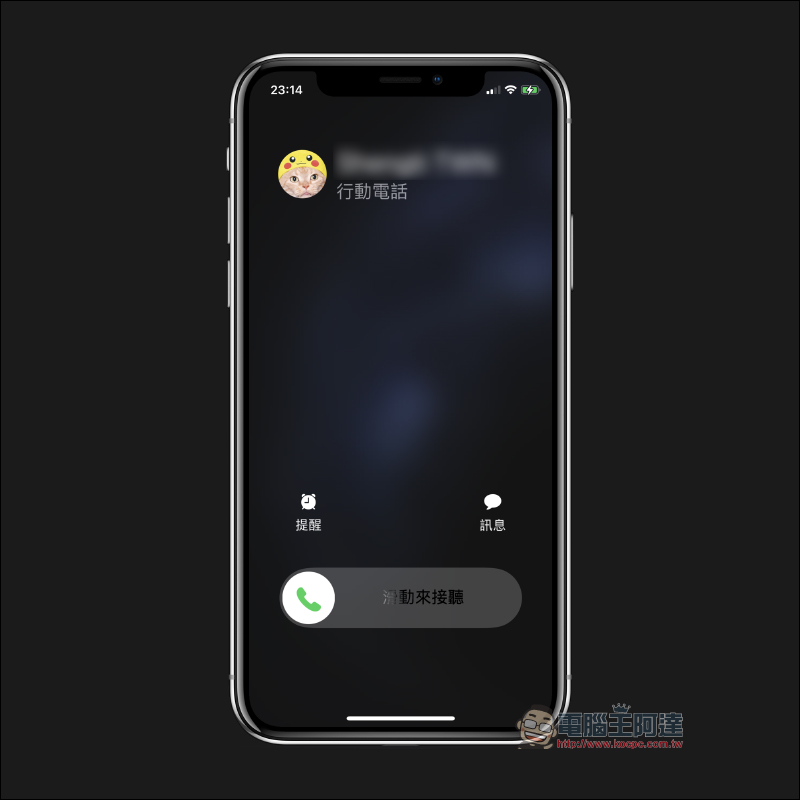
How to change the call screen back to “full screen” display?
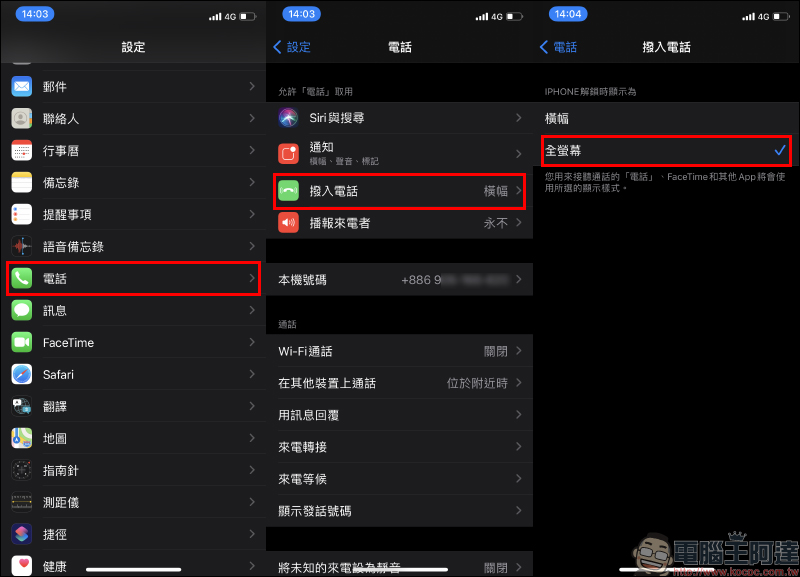
In fact, the full-screen caller ID has not been canceled with iOS 14. Users can still change it back to the previous full-screen display mode through settings. First select “Phone” in “Settings”, then select “Incoming Calls” and then change “Banner” to “Full Screen”:
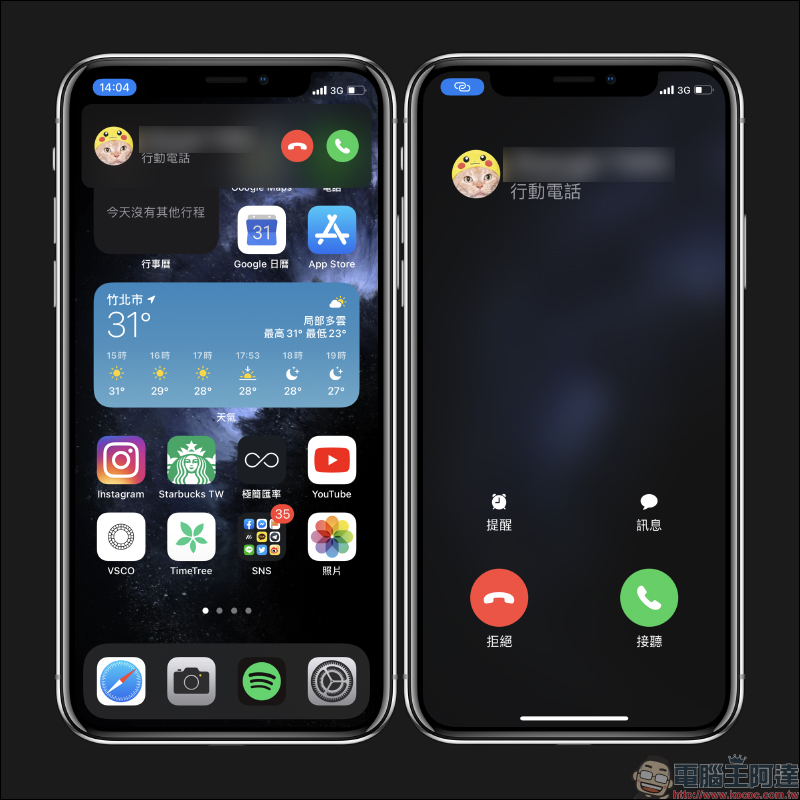
Let’s briefly compare the differences between “banner” and “full screen” caller ID when receiving an incoming call:
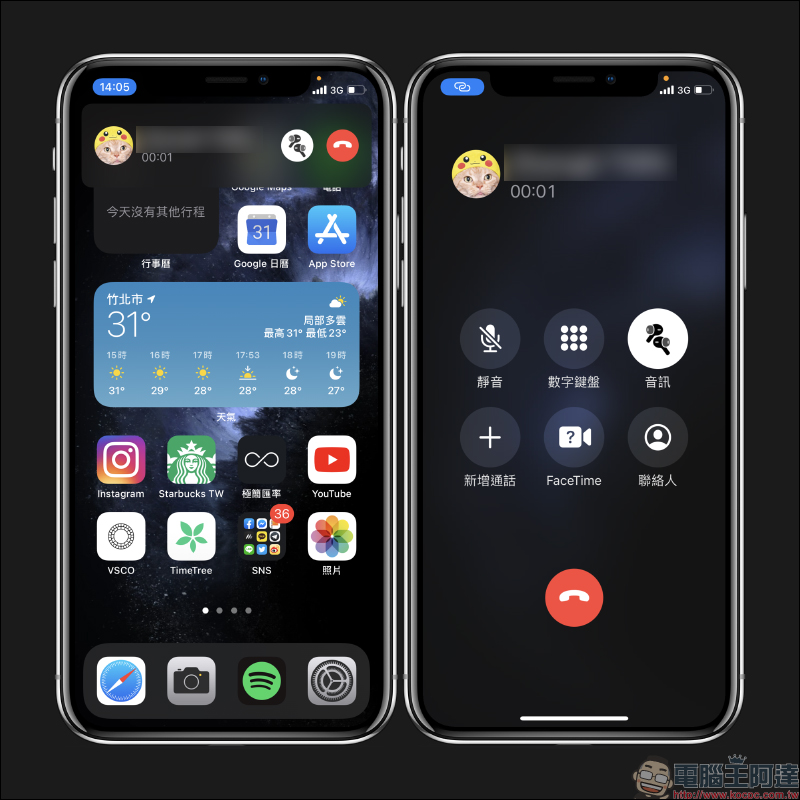
And after picking up the phone, the difference in the call screen display between calls:
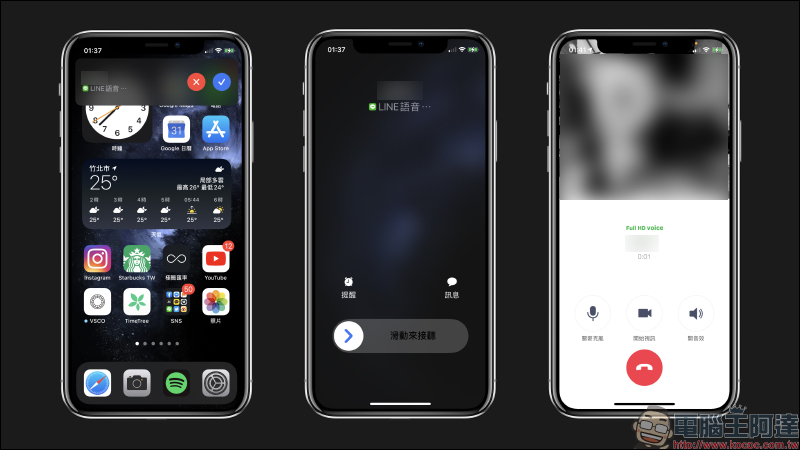
Other voice calls, such as LINE and FB Messenger, can also be set to be displayed as a “banner” when not answered, but incoming calls on the lock screen and the screen during the call are also displayed in full screen.
As for which kind of incoming call screen is better to use, it still depends on your daily usage habits!
Further reading:
Is the iOS 14 translation app easy to use? What are the obvious differences compared to Google Translate?


Source: KOCPC Chinese