


Many have recently updated their iPhones to the latest iOS 14 Users of the operating system are looking forward to using this new feature of “picture-in-picture (picture-in-picture)” when playing videos, so that they can watch videos while browsing social media, surfing the Internet and other multi-tasking needs.
However, the iOS 14 picture-in-picture feature is currently in the early stages of launch, and there are still many apps that do not yet support this feature. For example, the YouTube App that everyone watches most every day does not yet support it. Today I will share with you how to enable these apps to easily enable “picture-in-picture” to play videos!
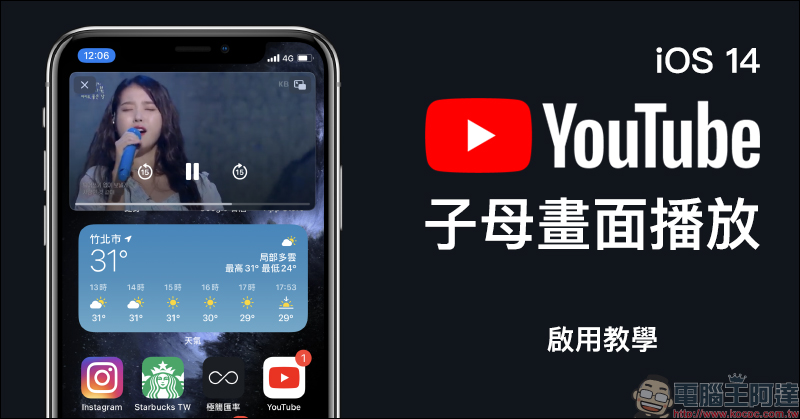
iOS 14 picture-in-picture video playback tutorial on YouTube, applicable to Facebook and other apps that do not support picture-in-picture video playback
After updating the iOS 14 operating system, some audio and video apps can now use “picture-in-picture” to play videos. For example, Netflix App users can use this feature to watch TV shows, surf the Internet, or chat with friends on LINE. This is indeed a very useful feature for “time managers” who often multitask.
However, YouTube App has not yet enabled this feature. However, as long as you use the Safari browser to open the YouTube web version, you can still use picture-in-picture to play YouTube videos.
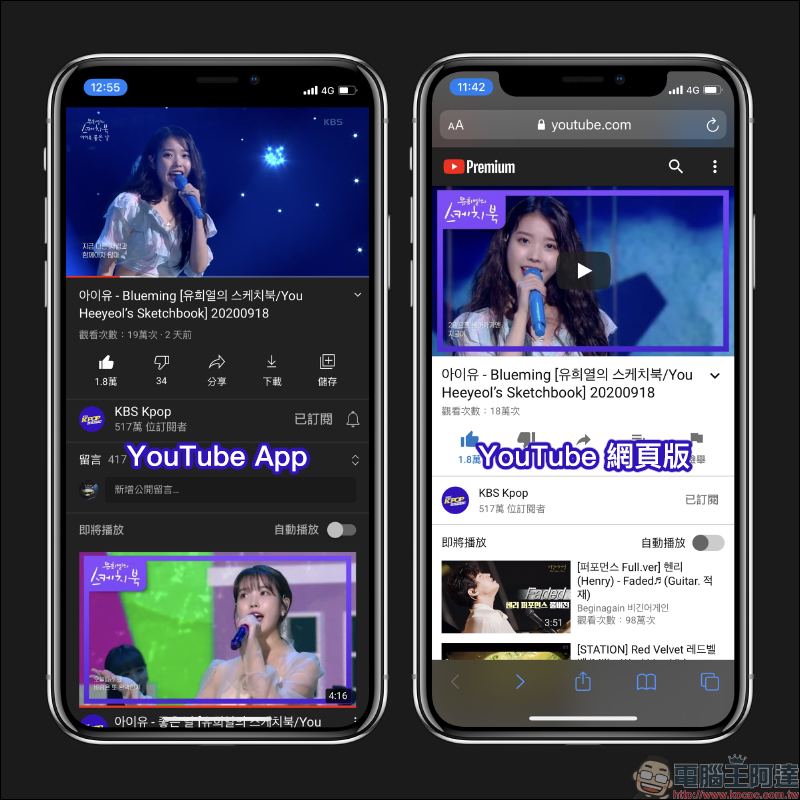
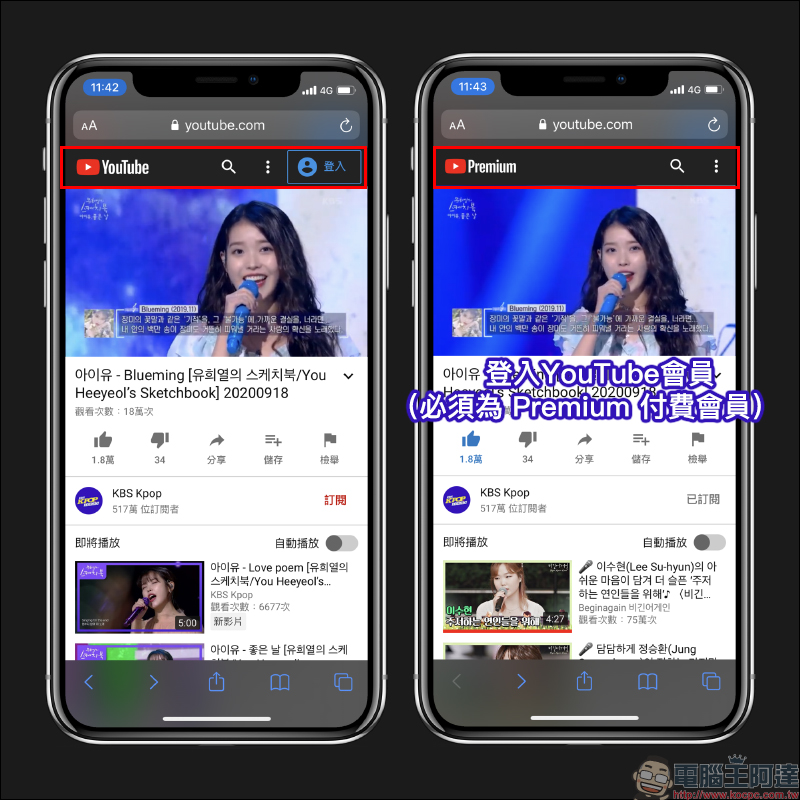
However, so far, according to actual testing, in order to use the picture-in-picture feature on the YouTube web version of iOS 14 to play videos, in addition to being logged in as a member, the member must also be a paid YouTube Premium member to use it. Compared with iPadOS 14 on the iPad, there are some differences in that you can enable the picture-in-picture function through the YouTube web version without logging in or paying membership.
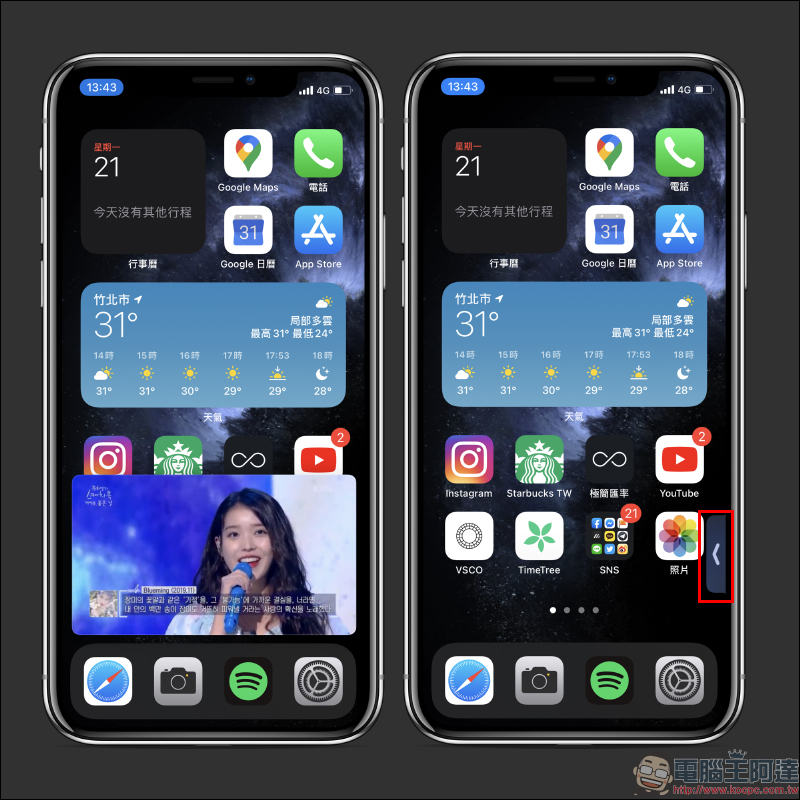
For YouTube Premium paid members, during video playback, a “picture-in-picture” function button can be seen in the player in the upper left corner of the screen. Just click it to jump to the picture-in-picture playback display mode. Users can also adjust the size and display position of the video in the sub-picture status:
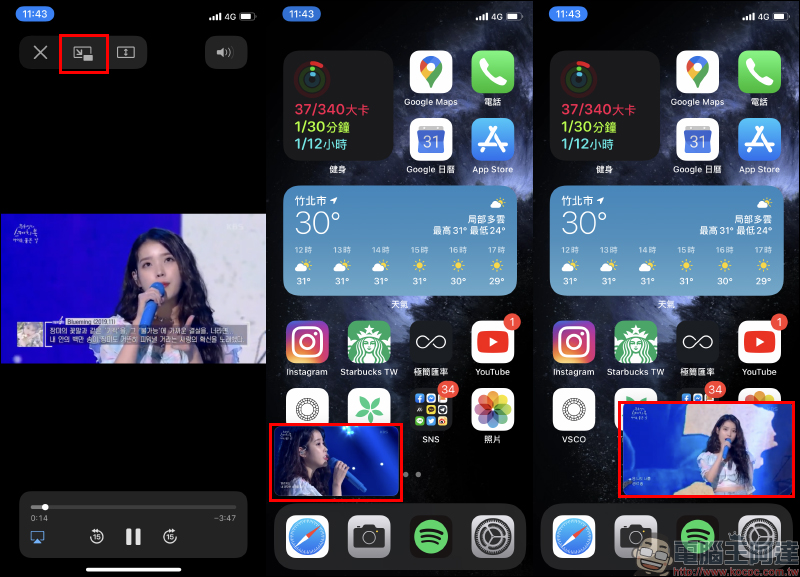
You can also enlarge the video screen to a display size that is the same width as the screen. Whether on the main screen or during other app operations, the video played in picture-in-picture mode will be displayed at the top of the screen without being blocked.

However, in addition to floating the picture-in-picture screen on the home screen or other apps for playback, you can also slide the video to the right to hide it on the left or right side of the screen. When it is restored, just click the arrow button to quickly open it.
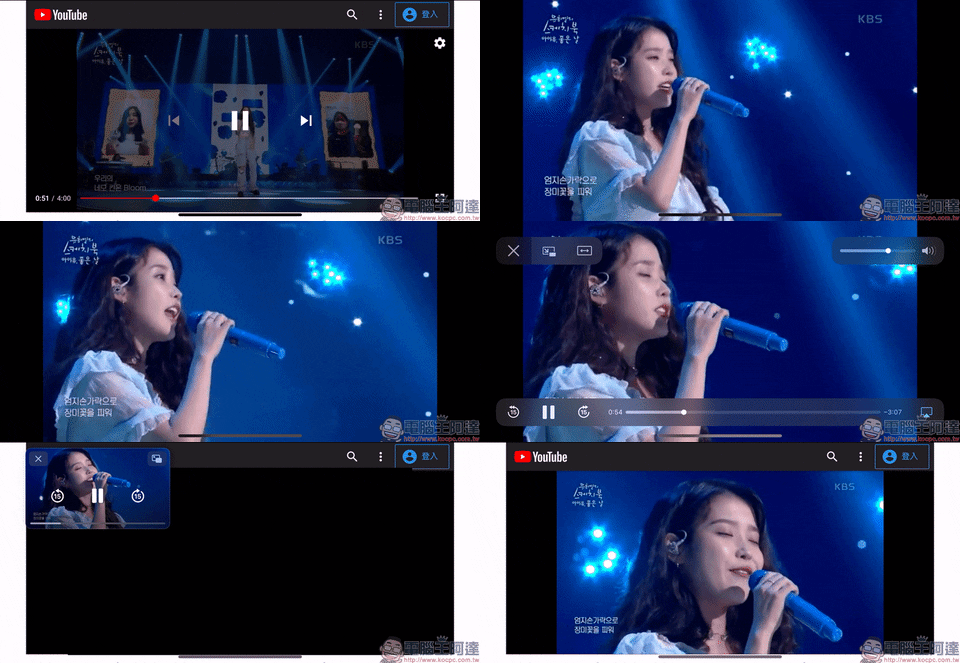
As mentioned above, in order to play videos using “picture-in-picture” on YouTube, you must be logged in as a member (and must be a YouTube Premium paid member). Here is a practical demonstration of the results if you are not logged in or a non-YouTube Premium member presses the “picture-in-picture” button. It can be found that although the screen will briefly switch to picture-in-picture display, it will then return to the original playback state without full-screen display after the video is zoomed out, and picture-in-picture cannot be enabled in this state.
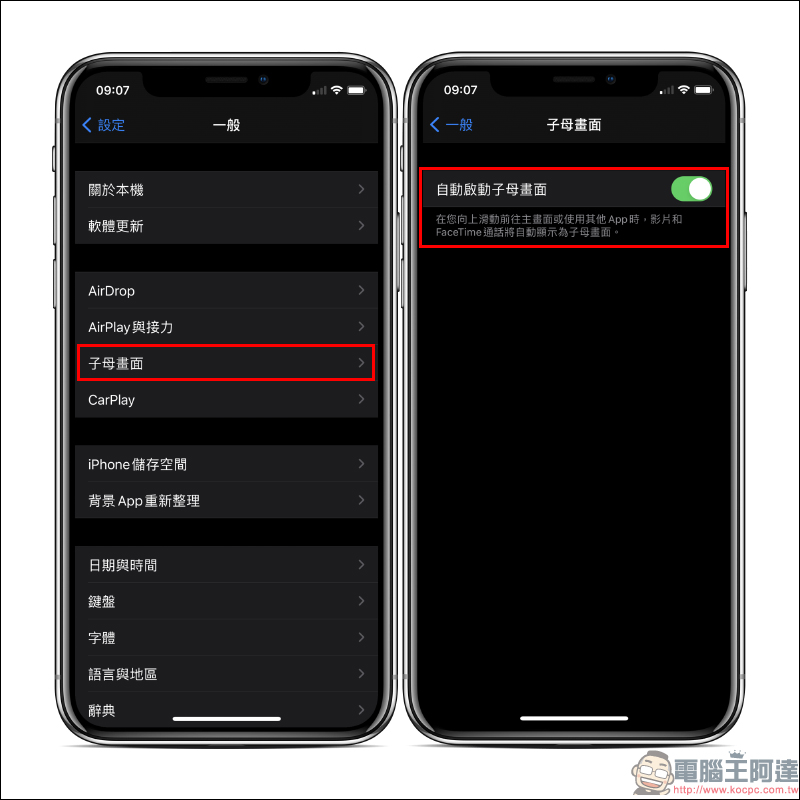
If you want to enable the picture-in-picture function more conveniently, just turn on the “Automatically activate picture-in-picture” function in the settings. Then when the user swipes up on the video playback screen to go to the home screen or uses other apps, videos and FaceTime calls will automatically be displayed in picture-in-picture.
The following is a simple demonstration of the operation process through animations. The function of automatically starting the picture-in-picture function eliminates the need to manually click the picture-in-picture button, making it more intuitive and convenient to use.

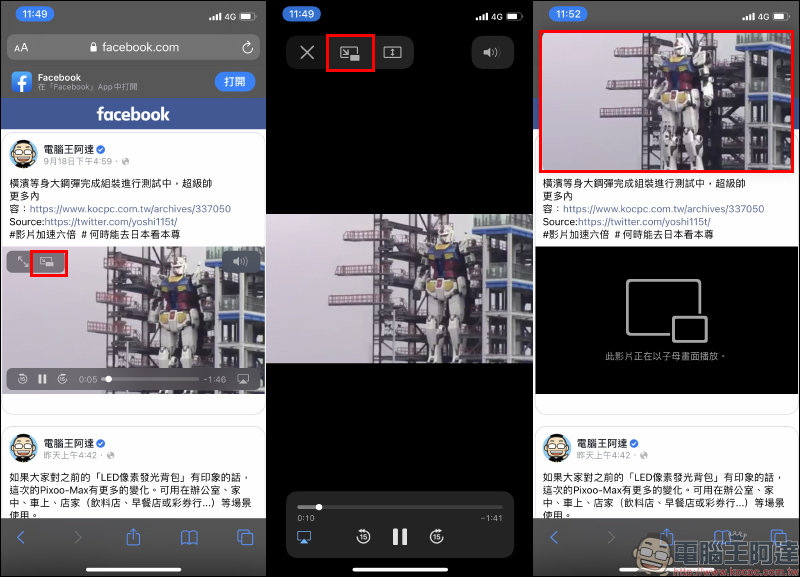
However, in fact, in addition to YouTube, which currently requires opening the web version through a browser to activate the “picture-in-picture” playback function, Facebook, for example, currently does not support picture-in-picture in the app version, and it can also be enabled through the web version. Users can open the Facebook web version through a browser and click the “Picture-in-picture” button in the upper left corner of the video player to play in picture-in-picture.
Further reading:
Tips for activating “Google Gadgets” in iOS 14. Use this trick to find hidden and useful Google Gadgets!


Source: KOCPC Chinese