


If you haven’t downloaded any large games or videos yet notice your Windows 11 C drive space mysteriously shrinking, it might not be your fault—a Windows 11 bug could be causing a hidden database log file in the system to keep growing.
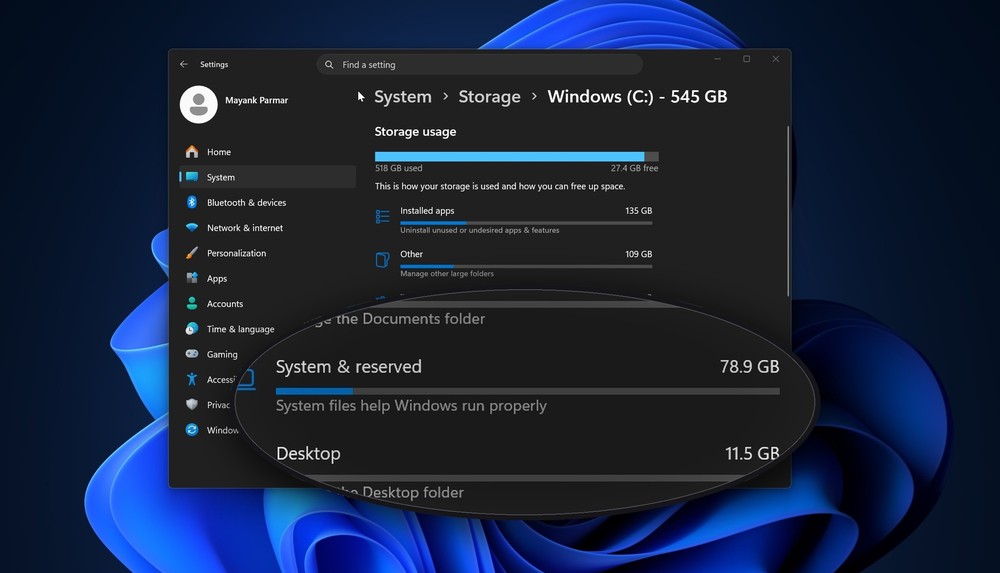
foreign media Windows Latest Recently, a report surfaced that Microsoft has acknowledged an abnormal storage bug in Windows 11. Under normal circumstances, this file might only be a few MB, but some users reported it swelling to tens of GB or even over 100 GB, with some Reddit users finding after checking with TreeSize that approximately 513 GB was consumed by it.
Source: Windows Latest
Windows 11 hidden files could be secretly hogging your C drive space! Foreign media reports say they can take up over 500GB — here’s how to check if you’re affected
The file in question is CapabilityAccessManager.db-wal, located at C:\ProgramData\Microsoft\Windows\CapabilityAccessManager\.
CapabilityAccessManager may be unfamiliar to most users—it handles Windows app permissions for sensitive features like camera, microphone, location, and screen capture.
And this time, the problem is with CapabilityAccessManager.db-wal, which you can think of as a background log file related to the permission database. More precisely, .db-wal typically refers to the database’s Write-Ahead Log, a log file the system uses to temporarily store or record changes before officially writing to the database—it’s not a file that general users would open and view.
Under normal circumstances, this file should not grow without limit.
Windows Latest reports that on unaffected computers, the entire CapabilityAccessManager folder is under 4MB, with CapabilityAccessManager.db-wal being only about 1.6MB. But on problematic computers, the situation is completely different—one of their computers has “System and reserved” taking up as much as 89GB, and further investigation revealed it was related to CapabilityAccessManager.db-wal:
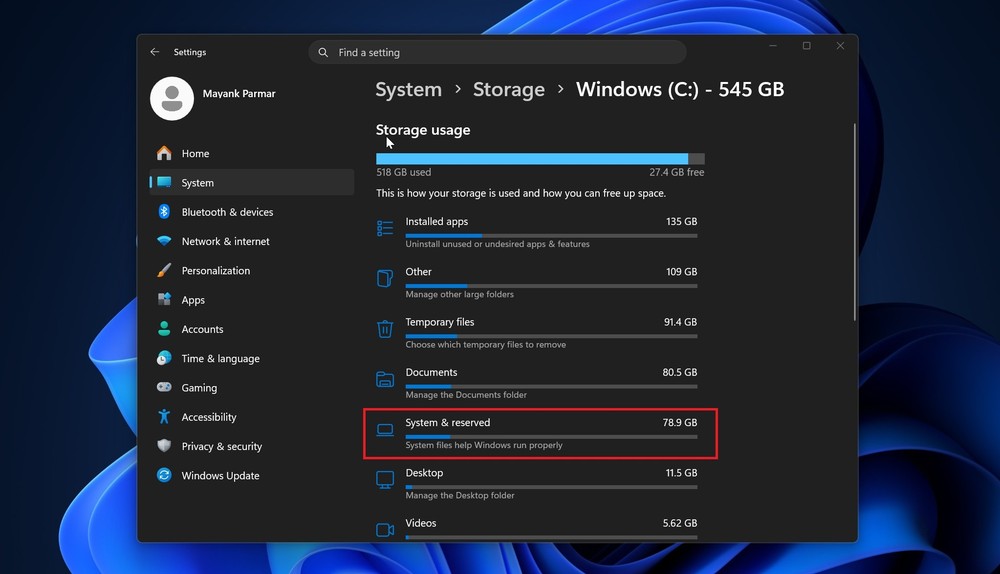
Image source: Windows Latest
Besides this, there have also been reports from users online that some individual files have already ballooned to 66.5GB, 99GB. Even in Reddit threadAdditionally, users have seen capabilityaccessmanager.db.wal occupying approximately 513GB via TreeSize.
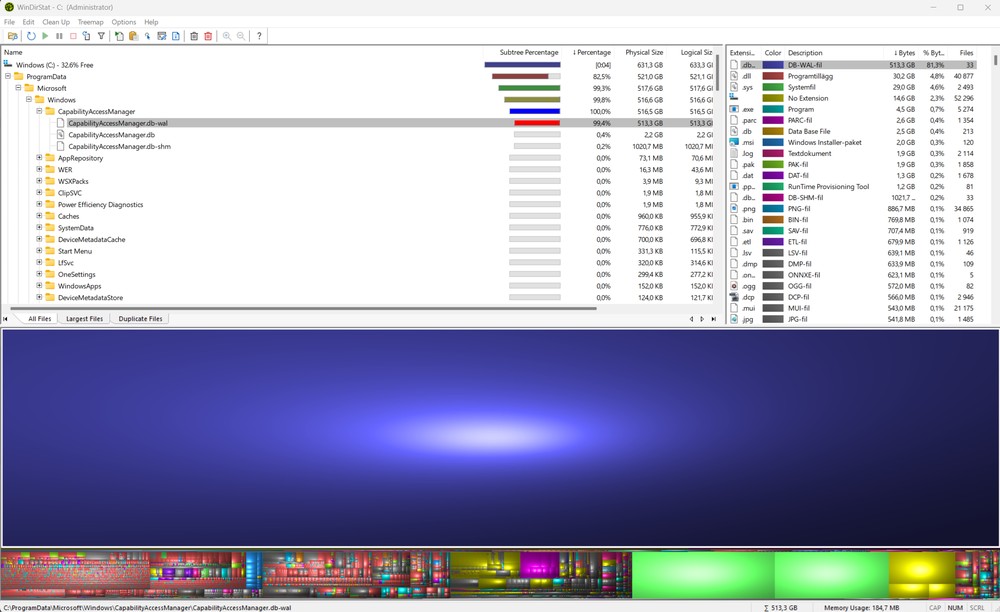
Image source: Reddit
Of course, not every Windows 11 user has encountered this — so far, it appears to be only a few isolated cases.
In the Windows 11 KB5095093 update notes, Microsoft mentioned an improvement to disk space usage for CapabilityAccessManager.db-wal, but didn’t publicly explain the root cause or specify which computers or specific Windows versions trigger this issue.TechRadar reportsSome of the reports appear to be related to Dell computers.
Windows Latest reports that this fix is expected to be pushed to all users with the Patch Tuesday update on July 14, 2026.
How do I check if I’ve been compromised?
So how can regular users confirm if they’ve been affected? The simplest method is to open Settings > System > Storage, then show more categories, and check if the “System and reserved” storage usage is abnormal. If you just reformatted recently, haven’t enabled hibernation, and haven’t installed a bunch of large software, but this section shows tens of gigabytes or even over 100 GB, it’s worth investigating further.
However, Windows’ built-in Storage page has a problem—it typically only shows that space is categorized as “System files” or “System & reserved,” without directly identifying which file is causing the issue. So Windows Latest suggests opening Command Prompt as an administrator and running the following command:
robocopy "C:\ProgramData\Microsoft\Windows\CapabilityAccessManager" "%TEMP%\CAMCheck" /L /B /R:0 /W:0 /BYTES /NP
After running it, look in the output for CapabilityAccessManager.db-wal. If it’s only a few MB, you’re fine. But if it’s already several GB or tens of GB, or if you check again a few minutes later and it has grown even larger, then it’s likely an affected machine.
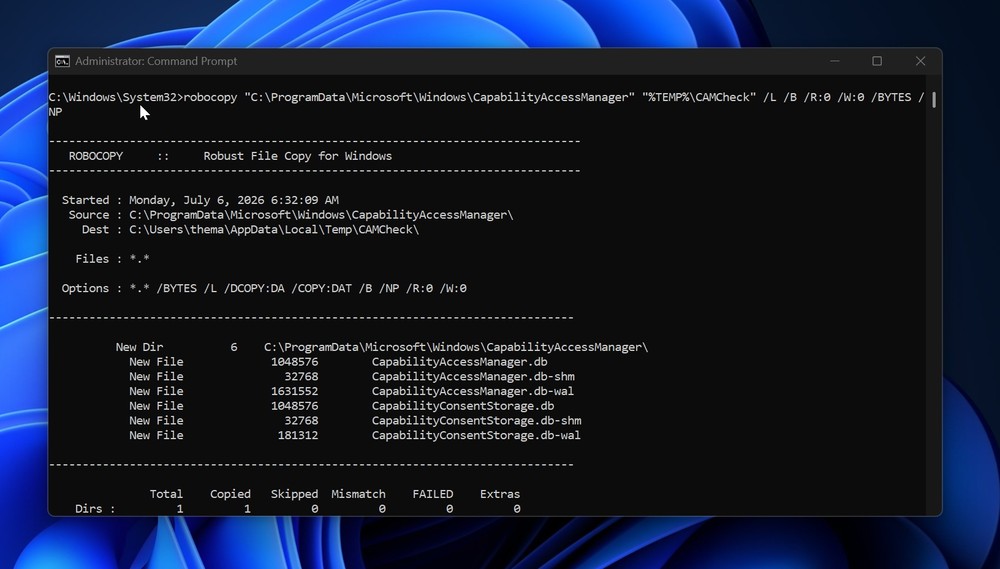
Image source: Windows Latest
If you prefer graphical tools, you can also use disk analysis tools like WizTree, TreeSize, or WinDirStat. Remember to run them as administrator, then sort by file size to check if there’s an abnormally large CapabilityAccessManager.db-wal in C:\ProgramData\Microsoft\Windows\CapabilityAccessManager\.
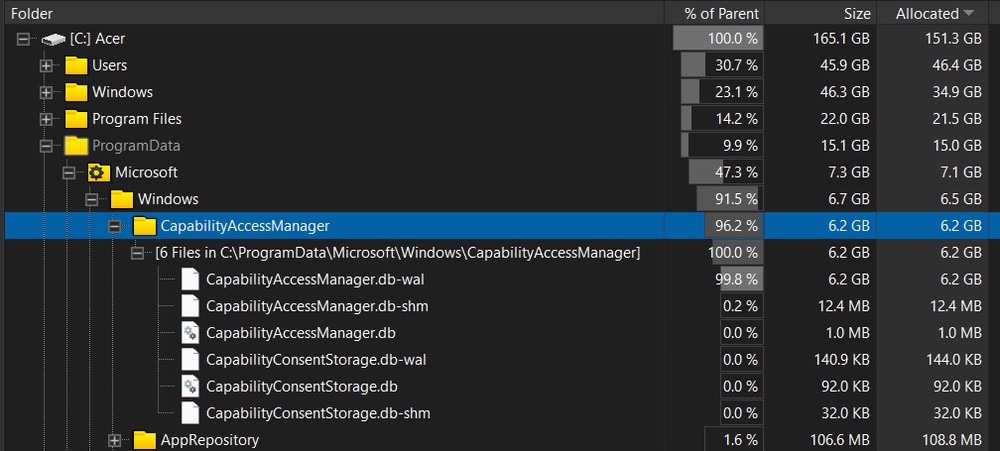
Image source: Windows Latest
Source: KOCPC Chinese