


Many people regard watching videos as their main form of entertainment, but sometimes there is inevitably interference between the video window and the work window. In addition, the applications enabled by each service are different, which inevitably makes it confusing. In smart times, you need smarter ways to watch videos, allowing you to easily enjoy all your favorite video streaming services through Mac. The “Friendly Streaming Browser” introduced today not only allows you to watch movies with ease, but also adjusts the brightness and saturation of any streaming video service.
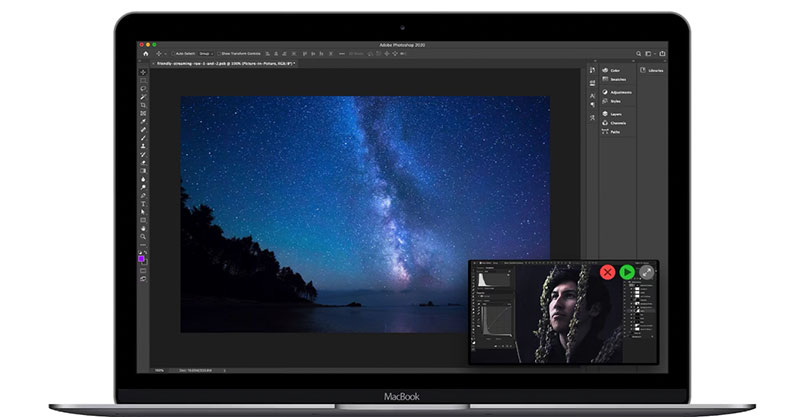
Friendly Streaming Browser video playback browser, powerful picture-in-picture function suitable for various streaming websites
The platforms most commonly used by Taiwanese people to watch videos are services such as Netflix, YouTube, and Twitch. However, these services each have their own applications or web pages. In addition to having to be opened individually when they want to watch, each of them provides different user functions. The Friendly Streaming Browser video playback browser is a useful tool that allows macOS users to quickly launch various video platforms and integrate them to adjust video effects.

macOS version:Click here
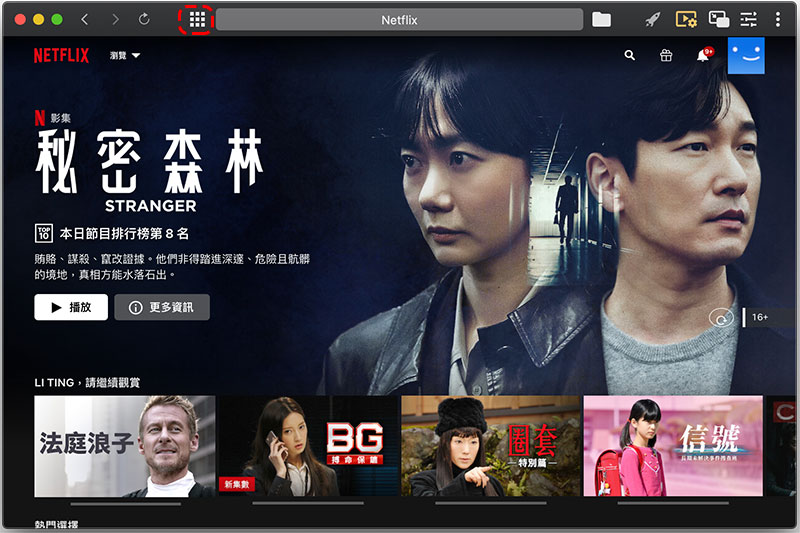
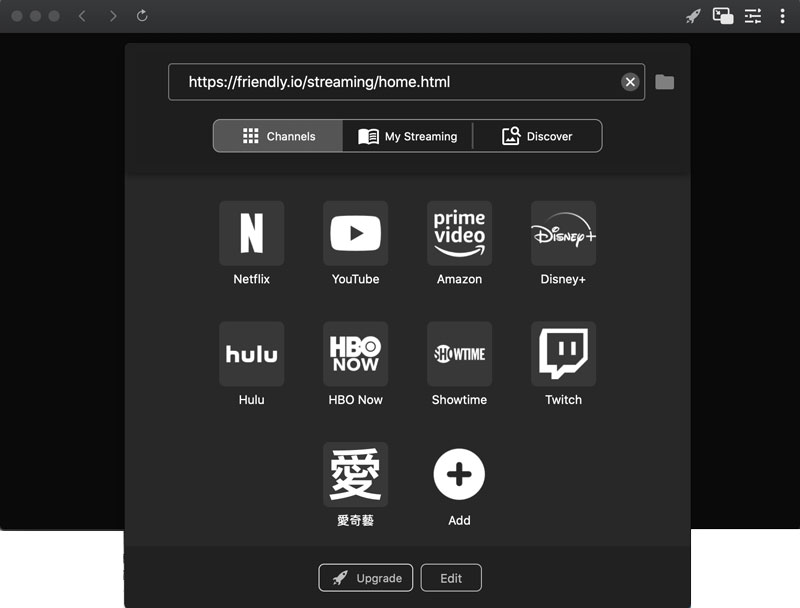
In addition to supporting major streaming services in Friendly Streaming Browser, including Netflix, Inc, YouTube, Hulu, HBO, Showtime, and Prime Video, you can also add your favorite streaming services, such as Bilibili, iQiyi, etc. After adding it, you can directly click on the icon to go there in the future.
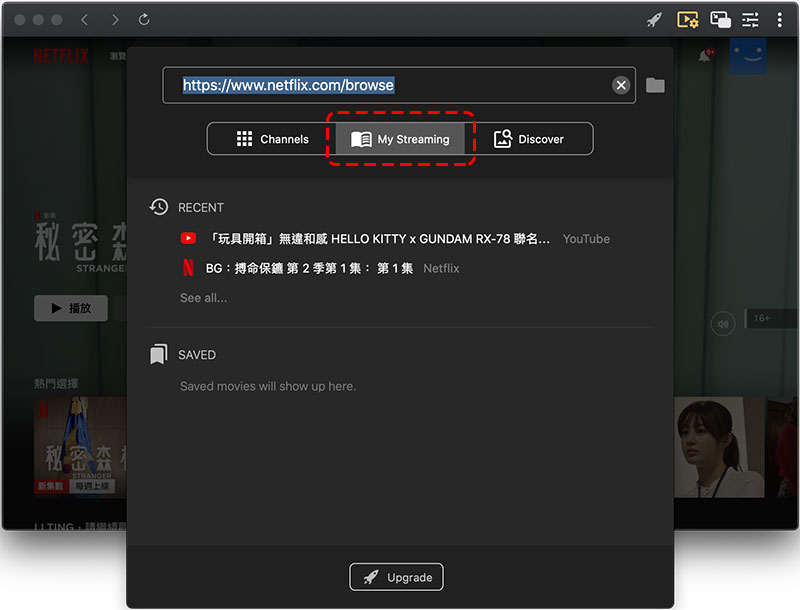
The records of videos you have watched before will also be stored in the same icon location as these quick ways, but you must switch to the My Streaming tab to see them.
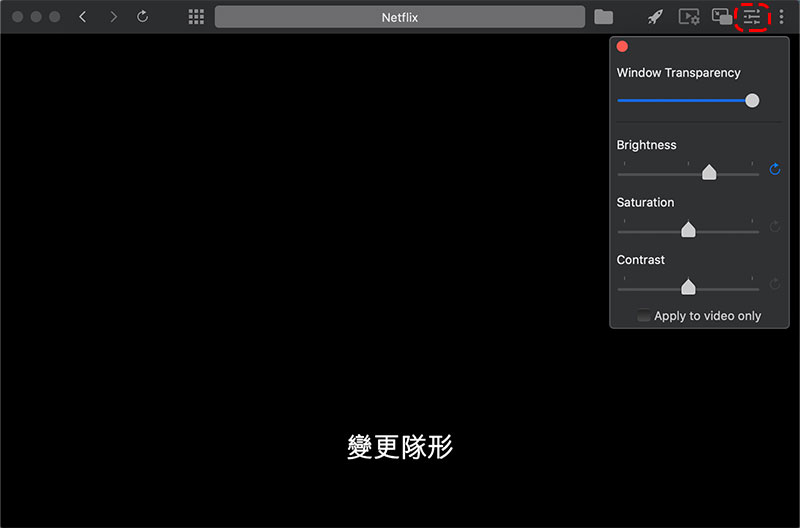
When watching a video, no matter which service you are watching the video from, you can use the levers on the Friendly Streaming Browser to adjust the brightness, color and saturation of the video, and even adjust the transparency of the window. The last option is to choose whether the color adjustment application is limited to videos. I personally recommend checking it so that other parts of the web page will not be changed accordingly.
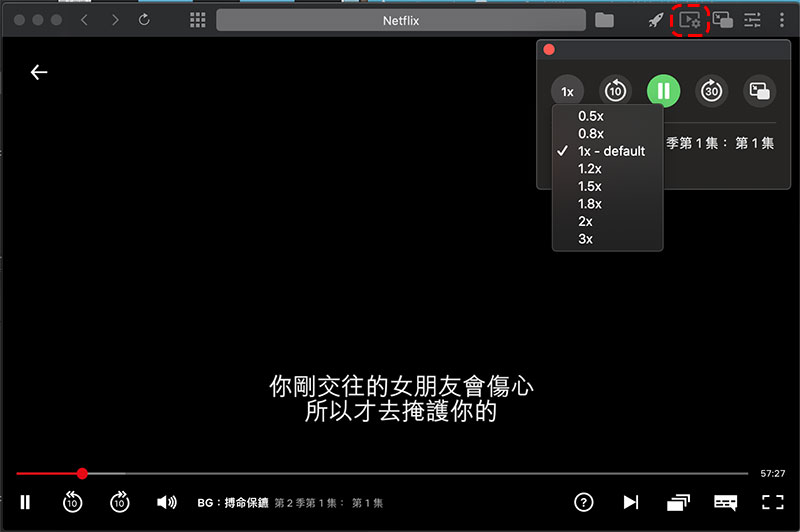
There is a window with a gear icon next to it in the upper right corner. After clicking, a simple control window will appear. In addition to seeing the name of the video currently playing, you can set the video playback speed, rewind 10 seconds, fast forward 30 seconds, etc.
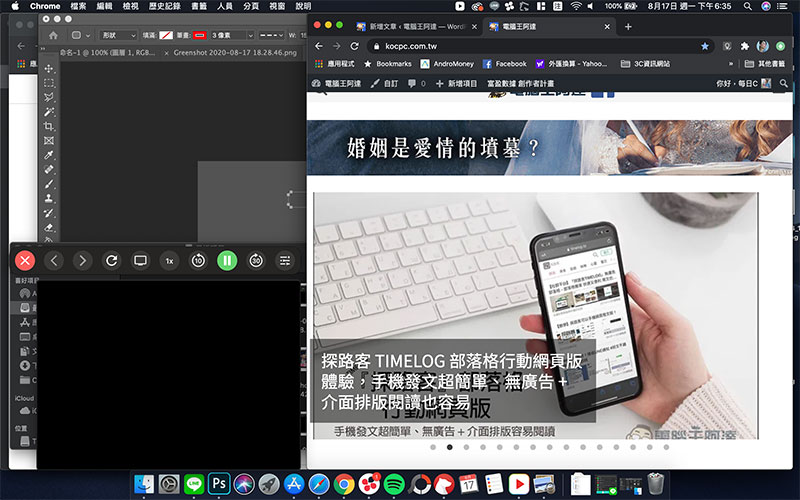
If you are watching a video while working and do not want the video to affect other windows, or you want to focus on watching the video without being disturbed by other windows, you can click the picture-in-picture icon in the upper right corner. There are two options here, the first is theater mode for full-screen viewing, and the other is picture-in-picture mode for viewing in picture-in-picture mode.

The picture-in-picture mode of this app is different from Chrome and Firefox browsers and can be applied to most video websites. When viewing in picture-in-picture mode, you can drag the window to adjust its placement and size. When your mouse cursor moves to the small window, you can see the control items, which is very convenient.
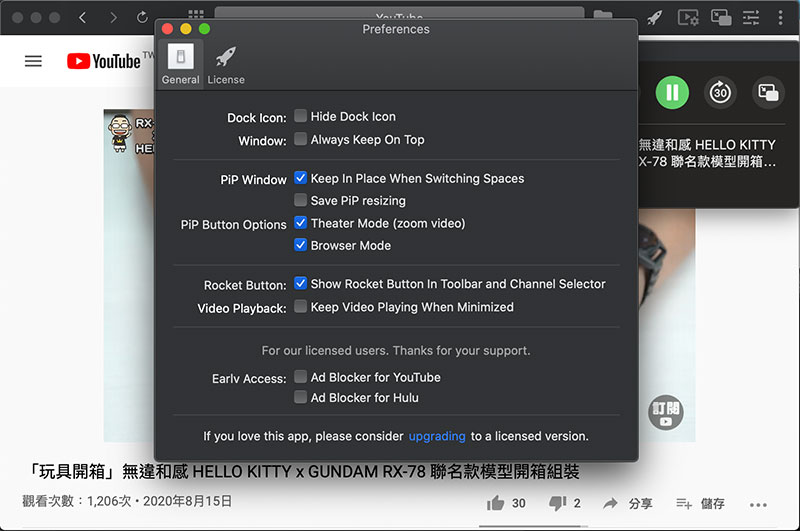
In addition, there are many customizable options in the settings. Such as whether to hide the icon on the Dock, whether to keep the window on top, various settings for PiP (picture-in-picture), the options displayed by the PiP button, etc. In addition, if you are a paying user, you can also unlock other functions such as Ad Blocker, but I don’t think it is necessary.
This macOS-specific application is small and well-packed, especially for people who like to watch videos. It is very convenient to use. In addition to online videos, it also supports local videos and can also make video adjustments. The supported formats include MPEG, AVI, ASF, WMV, WMA, MP4, MOV, 3GP, OGG, Real, WAV, FLV, etc.
Source: KOCPC Chinese