


Recently, LINE finally supports the Apple CarPlay car system function, which is great for car owners! If a new LINE message is received while driving, a notification reminder will be displayed on the CarPlay screen. The user can also play the message through Siri voice, or directly speak the text message to be replied by voice.
However, perhaps because people rarely used CarPlay as a tool for replying to messages and making calls while driving in the past, after LINE supports CarPlay, some people also reported how to “turn off notifications”? If you don’t want to be disturbed by message notifications while driving, then start learning this tutorial quickly!
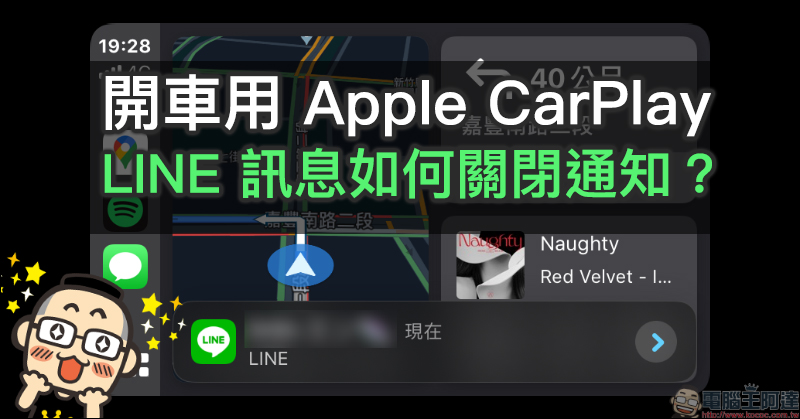
iPhone application tips: How to turn off notifications for LINE messages using Apple CarPlay while driving? (Other message notifications also apply)
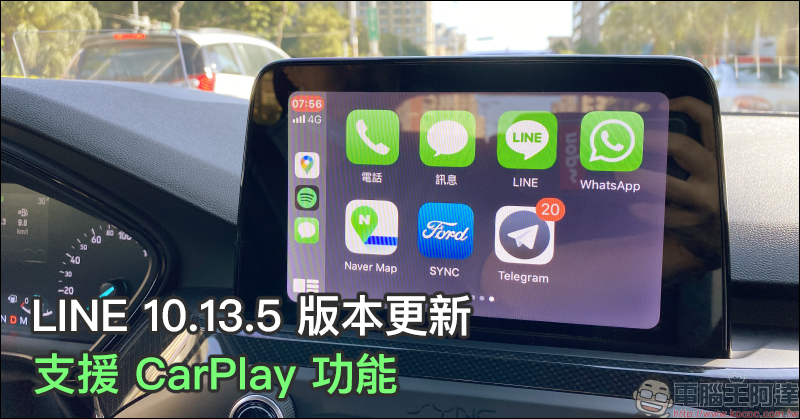
since LINE 10.13.5 version is updated to support CarPlay Later, we also received many questions from people asking how to turn off LINE message notifications. If you usually use CarPlay while driving, when you receive a new LINE message, a notification window will be displayed on the CarPlay home screen (as shown below). However, for drivers who rely heavily on map navigation, receiving message notifications will inevitably be disrupted.
In fact, this CarPlay notification has nothing to do with the LINE app, but is due to the settings of iOS itself, because the same situation will occur even if a text message is received.
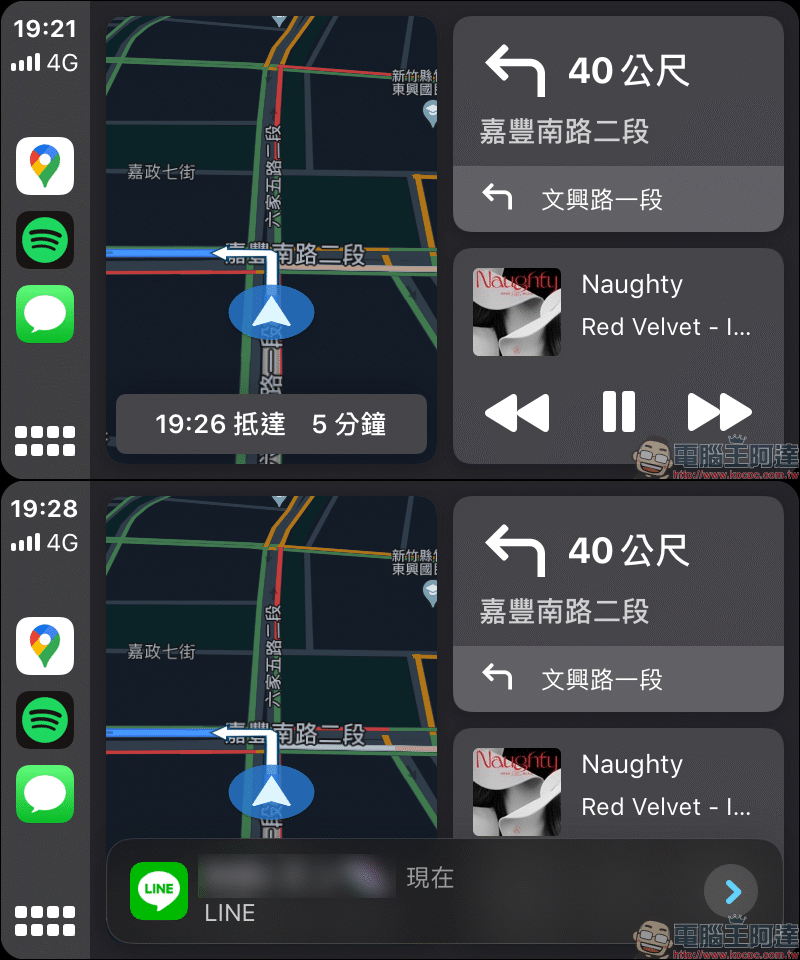
Don’t want to receive notifications while driving? Please turn on “Do Not Disturb While Driving” mode
I believe that iPhone users use the “Do Not Disturb” function more or less every day. Do Not Disturb mode can not only be turned on at night when you don’t want to receive notifications, such as sleeping, in meetings, or watching movies. You can also turn on “Do Not Disturb while driving” in fog mode if you don’t want to receive message notifications or be disturbed by phone calls while driving.
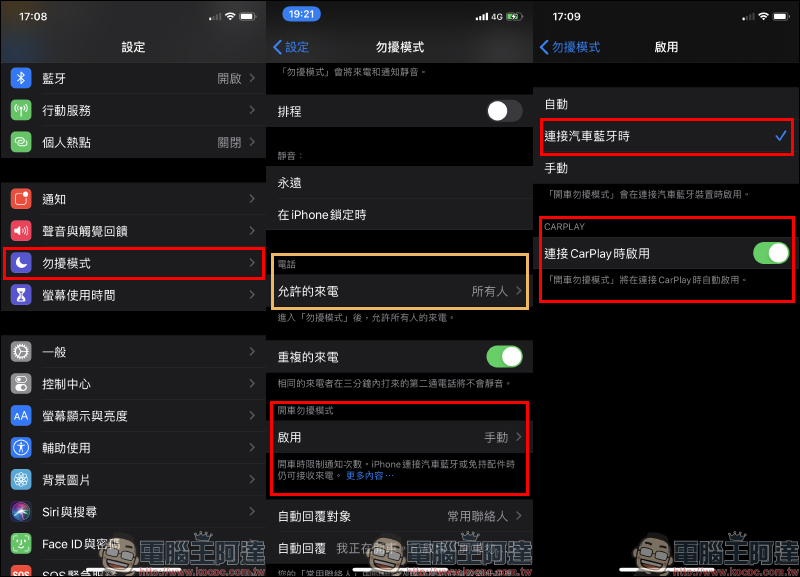
First, select “Do Not Disturb” in the settings, and then it is recommended to change the “Allowed Calls” on the phone to “Everyone” first, so that incoming calls will not be rejected after the message notification is turned off.
Find “Do Not Disturb While Driving” at the bottom of the “Do Not Disturb Mode” page. It is usually turned on “Manually” by default. At this time we need to enter and change its activation setting from manual to “automatic” or “enable when connected to car Bluetooth”. In addition, if you want to automatically enable “Do Not Disturb While Driving” when connecting to CarPlay, remember to turn on the “Enable when connecting to CarPlay” option.
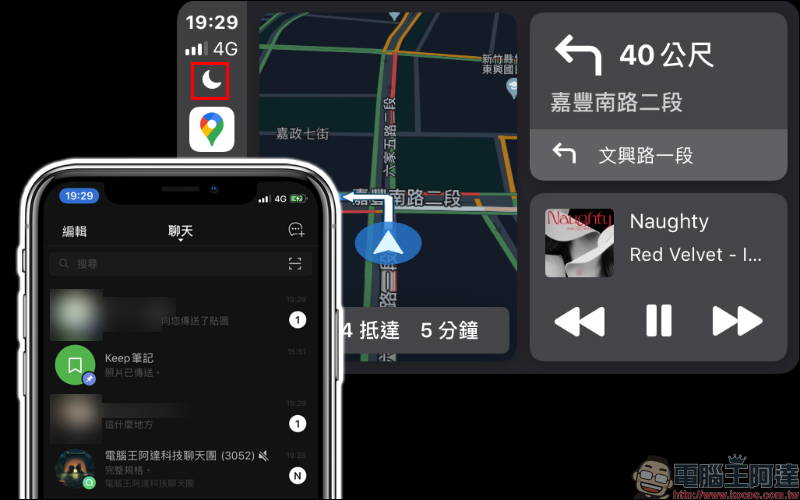
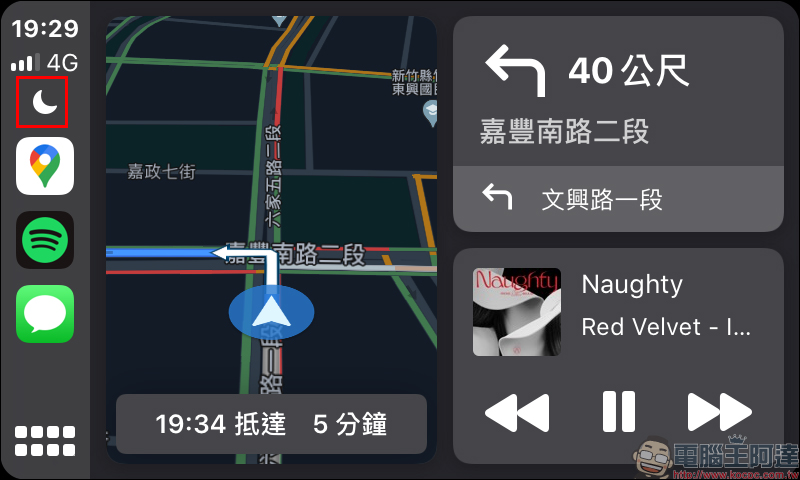
If you turn on Do Not Disturb mode (Do Not Disturb mode while driving), there will be a Do Not Disturb icon on the left side of the CarPlay home screen. Then, if you receive a new LINE message, a reminder notification will not pop up on the CarPlay home screen!
How to quickly turn on “Do Not Disturb While Driving” mode manually?
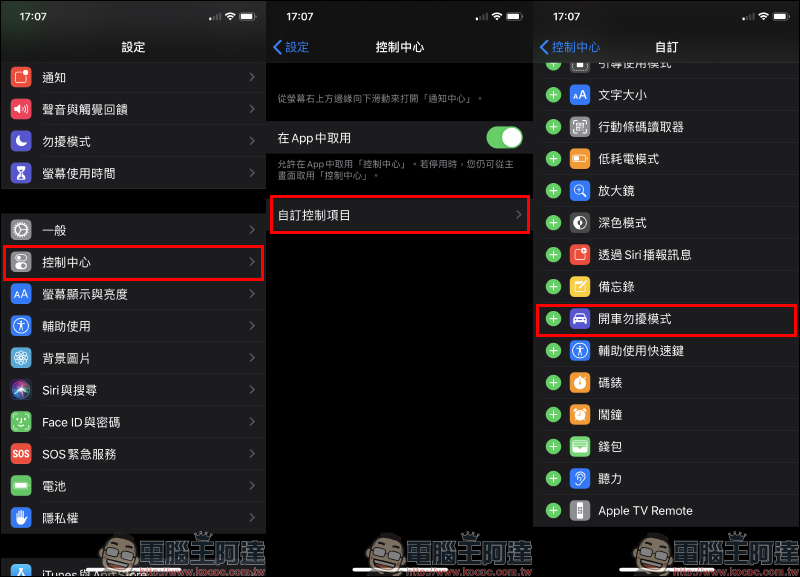
However, even if there is a setting to automatically activate Do Not Disturb while driving when connected to CarPlay, what should we do when we sometimes want to turn off Do Not Disturb mode temporarily? Do I need to go through multiple steps to go to the settings page to turn off Do Not Disturb mode? In fact, it is not necessary. You only need to first go to the “Control Center” in the settings, select “Customize Control Items” and add “Do Not Disturb While Driving Mode” to the “Notification Center”, then you can operate it directly in the notification center on the main screen!
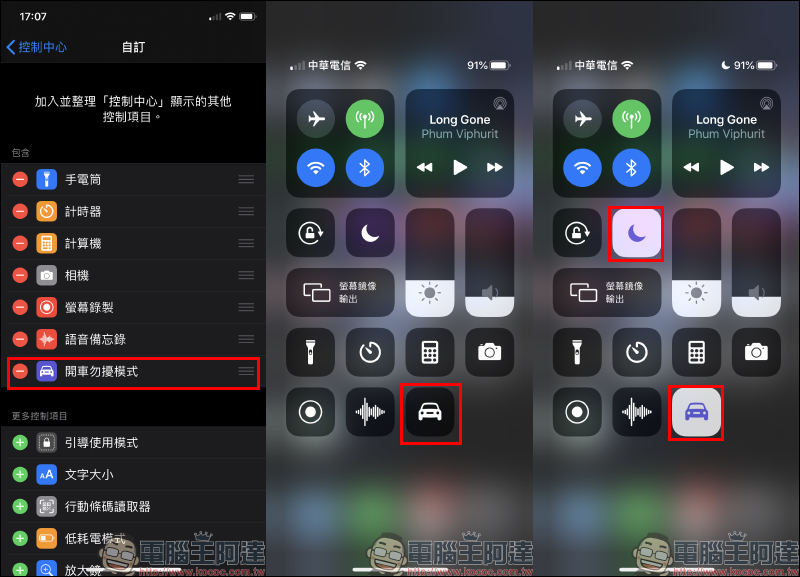
After adding “Do Not Disturb While Driving” to the “Control Center”, swipe down from the upper right edge of the screen to open the “Notification Center”, and then click “Do Not Disturb While Driving” (car icon) to enable the Do Not Disturb While Driving mode with one click, and the Do Not Disturb Mode will also be turned on simultaneously. If you want to turn this mode off, just press “Do Not Disturb While Driving”, because “Do Not Disturb” will also be turned off at the same time.
As mentioned in the previous paragraph, when Do Not Disturb mode (Do Not Disturb mode while driving) is enabled, the Do Not Disturb icon on the CarPlay home screen can make it easier for users to identify whether this feature is turned on, and there will be no message notifications while it is turned on.
For more information about the “Do Not Disturb While Driving” function, please refer to the instructions on Apple’s official website:Click here to go
Further reading:
LINE 10.13.5 version updated, supports CarPlay function
Source: KOCPC Chinese