


Nowadays, many people use mobile devices to access the Internet. Therefore, how well is the mobile version of the blog supported? Is it easy to read? People who run blogs must pay attention to this. Can they even write articles on their mobile phones? In this way, even when you are commuting, free or in an emergency, you can use your mobile phone to type articles and use your time more efficiently. For readers, if the website is easy to read, it will also gain a lot of points. It will not only make it easier to absorb the content of the article, but also quickly find the information they want.
We have previously recommended “Pathfinder TIMELOG“It is an ad-free writing platform. After I recently tried the mobile version, it is definitely one of the best mobile blogs for reading and writing. I will share it with you below.

Pathfinder TIMELOG mobile version, the interface is not only ad-free, but also has just the right proportions
The page presentation method of most news or blog websites is a large featured image + title. Although this image looks very clear, it is also because the image is too large, so when you want to browse the article, you have to scroll down continuously, which is very tiring for a long time.
andPathfinderThe mobile version of is very different. It uses title + 3 pictures, and the picture height is not very large. Therefore, even with the moderate 5.8-inch screen of my iPhone X, it can display 3 to 6 articles, which means that I can quickly browse through the current new articles:
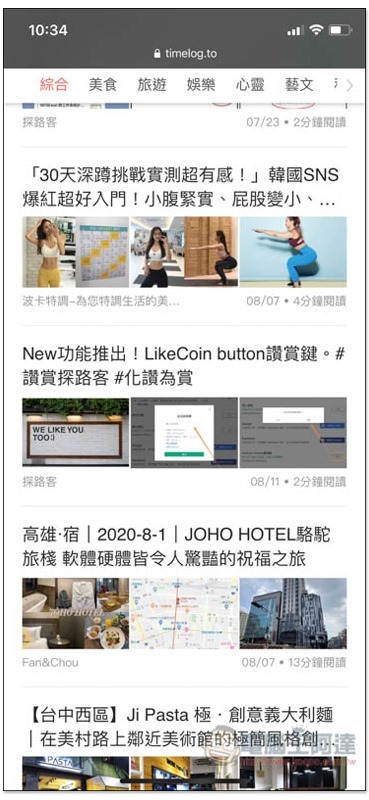
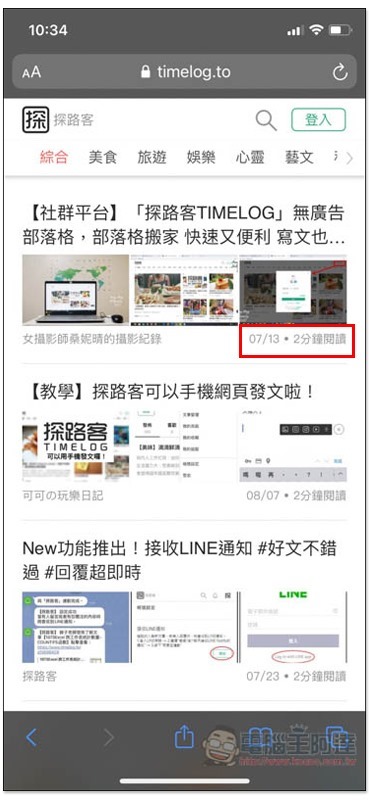
The approximate reading time required is also provided in the lower right corner of each article, so that we can know in advance whether the time is enough, and quickly understand the richness of this article (the longer it takes, the longer it will take). But it doesn’t matter if you can’t finish reading. This website provides the function of collecting articles:
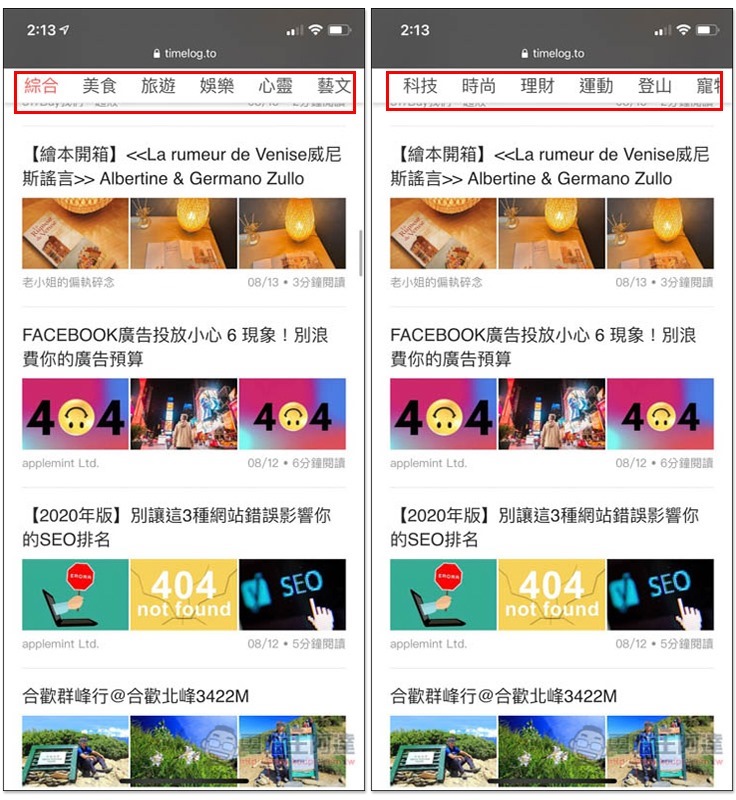
The categories at the top will be displayed no matter where you slide the screen. If there are too many new articles on the homepage that day, you can quickly click on the categories above to directly view the topics of interest. This is very good, and there are many types provided, such as: food, travel, entertainment, technology, financial management, sports, etc., almost all topics are available. Swipe the category field left or right to switch:
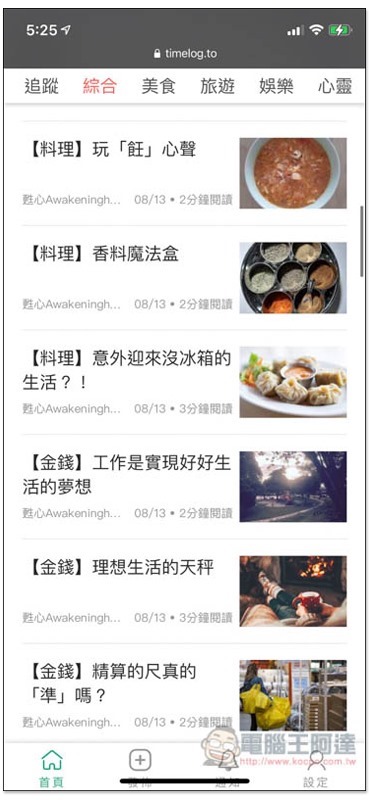
This kind of ad-free feeling is really good. All the content you browse are articles, and you will not be disturbed at all, and you will accidentally click on ads pretending to be articles. The articles in the section and each category menu will be changed to title + 1 picture, but the proportion will remain unchanged:
The layout of the inner pages of the article is quite clean, and the font size and spacing between each line are just right. It is super easy to read and will not be affected by any advertisements:
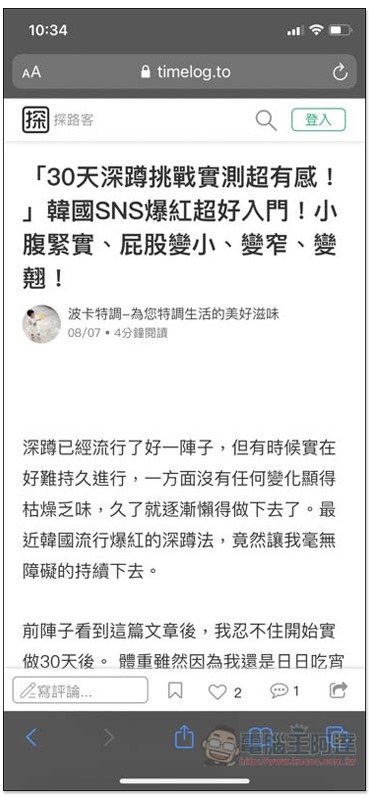
The width of the picture in the article will fill the page, which I like very much. You can see the picture content clearly at a glance without having to manually enlarge it. The image descriptions are also gray and have smaller fonts, so it’s easy to tell the difference:
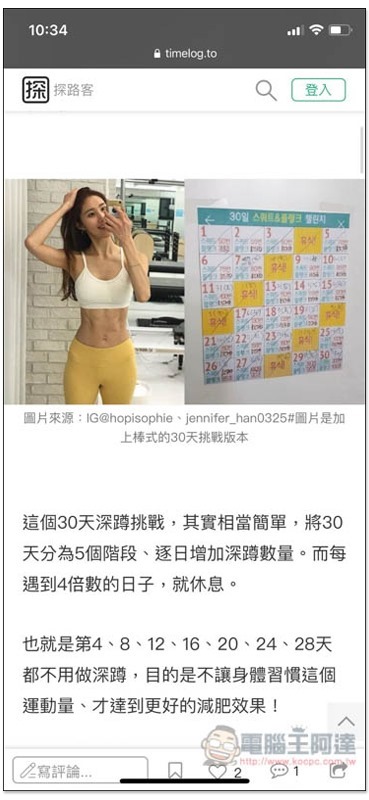
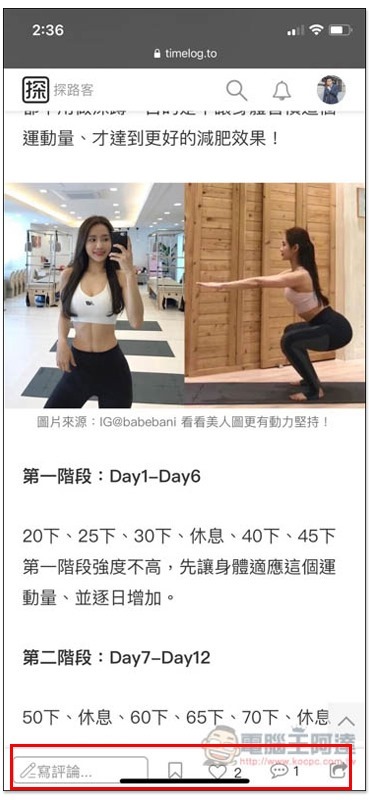
There are also some annotation functions at the bottom, which from left to right are “comments, favorites, likes, number of comments and sharing”:
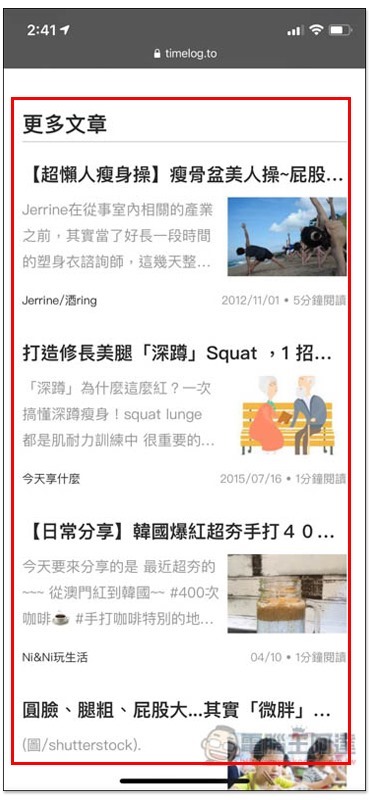
At the bottom of each article, other related recommended articles will also be provided to facilitate our further reading:
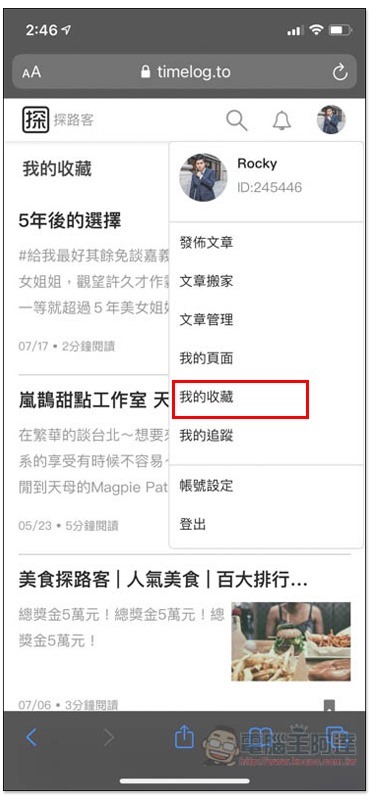
Collected articles will be stored in “My Favorites” in the member menu in the upper right corner. Membership registration is free, even if you don’t want to run a blog:
When followers publish articles, LINE will notify you immediately
In addition to collecting articles, when you find an author you like in Pathfinder, you can also follow him and follow his new articles. However, in the past, you had to go to “My Tracking” in the member menu to check. Recently, Pathfinder officially added the “Receive LINE Notification” notification function. As long as you set it up, your LINE will notify you as soon as possible when your followers publish new articles or someone replies to you, so you don’t miss it.
Both readers and authors highly recommend opening it.
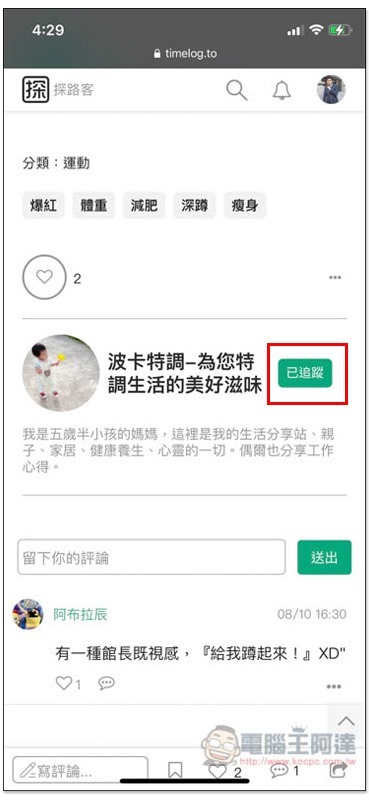
The following function can be found on the right side of the author field below the article. Clicking it will be added to your follower list:
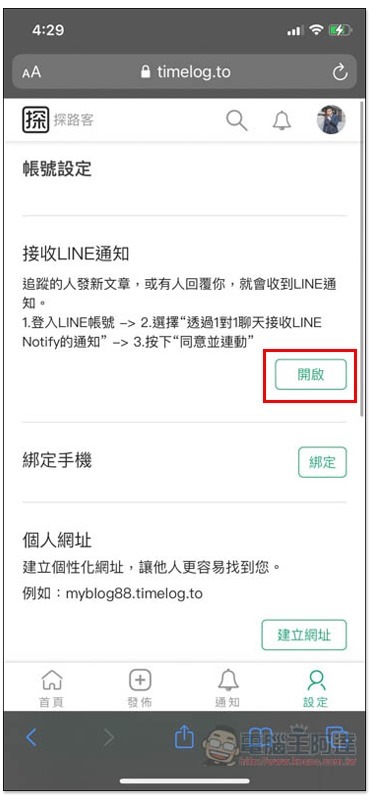
Open the account settings in the member menu and you will see the latest function of receiving LINE notifications (Or click me to jump quickly):
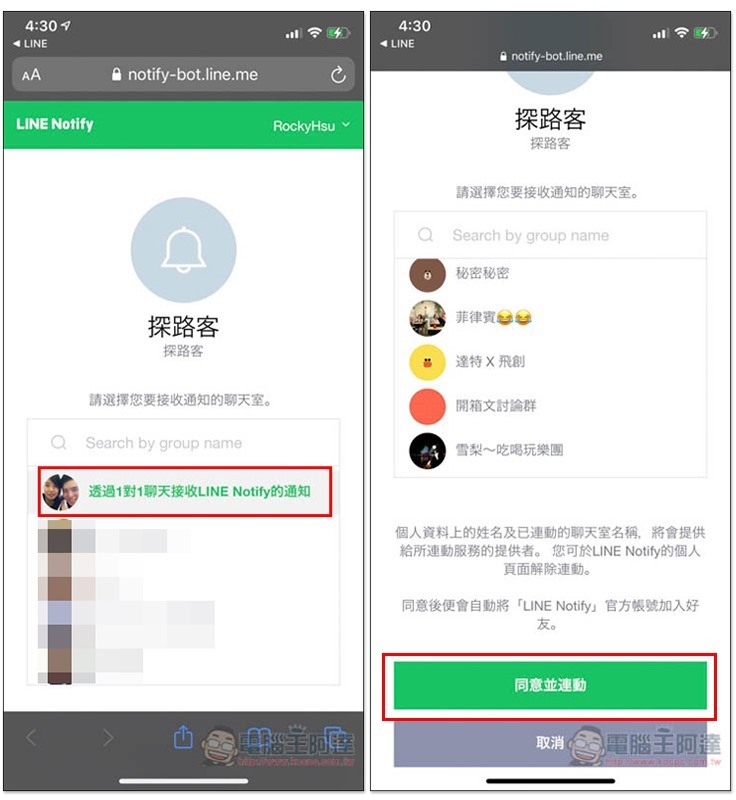
The LINE Notify page will open, select the first “Receive LINE Notify notifications through 1-to-1 chat”, click below to agree and link:
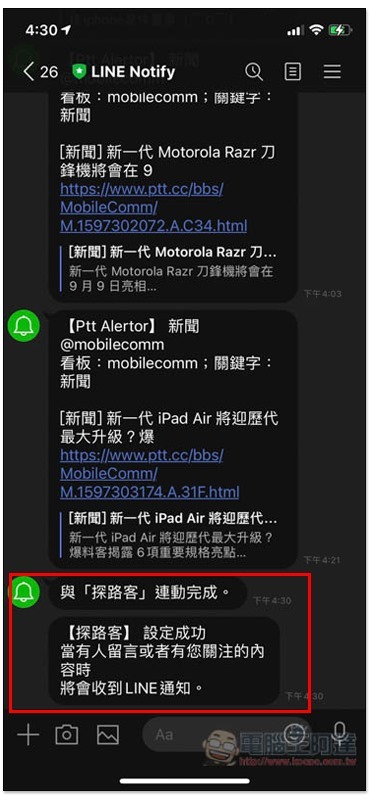
Then after opening the LINE Notify chat room, you will see the message that is linked to “Pathfinder”:
It’s super easy to post on your mobile phone, and it fully conforms to the background functions designed for mobile phone operation.
Although in most cases, posting should be done through the computer, sometimes you still encounter sudden inspiration and want to write something for fear of forgetting later, or you want to use your time more efficiently. At this time, it is very important whether the mobile version of the posting function is easy to use.
There are some blogging platforms on the Internet that have developed apps specifically for mobile phones, but those who have used them should know that they are not very easy to use. For example, they have few functions and are not easy to click with your fingers.
The mobile web version of Pathfinder not only has all the functions of posting, but the entire interface design is also very suitable for mobile operation. It is basically no problem to complete an article on a mobile phone, and even embedding YouTube videos and Instagram pictures is easy.
Even better, if you read the previous introduction, you should know that it is integrated with the search function of the largest free Unsplash photo website, which is super convenient for mobile phone writing. When there is no suitable picture on the phone, you can directly search and quickly insert it, without uploading or jumping out of Google search.
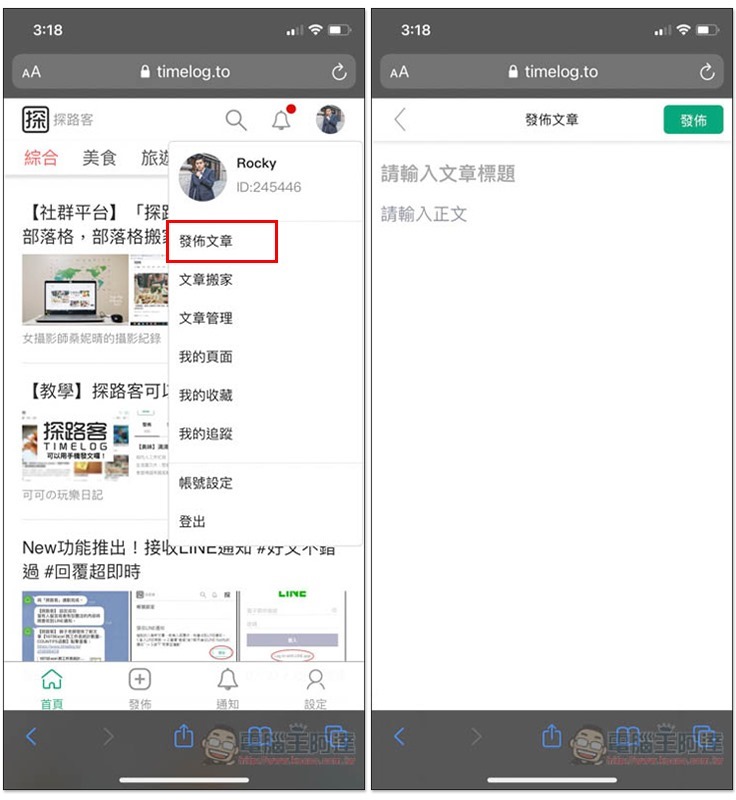
Click the member menu in the upper right corner, and you will see the “Publish Article” function. The layout of the web page will completely match your mobile phone. Enter the title at the top, and then the content:
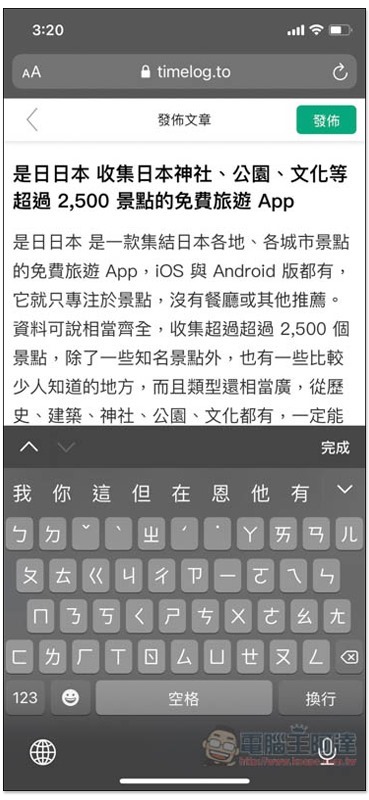
As shown below, just write it down smoothly, with a little white space on the left and right to make it easier for us to read:
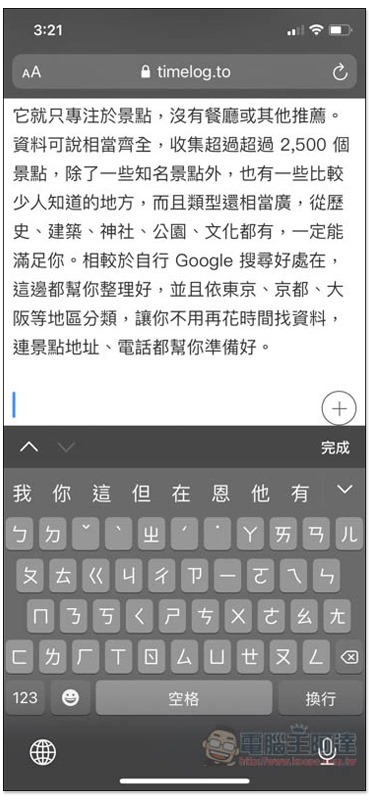
Each time you press the Enter key after typing a paragraph, a new paragraph will jump:
If you need to use the “Text Tool”, after selecting the text you want to edit, a menu will be displayed below, which can be adjusted to bold, italics, hyperlinks, font size (headline), introduction, unordered list, ordered list, and code:
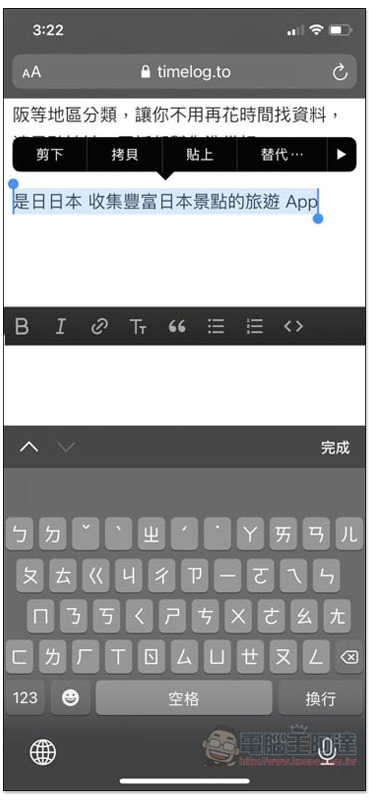
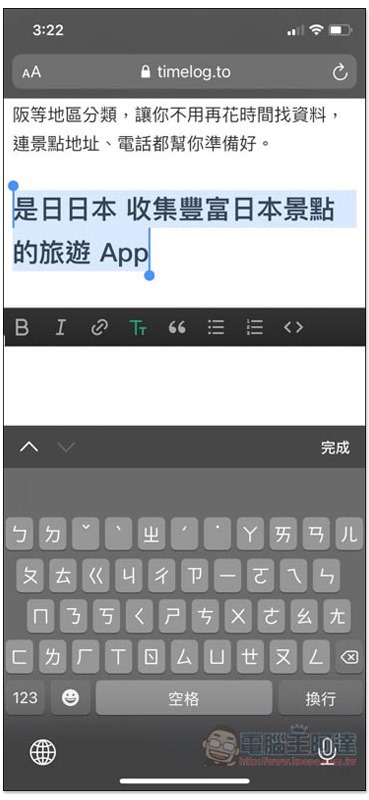
After I click on the font level, this text becomes an H2 title:
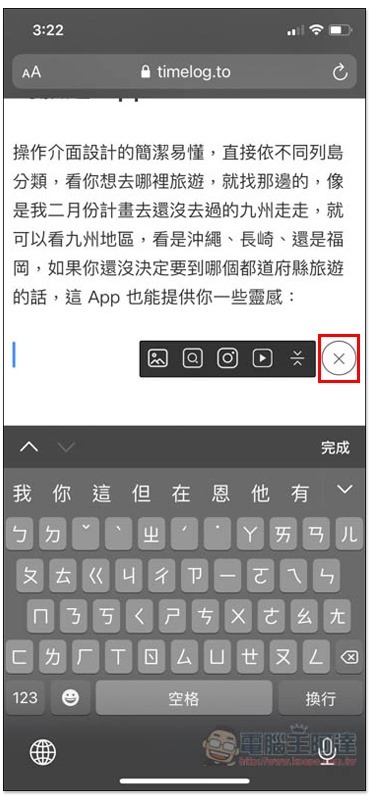
When a new paragraph has not yet entered any text, there will be a + symbol on the right side. After clicking, a list of functions will pop up. Here you can find the “Insert pictures, search for Unsplash free pictures, insert Instagram, insert YouTube videos and insert dividing line functions”:
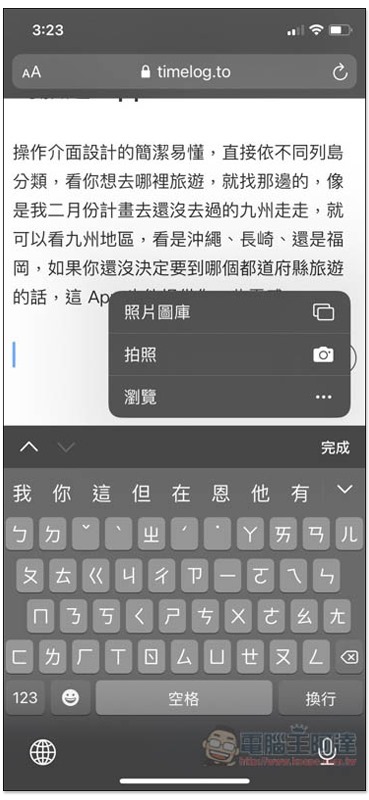
Click to insert a picture, and you can choose to select photos on your phone, take a photo, or browse and upload:
As shown below, you can easily insert mobile phone pictures into articles. You don’t need to upload them to the media library first and then insert them like some blog backends. It’s super simple:
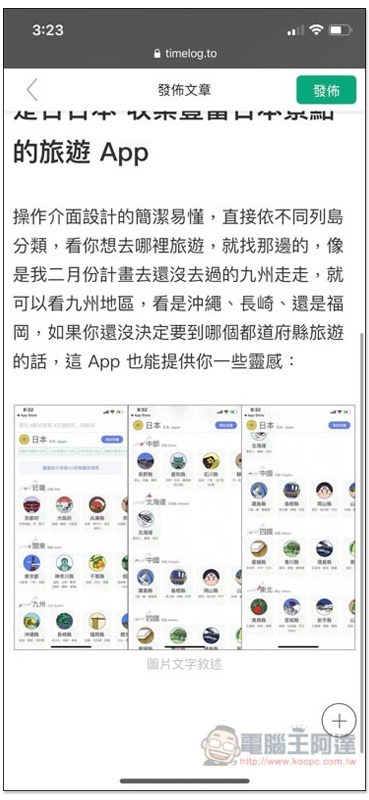
When you can’t find a suitable image, click the “Search Unsplash Free Images” function, then enter the English keyword and press Enter. Matching images will be listed below:
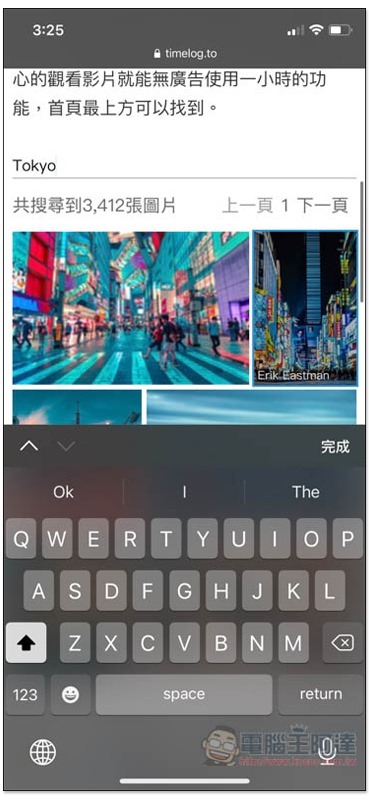
Click on the picture you like and it will be automatically inserted without downloading or uploading. Even the source URL is attached:
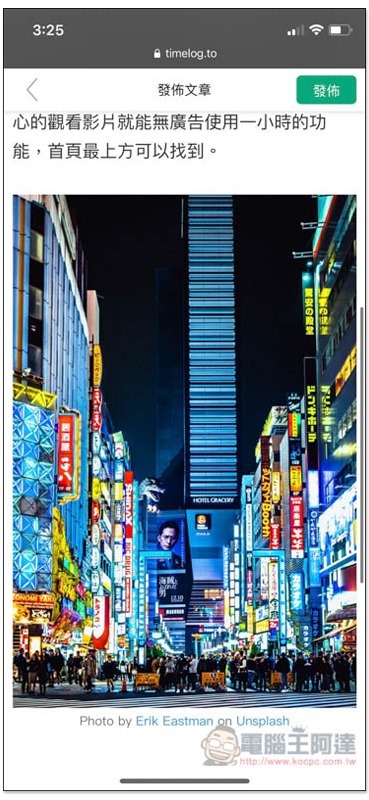
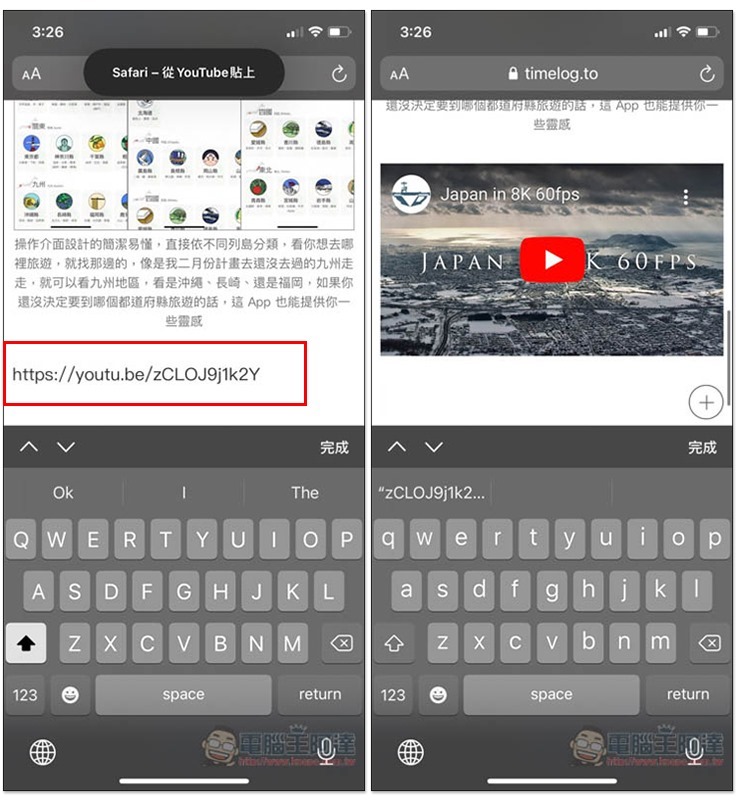
Embedding YouTube videos is just as easy. After copying the YouTube URL, click the Insert YouTube function:
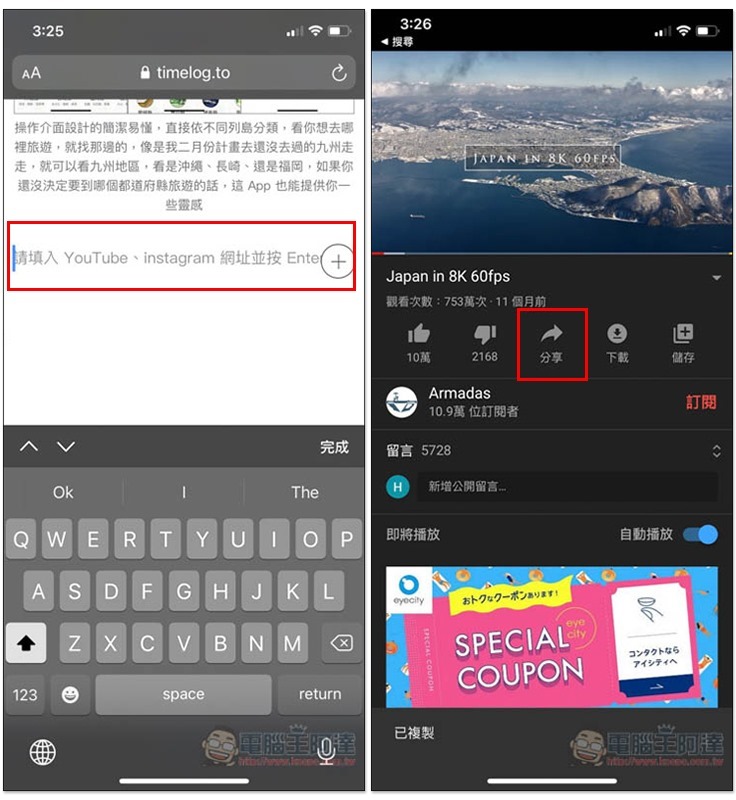
After pasting, press Enter and the video preview will appear, and you’re done:
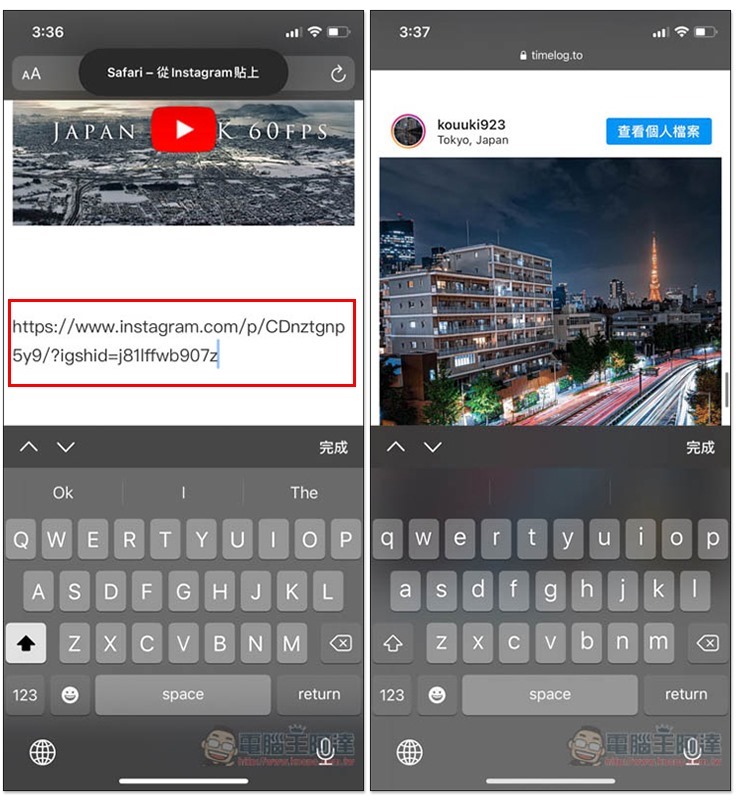
The Instagram operation method is the same. After copying and pasting the URL, press the Enter key and the Instagram post will be displayed:
After the article is edited, press Publish in the upper right corner and you will jump to the publishing settings. All settings will be set for you, such as featured articles, descriptions, tags and categories. This is very considerate, especially for mobile posting. If there is nothing wrong, you can directly press the lower right corner to confirm publishing:
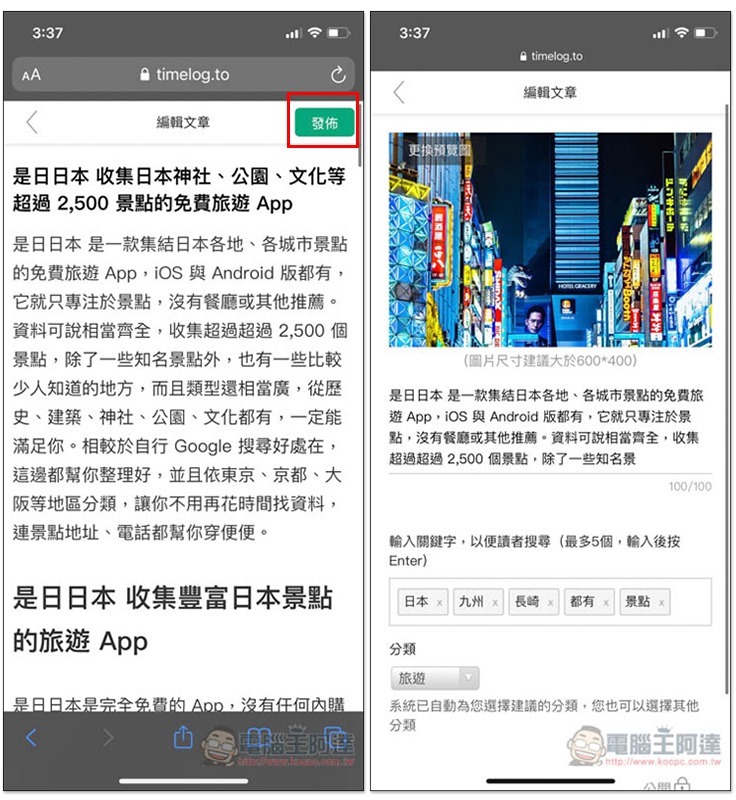
Sending text on mobile phone is no longer a difficult task:

After typing this article, Pathfinder is undoubtedly the best blog for mobile posting today. All functions are quite intuitive and easy to use. The only slight drawback is that the text tool needs to be turned off the virtual keyboard to see it. This is a little troublesome, but as more and more people use mobile phones to post, I guess it will improve soon.
Do I need to review or read the manuscript before publishing it? Pathfinder provides a “private link” function
Running a blog will involve some cooperation with manufacturers, and usually you need to let them review the manuscript before publishing.
In addition to the basic article password function, Pathfinder also added a private link a while ago, which means that only the recipient of the article (such as the manufacturer) can see the article. There is no need to worry about being discovered by readers. It would be strange to anyone if an article with a password suddenly appears in the article list (?)
This is really practical, and you don’t have to change the date to hide it like you did with other blogs in the past.
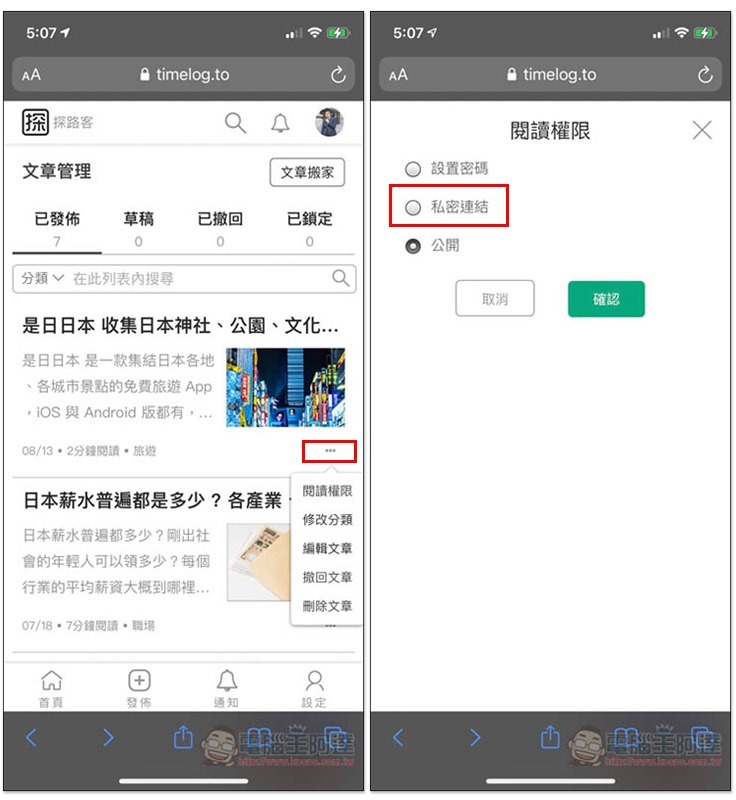
Before publishing an article, there is a public lock icon in the lower right corner. Click it to change the reading permission to “Private Link”. The desktop web version also has:
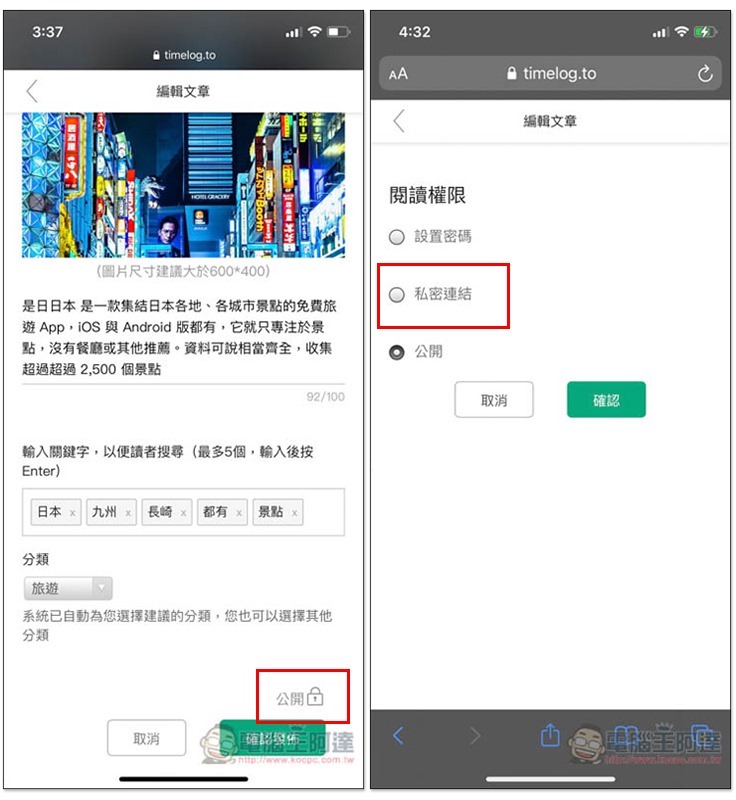
After the article is published, the reading permissions can also be modified directly from the article management background:
Built-in “selected to top” function to push your collaborative articles and the articles you want to share most to the top
People who run blogs will publish new articles basically every week or even every day, and there must be a few articles that you want readers to see the most, such as: a piece of super-high-quality content that you worked hard for three days and three nights to produce, or an article about a great product experience in cooperation with a manufacturer, etc.
Pathfinder also has a built-in “selected pin” function, which can push articles no matter how long ago to the top of all articles, so that readers and fans will know about this article immediately when they enter your page.
Currently, this function is only available on the desktop web version. After entering my page:

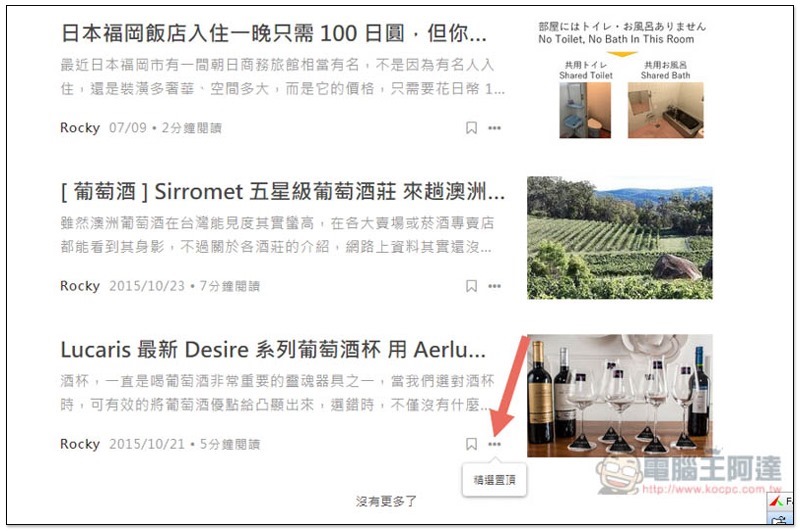
Find the article you want to pin to the top, click the … function in the lower right corner, and you will see the featured pin:
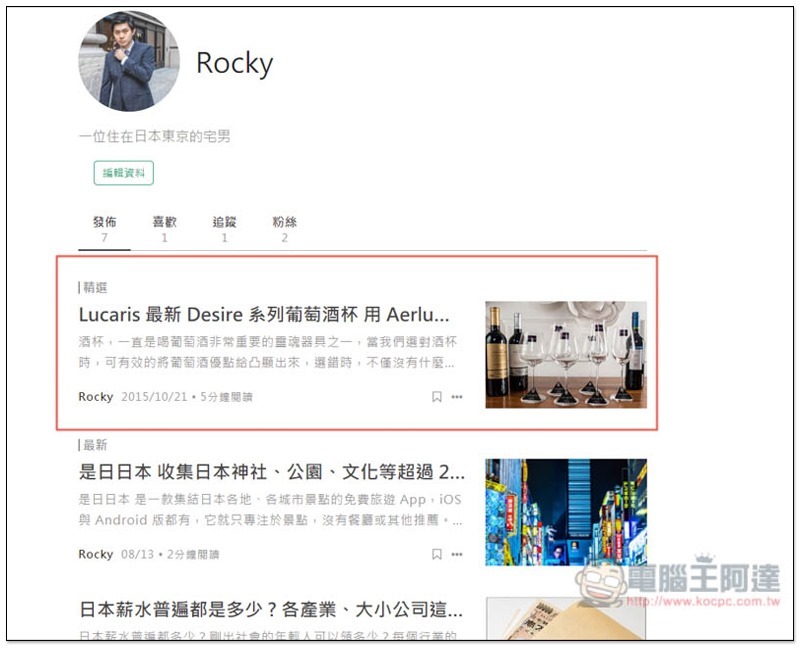
After clicking, this article will be moved to the top of the article list, and “Selected” will also be displayed in the upper left corner:
You can easily move your blog with just one click on your mobile phone
This function is really powerful. I originally thought that it would only work on computers, but I didn’t expect that it would work on mobile phones as well.
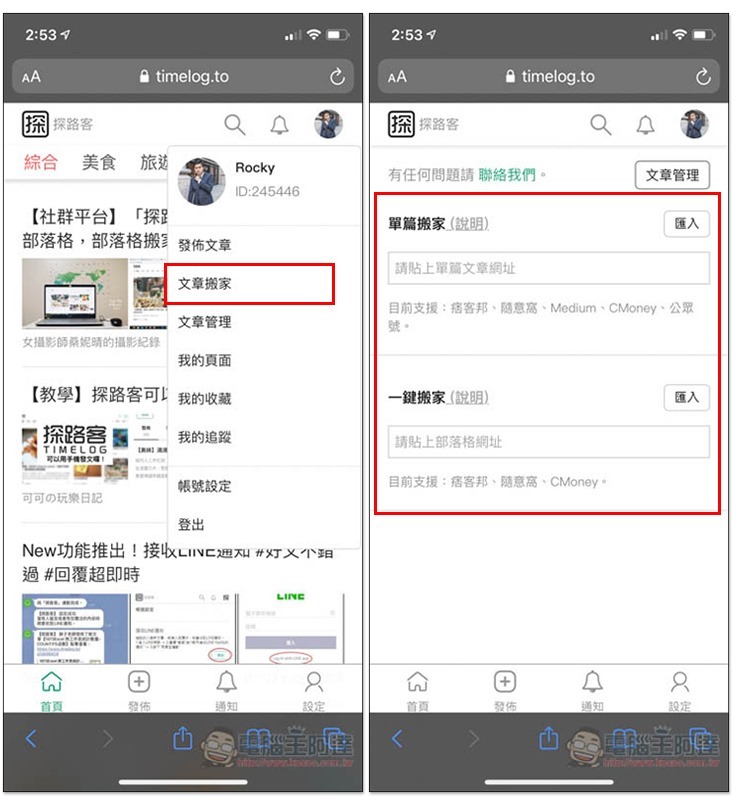
The operation method is exactly the same as the computer web version. Click on the member center in the upper right corner and you will see the “Article Moving” function. Paste the “Single Article” or “Blog URL” you want to move to the designated field, and click Import to start automatic moving.
- Single articles currently support Pixnet, Xuite, Medium, CMoney and official accounts.
- The blog website currently supports Pixnet, Xuite, and CMoney.
I take this article as an example:
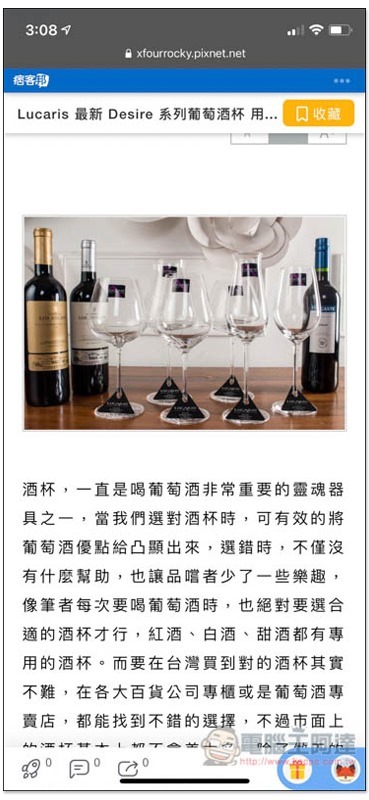
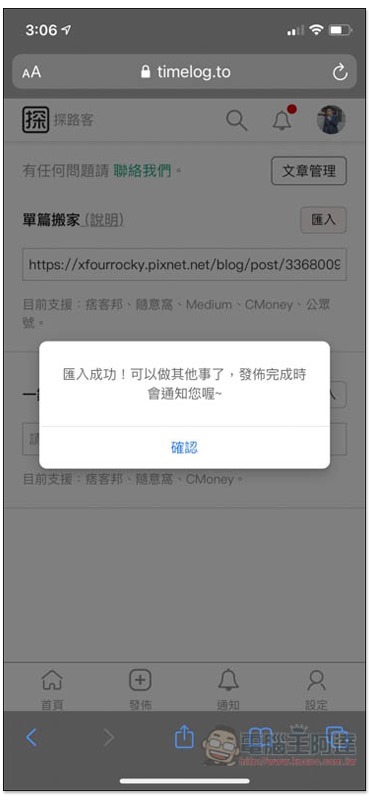
After pasting the URL and pressing Import, the screen will show that the import is successful and is being processed. If there are only a few images, it will basically take less than a few minutes to complete:
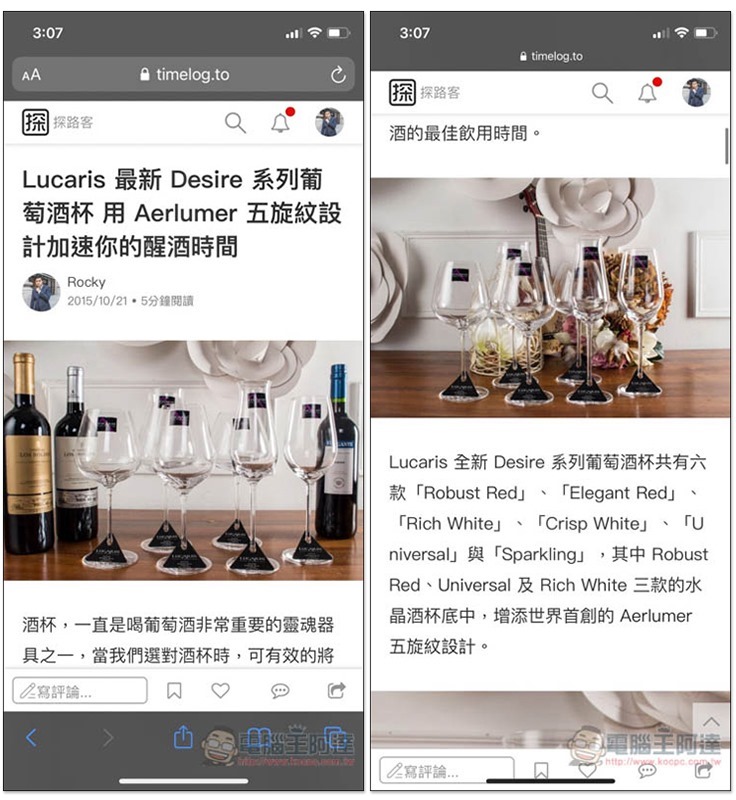
It’s really super fast, I had about 10 pictures in this post and it took less than a minute to complete. The article title, text content, and images have all been moved over completely, including the H2, sequence, and hyperlinks:
I never thought that a mobile phone could be used to move a blog, and it could be done by copying and pasting the URL. I have to admire the developers of Pathfinder for making such a complicated move so easy.
in conclusion
The web interface design of Pathfinder TIMELOG mobile version is really good. It is not only easy to read, but also very convenient for posting on mobile phones. It also has all the posting tools, unlike some blogs that are emasculated versions. Basically, people who have a tablet + keyboard may be able to write articles like this in the future without having to take out a laptop or computer.
As time goes by, Pathfinder continues to add some practical new features, such as LINE notifications and private links, which were introduced in July. This is a very good thing for both general readers and bloggers.
Click here to go to the Pathfinder TIMELOG website
Source: KOCPC Chinese