


With the update of iOS, the Apple CarPlay in-vehicle system is powerful and allows iPhone users to focus more on driving. Currently, in addition to Apple CarPlay’s original phone calls, navigation, listening to music, sending and receiving messages, etc., the recent LINE 10.13.5 version update finally supports CarPlay! Although to be honest, the LINE functions that can be used with CarPlay are still limited at present. They can only read messages, reply to messages, and send messages. However, for drivers who often have urgent messages to reply to, this way they can focus more on driving and avoid danger or penalties caused by looking at their mobile phones while driving.
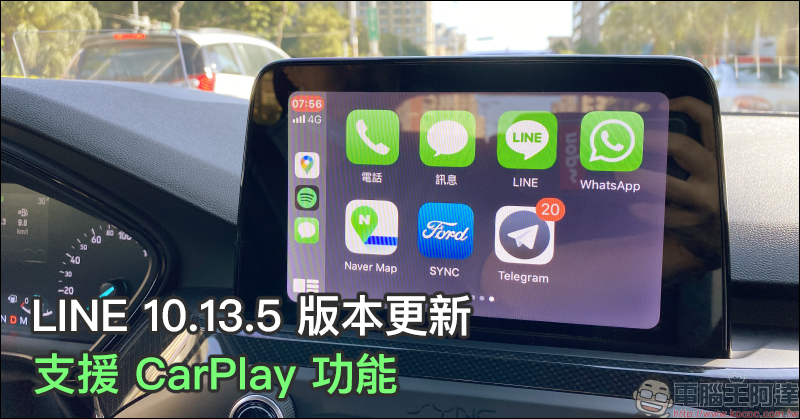
LINE 10.13.5 version updated, supports CarPlay function
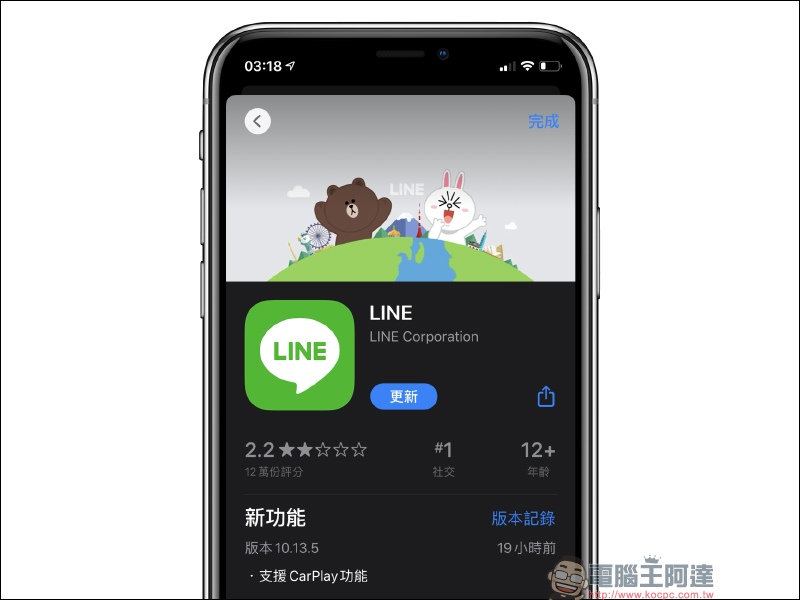
For iPhone users who drive a vehicle that supports CarPlay, it is very convenient to connect their iPhone to the vehicle and activate CarPlay while driving, whether it is navigation, listening to music, making calls, or replying to messages. However, there are currently not too many communication-related applications supported by CarPlay. However, the LINE 10.13.5 version update finally provides support for the CarPlay system for iOS.
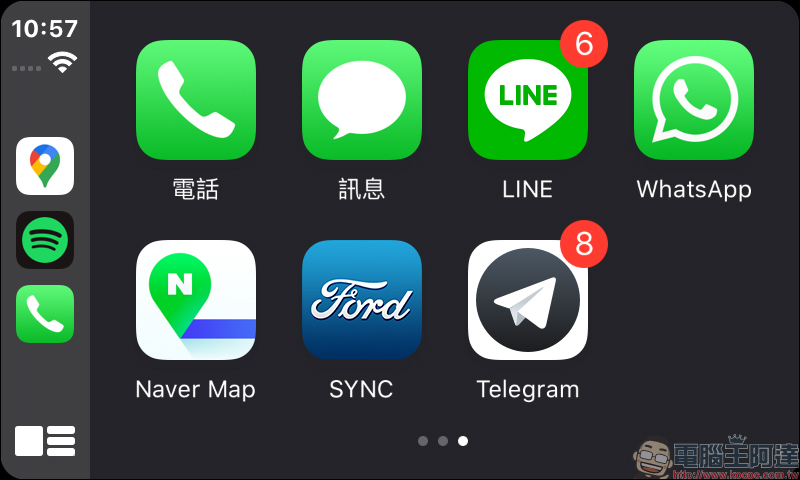
After the update, you can find the LINE application on the screen when you open CarPlay. If there are unread messages, the number of messages will also be displayed.
If you want to check unread messages, due to the current limitations of the CarPlay system, users can only use Siri voice assistant to speak commands to choose to listen to unread messages, or add new messages through voice input.
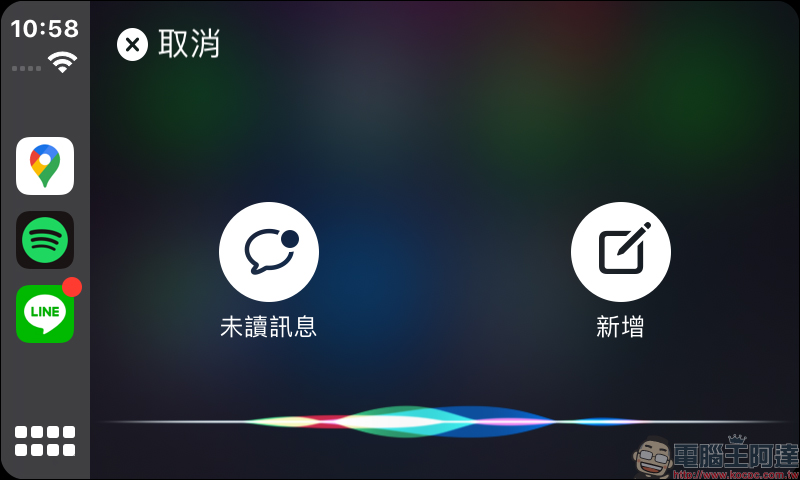
Taking listening to unread messages as an example, Siri will first read the latest unread messages, and then ask the user if they want to reply:
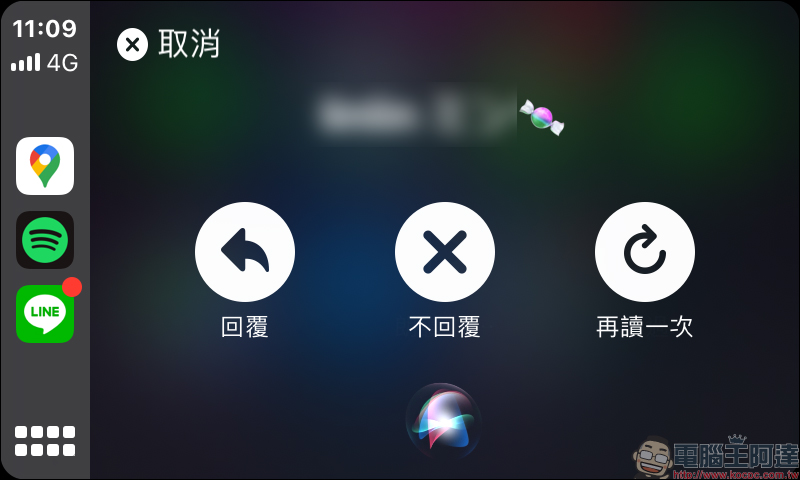
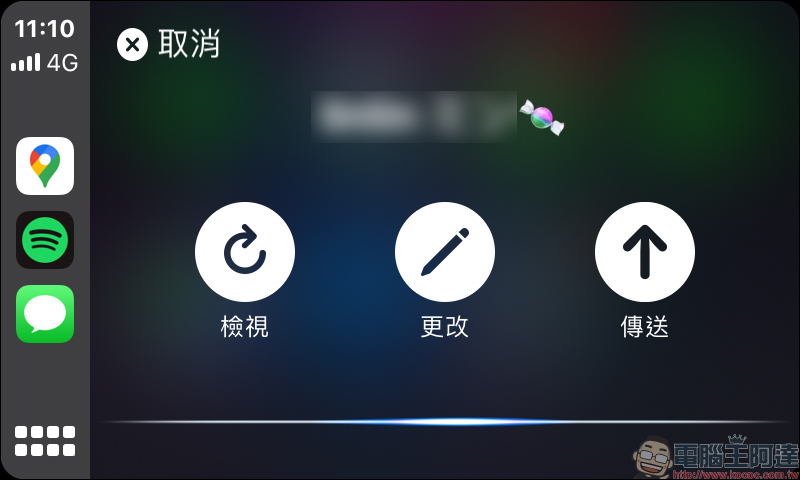
If you choose to reply, just say what you want to reply to, and the system will send it to the other party as a text message.
How to adjust the display order and delete CarPlay applications?
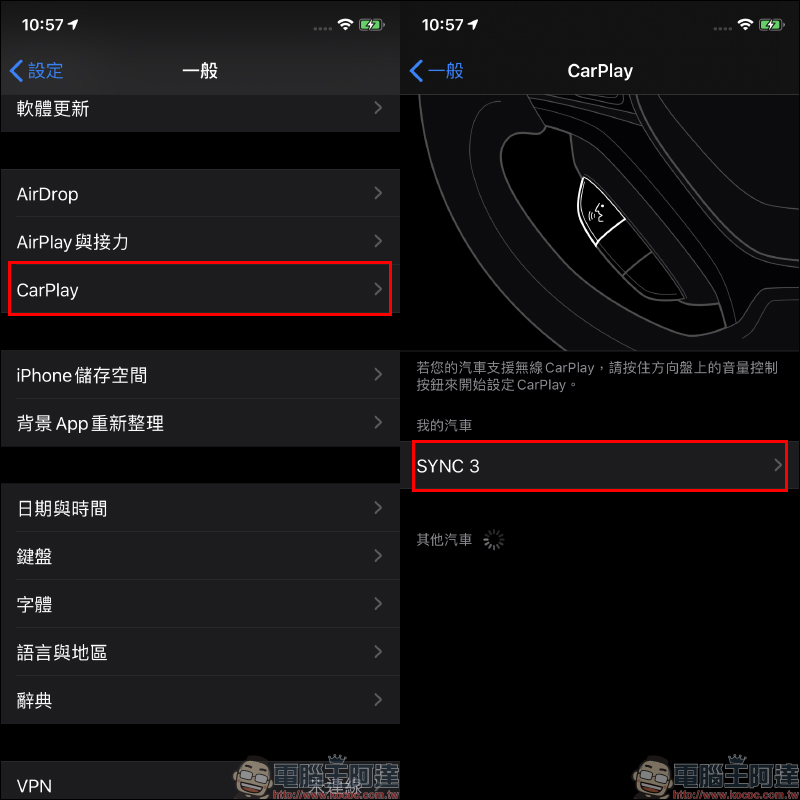
If you want to adjust the display order of apps in the CarPlay system, first select “General” in iPhone settings, then select “CarPlay” in order, and then click on the device in the My Car list:
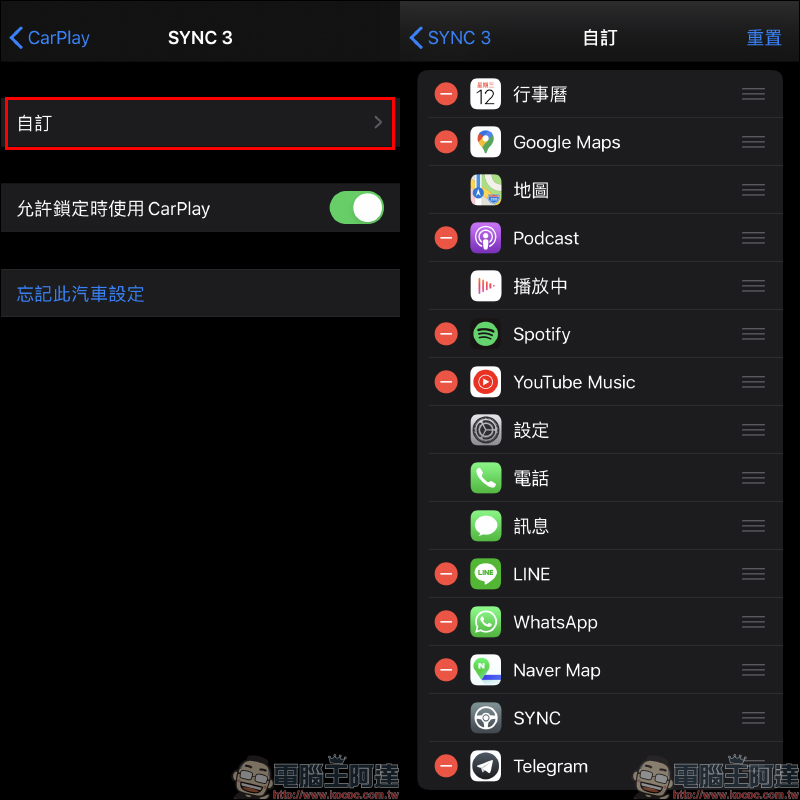
Select “Customize” in the next step to see all apps that support CarPlay. Users can select the application to be displayed according to their own needs. If there is no need to press the ban button to remove it, there is no need to worry that this action will delete the app, because removal on this page will only affect the display on the CarPlay screen. If you want to adjust the display order, you can long press the icon on the right side of the application and drag up and down to adjust it.
Which vehicles support Apple CarPlay?
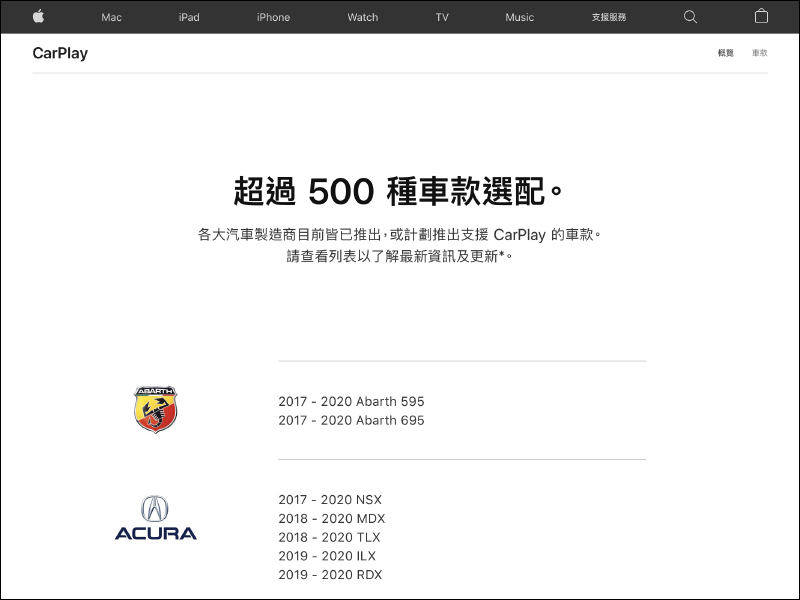
In recent years, more and more new cars have supported the CarPlay system. Apple’s official website has also compiled a detailed list. If you are interested in knowing more, you can go to Apple’s official website to view:Click me to view. However, the specifications and equipment of the same model may be different in different countries and regions. It is recommended to ask the car dealer.
Further reading:
LINE application tips: LINE PC version display font size, change tutorial

Source: KOCPC Chinese