


In response to remote work, many students submit homework or office workers submit contracts, etc., are uploaded directly to the cloud. However, not everyone has a scanner at home. Fortunately, we also have the versatile smartphone to help. What I want to introduce to you this time is the useful free application “Simple Scanner” that can be used to directly scan documents and directly crop and automatically correct them, as well as upload and share them in real time.
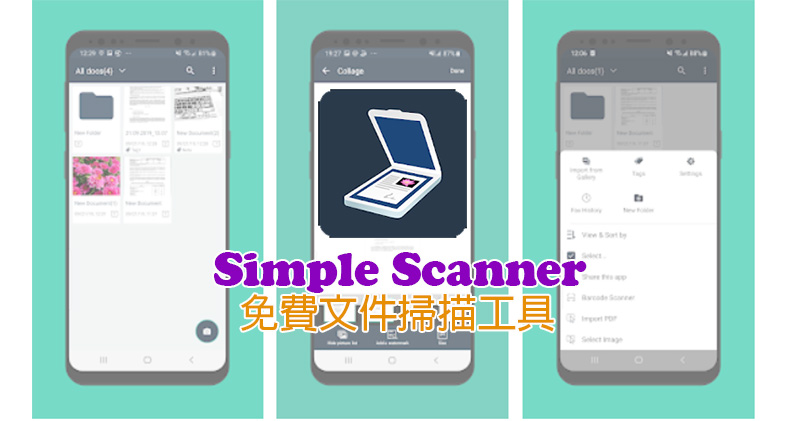
Free file scanning application Simple Scanner, automatically corrects, uploads, shares, and manages files in one stop
In fact, there are many software and applications similar to document scanning. The Simple Scanner introduced this time is a tool that is very easy to use and the free version alone can cover many practical functions. If you have needs for scanning documents, management, etc., you might as well give it a try.

Android download:Click here
File scanning
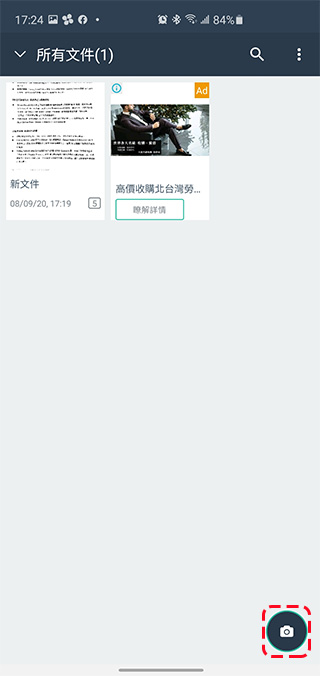
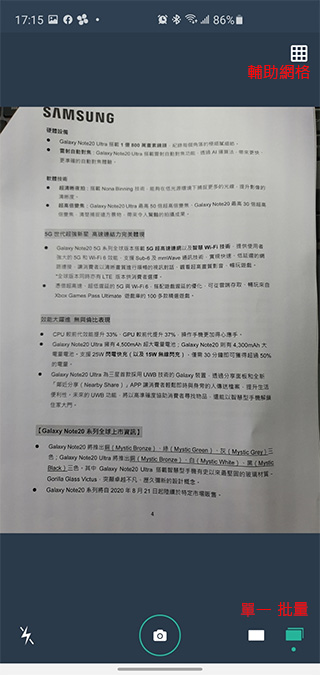
Let’s start with the most basic file scanning method. To scan a new document, just click the photo icon in the lower right corner; in the scanning interface, you can choose to scan a single document or scan in batches. In addition, you can also click on the upper right to turn on or off the auxiliary grid to facilitate document alignment.
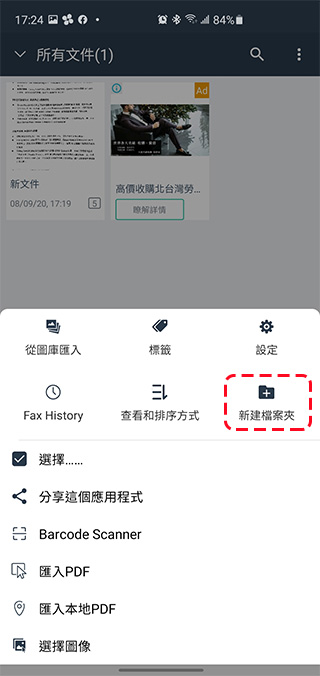
If you want to be able to set up a folder for scanned files for easy management, you only need to click on the upper right menu on the home page to create a folder first, click to enter the folder and then press the scan button.
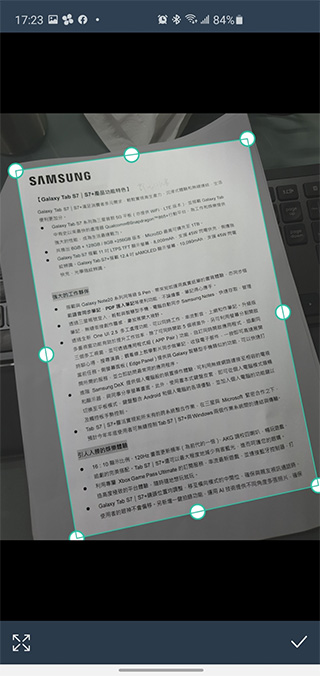
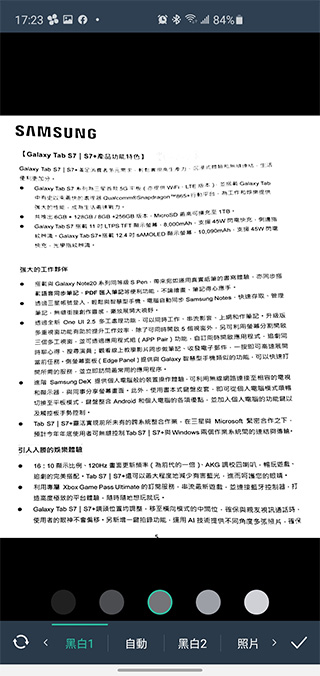
After scanning in the files you want, you will then enter the adjustment process. Just pull the positioning box on the screen to customize the cropping area. After cropping, you can also customize the color rendering after scanning (swipe left and right for more choices). After selecting, press the check mark in the lower right corner.
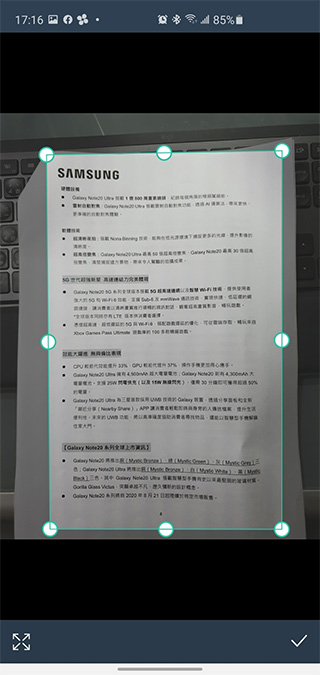
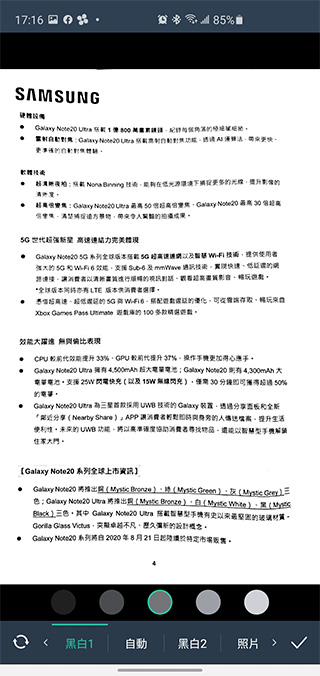
If your document is placed skewed, the system will automatically straighten it for you after the positioning frame is set, saving you the trouble of moving it around yourself.
File management
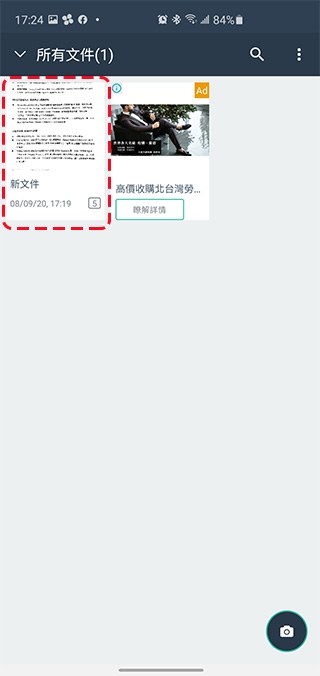
The useful part of this app is not just for scanning, its simple and easy-to-understand file management is also part of the author’s recommendation. Let’s talk about file management first. In addition to creating folders just mentioned above, if you upload files in batches, the system will automatically help you organize the entire file into a stack. For example, in the picture below, the number 5 enclosed in a box next to the date the file was added means that there are 5 pages in this stack of files.
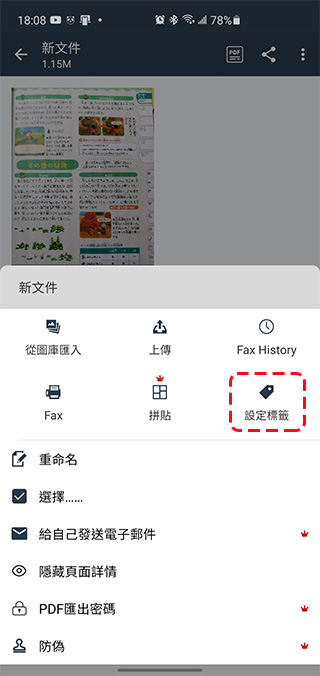
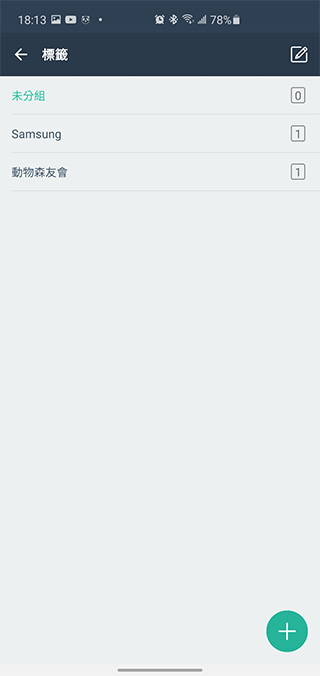
You can also click the menu in the upper right corner of the document page to set a tag for the document, and select a specific tag from the filter in the upper left corner of the home page to view the document.
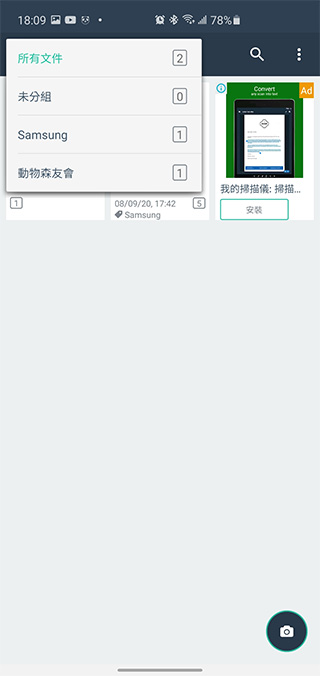
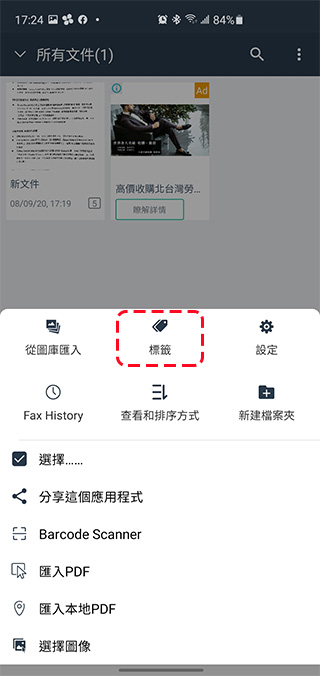
The tags set for each document can be multiple-selected. If you want to edit existing tags or add new tags, you can click the menu in the upper right corner of the homepage to enter the “Tag” item to add, modify or remove.
Share and upload
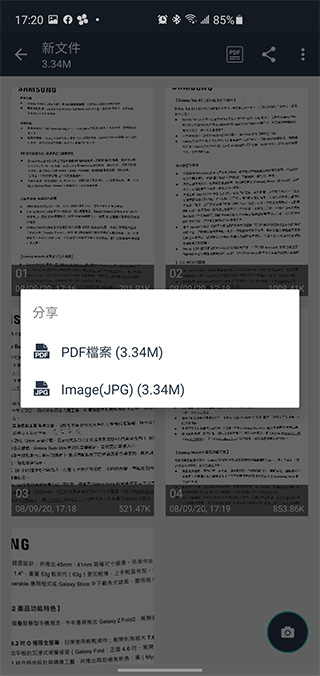
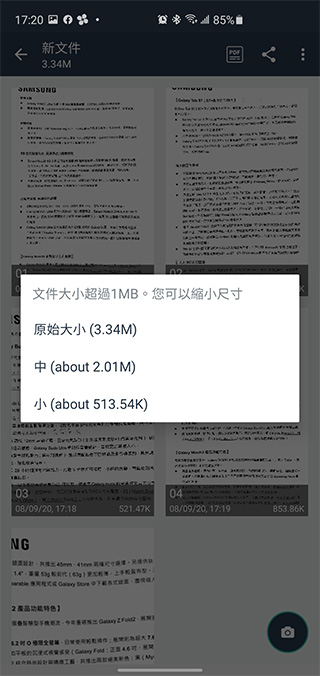
Some scanning apps can only do a simple scan, but Simple Scanner can do more for you. If you want to share the scanned file directly with friends or colleagues, just click the share button in the upper right corner of the file. Then you can choose whether the file you want to share is a PDF or image file. If the file is large, it may be blocked by communication software, etc. You can also choose whether to reduce the size later, and then select the sharing method.
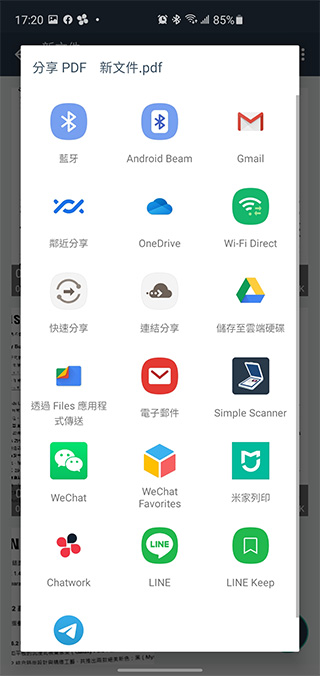
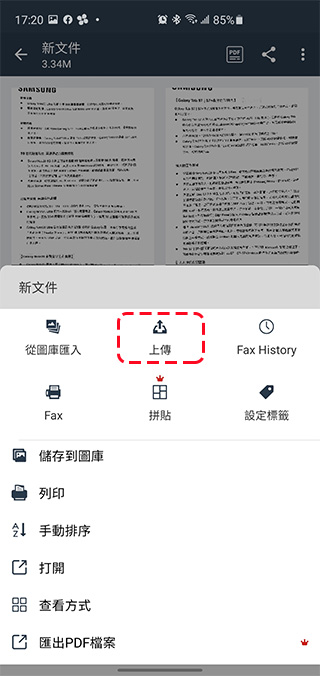
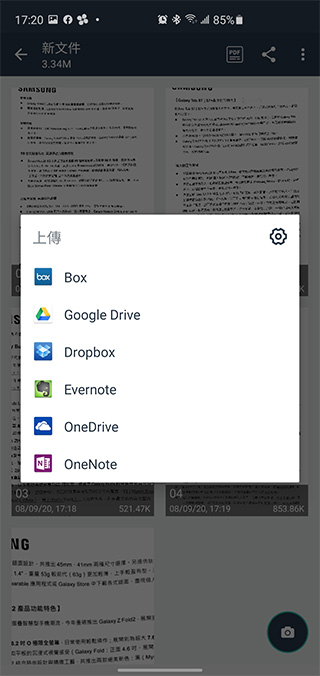
If your file is to be uploaded to a cloud folder, click the menu in the upper right corner of the file, then click Upload, and then select the cloud service to be uploaded.
Additional functions: ORC recognition & QR code scanning
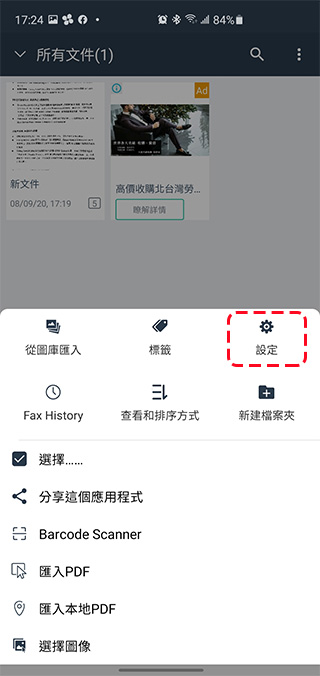
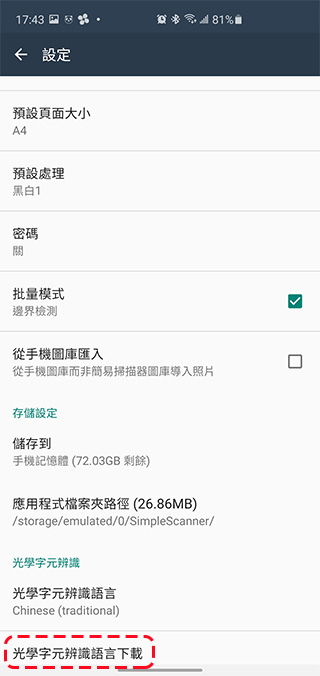
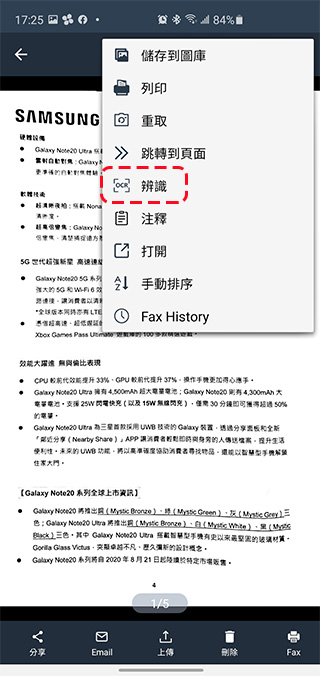
Simple Scanner also comes with two functions, namely ORC recognition and QR code scanning. Let’s take a look at ORC recognition first. Before that, you must download the language pack from the Settings icon in the homepage menu and set the recognized language. What’s more inconvenient is that every time you want to recognize documents in different languages, you have to manually set the recognition language. There is no way to automatically interpret or quickly select.
On the document reading page, just click the menu in the upper right corner and select ORC recognition to convert the scanned content into text, which you can copy and paste to other places. However, after actual testing by the author, the ability to recognize English is relatively good. However, misjudgment is inevitable when it comes to Traditional Chinese recognition, which requires you to manually correct it.
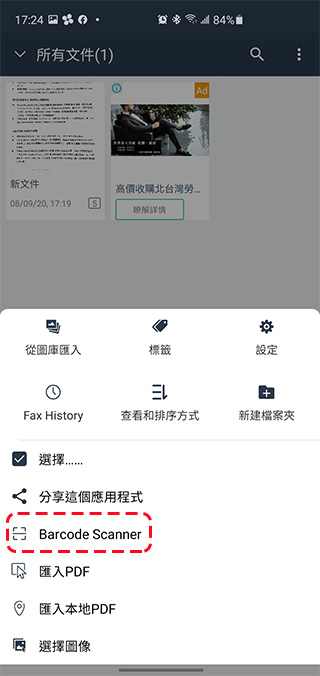
As for the QR code scanning tool, it goes without saying that it is used to scan QR Codes. Simply select “Barcode Scanner” from the menu on the home page to activate it. In fact, many mobile phones now have built-in QR code scanning functions, so this item seems dispensable.
After introducing the key functions of Simple Scanner above, I will let you try out other detailed settings or fine-tuning for yourself. As for the paid functions, I personally think they are dispensable. It will not affect the use if you don’t have them, so save your money! I hope today’s introduction will be helpful to readers who have file scanning needs.
Source: KOCPC Chinese