


For users of the computer version of LINE, it is inevitable that they may feel that the font displayed in the chat room is too small or too large, or they may feel that the default font has already read you and want to replace it with other fonts. However, many people do not know how to use the settings. In fact, these settings are quite simple! Today I will share this simple LINE application tip. If you usually feel that the text in the LINE chat room is not clear, you might as well try to set it up!
LINE application tips: LINE PC version display font size, change tutorial
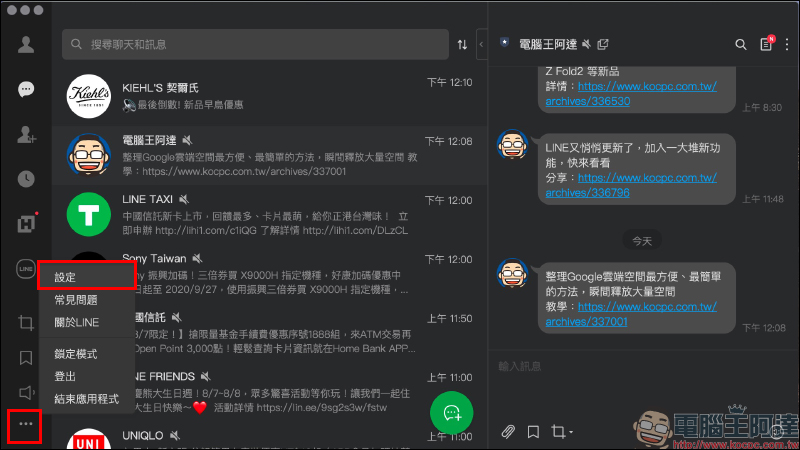
If LINE PC version users feel that the font size in the chat room is too small and difficult to read clearly, there are generally two reasons for this. One is that the font size is too small for the current situation, and the other depends on the readability of the font. However, the PC version of LINE actually provides users with considerable customization space for both settings. First, click on the lower left corner of the LINE PC version window to go to the “Settings” page.
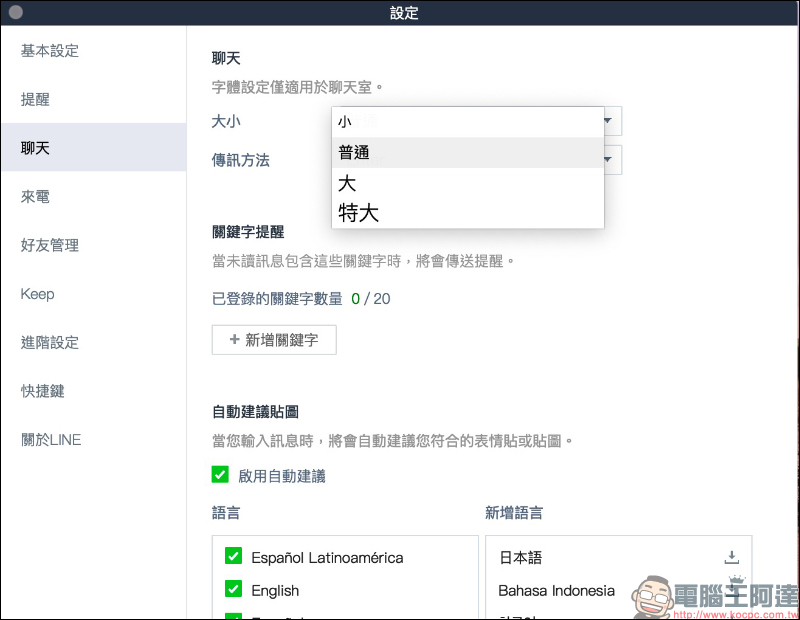
If you want to change the text display size of the chat room, select the “Chat” tab on the settings page and select “Size” in the chat item. You can choose from four text display sizes: small, normal, large and extra large.
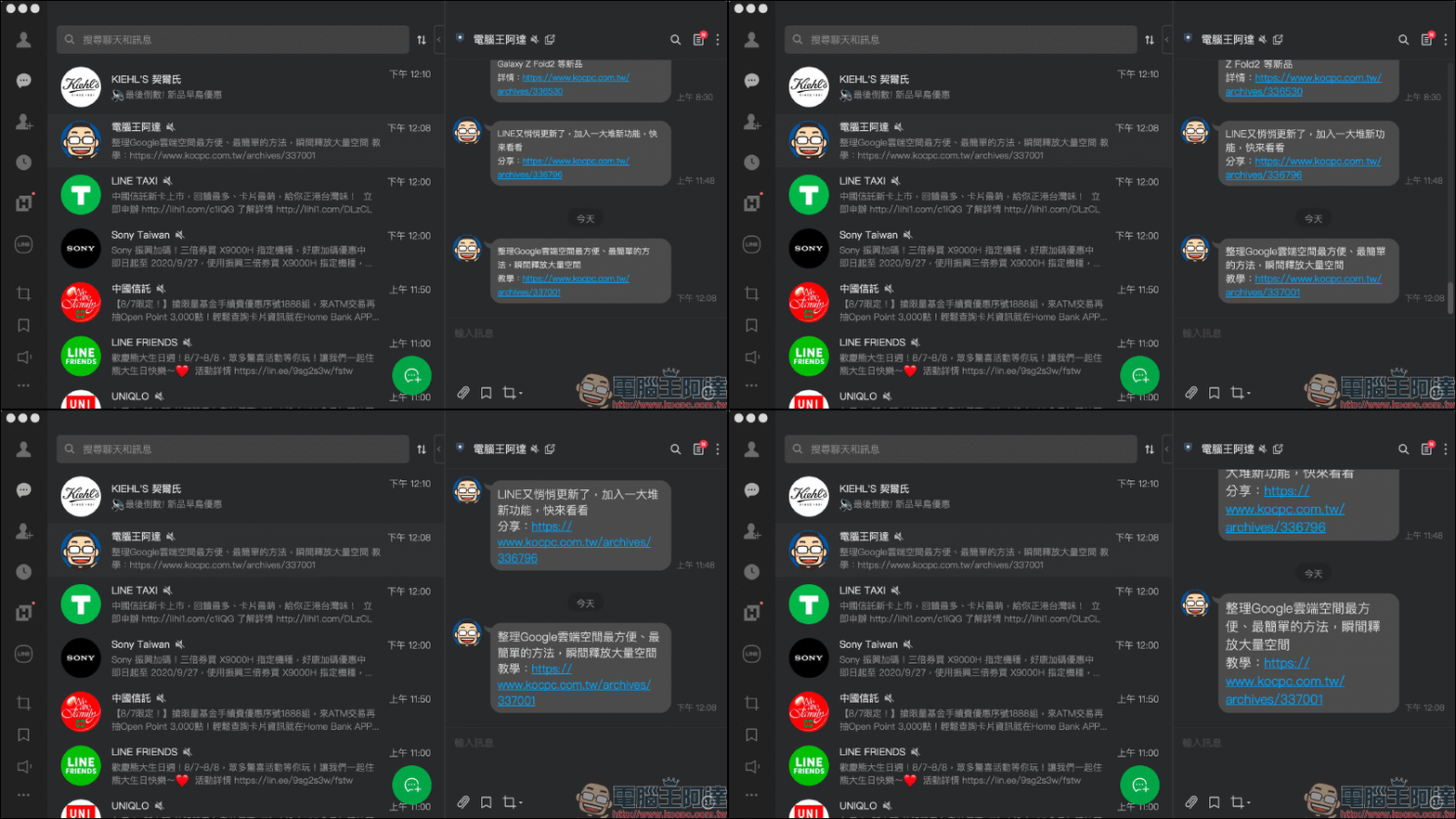
The following is a comparison of the actual display differences between the four chat room text sizes. You can choose the most comfortable font size according to your own habits. The smaller the font setting is, the more text content can be displayed in the same window range; the larger the font setting is, the less text content can be displayed in the window. This setting only changes the message text in the “Chat Room”.
Next is how to modify the display font of LINE! After setting up the page first, this time you need to select the “Basic Settings” tab. Under the font item, you can find the font menu to change the font.
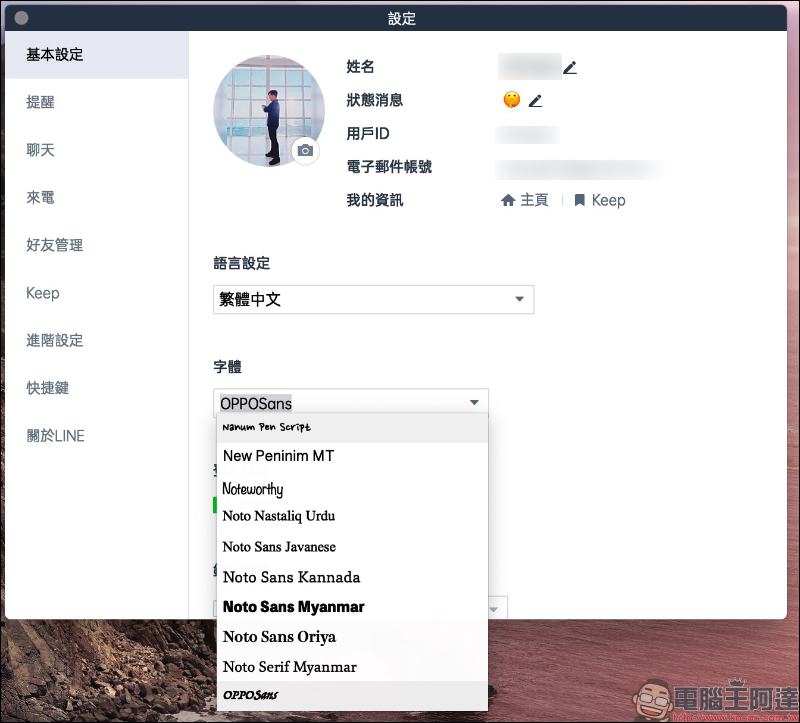
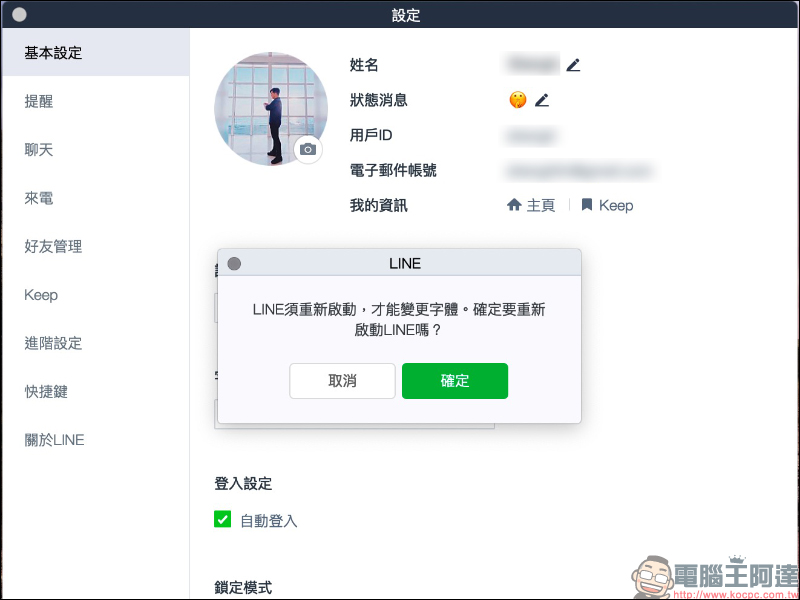
After selecting the font, you must restart the LINE application to change the font. Click the “Confirm” button according to the window prompts and it will automatically restart:
In terms of fonts, we have introduced jf open pink round font、 OPPO Sans There are many free and commercial fonts available. The font shown below is OPPO Sans: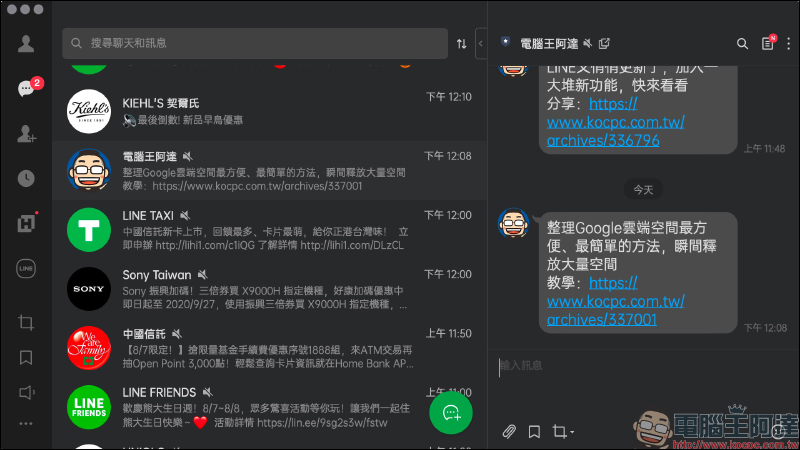
LINE PC version download:Click here to go
Further reading:
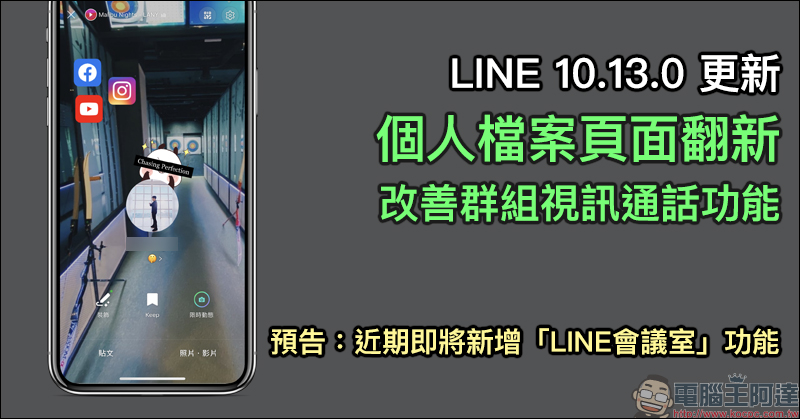
LINE 10.13.0 mobile version update: Personal profile page renovation, improved group video call function and other updated contents are organized, and the “LINE Conference Room” function is announced to be launched soon.
Source: KOCPC Chinese