


Since the iPhone downclocking incident in 2017, which has led to Apple being sued by consumers one after another, battery status transparency on many Apple products has greatly increased, allowing users to intuitively check the battery health of their devices, as well as power consumption and charging status. There is a question you must be confused about. Why does the MacBook still display “Not Charging” after it is connected to the charging cable? Is it because my device is broken?

Why does my MacBook show “Not Charging” when connected to a power source? Is it broken?
In iPhones, MacBooks and other devices in recent years, Apple has made considerable improvements in the battery management system, making everything open and transparent. It not only displays more power usage information to users, but also allows users to have more active control options. This is the case with the battery management system on the current MacBook series. Users of some computers running macOS 10.15.5 or above and equipped with Thunderbolt 3 ports found that even though the charging cable was plugged in, a not charging message was displayed on the screen.

Some people may think that the problem must be with the charger or charging cable, but Apple says that this is actually normal and that this is what the battery management system does. Apple maintains that this entire process can help effectively extend battery life, but on the other hand, users have full control and can manually disable the battery charge management feature completely. The battery health management system is designed to reduce the rate of chemical aging of the battery, so when the feature is enabled, it may temporarily stop charging at any time, even if the charging cable is plugged into the device. This is because the entire charging process has been refined based on your usage, so the computer only charges when needed to prevent premature battery degradation and extend its lifespan.

If you want to enable or disable the battery health management function, you can adjust it from the following path. If you want to enable it after turning it off, you can also follow the same procedure:
- Go to “System Preferences” and click “Energy Saver”.

- Select “Battery Health…” below.
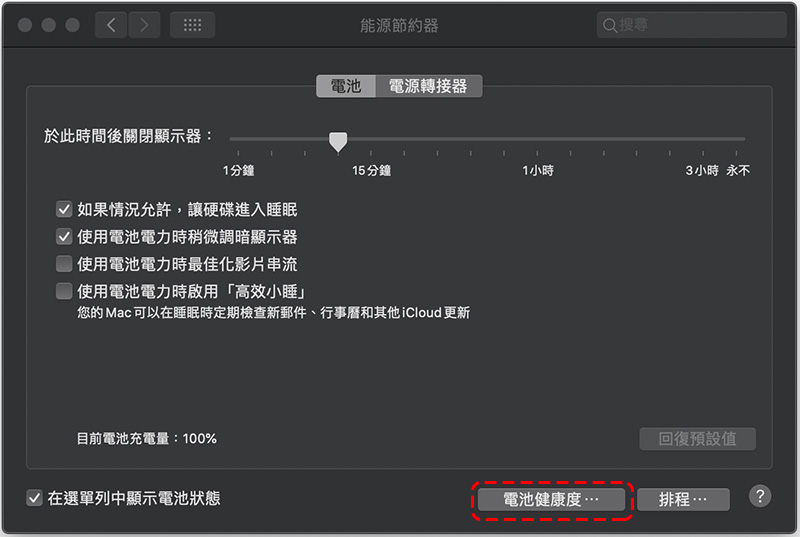
- Just uncheck “Battery Health Management” and check “Turn Off” in the subsequent disclaimer prompts.


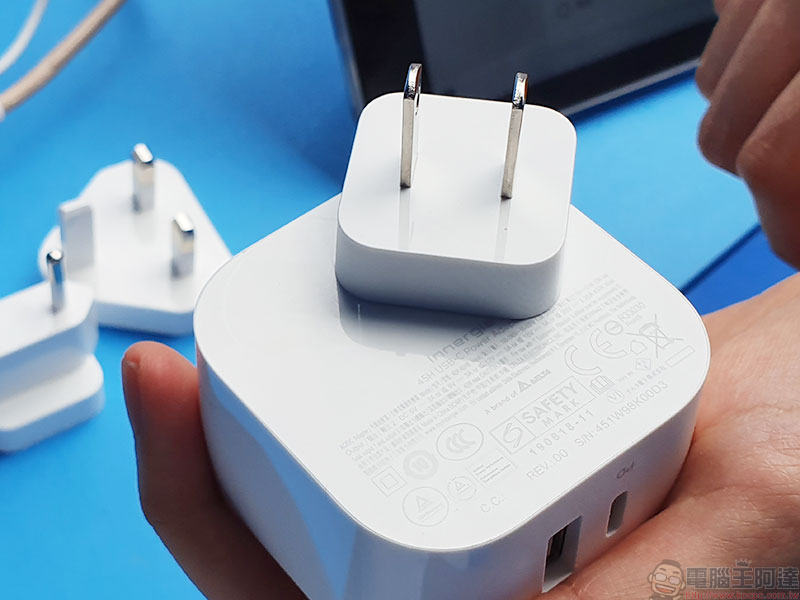
If your situation is that the laptop power needs to be charged but there are still words such as “Not Charging” and it does not belong to the above status, then you should consider whether it is caused by a hardware problem. The most common situation is that the power cannot be supplied to the laptop due to insufficient wattage of the charging transformer, or the selected wire is not suitable. At this time, you can try another wire, or try to use another charging transformer with sufficient output power.
If you have ruled out problems with the transformer cable and battery health management system, then you have no choice but to seek technical support from an Apple Store or an authorized repair center to check whether the problem lies with your laptop.
◎Data source:Apple
Source: KOCPC Chinese