


Although Microsoft has been working hard to force everyone to upgrade to the latest version, and even plans to use The power of AI deep learningTo promote this goal, but no matter how forced, everyone will always find ways to avoid upgrading too quickly to a system version that still has some problems to be solved. However, friends who have recently upgraded to Windows 10 2004 version don’t have to worry too much about this. Because there is currently a small easter egg in this system version. As long as you modify the registration code, you can experience what Microsoft announced not long ago that it is testing.New version start menu. The premise of this method is that you must first have a computer with Windows 10 2004 version system:
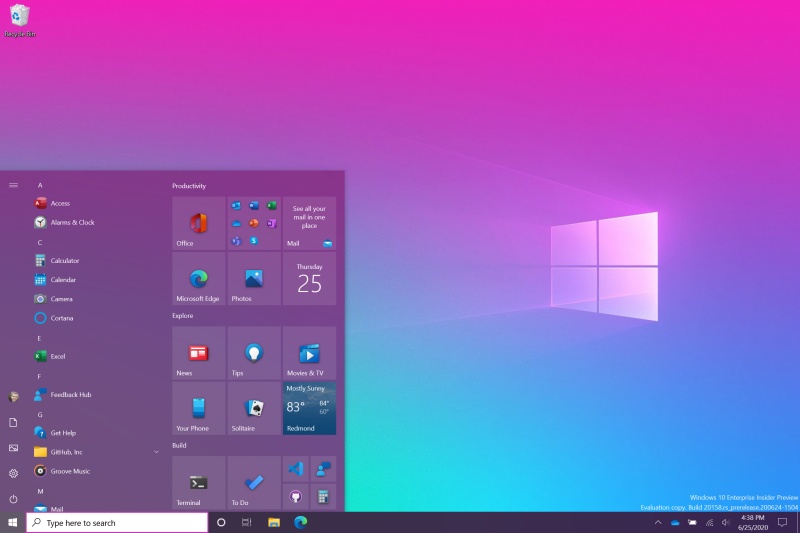
▲Is it the first time to play the new version of the start menu style? You can also try it (Image source)
Windows 10 2004 version has been in a lot of trouble recently. Although Microsoft has tried its best to remedy the situation, it has somewhat affected the willingness of current players to upgrade. Although upgrading is just a button, if the operating environment after the upgrade is full of problems, users regardless of their identity will feel strong dissatisfaction and instability. Although the new system received poor reviews when it was launched, as the maintenance period approaches, there may be many friends who do not plan to upgrade until the last minute.
Whether they have automatically upgraded, or they have manually pressed the update with the mentality of early adopters, or they have recently purchased a set of computers or laptops, players whose systems have been upgraded to the 2004 version can try to play with this recently discovered easter egg.
The system version is correct. You can see the new version interface with just one machine code.
This easter egg is actually the new version of the start menu interface that Microsoft is currently testing. The biggest difference between this interface and the past is that it is more adaptable to desktop themes. When switching between desktop themes with different background colors and color matching styles, the main background color of the start menu will also change according to the different styles.
Logically speaking, this feature can only be seen by users who log in to the Insider internal test account in the new version of Windows 10, which is still in beta. However, recently, users who are using Windows 10 2004 version system have more opportunities to play with this new feature.
First we need to confirm the system version. After entering Winver through the “Search” function, the system will pop up the Windows software information window, from which you can see the version information. The OS build number will be displayed after the words “Version 2004”. This number must be 19041.423 or higher. If you don’t quite understand this narrative, you can look at the picture explanation below:
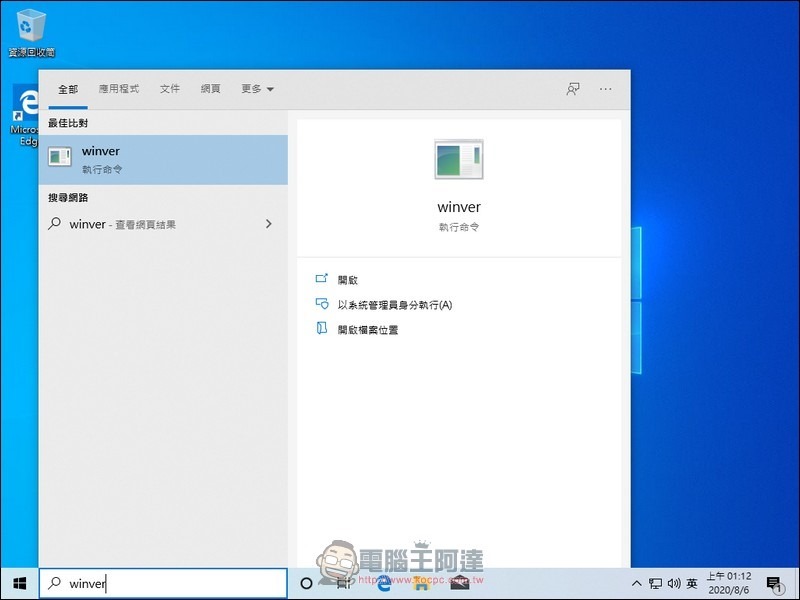
▲Input winver directly in the search box. You will see this status on the screen. Press Enter or click on the opening of the small letters with the mouse. The system will pop up the software description window.
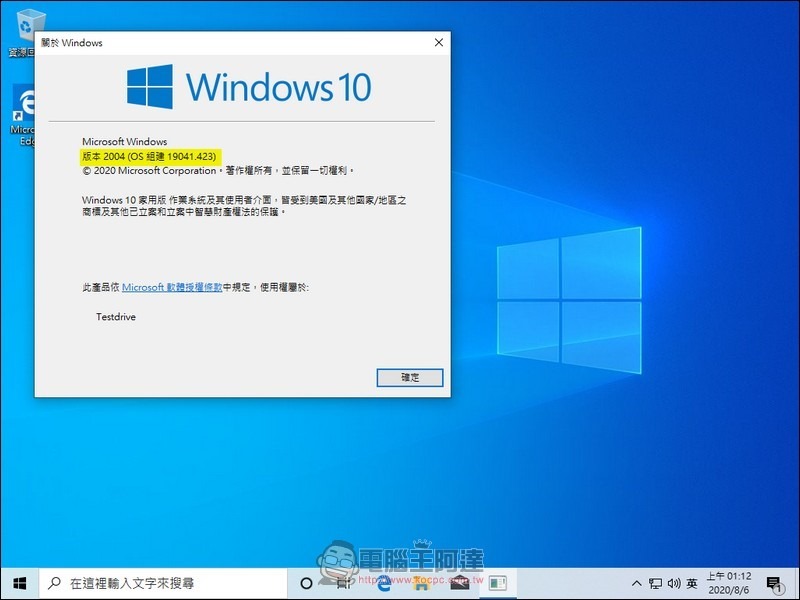
▲In the picture, you can see the “About WIndows” window called by the Winver command. The highlighted area is the version number we need to pay attention to. It’s best to be consistent here. If it is not consistent, there may be less update files installed.
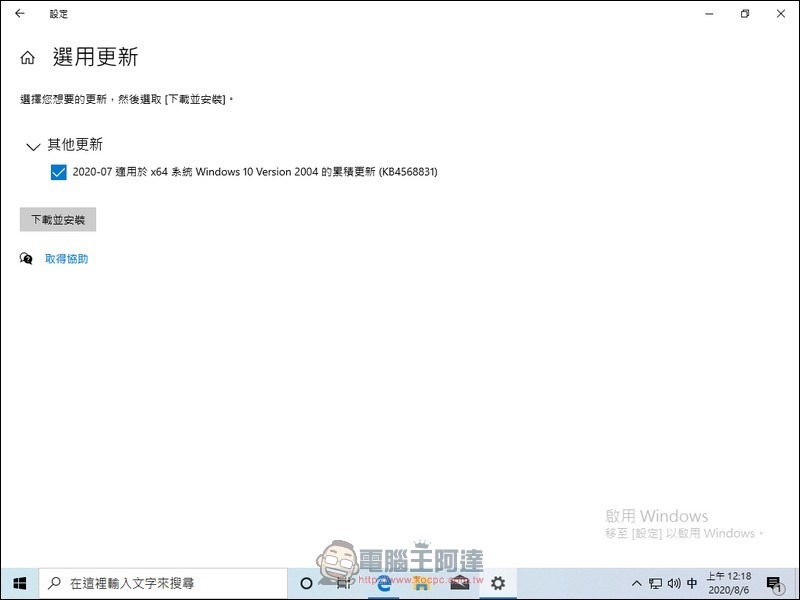
▲If you find that the number in the picture is different from mine in the last step, you can go to Windows Settings, Update and Security, Windows Update and click Check for Updates until you find that the KB4568831 update file is installed. This update is an optional update and will not be automatically updated with the system. If in doubt, please do not press update
After confirming that all the previous steps are consistent, the next step is the key. We first need to open Notepad. Students who cannot find Notepad can directly enter “Notepad” or “Notepad” in the search box to open the software. We need to use this software to save a piece of machine code modification data in order to quickly modify the machine code part. After opening the Notepad software, enter the following text:
Windows Registry Editor Version 5.00
[HKEY_LOCAL_MACHINE\SYSTEM\CurrentControlSet\Control\FeatureManagement\Overrides\0\2093230218]
“EnabledState”=dword:00000002
“EnabledStateOptions”=dword:00000000
After successful entry, the screen will look like this:
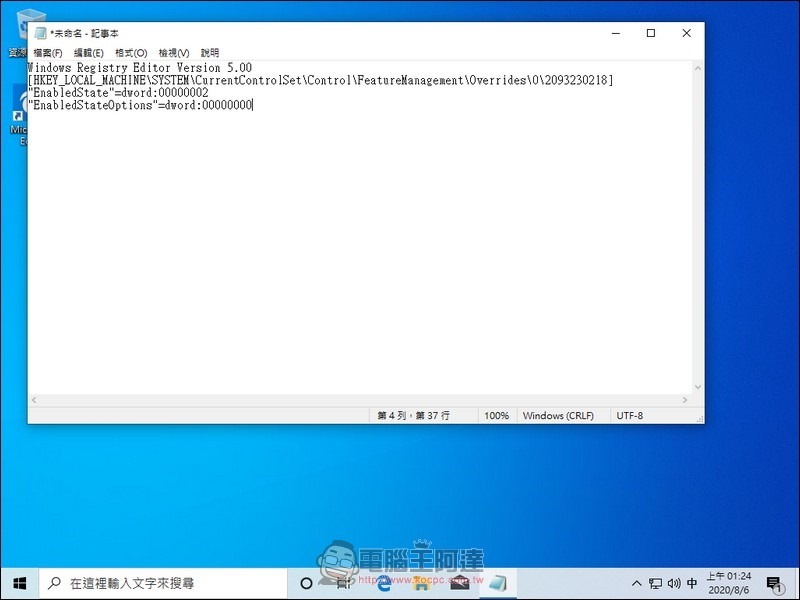
▲Students who are familiar with computer code modification must have understood what this text means.
Then save this file as a .reg file. The file name can be arbitrary, such as start.reg or startmenu.reg for easy identification. That’s it. The author chose to put the file on the desktop to facilitate screenshots and instructions:
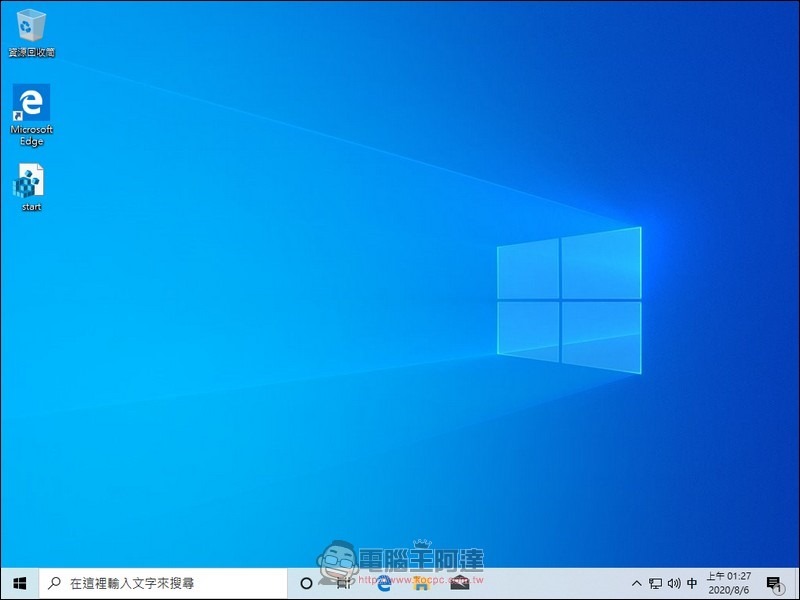
▲Considering that the following operations are at your own risk, friends who are not familiar with computers should first use virtual machine software to operate it, and then play it on an actual computer after the experiment is successful.
The next part is very simple. You only need to move the cursor to the machine code file you just created, quickly double-click the left button and agree to log in to the editing program to change the device:
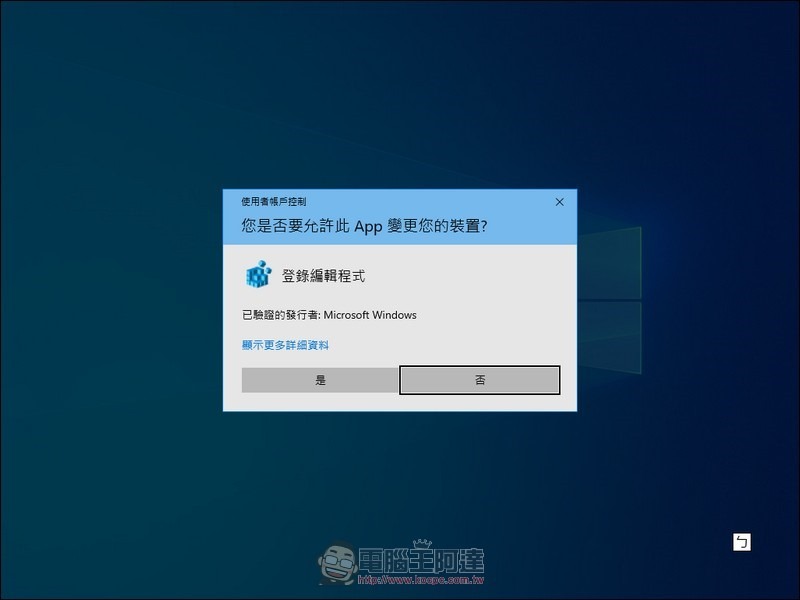
▲Usually just click “Yes”.
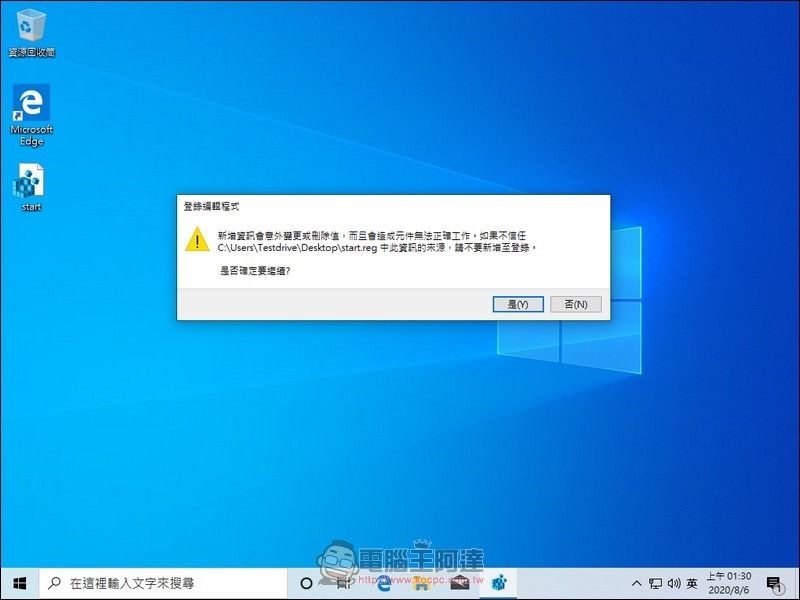
▲You will most likely see a warning about logging into the editing program. After reading it, you decide to do so at your own risk, and just select “Yes”.
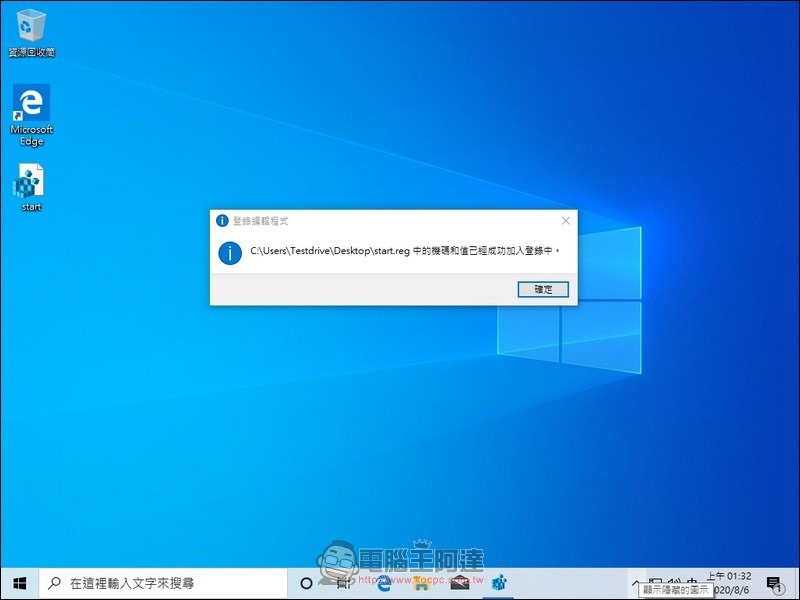
▲Seeing the above paragraph means that the machine code has been imported into the system. Modification completed. Manually restart the system immediately.
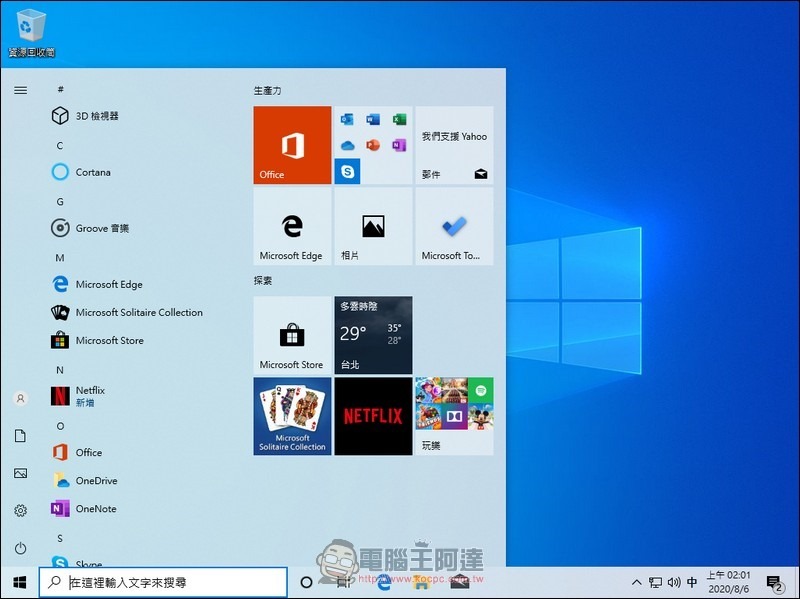
▲After restarting the system and logging in to your account, from now on, you will see the new color design of the start menu
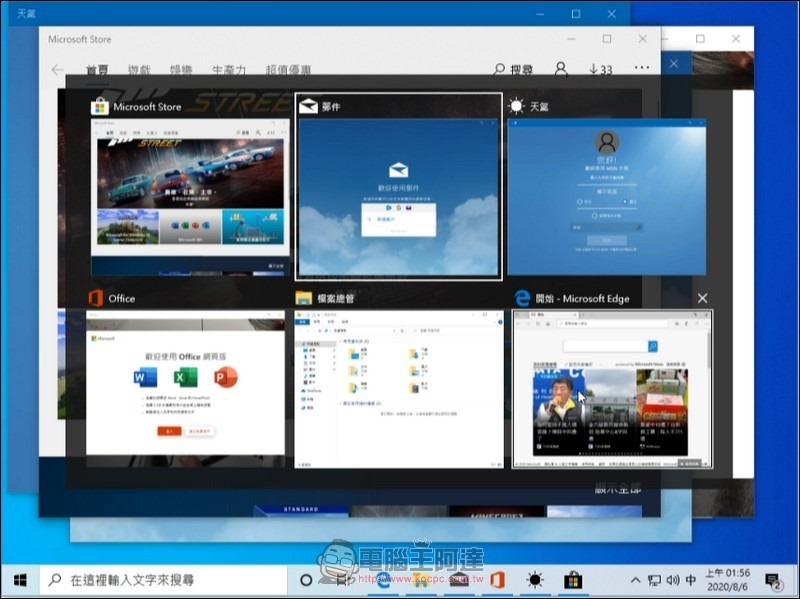
▲When you press Alt+Tab, you will also see that the window switching interface has new changes. It is no longer a “one-stop” style. When there are many windows, they will be presented in double rows.
Of course, there should be a problem when doing this: What should I do if I feel that I don’t want to change it and want to return to the same thing as before? In fact, the modification just now originated from the newly added machine code in the login editor program. To restore the old style, naturally, just delete the newly added machine code. First open the login editor program. You can use the search bar just now to find the program:
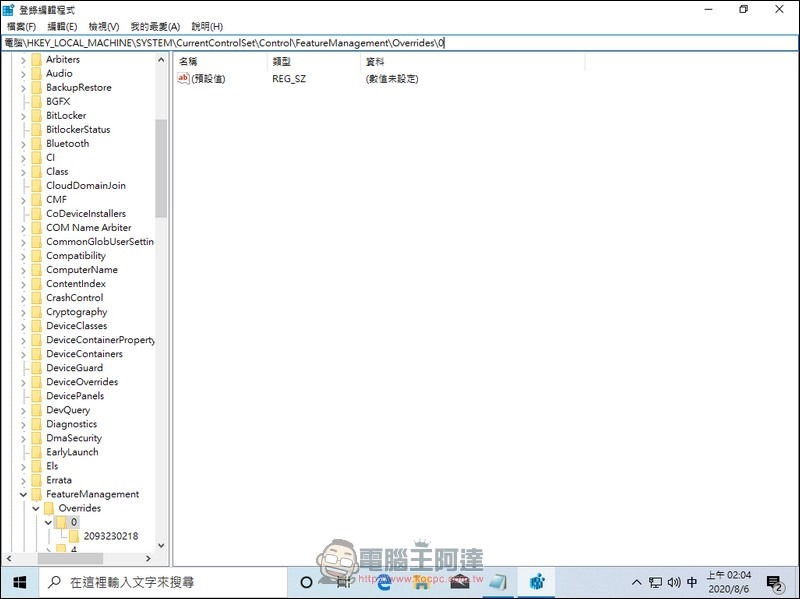
▲Enter the location in the location column:HKEY_LOCAL_MACHINE\SYSTEM\CurrentControlSet\Control\FeatureManagement\Overrides\0, theoretically you will see such a picture. Then in the left column, right-click the folder “0” to delete it, and then restart the computer.
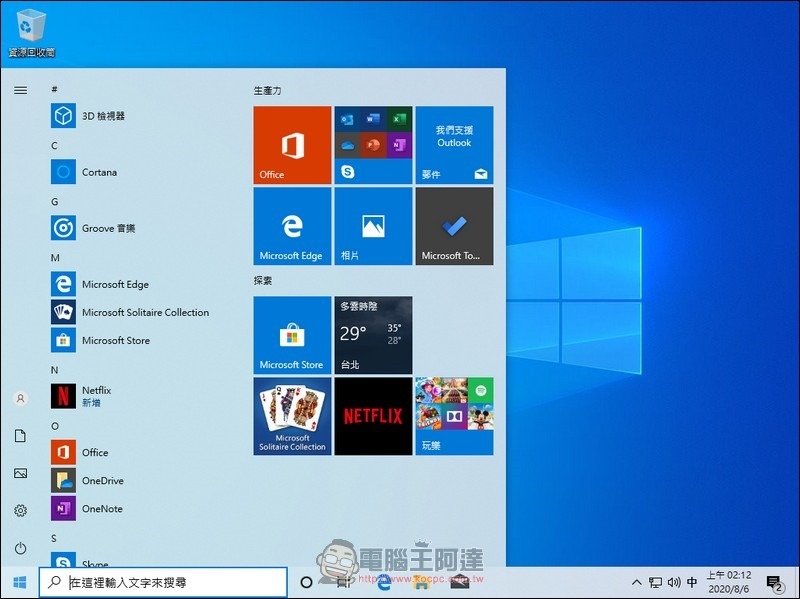
▲The system has returned to its original appearance
Source:Wccftech、Windowslatest
Source: KOCPC Chinese