


What I want to teach you today is how to synchronize the color and effect of a video in Premiere. When many people use Premiere to make videos, they may encounter a problem. A captured clip is sometimes cut into several segments. If you have set the tone and exposure of the video in that clip, after the video is cut into several clips, the tone and exposure of each clip will become independent. Adjustments during the process and afterwards must be adjusted or deleted piece by piece, which is quite troublesome. Today I will teach you how to cut the same video into fragments and synchronize the tones and effects.

Before starting teaching, we also made a teaching video. Welcome to subscribe:
Method 1: Adjustment layers
There will be two methods of teaching here. Both can be used, depending on personal habits. Before we start, let’s first explain the general method of adjusting the exposure and color of the video. Generally, we will apply a color effect directly on the video to adjust the exposure and color:
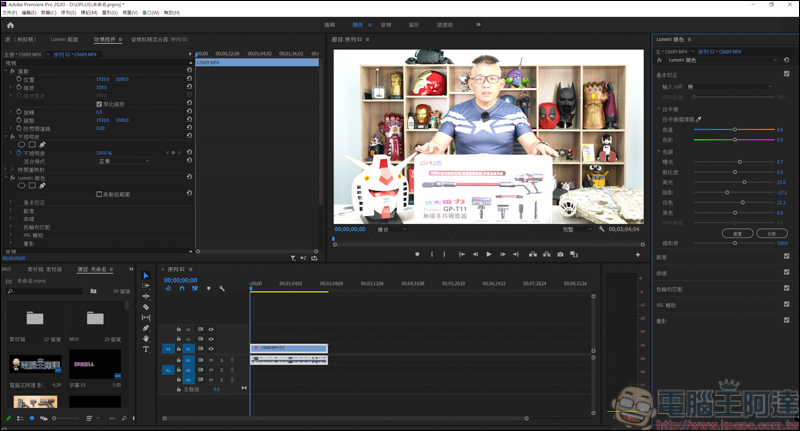
But when you cut this video, the colors on the effects plug-in side will become independent:
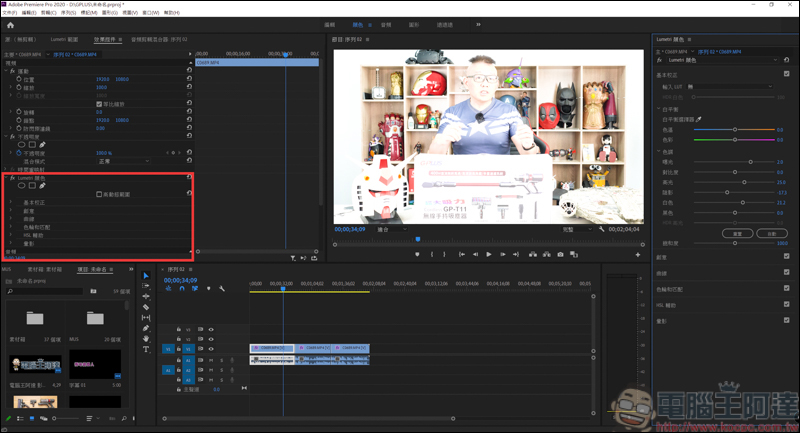
Take the picture as an example. I cut the color-adjusted video into three segments. I have adjusted the exposure value in the first segment above, but the second segment below still maintains the original value. If you want to synchronize, you must directly adjust the same value, or delete the color effect and copy it from the first segment, which is quite troublesome:
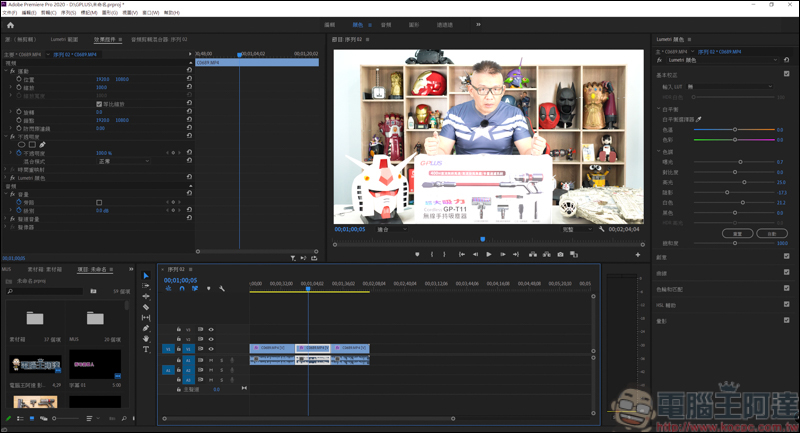
There are two ways to solve the trouble. One is to directly add an adjustment layer:
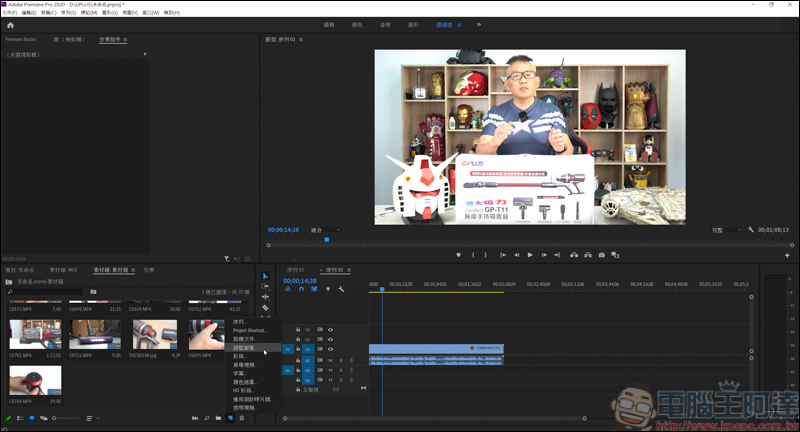
Then place the adjustment layer directly on the corresponding video, then directly give the adjustment layer a color plug-in, and then adjust the values yourself:
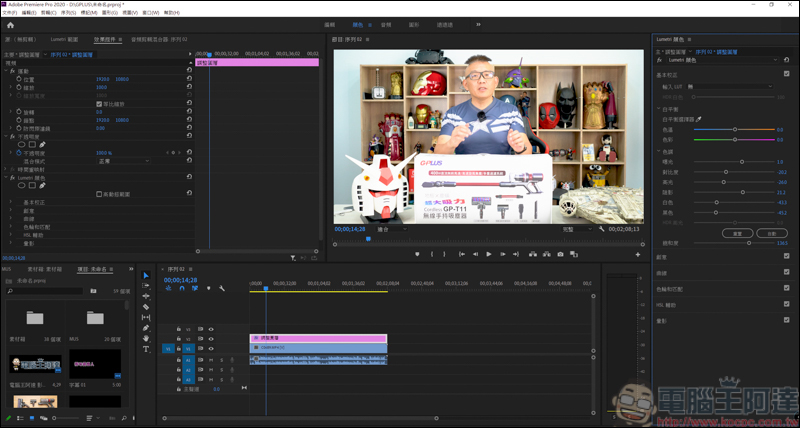
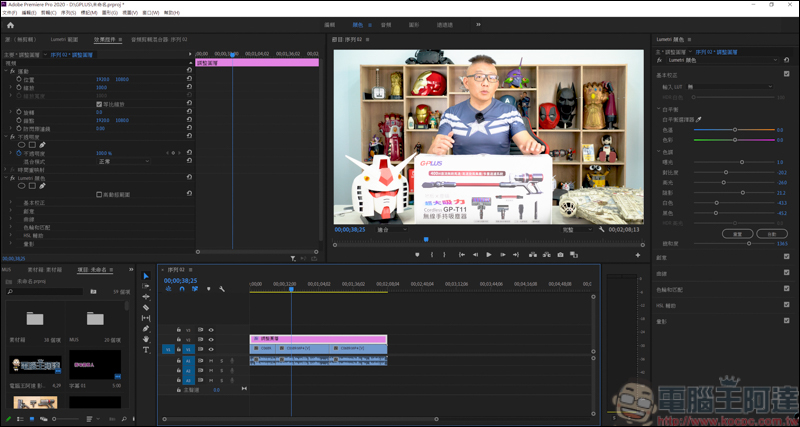
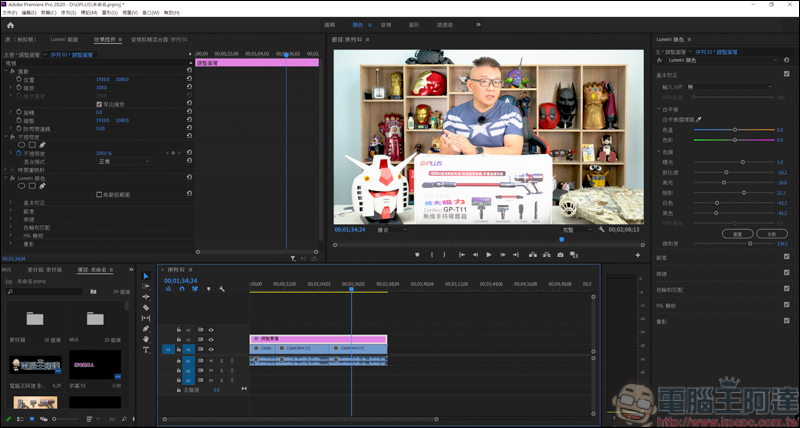
The advantage of using an adjustment layer is that as long as you adjust the value of the color plug-in in the layer, the video covered by the adjustment layer will move accordingly, so you don’t need to adjust the clips one by one. However, when you adjust the length of the video afterwards, you need to slightly adjust the length of the adjustment layer and the video. It cannot be too long or too short, otherwise it will affect other clips:
Method 2: Main video synchronization
Another way is to make adjustments through the main video. Here, we first cut the video into three segments. Then randomly select one of the cut clips in the video, click on the main (top left), you can see that it is currently blank:
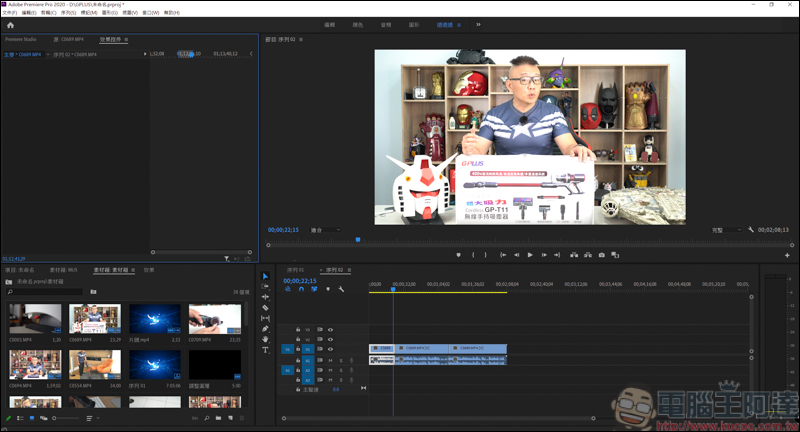
Then throw the color plug-in into the main, and you can make adjustments directly there:
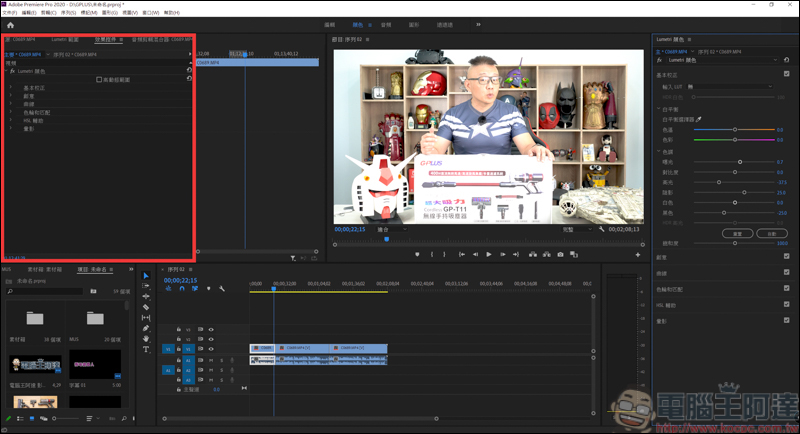
When you throw the plug-in into the main body, it will directly synchronize all the clips of the video in the sequence. To put it simply, suppose your video is 001. Today you cut 001 into several segments. By placing the plug-in into the main body of 001, you can directly synchronize the plug-in for all the clips of 001, just like the color we are adjusting now:
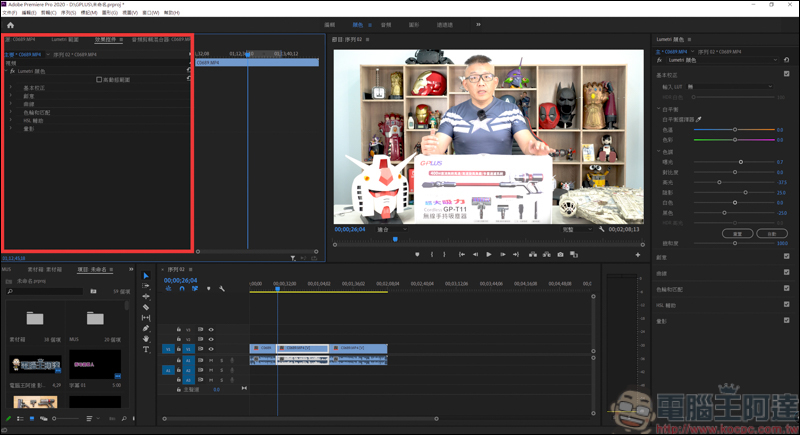
Of course, other effects are also applicable, such as the skin beautifying function. As long as you throw it into the main plug-in, all clips of the video will be applied. As long as you make adjustments to the main plug-in, it will be synchronized: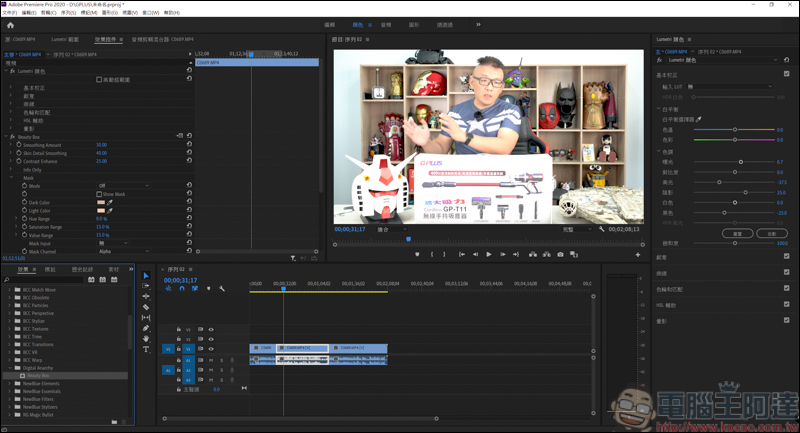
Source: KOCPC Chinese