


When using a Windows computer, you may encounter situations where certain applications and software cannot be installed correctly, or cannot be removed normally due to certain errors. For example, I have encountered a situation where a VPN program cannot be used before. Trying to use the built-in removal tool or reinstalling both failed. Many people may simply ignore it at this time. In fact, Microsoft officially provides a free “Troubleshooter” tool that can quickly fix the above two problems, even damaged login codes. Here I will teach you how to use it.
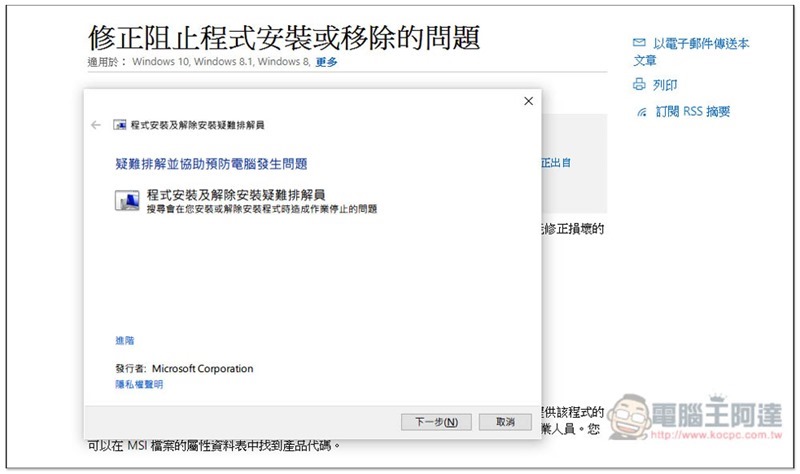
Use Microsoft’s official “Troubleshooter” to easily solve the problem of program failure to install or remove
This tool does not require installation and can be executed directly after downloading.Click me to go to the official Microsoft page。
The following problems can be corrected by it, and are supported by Windows 10, Windows 8.1, Windows 8, and Windows 7:
- Broken login keys on 64-bit operating systems.
- Control the destruction of updated data login code.
- Prevent new programs from being installed.
- Prevents complete uninstallation or updating of existing programs.
- Prevents you from uninstalling programs through Add or Remove Programs (or Programs and Features) in the Control Panel.
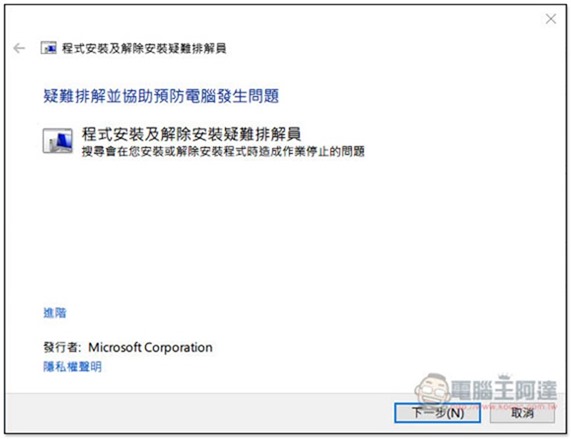
After downloading, this screen will appear when you open it. Click “Next” in the lower right corner:
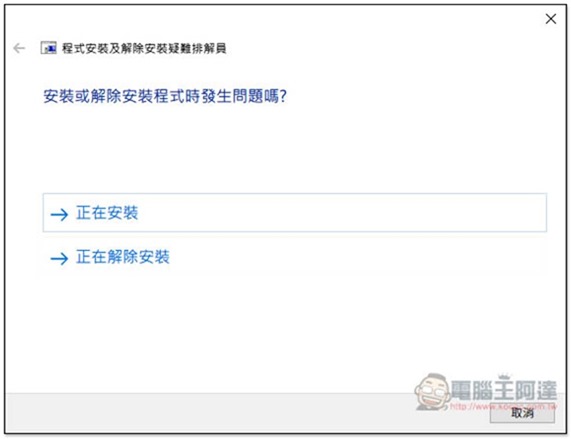
You will then be asked whether the problem is “Installing” or “Uninstalling”. Here I take Uninstalling (cannot be removed) as an example. The operations are roughly the same and very simple:
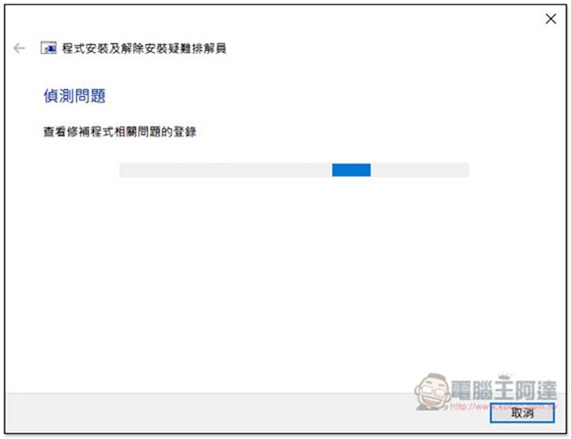
Your Windows system will be scanned for installed applications:
Click on the application that you cannot remove normally. If you don’t see it (basically you shouldn’t), please click “Not Listed”:
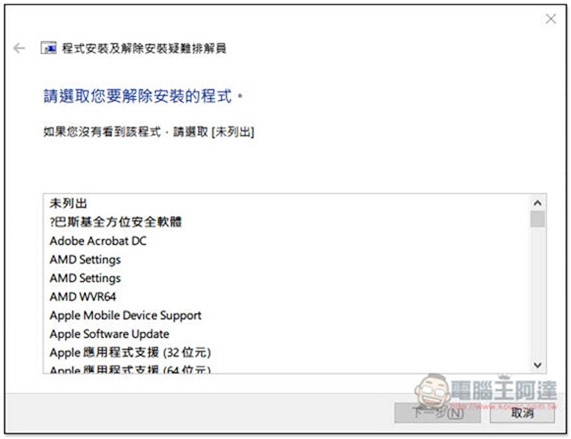
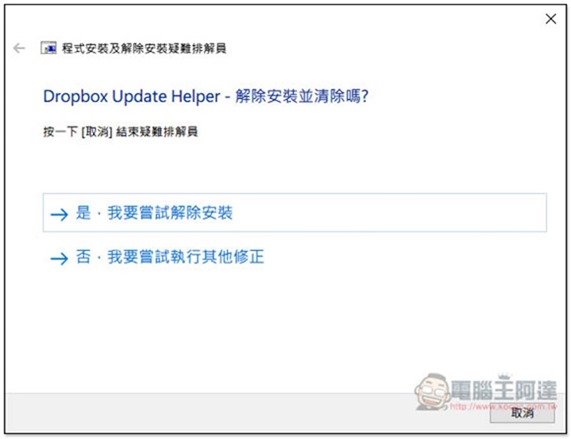
Select “Yes, I want to try to uninstall” or “No, I want to try to perform other corrections”. If you are sure to remove it, choose the former. If the application suddenly becomes unusable, you can try the latter first. If it really cannot be removed and then reinstall:
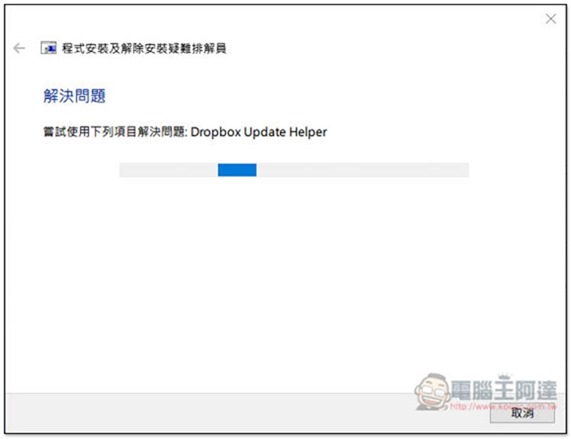
Wait for the problem to be solved and run:
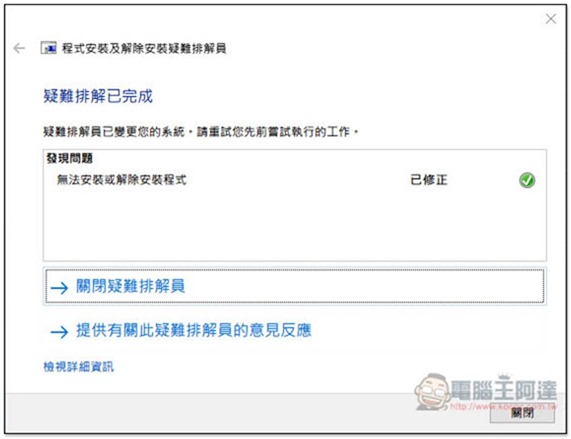
A “Fixed” message appears, indicating that the problem has been successfully fixed, and you’re done:
Most situations can be solved with this official set of tools, but if you still can’t remove the application after trying it, you can also try third-party free tools, such as:Wise Program Uninstaller、Revo Uninstaller、Glary Utilities All good.
Supplementary information
- Software name: Troubleshooter
- Nature: Free
- Download page:Click here to go
Source: KOCPC Chinese