


In the past, we have shared a shortcut script that allows iPhone to use Google to search for images. However, the shortcut script is sometimes unstable when used. If you don’t want to worry about when the shortcut script will become invalid and don’t want to use the Shortcut App, this time I will share an iOS application tip that allows you to easily use the Google image search function on your iPhone through the built-in Safari browser.
iOS application tips: Use Google to search for images on your iPhone, and it’s easy to operate without shortcuts! (teaching)
Although, iOS users can use Shortcut App and scripts to achieve the purpose of Google image search. However, there is no need to use shortcut scripts. You can directly use the built-in Safari browser of iOS, and you can also directly search for images on Google. First, open the Safari browser Google homepage (click me to go), at this time, you can first click on the upper left corner of the webpage to switch to the Google image search page. Since the mobile version does not display the image search button for uploading images to Google Images, we click on the “AA” in the upper left corner of the screen, and then click “Switch to PC version of the website”:
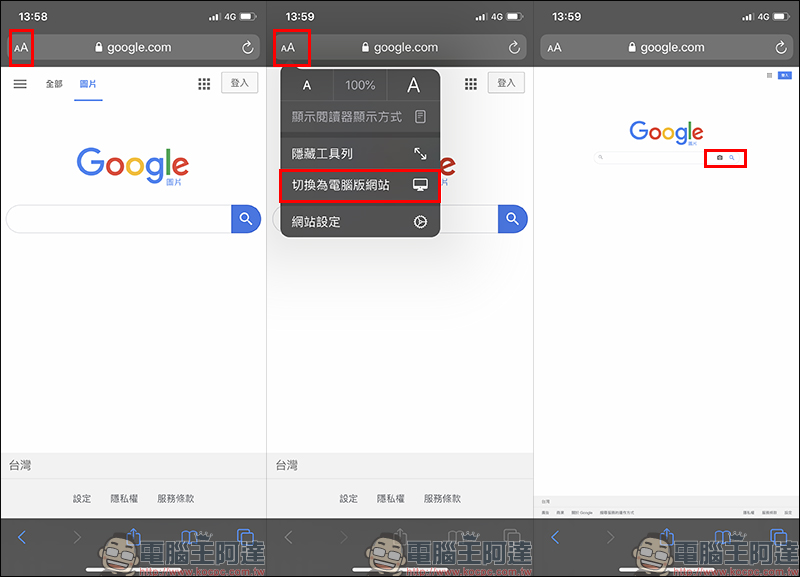
After switching to the desktop version, the same Google Image search page as the desktop version will appear. At this time, users can search for images by “pasting image URL” or “uploading images”:
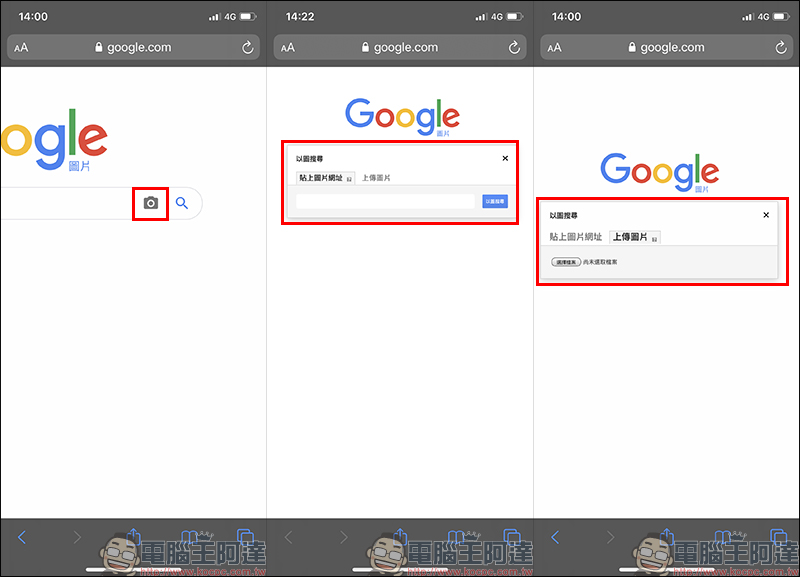
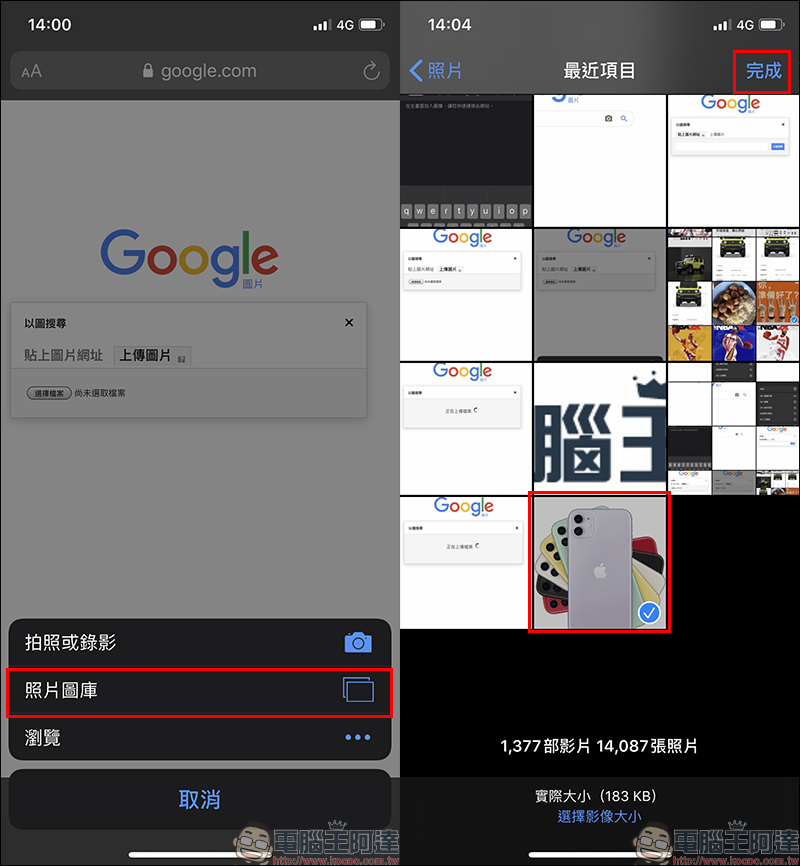
If you want to upload your own pictures to search for pictures, click “Select File” > “Photo Library” to open the iPhone photo album, check the pictures you want to search and press Finish:
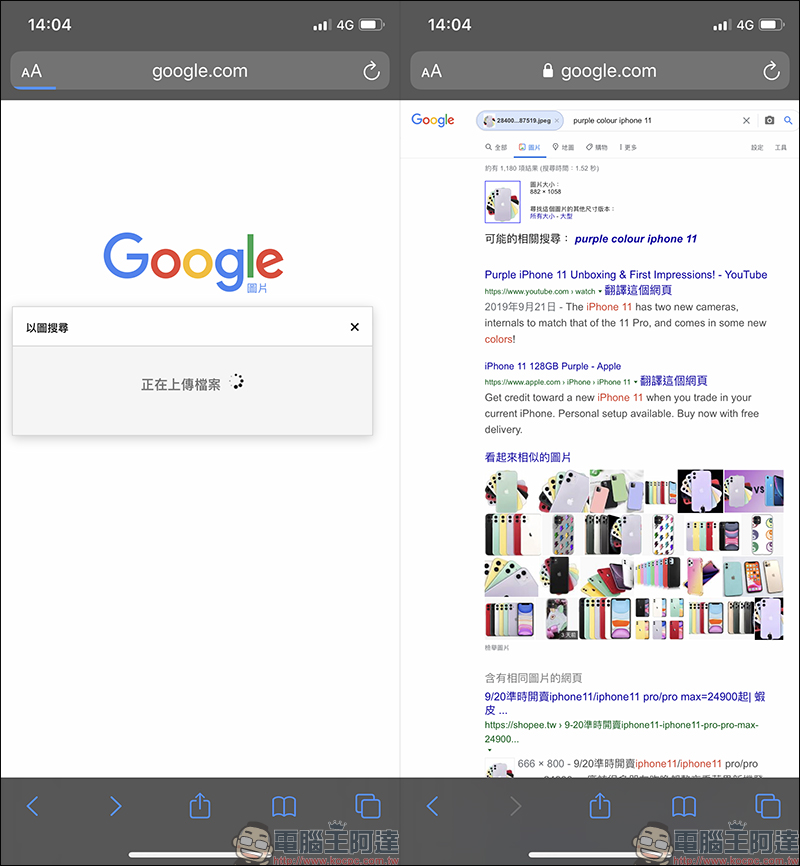
Just like Google image search on a computer, after the image upload is completed, the search results can display the same or similar related images:
Some people may want to directly set the computer version of Google Image Search to the iPhone home screen through “Add to Home Screen” to make it more convenient to open later. However, even if the computer version is set when adding to the home screen, opening this page directly from the home screen will still automatically jump to the mobile version of the Google Image homepage. Therefore, it is recommended that all iPhone users who need to search for images by images only need to follow the simple steps mentioned above.
Further reading:
iOS application tips: After getting in the car, your iPhone will automatically open speed camera and other apps. This can be achieved through “shortcuts” and “automation”!


Source: KOCPC Chinese