


Everyone’s computer has some important files and pieces that they don’t want others to discover. Encrypting and decrypting files is one way, but this is a bit troublesome. You need to decrypt them one by one every time you want to use them. This article will recommend a very good free tool: “Hidden Disk”, which allows us to create a “hidden storage space”. There will be a new hard disk in my computer, allowing you to store important files here. When not in use, you can lock and hide them with one click. When you need to use them, enter the password to open them.
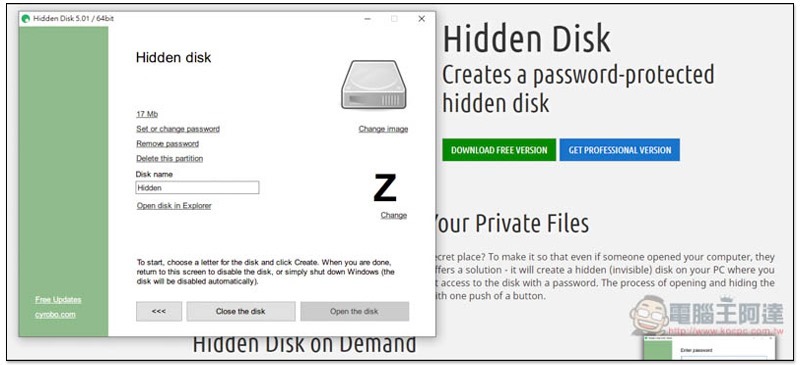
Hidden Disk Introduction
Hidden Disk has two versions: free version and paid version. The paid version will have more advanced features. For ordinary people, I personally think the free version is enough.
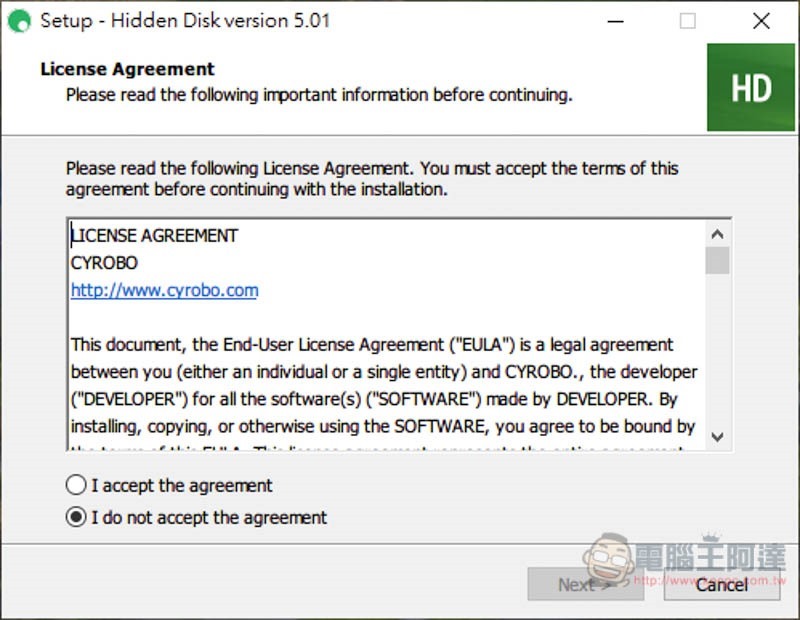
Just keep pressing Next during the installation process:
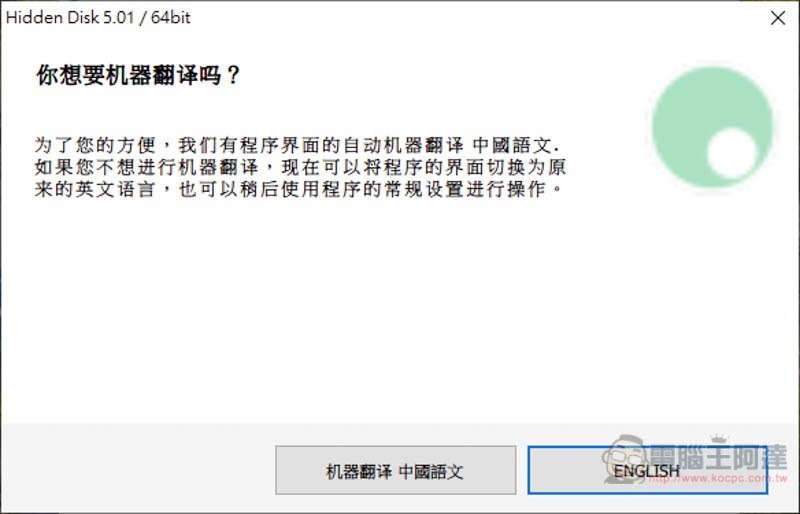
This set currently only has an English interface, but it provides a machine translation function into Chinese. People who need it can use it, but I don’t recommend it because some translations will be very strange:
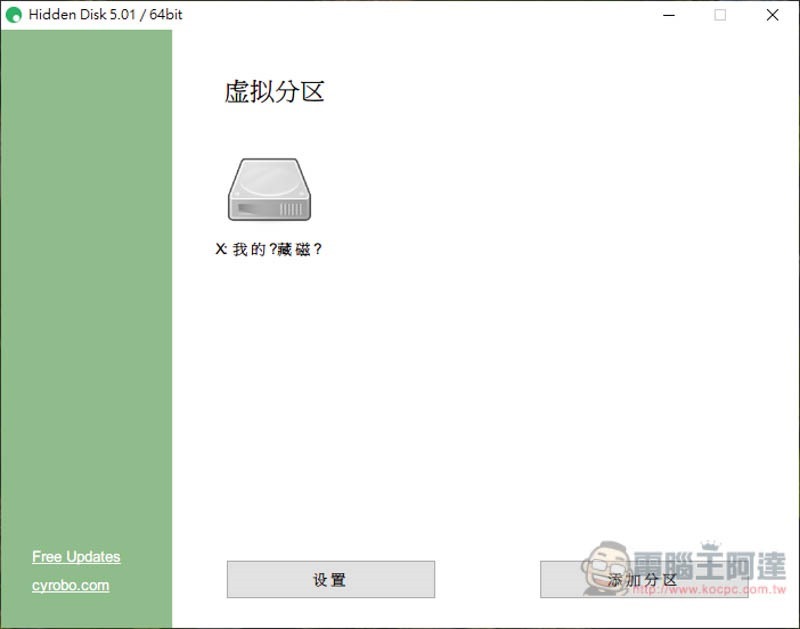
As shown in the picture below, people are a little confused about the virtual partition. What does it mean? The name of the hard disk is also garbled, so English is recommended. After entering this screen, the free version cannot use the add partition function, so it will copy your C slot into a virtual hard drive. This action will not take up any space. It doesn’t matter if you don’t understand it well. There will be a screenshot below. Click directly on the hard drive icon on the screen:
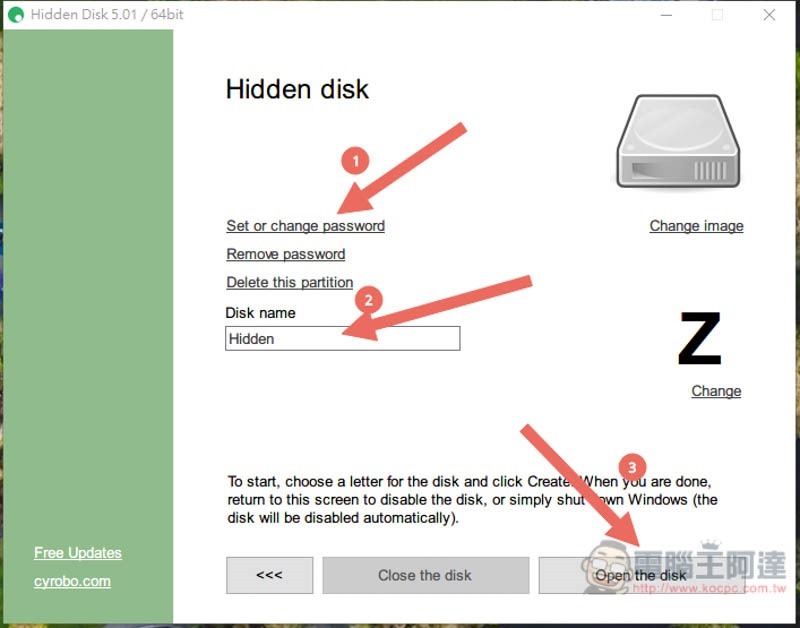
You will enter this screen. First, set a control password (you don’t have to set it up if you don’t want to, the main thing is to ensure that only you can control the switch of this virtual hard disk). Then enter the hard drive name and click Open the disk on the lower right:
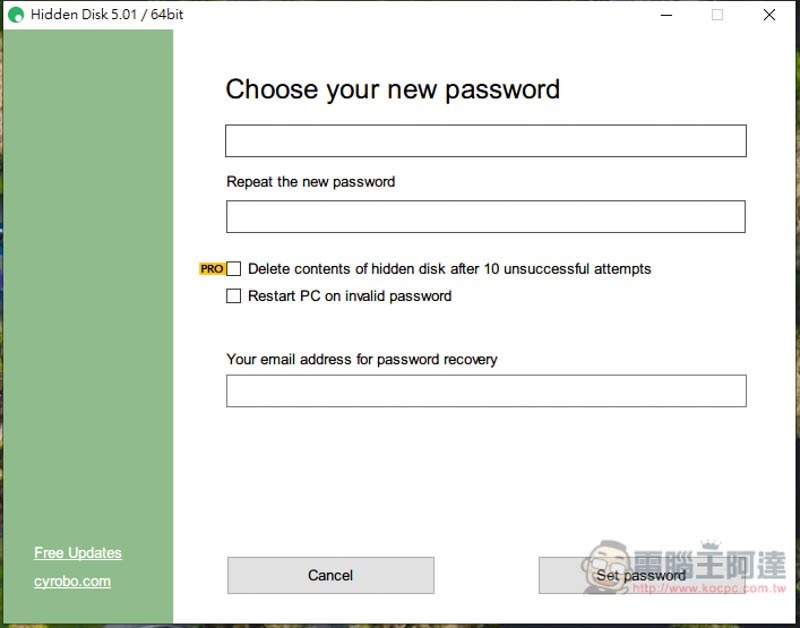
On the password setting screen, it is recommended to fill in the Email section to avoid accidentally forgetting the password. It can also be restored through Email:
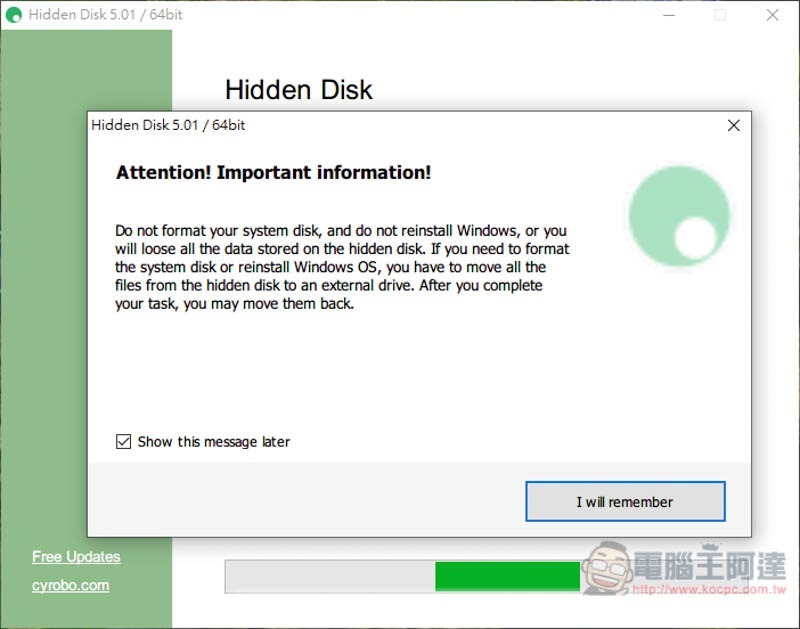
This message will pop up, mainly telling you not to format your system hard drive and reinstall Windows, otherwise you will lose all the data and files in this virtual hard drive. Click I will remember:
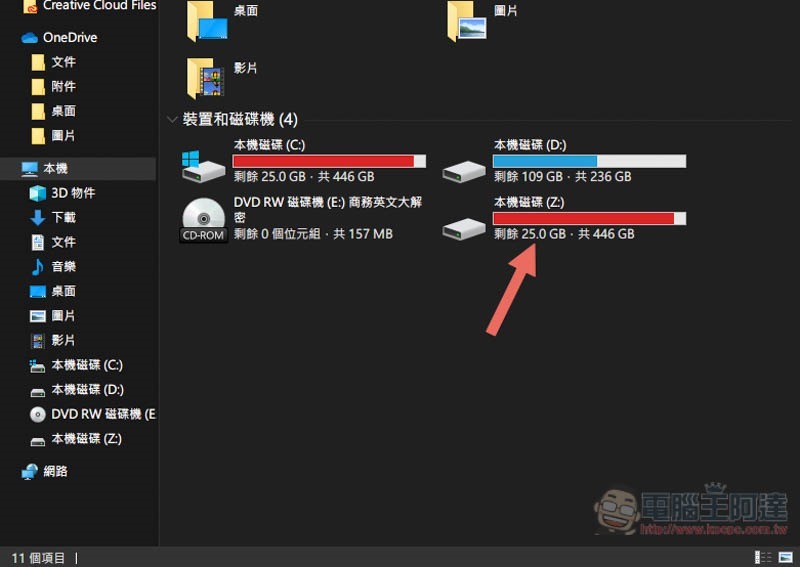
Then you will see a brand new hard drive in this machine. The capacity and remaining free space are the same as the C slot, but there is no data or files in it:
The next step is to move your important files and fragments to this virtual hard disk. After everything is completed, return to the Hidden Disk tool and click Close the disk:
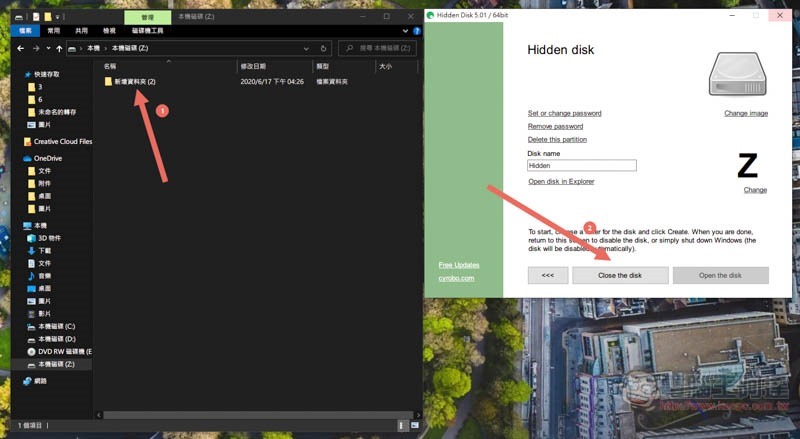
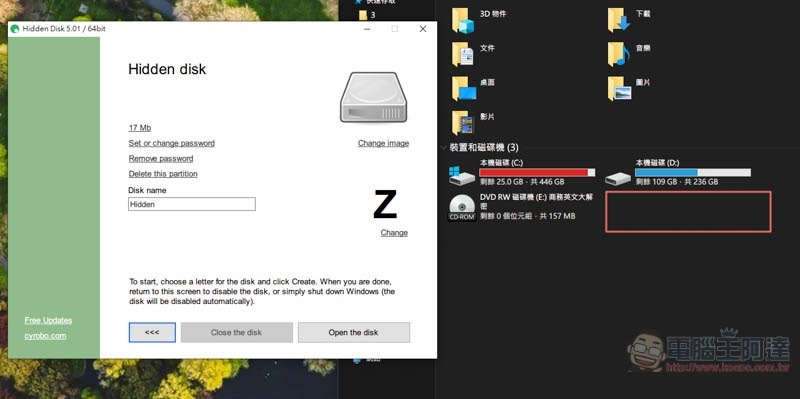
The virtual hard disk will disappear and you must click “Open the disk” before it will appear again:
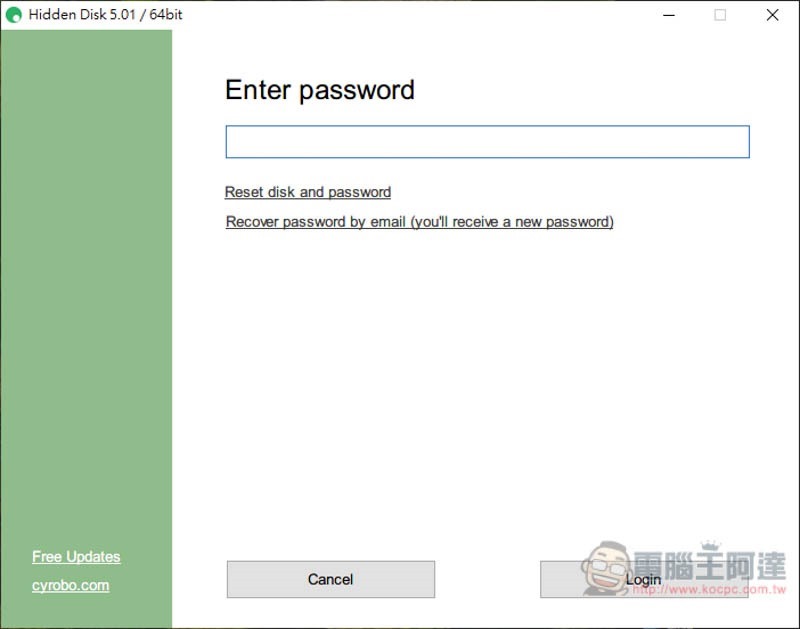
If you have set a password, you must enter the password every time before entering the control screen of this virtual hard disk:
Supplementary information
- Software name: Hidden Disk
- Nature: Free, paid (advanced features)
- Supported operating system: Windows
- Official website download page:Click here to go
Source: KOCPC Chinese