


I’ve never held back from ripping into Windows when it deserves it, but when it comes to File Explorer, even though it occasionally makes some head-scratching changes, it’s still a pretty powerful tool. Even though I now use macOS as well, if you ask me, Windows File Explorer is genuinely much better than Apple’s Finder.
However, even though File Explorer is an application that Windows users open every day, many people don’t actually maximize its efficiency. I’ve always been a strong advocate for leveraging keyboard shortcuts in Windows, and if you want to start building the habit of using shortcuts, File Explorer is the ideal starting point.
4 Windows File Explorer keyboard shortcuts worth remembering
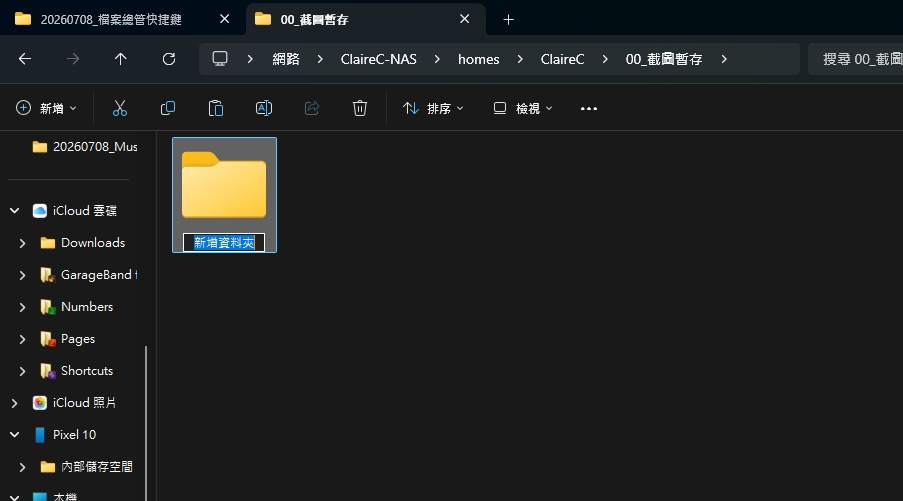
Ctrl + Shift + N: Instantly create a new folder
We often overlook one thing: those seemingly insignificant little actions that we repeat every day, if we can save just a bit of time on each one, will accumulate into a huge efficiency difference. Taking Windows File Explorer as an example, the most familiar way to create a new folder is probably to right-click on an empty area, then select “New >> Folder” from the menu.
Doing this once is certainly not difficult, but if you need to create a dozen or even twenty folders in a row, it quickly becomes tedious. I always end up digging through a bunch of options, and not to mention, the more folders there are, the less blank space there is to click on. If you prefer list view, the whole operation becomes even more clunky.
There’s actually a more direct method: pressing Ctrl + Shift + N creates a new folder instantly in your current location. Even better, your hands are already on the keyboard, so you can type the name right away – the whole workflow is incredibly smooth.
Alt + Up Arrow: Switch to the previous level
Most people overlook one thing: when you’re browsing your [insert media type] collection, and these files are buried deep in layered folders, even the smallest operation gets amplified into a hassle. Especially since Windows search is practically useless nowadays, manually clicking through层层 folders is actually faster.
Generally speaking, you can navigate between different levels through the tree structure on the left side of File Explorer, and this method isn’t bad. But there’s actually a more direct way: pressing Alt + ↑ takes you immediately back to the parent folder. Unfortunately, pressing Alt + ↓ won’t take you back to the previous subfolder, but don’t worry—the next shortcut will fill that gap perfectly.

Alt + Left Arrow / Right Arrow: Used for forward and backward respectively
Many people might not have noticed, but File Explorer actually works quite similarly to a web browser. It’s essentially a “browser” for your local (and cloud) file system, complete with an address bar and search box, and the navigation methods are nearly identical. So it shouldn’t be surprising at all that you can use Alt + Left/Right arrow keys to switch between folders you’ve visited.
This also explains why there’s no Alt + Down “go to subfolder” shortcut, since Back and Forward already cover most needs. By combining these three shortcuts, you can quickly jump between multiple folders, which is especially useful when doing bulk copy-paste or organizing files.

Ctrl + L: Select the address bar
Speaking of the path bar, its uses are actually more powerful than most people realize. Sure, you can type a path directly to jump to a specific location, but honestly, most people can’t remember complete file paths. For me, the real power of the path bar is that it can execute commands directly. You can even create new documents in the current folder by simply typing the name of an executable file in the address bar, followed by the filename of the new document. After pressing Enter, the file is generated instantly and you can start editing right away.
Honestly, the possibilities here are nearly endless. If your workflow heavily relies on File Explorer, you might want to try running common commands directly in the address bar—it’ll save you the hassle of opening a bunch of menus every time and boost your efficiency significantly.
Source: KOCPC Chinese