


Speaking of computer desktop video recording, we have introduced a useful one beforeformat factoryYes, although Format Factory has many functions, the desktop recording function is relatively light. The desktop recording software I want to introduce today is the famous NVIDIA software. This software was originally sealed by the author because when doing video editing or photo editing software, as long as you press ALT+Z, the NVIDIA software will run out by itself. Although you can change the shortcut key settings, it is the most peaceful thing to not see anything! It wasn’t until recently that I unblocked it to try it out because of the need for game recording. I didn’t expect it to be really useful! There are also more function setting options to choose from. If you are an NVIDIA user, please continue reading!
If you are installing the NVIDIA driver, you will be asked whether you want to install NVIDIA GeForce Experience. If it is installed, right-click NVIDIA in the lower right corner of the toolbar and it will appear: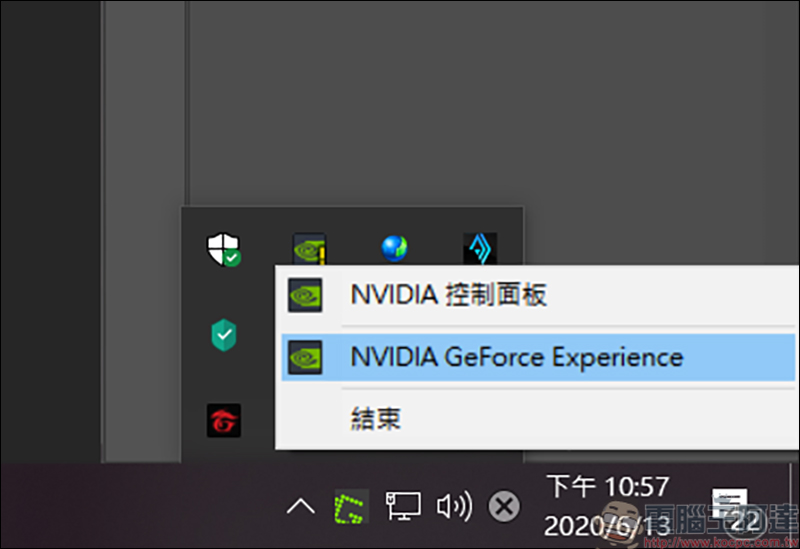
If it cannot be found, the default path is C:\Program Files\NVIDIA Corporation\NVIDIA GeForce Experience:
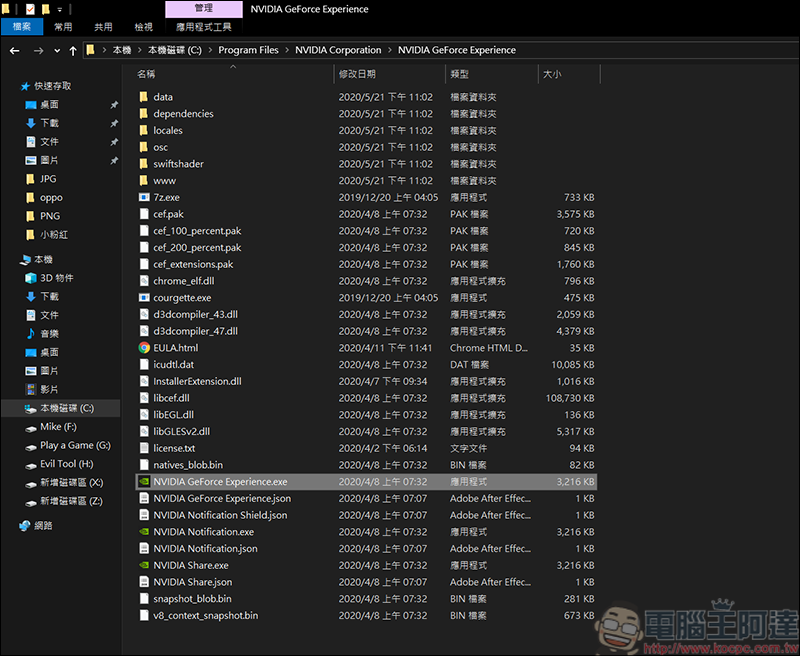
When you execute NVIDIA GeForce Experience, you will be asked to log in. Remember to log in before you can continue. NVIDIA GeForce Experience can also be bound to FB or Google. Choose one: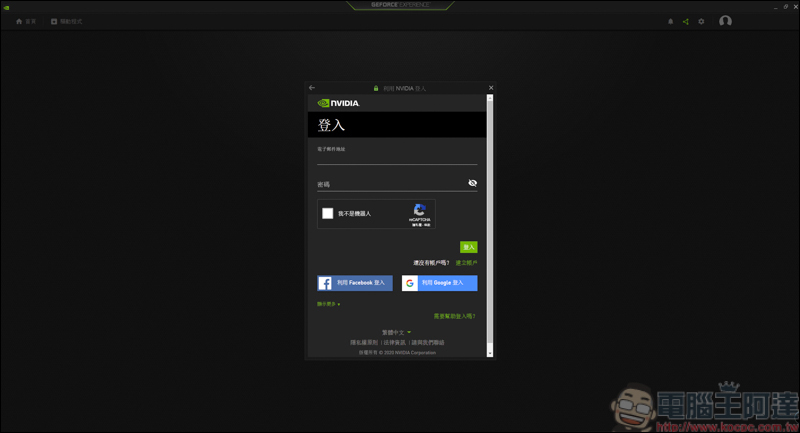
After logging in, the home page will link to the games you usually play. You can directly click on the icon to run the game or change the game screen quality settings: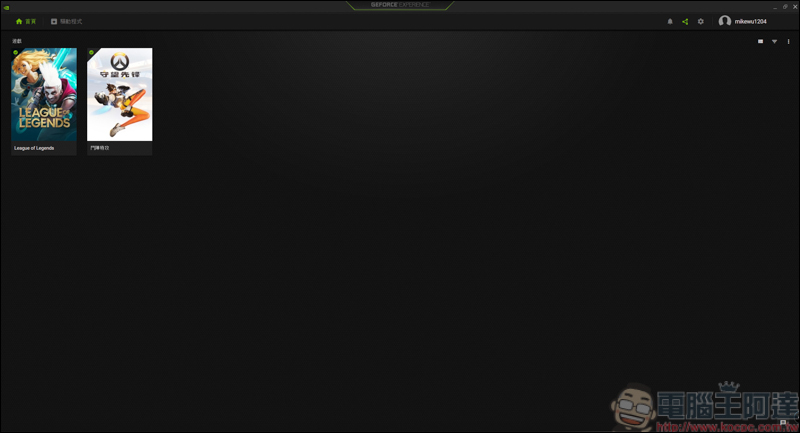
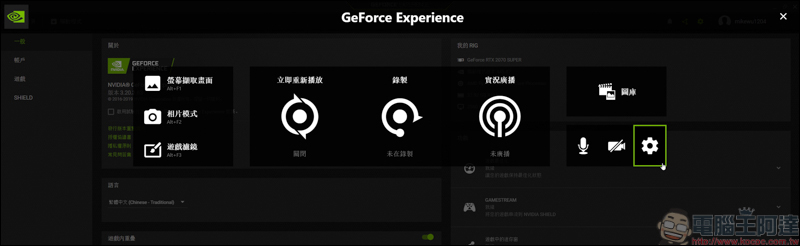
Then click on the settings on the upper right (upper right frame), and then enter the overlapping settings in the game (middle frame):
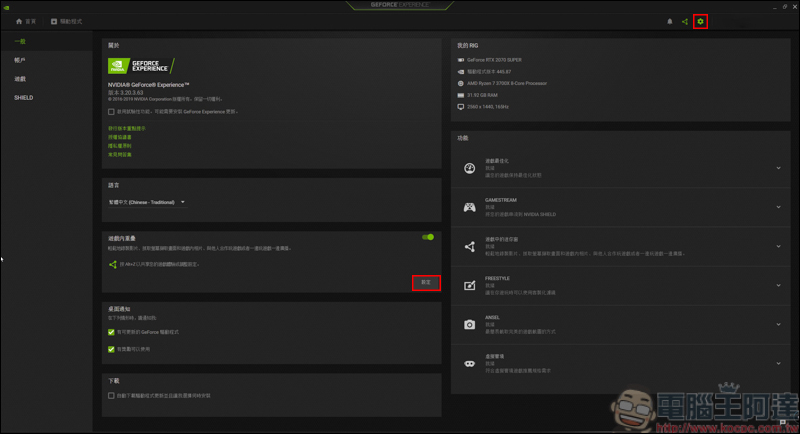
After entering the settings, you can customize the settings:
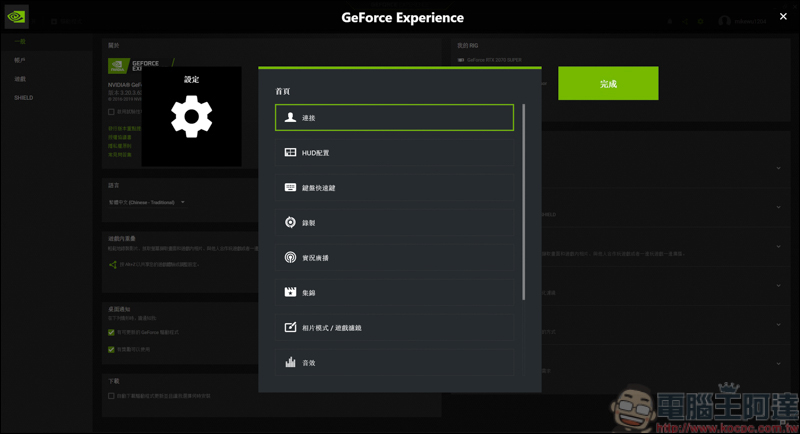
Here we will introduce the functions used in computer desktop recording. On the keyboard shortcuts side, you can set in-game overlay, screenshots, recording, etc. The more important thing is the in-game overlay: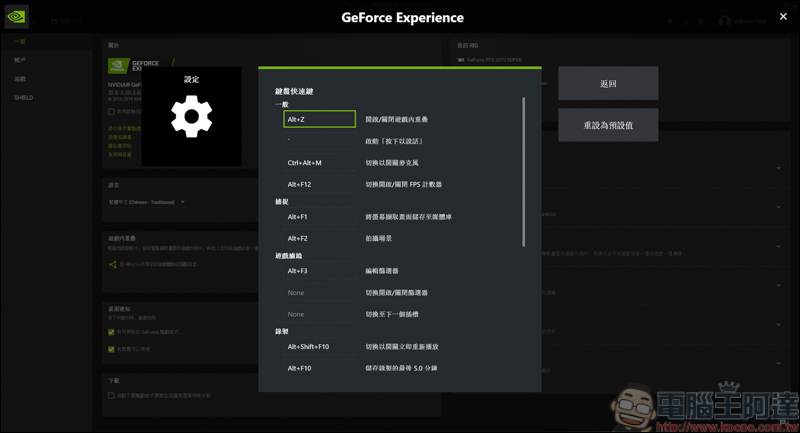
As long as you press the overlapping shortcut keys in the game, the NVIDIA GeForce Experience recording window will appear:
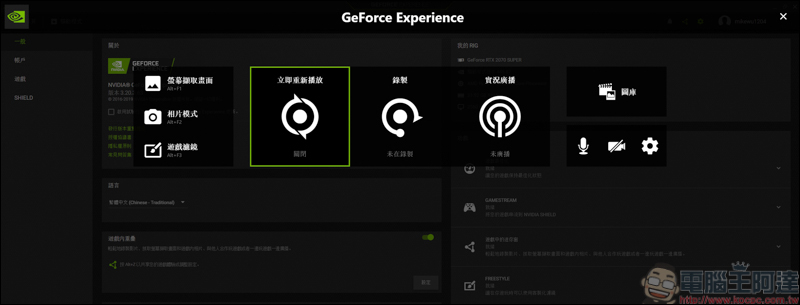
If you want to set it quickly, just click Settings on the lower right:
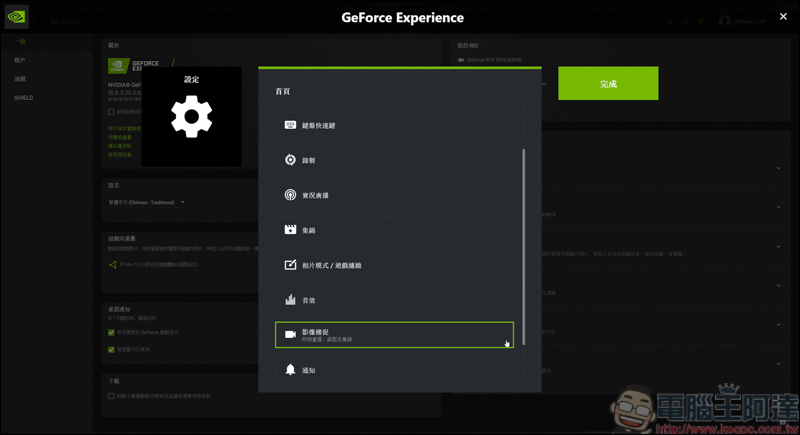
We will return to the NVIDIA GeForce Experience settings, and then we click on the green framed image capture:
In image capture, you can select the resolution, playback rate, and bit rate of the video. Compared with the format factory, you can adjust more parts: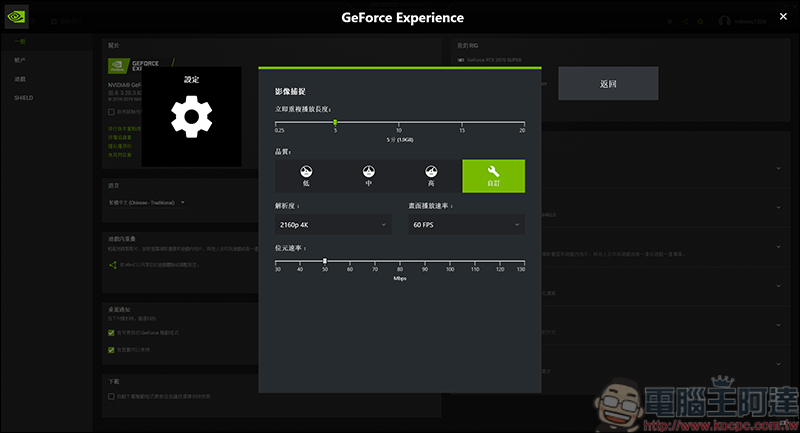
Then we enter the game to test:
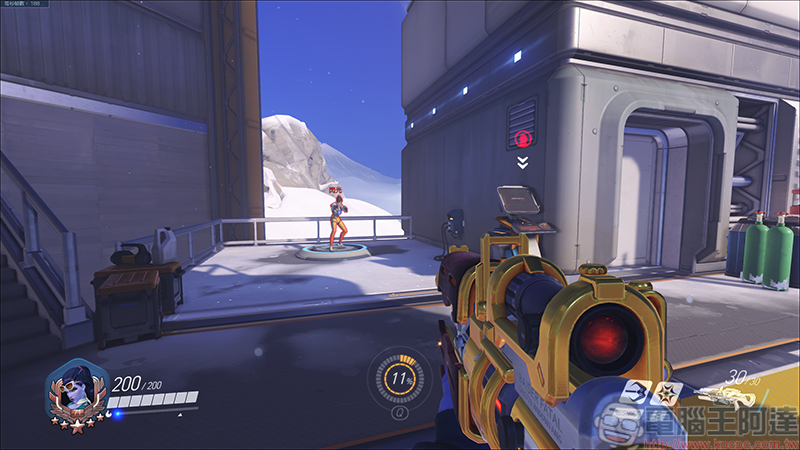
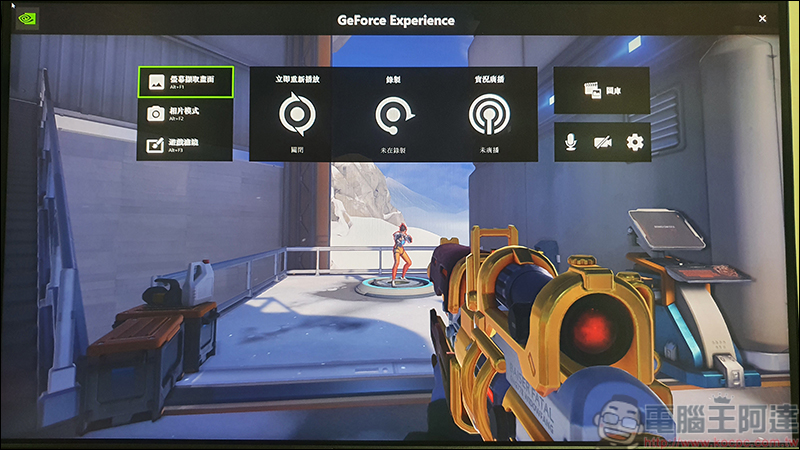
As long as you press the overlapping shortcut keys in the game, NVIDIA GeForce Experience will appear on the screen. You can choose to use the shortcut keys to take screenshots or record videos, or you can also use the mouse to execute. As long as your NVIDIA GeForce Experience is running in the background (the small icon in the lower right corner), you can take screenshots and record videos by just pressing the shortcut keys, saving you the trouble of opening the program again:
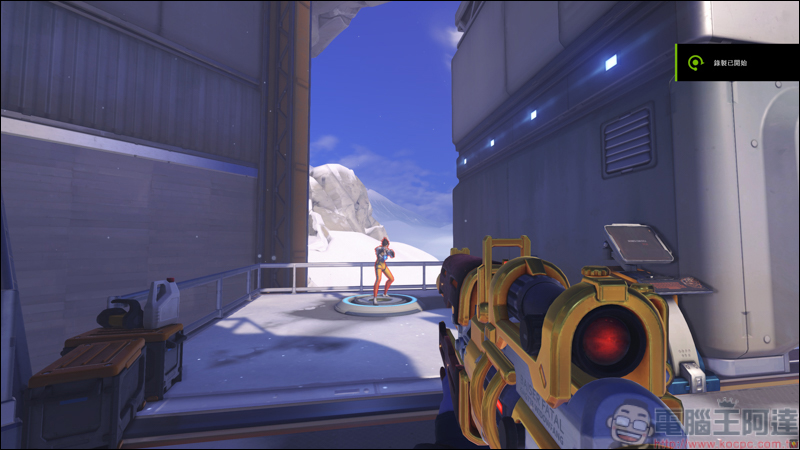
When recording, Recording has started will appear on the upper right:
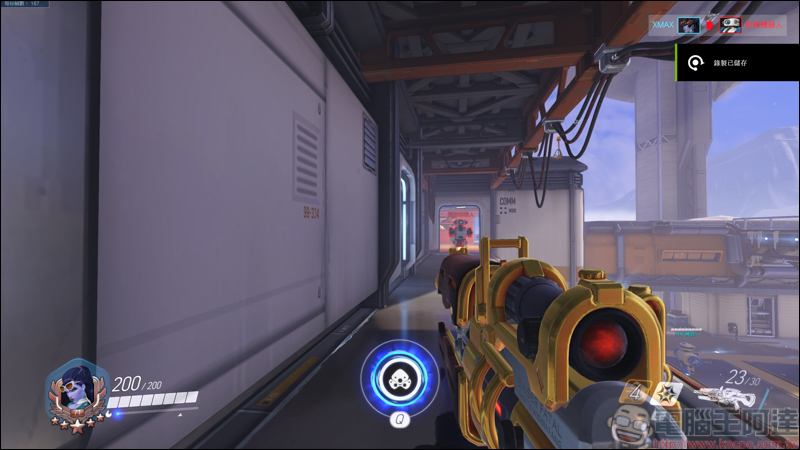
There will also be a notification reminder on the upper right when it ends:
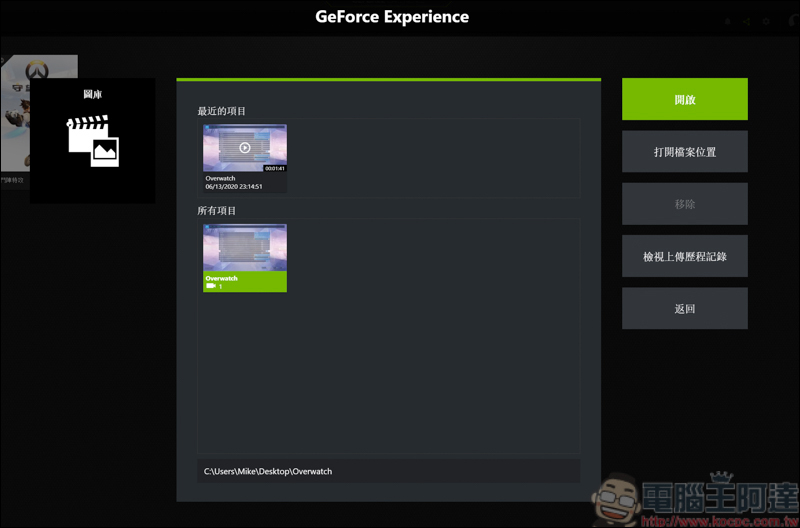
It is also very simple to watch the video footage. Just enter the NVIDIA GeForce Experience gallery. You can also set the path location and directly open the folder to view: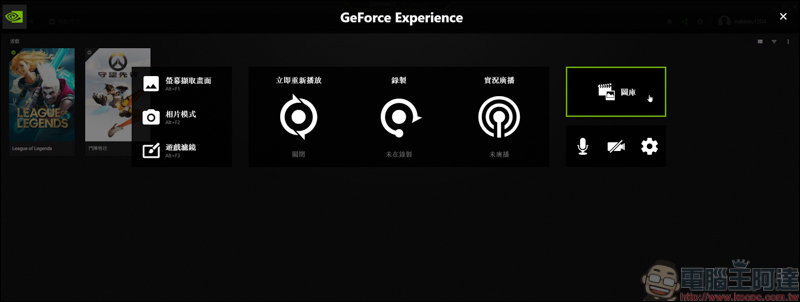
The video you just recorded will be stored, and it will play when you open it, or you can open the file location and read the file directly:
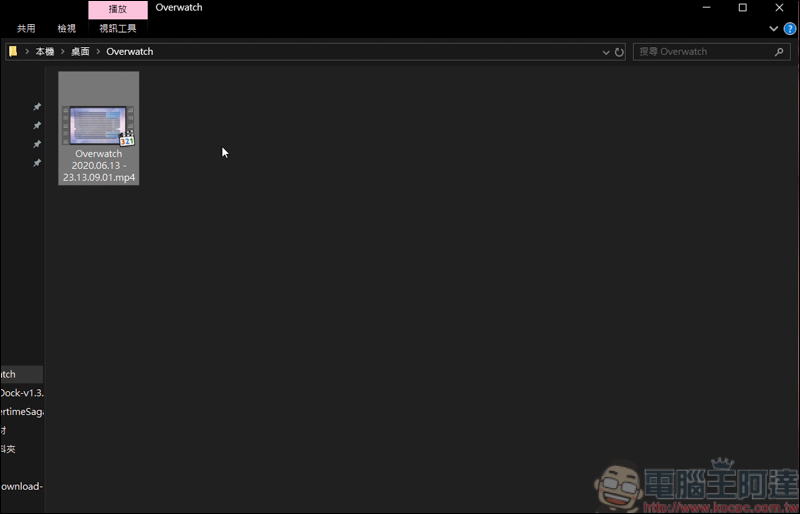
The recorded file will be an mp4 file:
You can use audio and video software to watch the video or editing software to cut out the highlights:
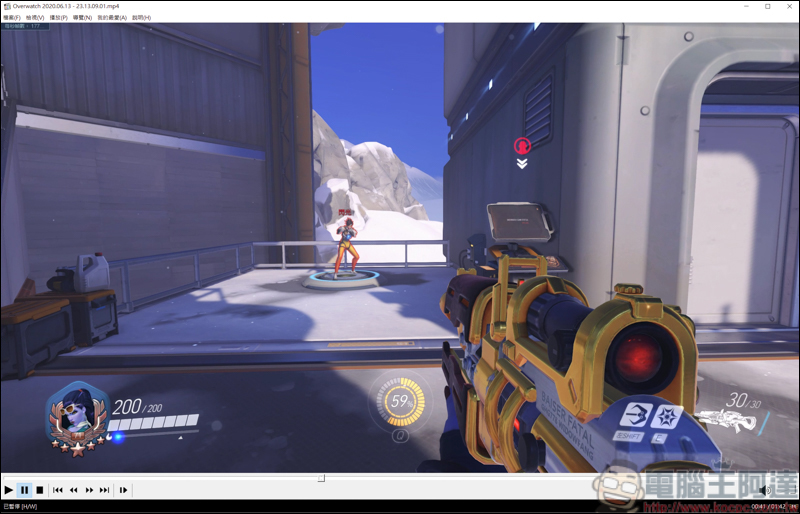
Because the author’s screen is 2K size, the upper limit of the recording size is only 2560*1440. But in terms of recording quality and convenience, NVIDIA GeForce Experience is a very easy-to-use recording tool!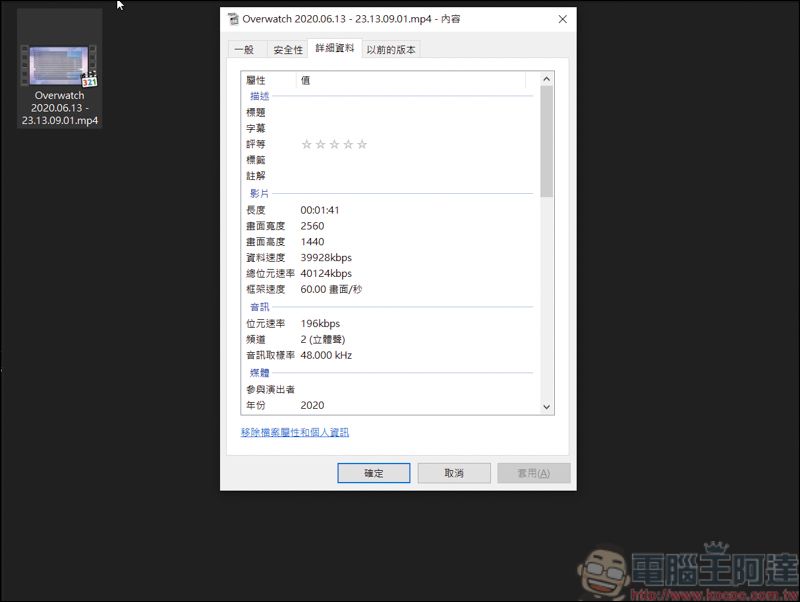
Source: KOCPC Chinese