


ScreenToGif is a feature-rich free tool for converting screen recordings to GIF files. Simply put, it can convert any screen on your computer into a GIF file. It is very suitable for creating teaching content (short operation process), making GIF memes that are very popular today. It also provides post-production functions. After the recording is completed, you can trim it, such as which pictures are not needed, add transitions, shorten the time, etc.
In addition, in addition to the screen recording mode, this model also has drawing tablet recording and network camera recording, which can meet various usage needs. I will quickly introduce it to you below.
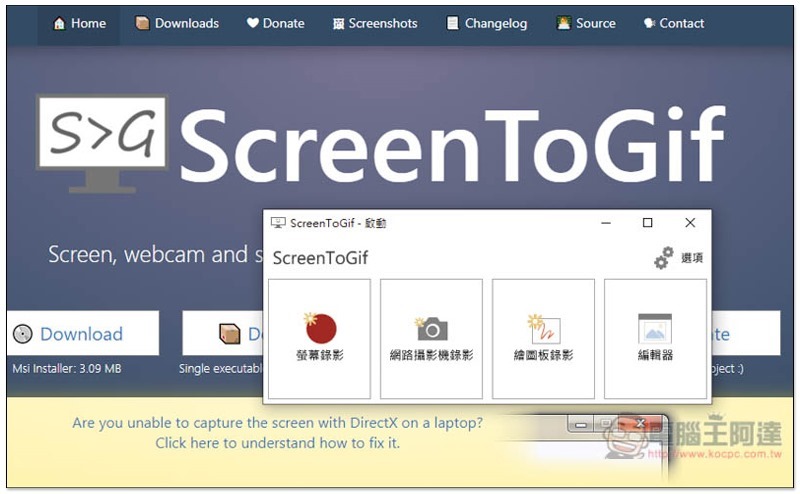
Introduction to ScreenToGif
ScreenToGif supports Windows systems and is completely free. It is also an open code tool. Those who are interested in research can check it out on GitHub.
The official website provides two file formats, Msi is the installation file, and Single executable is the installation-free (portable version). It depends on which one you want to download.
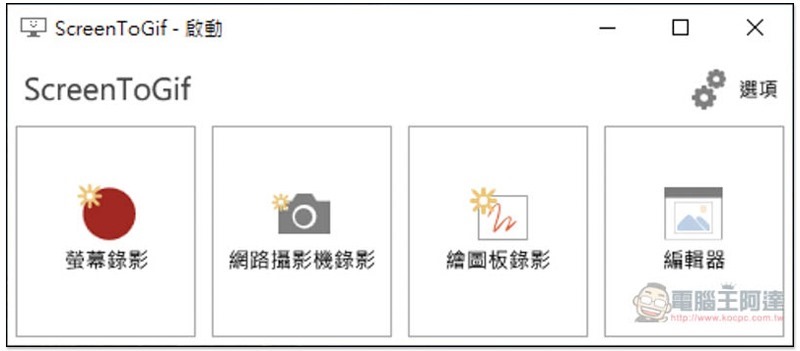
Once opened, you can start recording. There are three modes: screen recording, web camera recording, and drawing tablet recording:
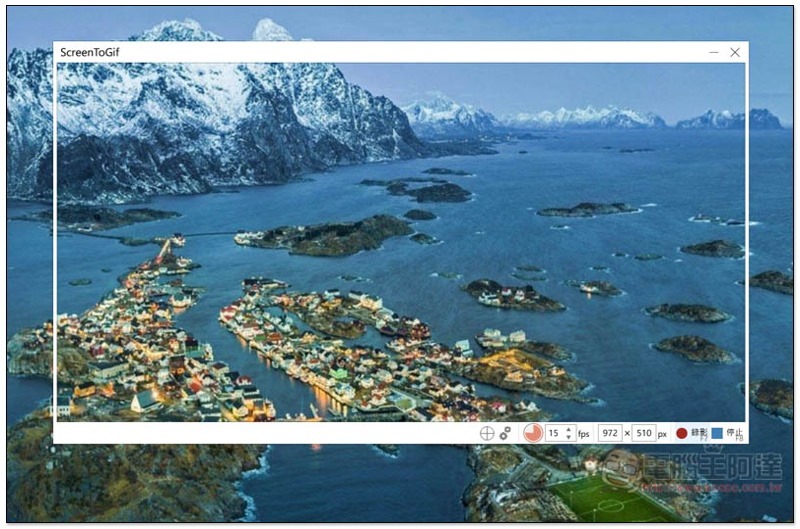
A frame will appear in the screen recording section, and all the images in ScreenToGif will be recorded. The function keys are located on the lower right:
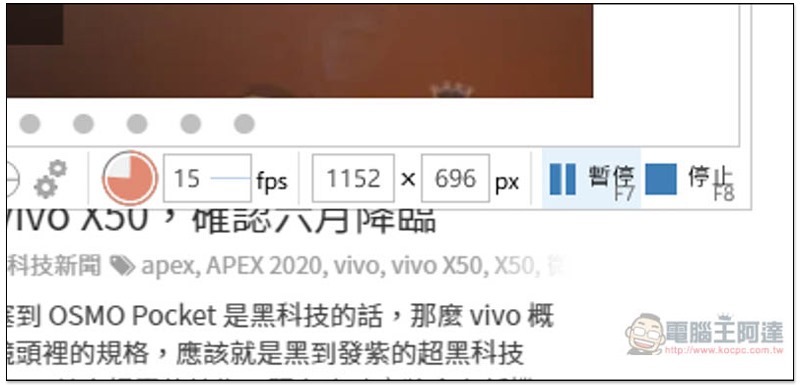
The window can be reduced or enlarged to whatever size you want, or you can directly enter the value on the left side of px below:
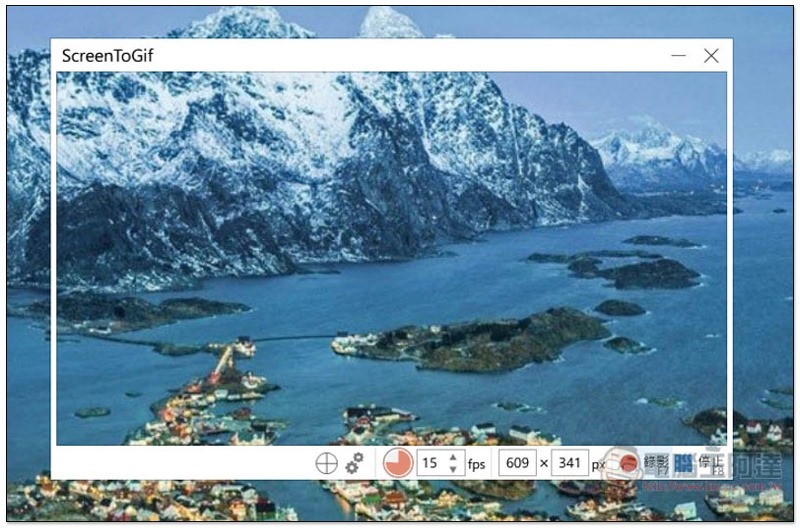
After setting the position, the recording will start in the lower right corner. You can pause it at any time in the middle. When finished, press stop:
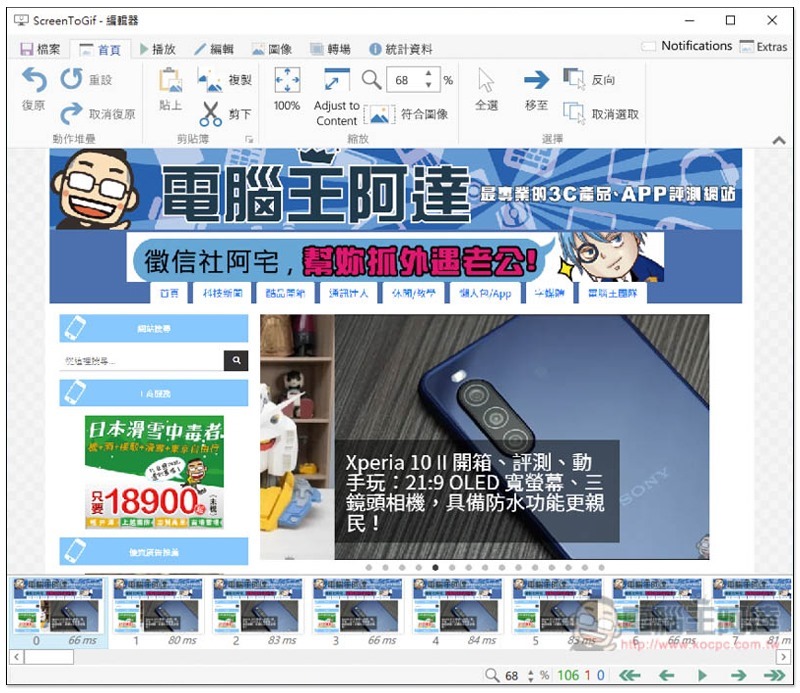
Then you will automatically enter the post-production editor, which is very rich in functions. Some people may find it complicated. If you don’t need to add anything, you can directly output it into a GIF file.
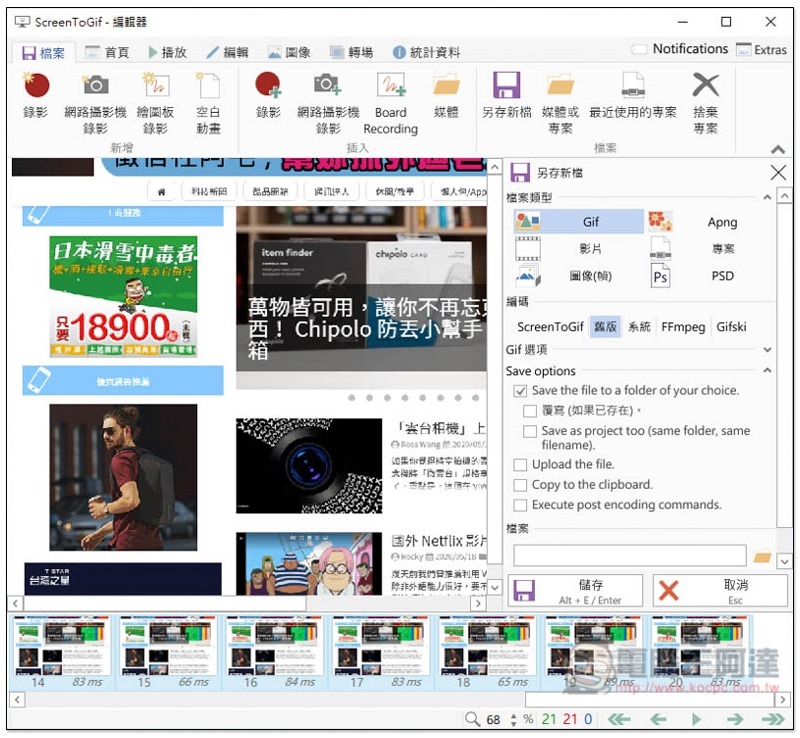
Open the file menu in the upper left corner, and you will see Save New File on the right. Click to save it as a GIF. In fact, it also supports video, which means that normal screen recording is no problem (but audio cannot be recorded). In addition, there are pictures, Apng, PSD, etc.:
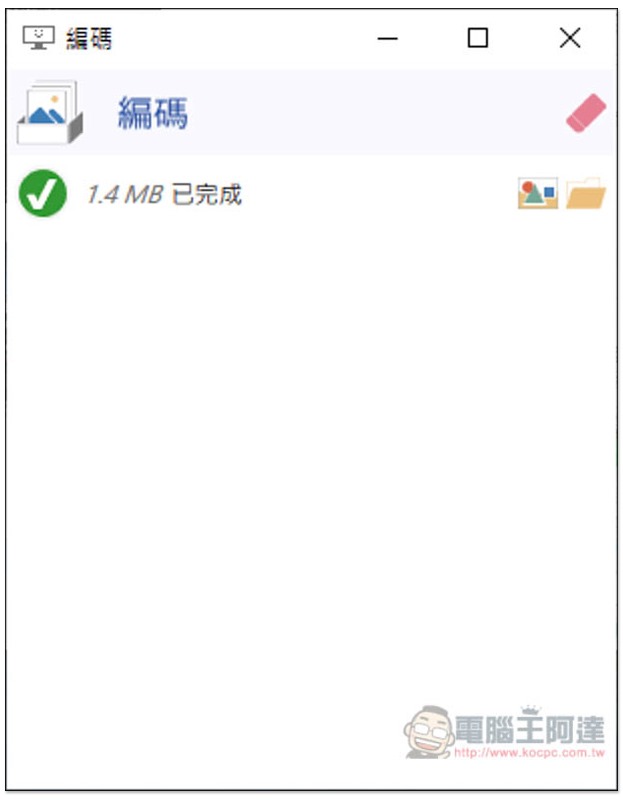
When this screen appears, the save is successful:
It is definitely a GIF file, and the quality is very good:
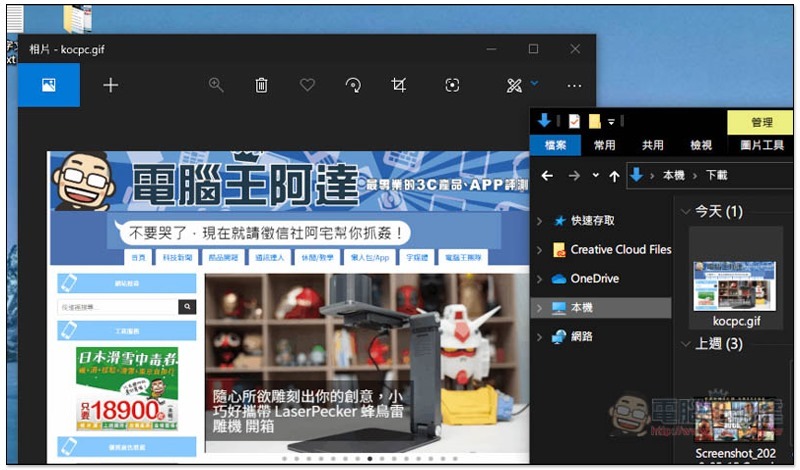
A demo of my short recorded GIF:

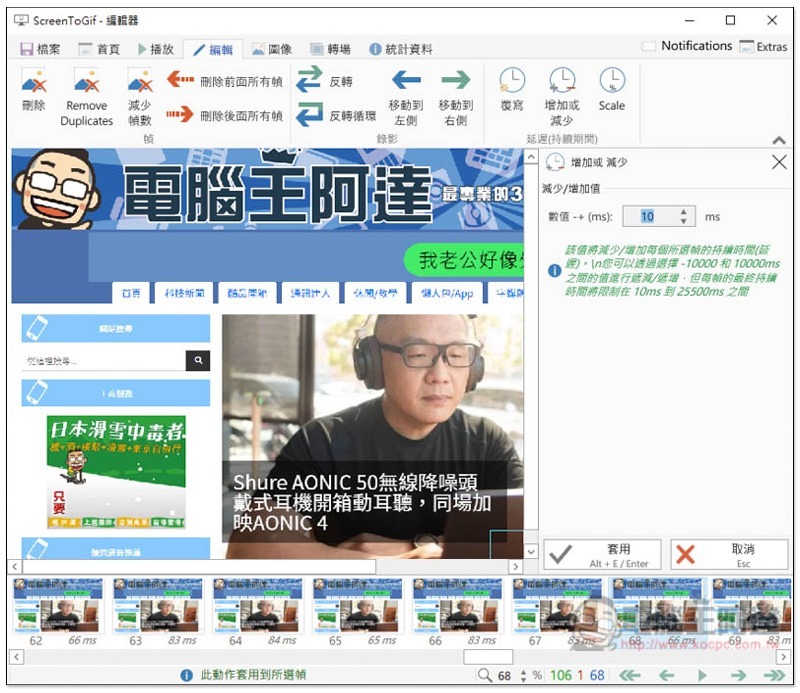
Many post-production functions are quite useful. You can increase or decrease the duration value as shown below:
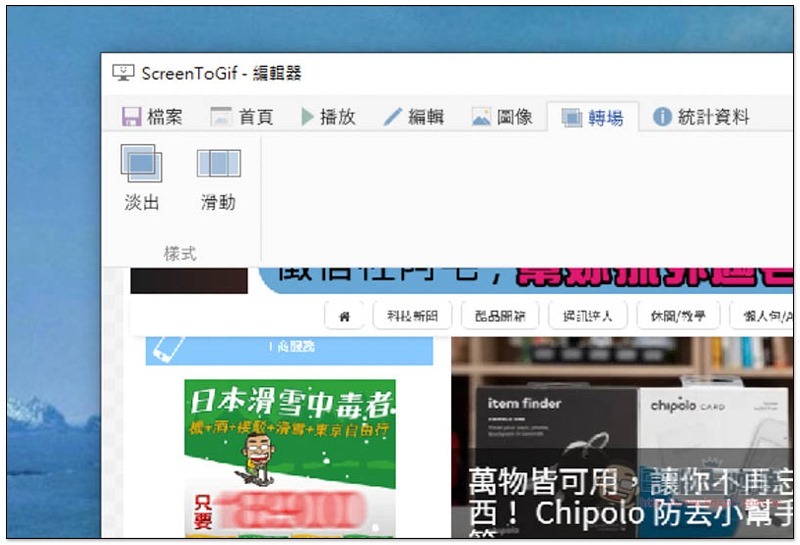
Add transition animation, fade out or slide:
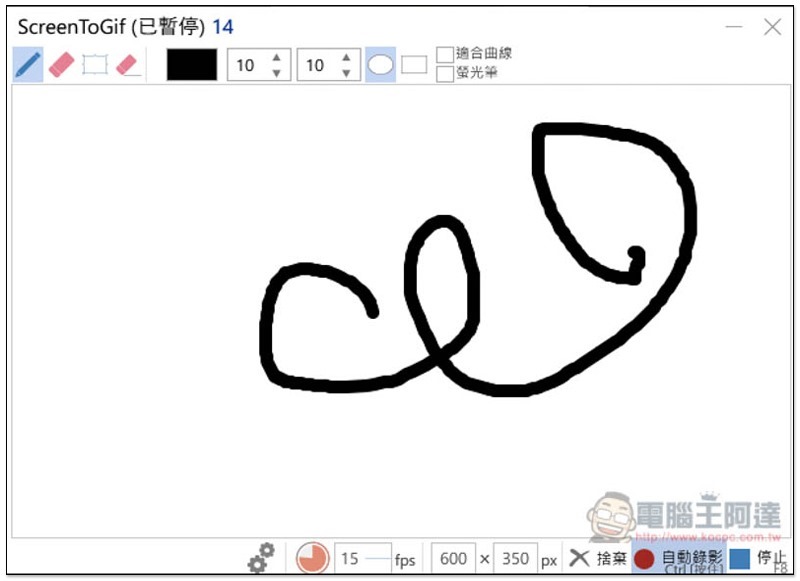
For those who are drawing, drawing tablet recording can record your drawing process from beginning to end, and it will also automatically pause when you stop:
Supplementary information
- Software name: ScreenToGif
- Nature: Free
- Official website and download point:Click here to go
Source: KOCPC Chinese