


SyncBackFree is a free software for Windows file backup that is easy to use and fast. You only need to set it up once, and all subsequent backup operations will be automatically performed in the background. It is highly recommended for people who have important data on their computers and need to back up frequently. In addition to the local machine, FTP and NAS are also supported. If you are willing to pay to upgrade to the Pro professional version, it even provides cloud synchronization and backup functions. I will quickly introduce it to you below.
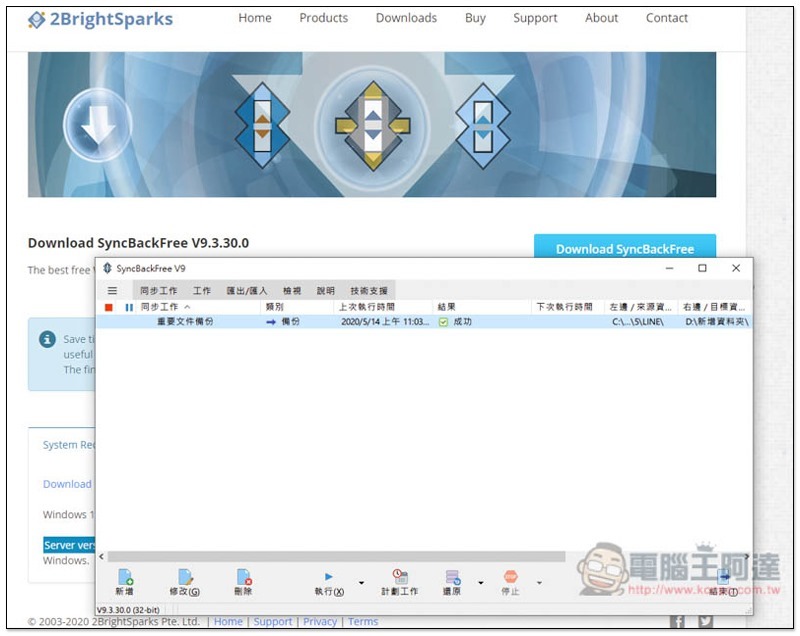
SyncBackFree free file backup and synchronization software introduction
SyncBackFree is a set of free Windows file backup software developed by the foreign company 2BrightSparks. Although the website is all in English, this set is available in Traditional Chinese, so you don’t have to worry about incomprehension.
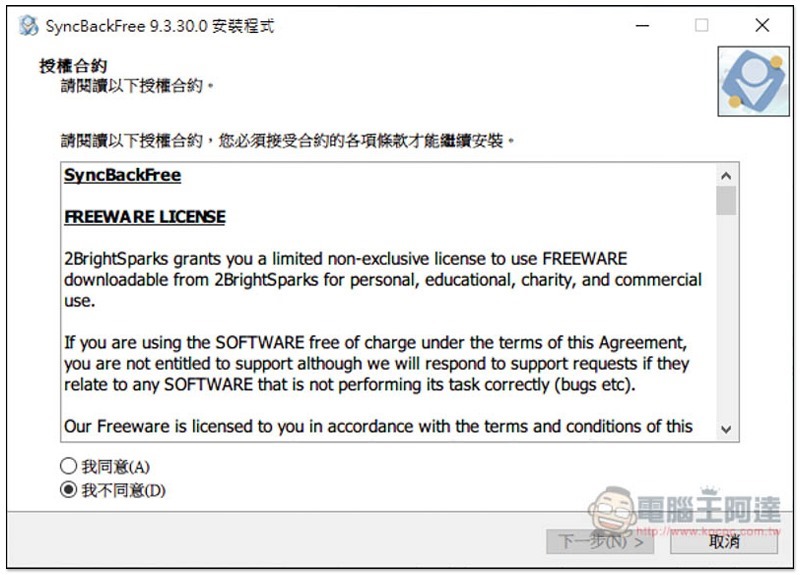
Just keep pressing Next during the installation process:
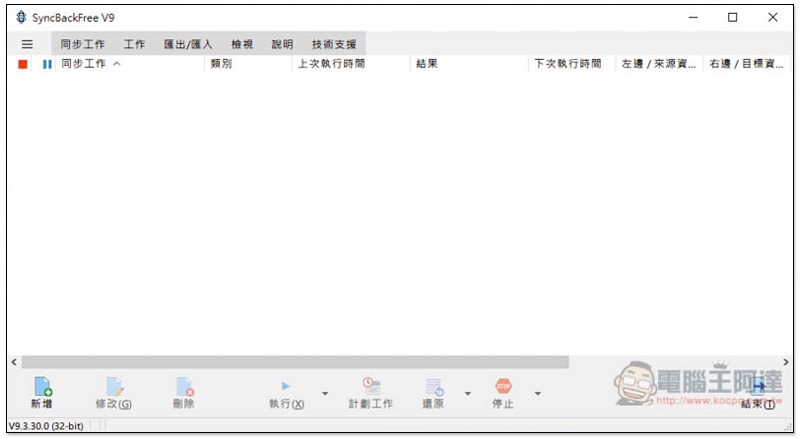
Then you can start using it. The operation interface is quite simple. The main functions are located below. Click “Add” to add a backup job:
How to set up file and folder backup?
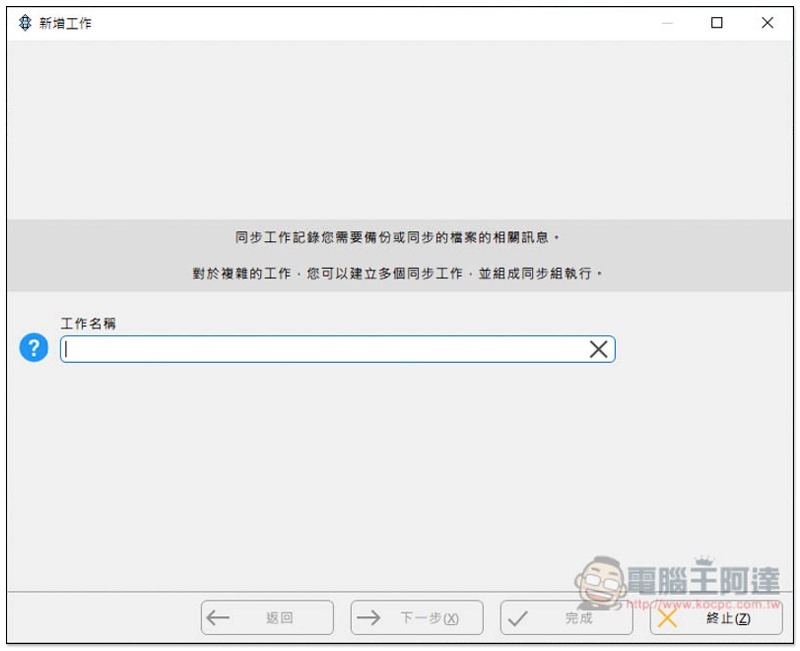
After clicking Add, first enter the name of the backup job, such as: important file backup, music synchronization, video synchronization, file backup, etc., to see what you want to back up:
Three working modes are provided: “Device, backup, synchronization and mirroring”. “Backup” will copy all the files in the source folder to the destination folder; “Sync” will copy the files and files in the source and destination folders, which means that if you delete files from either side, the other side will automatically disappear. Mirroring is mainly used to copy the entire hard drive to a pen drive, pen drive, or another hard drive slot:
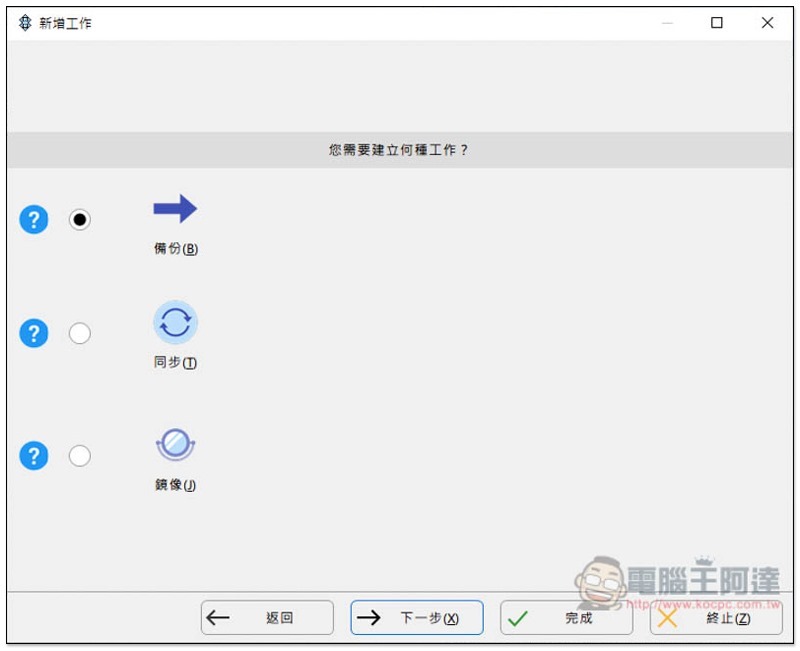
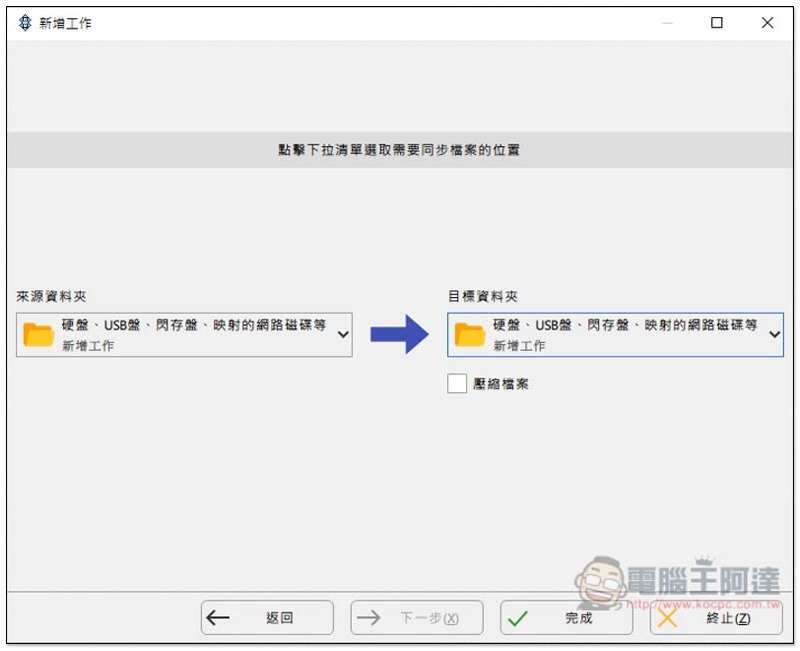
I use backup as an example. Next, select the type of source and destination folders. There are two types. The first one is the hard disk, USB, etc. displayed on the downloader, and the other is FTP. If you are worried that the file may be too large and take up too much hard drive space for long-term backup, you can check “Compress File” under the selected folder. No problem, just click below to complete:
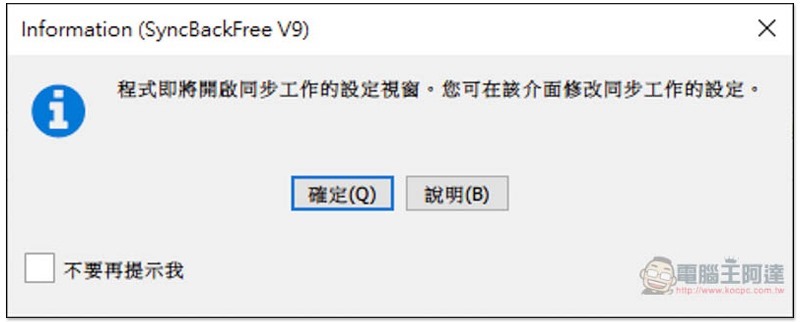
This screen will pop up, select “OK”:
Then there will be some functions for you to set. First select “Source Folder” and “Destination Folder”:
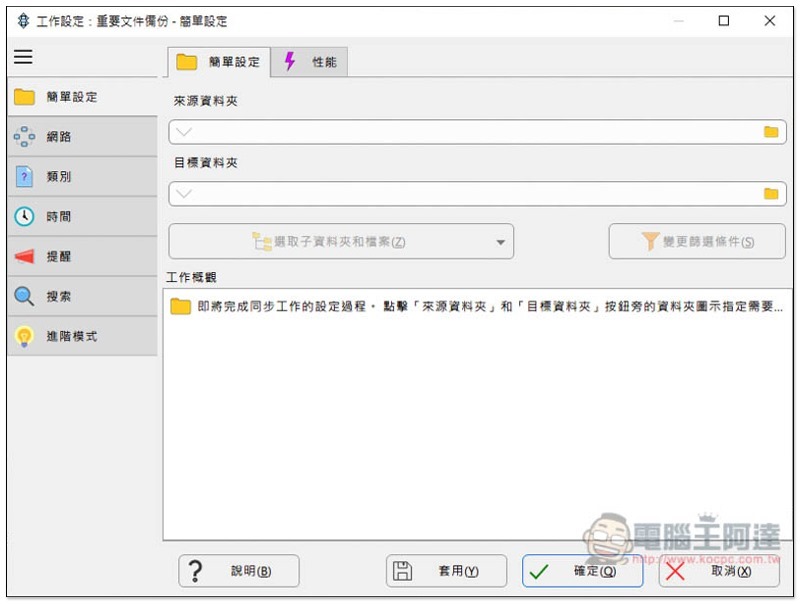
After selecting, a bunch of words will appear in the work overview below. Those who are interested can take a look. It doesn’t matter if you don’t understand it. Just ignore it:
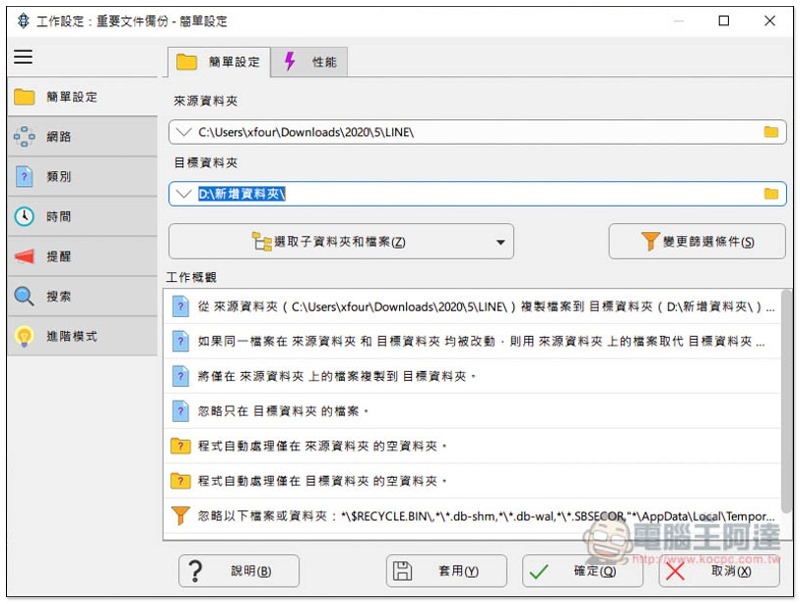
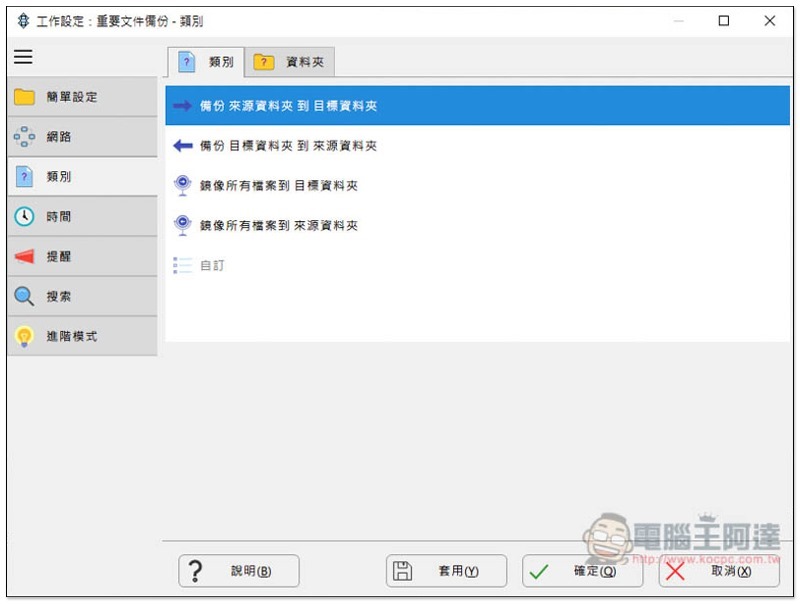
There are some functional options on the left, and the category section allows you to change the backup method, such as: backing up from “destination” to “source”, mirroring all files to the “destination” or “source” folder, etc.:
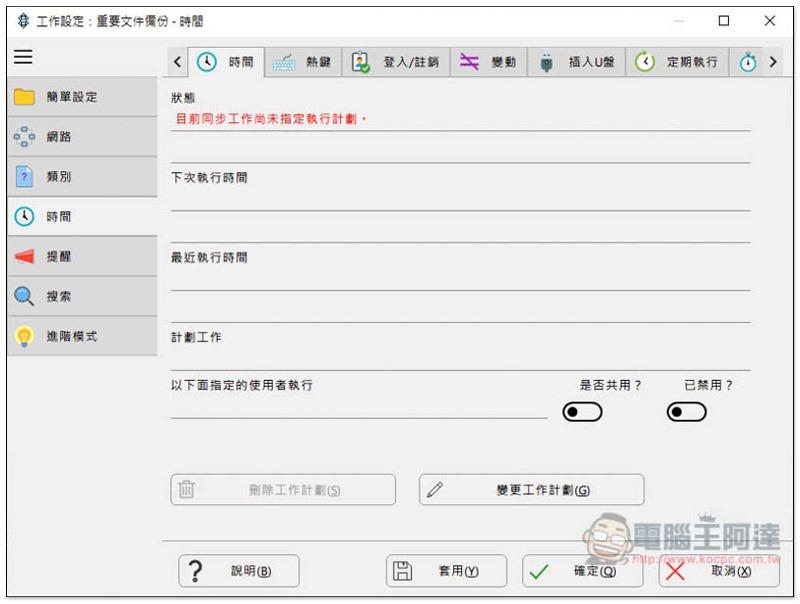
If you want this backup job to be automatically executed regularly in the background in the future, please enter the time menu:
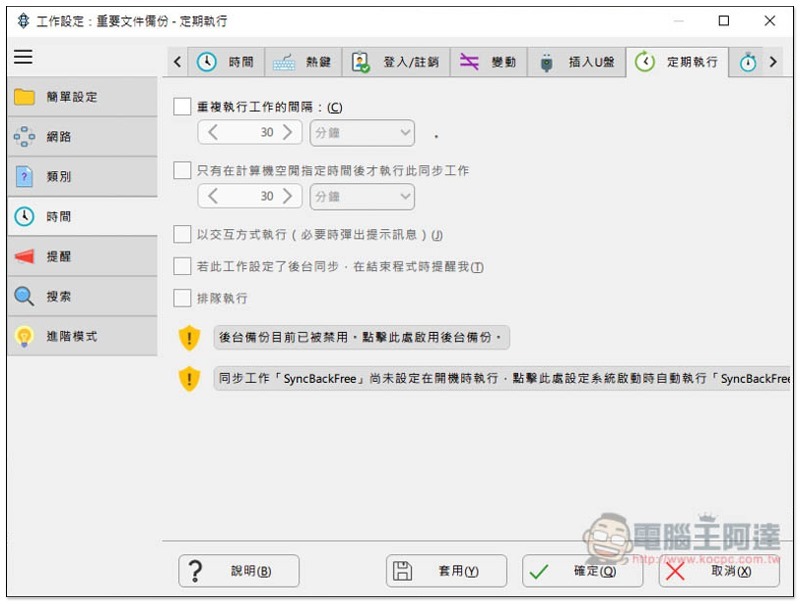
Click Execute regularly above to set the interval for repeated execution of work:
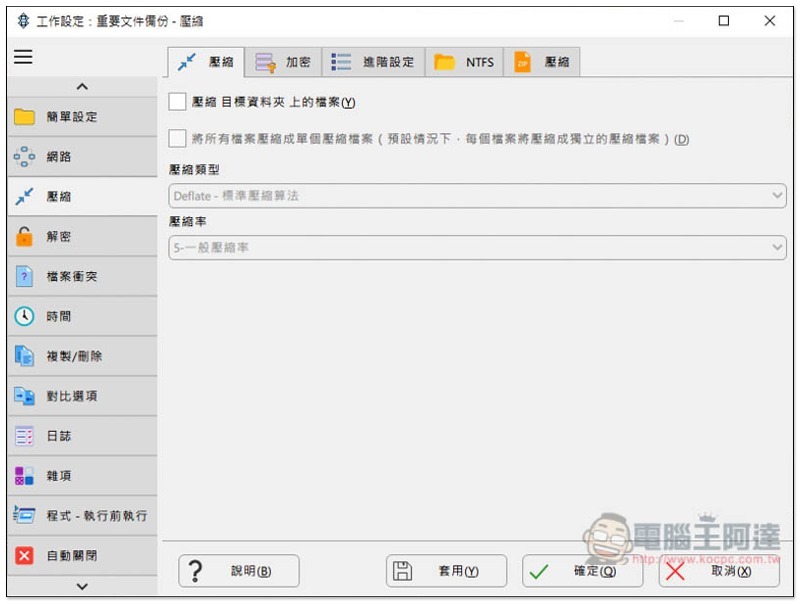
In addition to compressing backup files, this set also supports encryption and decryption functions to ensure the security of your files:
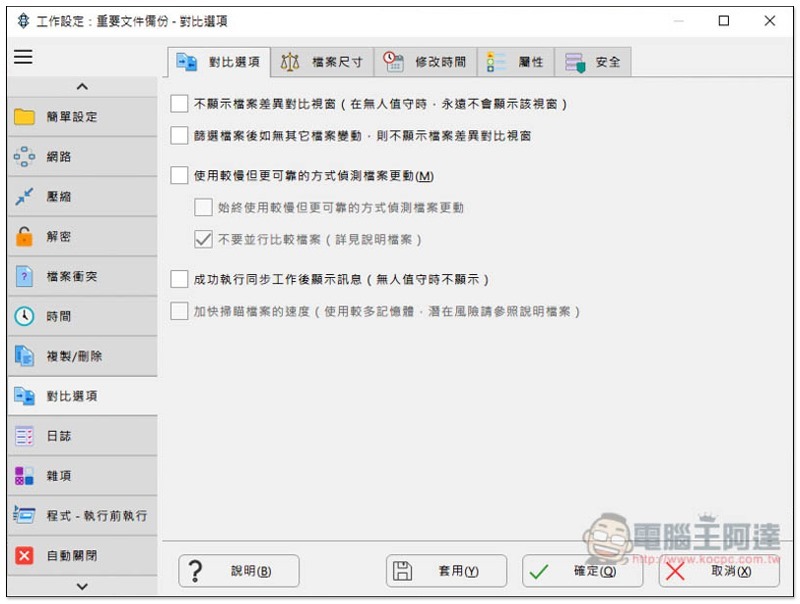
You can also set comparison options, such as if there are no changes in the file, do not back it up; only back up the file size if it is larger or smaller; modification time, etc.:
This set also has many setting functions, and the rest is left to the readers to play by themselves.
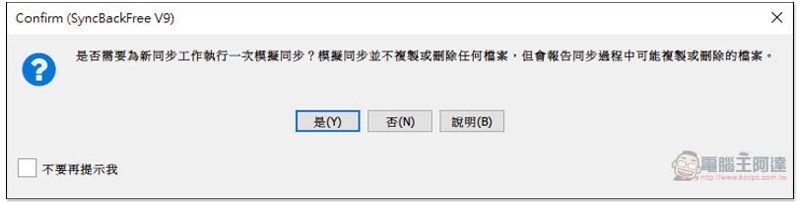
After the settings are completed, press OK and a popup will appear. Do you want to perform the “Simulation Synchronization” step? This function is mainly used to confirm that the files are not damaged or to test whether the backup work is working properly:
The simulation process will not actually back up or copy files. The main thing is whether the test process goes smoothly:
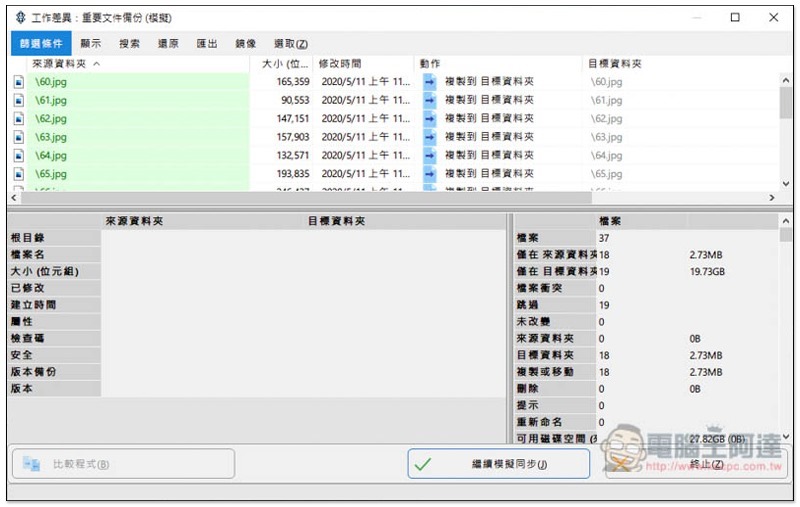
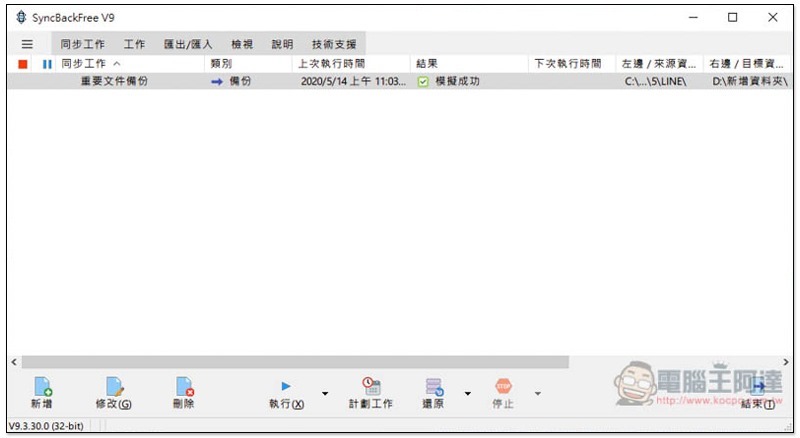
If the simulation is successful, the results section will be displayed, and then you can actually “execute”:
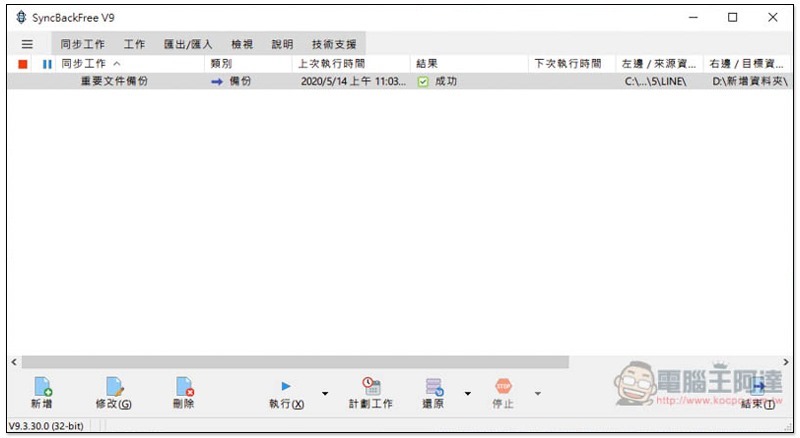
Backup and synchronization are executed successfully, and the result will also show success:
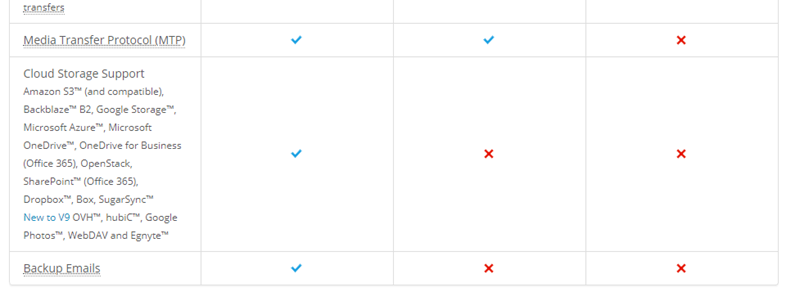
Cloud space backup is only available in the paid version (the leftmost side of the picture below).For detailed comparison, click here:
Supplementary information
- Software name: SyncBackFree
- Nature: free, paid
- Official website download page:Click here to go
Source: KOCPC Chinese