


Although Windows 10 has a built-in file search function (next to the start menu), those who have used it must have the same feeling as me. Not only is it slow, but it sometimes freezes or crashes suddenly, making it a bit difficult to use. Recently, I got this great free Everything tool, which is a perfect alternative for file search. Not only is it lightweight and fast, but it can also search all files in your computer at once, without having to choose between folders or hard disks. It also provides a free installation version without any ads.
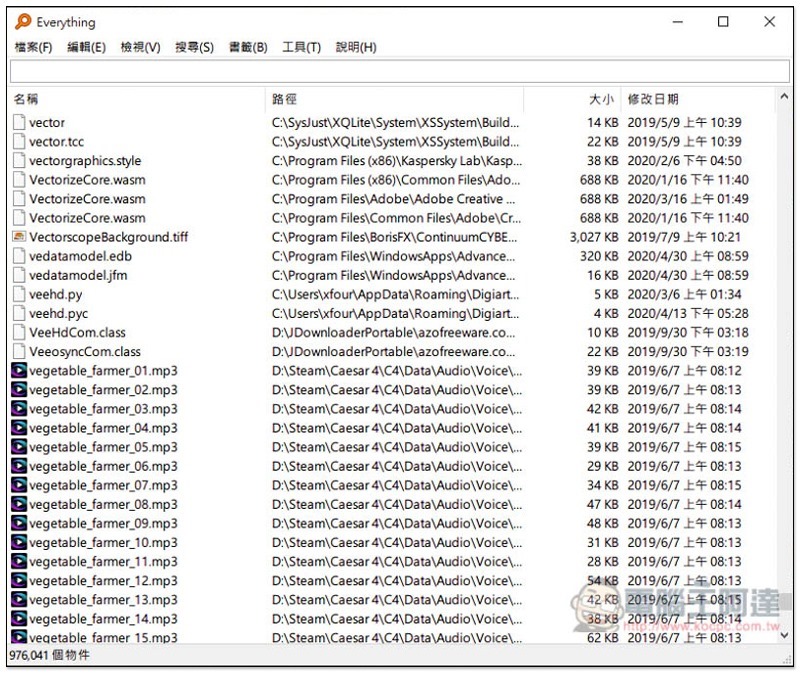
Introduction to Everything, the lightweight Windows file search free software
The search bar or file manager function next to the Windows 10 start menu can both search files on the computer, but both have some minor shortcomings. The start menu part is just like what was mentioned at the beginning of the article. File Explorer will only search files under “this folder” or “hard drive”, and the speed is a bit slow.
This set Everything There are two versions available: “installation” and “installation-free”, depending on which one you want to download. People using 64-bit systems are advised to download the 64-bit version:
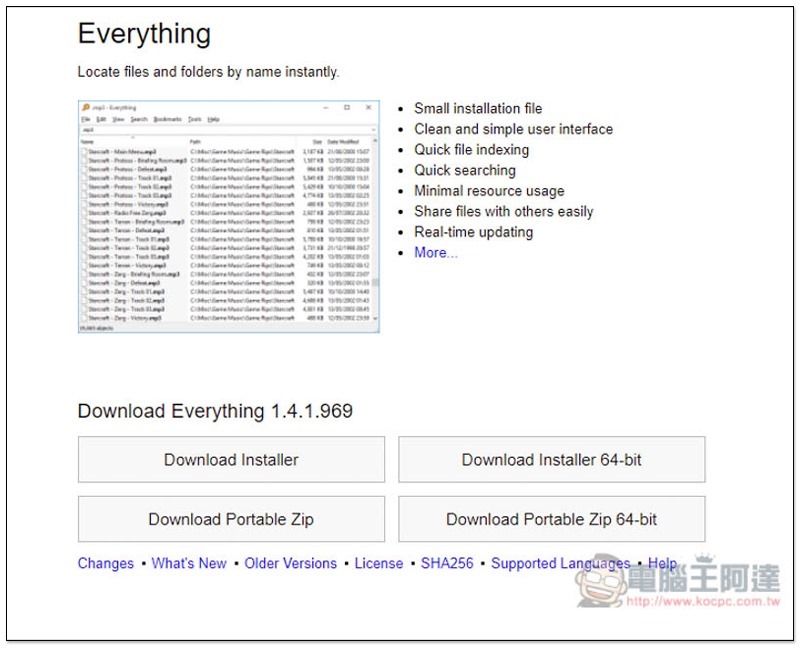
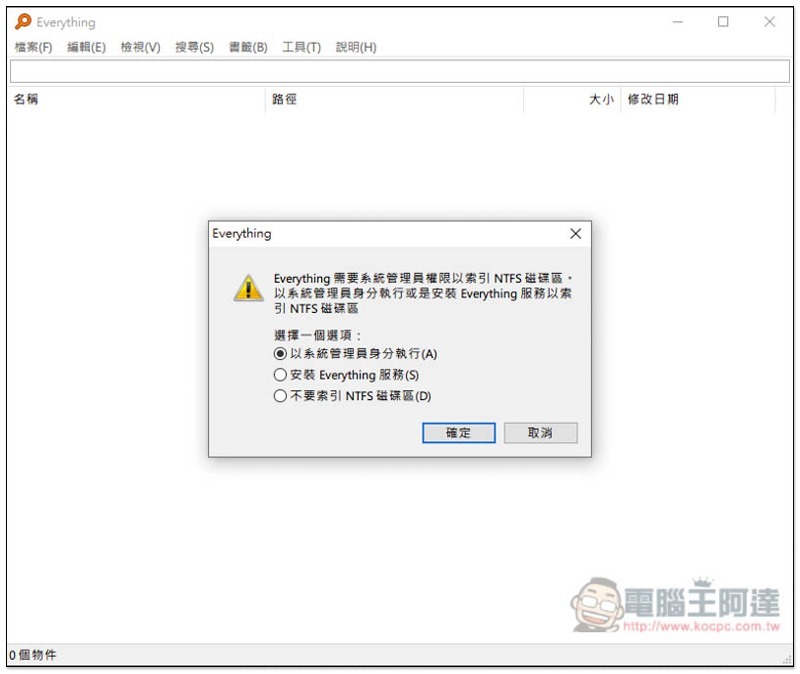
I downloaded the installation-free version. After opening the software, you will be asked to execute it as a system administrator. Just press OK:
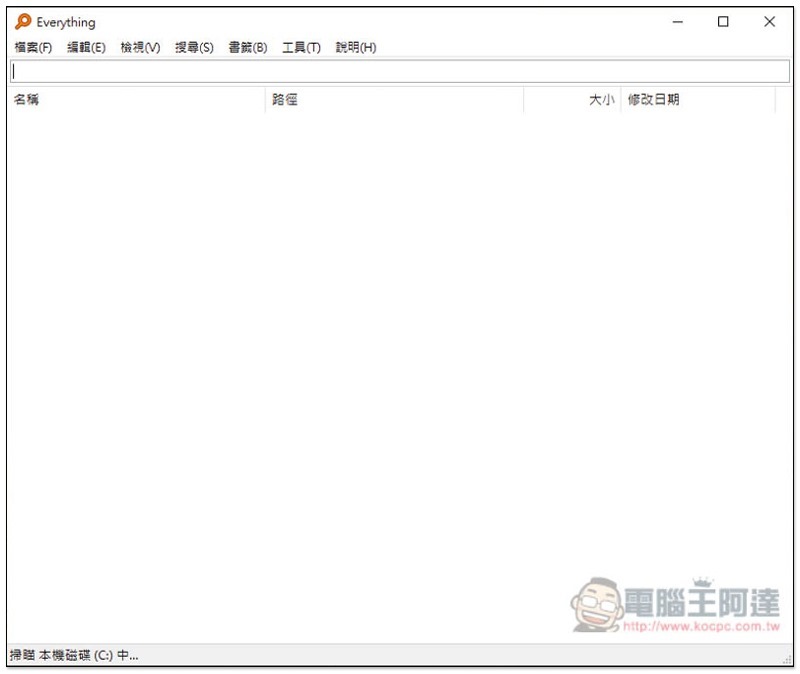
Then all the file data in your computer will be scanned first (there will be a message in the lower left corner):
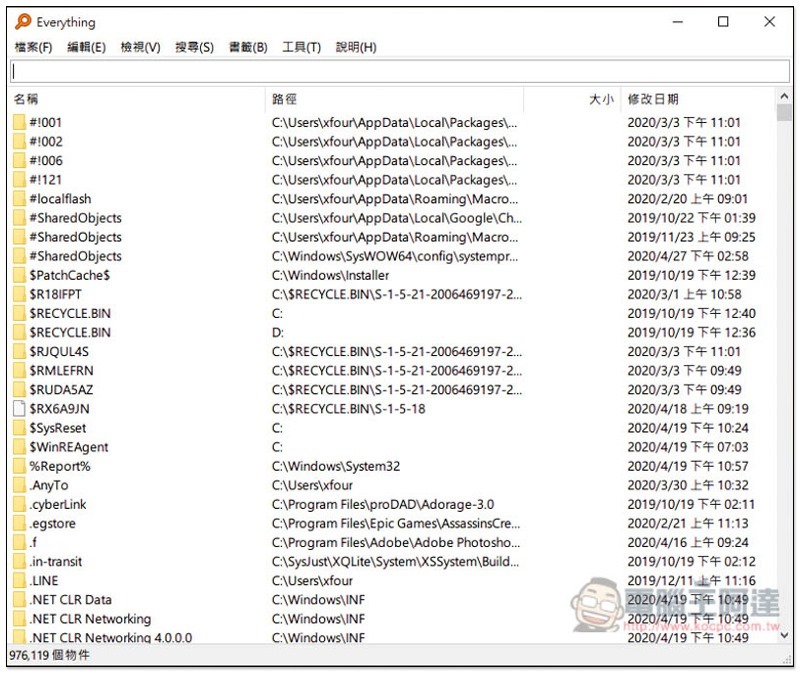
The speed is quite fast. It can be completed in a few seconds. All files and folders in the computer will be displayed on the screen:
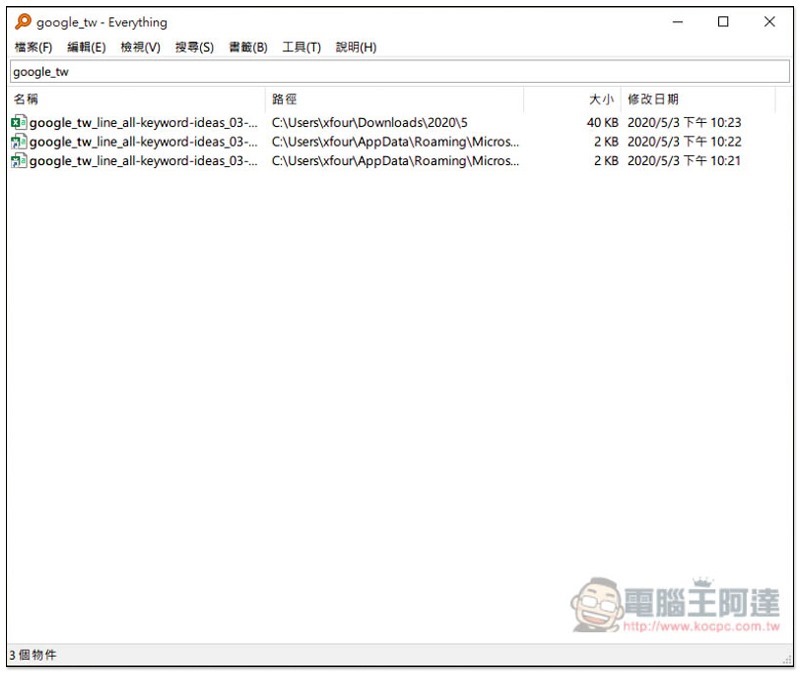
Enter the name of the file you are looking for in the upper field, and the matching results will be displayed immediately below (no need to press the Enter key). For example, if I enter google_tw, the screen will only retain files matching this name:
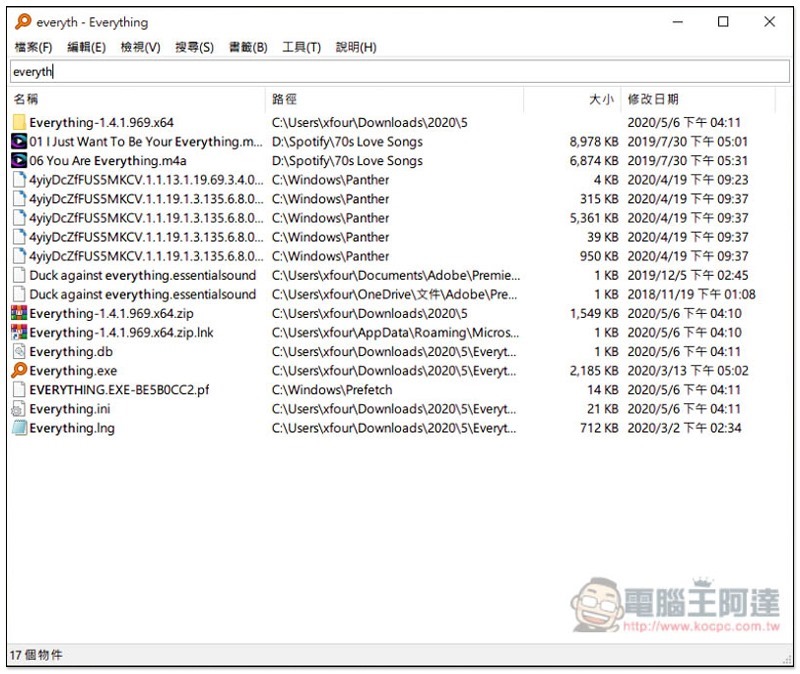
It also supports multiple hard drives. My computer has C and D slots, and both hard drives will be scanned:
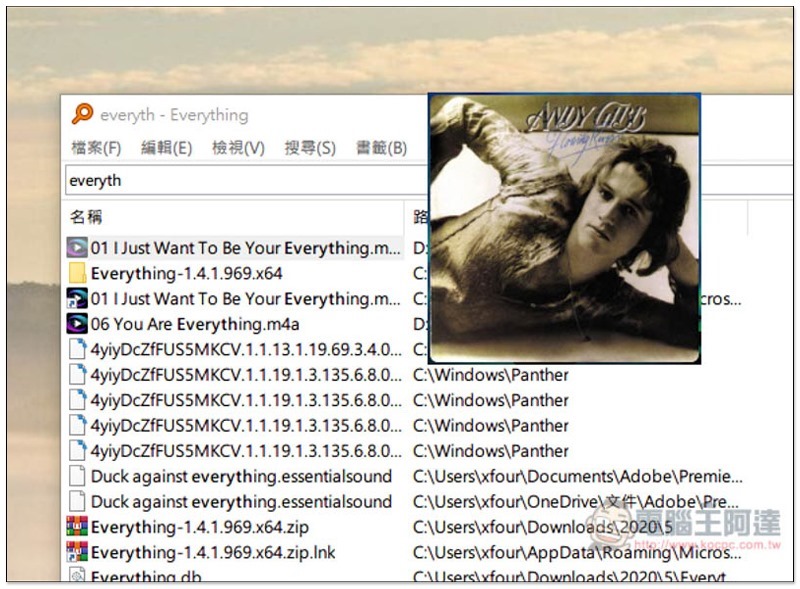
After finding the file, you can open it with two clicks:
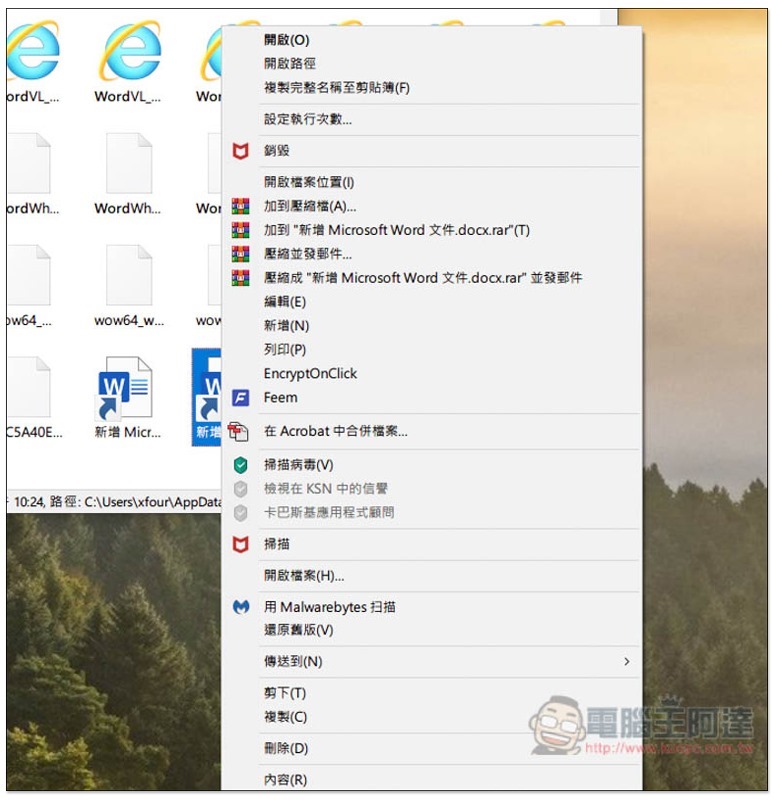
Also supports right-click menu function:
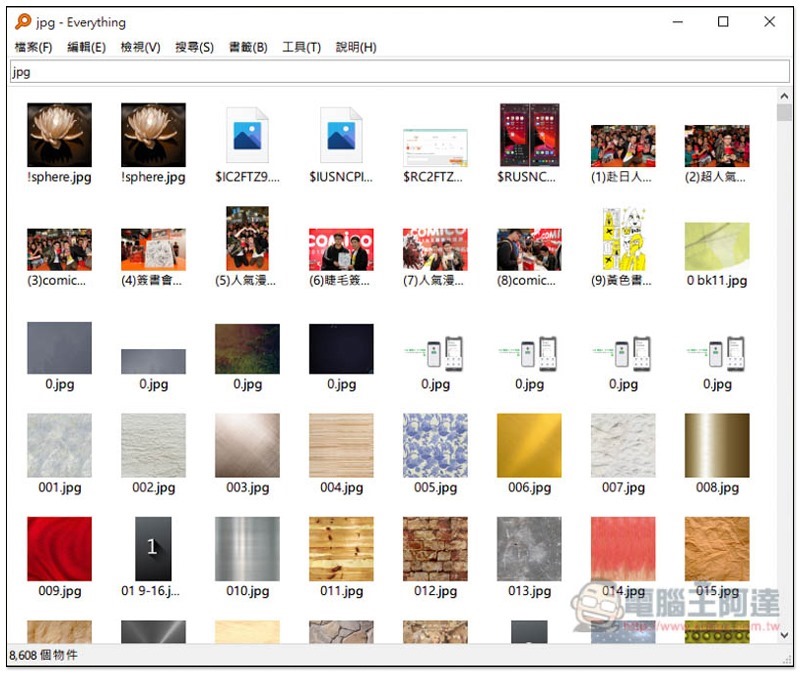
The display part can also be modified, depending on whether you want a detailed list, small icon, medium icon, large icon, etc.:
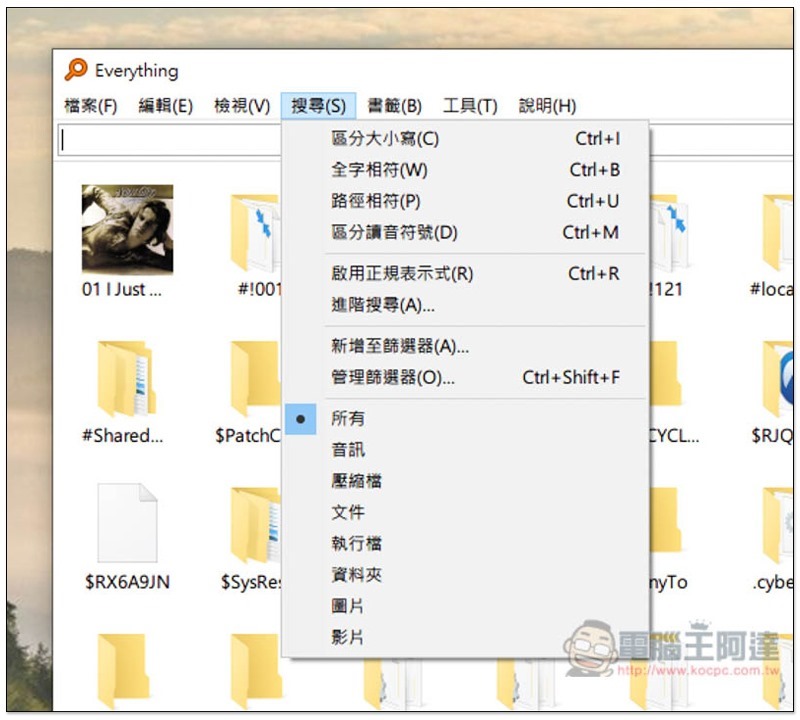
The target format can be changed in the search menu. The default is all. You can change it to search only audio, compressed files, files or other formats:
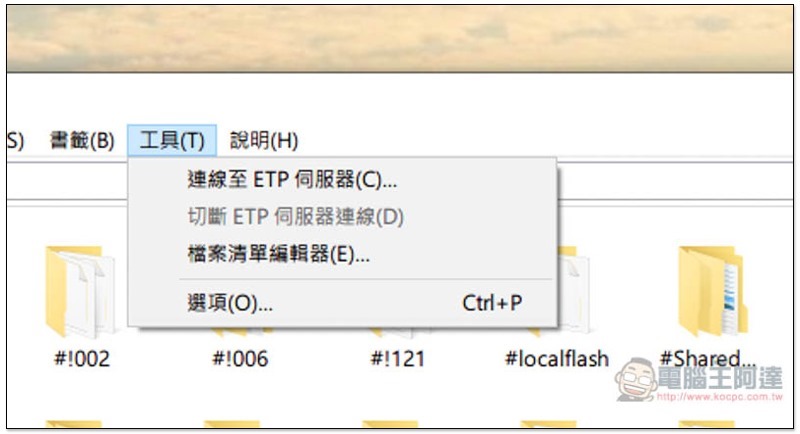
The tool provides the function of connecting to the ETP server:
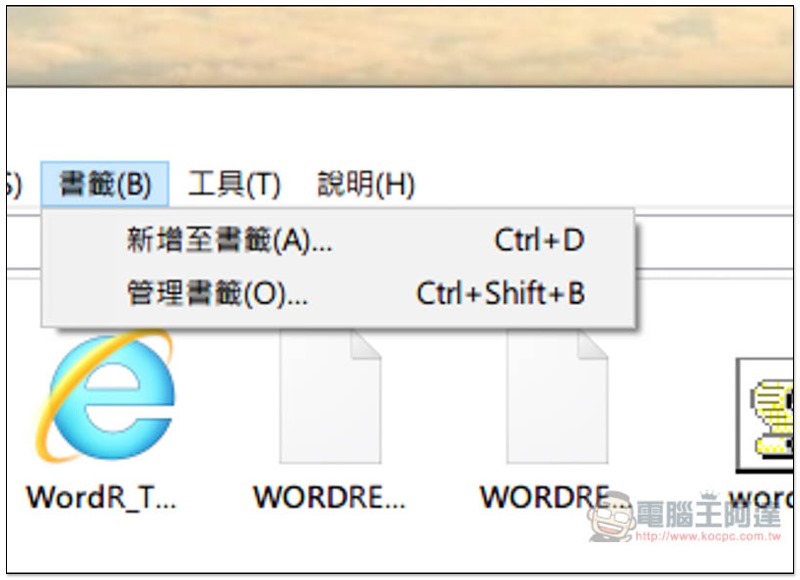
It also provides a bookmark function. You can add frequently used files to bookmarks to facilitate quick search in the future:
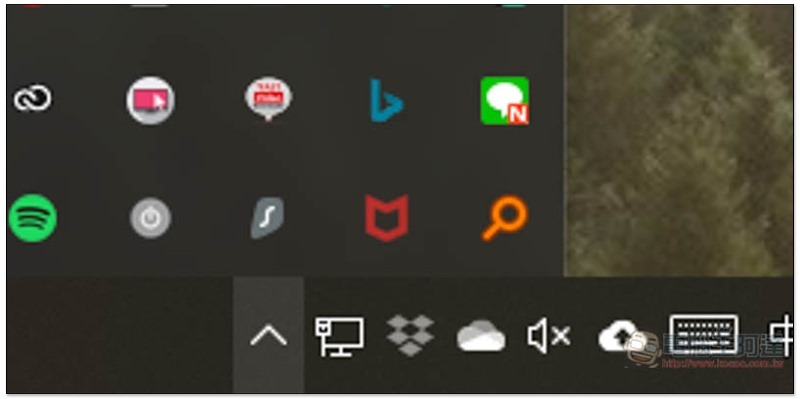
When not in use, it will stay in the menu in the lower right corner. The orange magnifying glass icon is:
This set is really much easier to use than the built-in Windows one. If you are like me and are too lazy to organize files, I highly recommend giving it a try. No matter how messy your hard drive becomes in the future, as long as you remember the name of the file, you can quickly find it and open it.
Supplementary information
Everything software official website:Click here to go
Source: KOCPC Chinese