


When you come across some great AI videos or images, you probably want to know what prompts were used. However, not every creator shares their prompts, which is where VideoToPrompt comes in. This tool can convert not just images but also videos into prompts by analyzing the footage using an AI engine behind the scenes, giving you similar prompts.
What’s even more generous is that you can use it for free without even registering, and there are absolutely no restrictions.
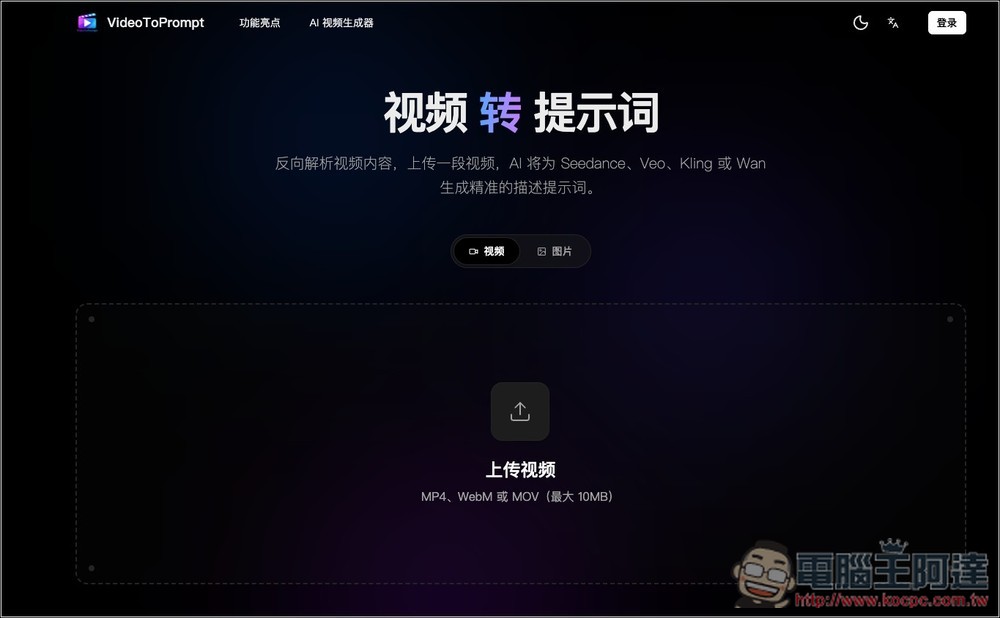
VideoToPrompt Introduction and Tutorial
VideoToPrompt is a free AI tool that specializes in converting videos and images into prompts, allowing you to reverse-analyze existing videos or images into usable prompts for AI creation.
The usage is quite intuitive—simply upload a video or image, and the system will automatically analyze the subjects, scenes, lighting, colors, composition, camera movement, and overall style in the footage, then generate a complete English prompt that you can directly copy and use in AI video generation tools like Seedance, Veo, Kling, and Wan, or AI image generation tools like Midjourney, FLUX, Seedream, and Nano Banana.
For people who frequently use AI to generate images or videos, the best thing about VideoToPrompt is that it saves time on crafting prompts. Many times we see a video style we like but don’t know how to translate the visual details into prompts. Elements like character poses, camera distance, background atmosphere, depth of field, lighting direction, or cinematic terminology may all be described imprecisely. VideoToPrompt can automatically break down these elements through AI and organize them into more complete, ready-to-use prompts.
Generated results will be saved in local history for easy future review, copying, or organizing into your own prompt素材庫.
Key Features
- Free to use, start instantly, no registration required
- Supports video-to-Prompt conversion, analyzing video content and camera movement styles
- Supports image-to-prompt conversion, transforming static images into AI image prompts
- Subject, scene, lighting, color, composition, and atmosphere
- Provides local history records for easy saving and re-copying prompts
- Great for learning prompt writing to improve AI image and video generation efficiency
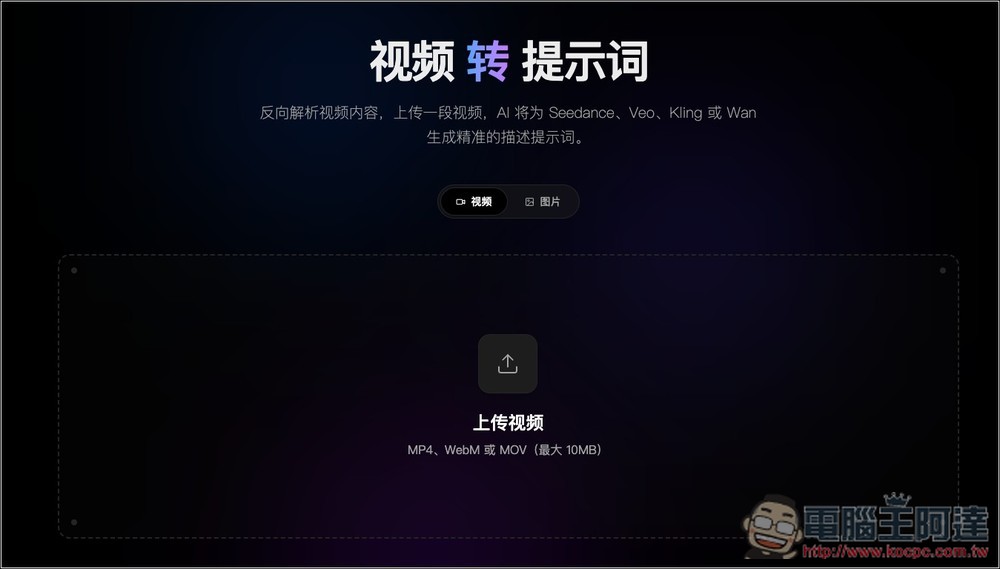
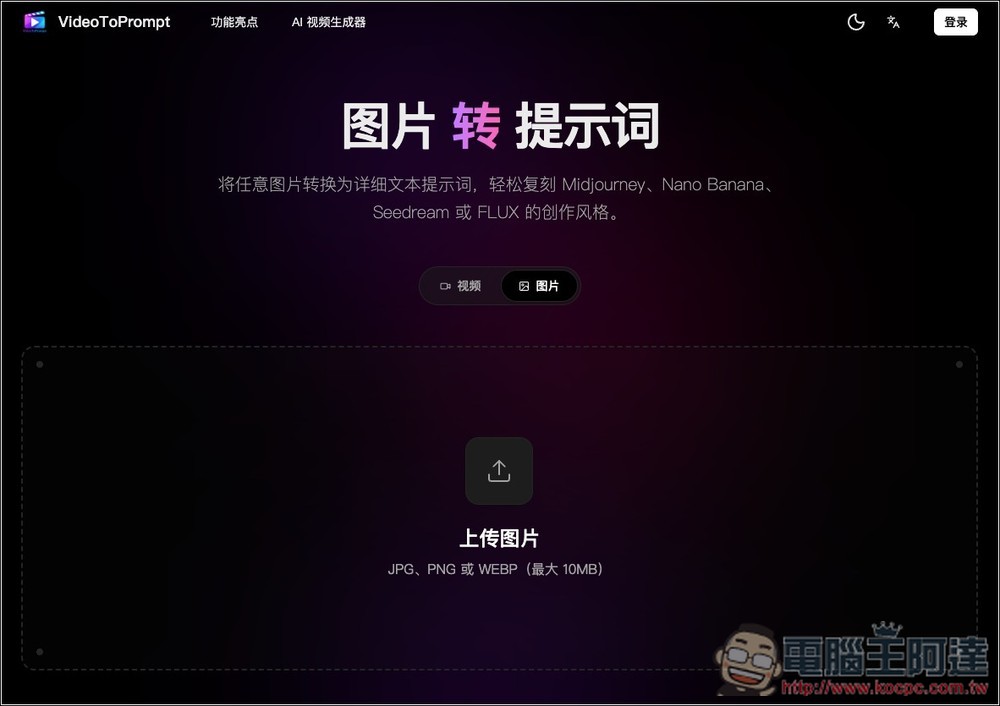
Click the link above to access VideoToPrompt, then select the mode you want to use at the top: “Video” or “Image”. Video supports MP4, WebM, and MOV formats, and the file size must not exceed 10MB.
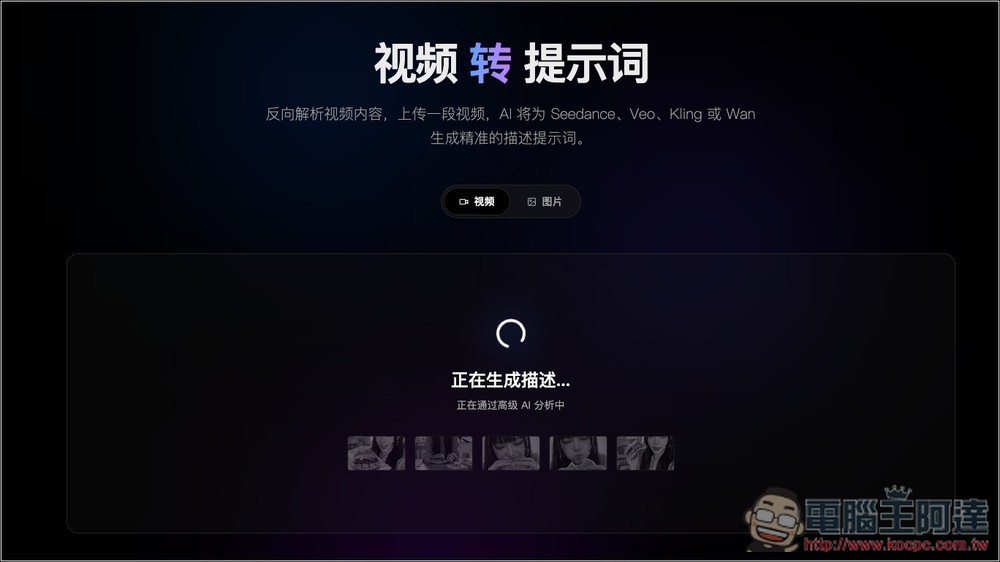
After uploading the video, the AI engine starts analyzing immediately, and it’s quite fast – it takes just a few dozen seconds to complete.
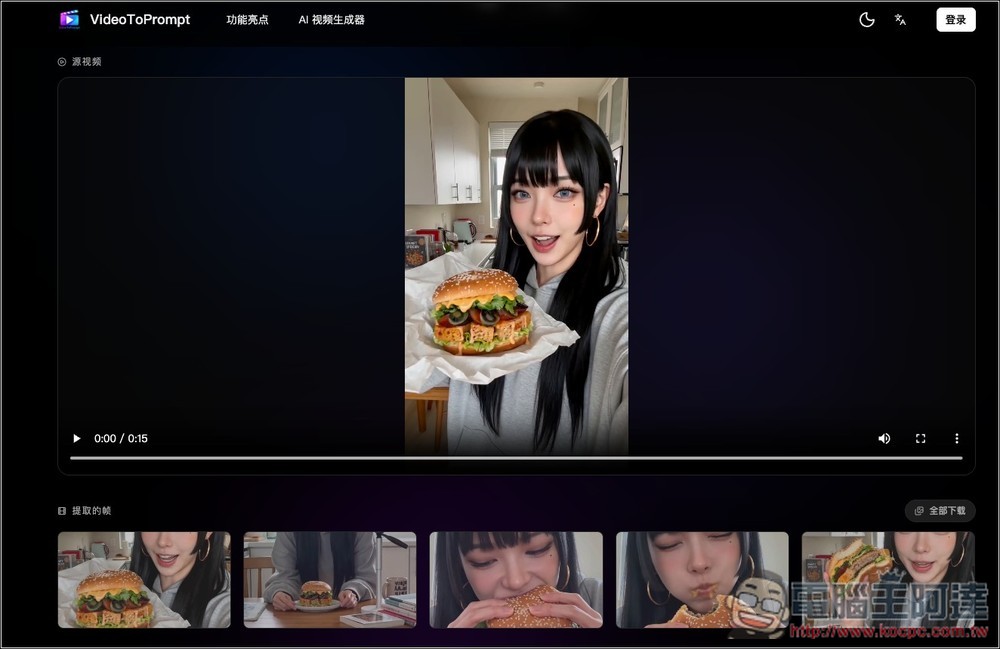
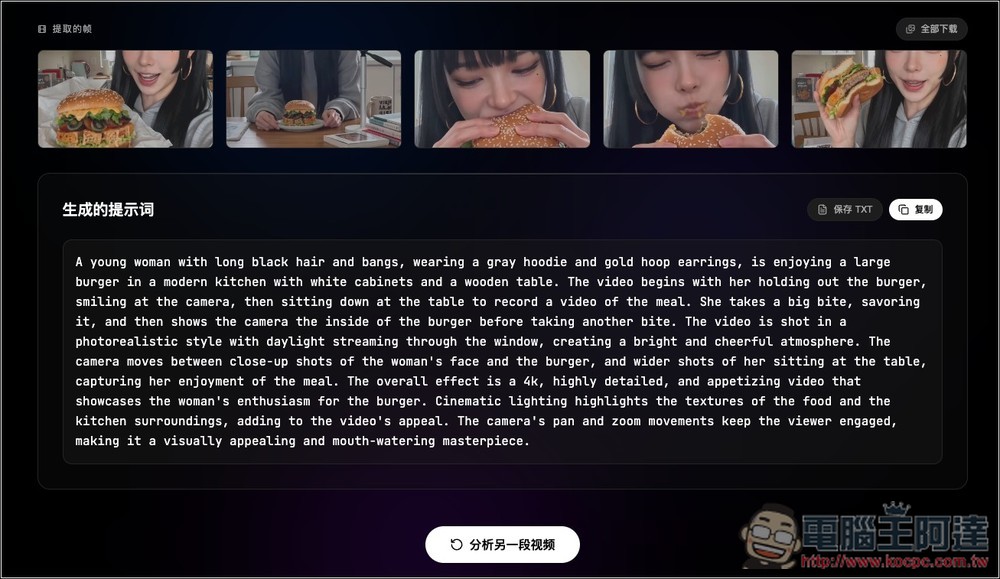
Below are the frames extracted by the AI engine for your reference. You can also click the “Download All” button on the right to download these images.
Scroll down a bit more and you’ll see the prompts. You can click the one-click copy button on the right, or click to save as TXT to download the plain text file.
Images also support JPG, PNG, and WEBP formats, with a maximum size of 10MB:
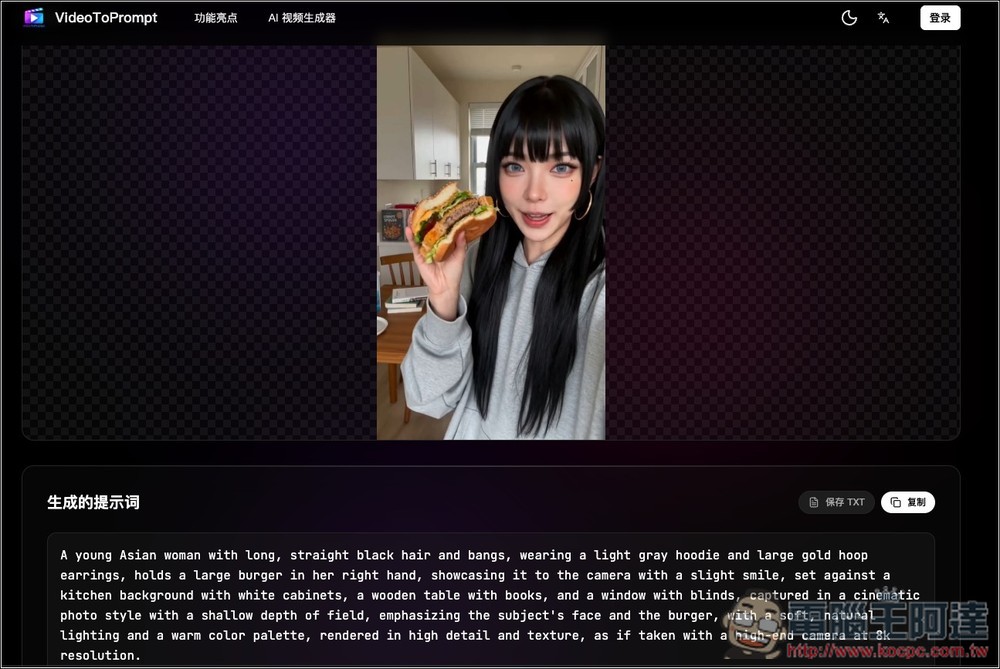
Once you upload an image, you will receive prompts:
Source: KOCPC Chinese