


A few days ago, LINE officially announced that it would terminate the method of registering LINE accounts with Facebook accounts, and announced that it would open the possibility of using Apple accounts to log in and switch phones. Recently, LINE has finally released an update to the LINE iOS version. The biggest highlight of this LINE update is that it finally adds the Apple ID login method!
From now on, the steps for iOS users to switch phones on LINE are also more convenient. As long as you make relevant settings in your LINE account and bind your Apple account, you can log in or switch phones more easily and quickly on the new iPhone!

LINE’s new Apple ID login/mobile account is officially launched, please read this article for instructions on setting up and switching devices!
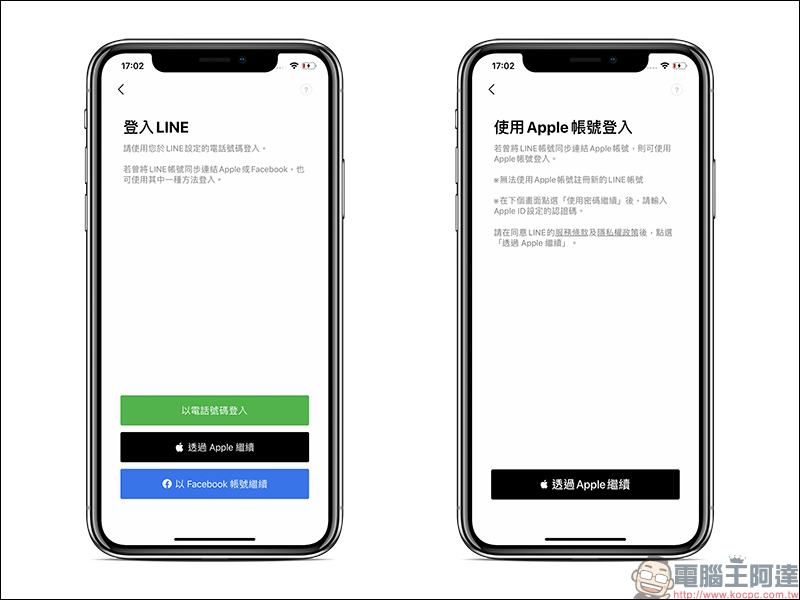
Remember that Apple announced at WWDC in June 2019 that “Continue with Apple”, a fast and secure login method using Apple ID on various platforms, is now officially available on LINE after the LINE iOS 10.5 version update. As long as you are an iOS user, you can now choose “Log in with an Apple account” on the LINE login start screen after updating LINE to the latest version, providing you with a more convenient choice when switching devices.
Apple account binding setting process
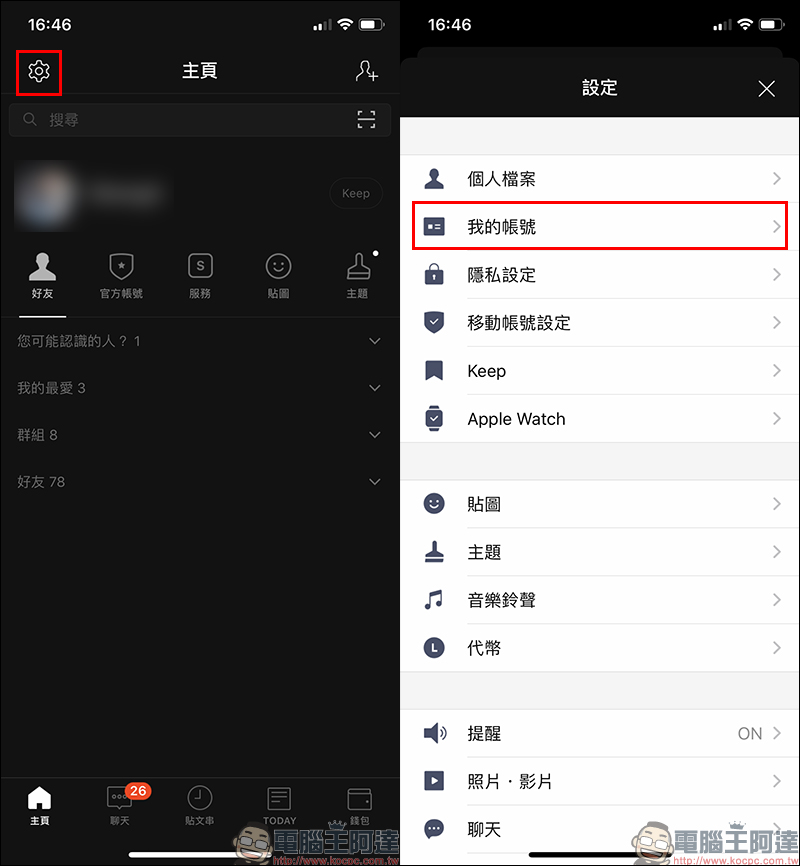
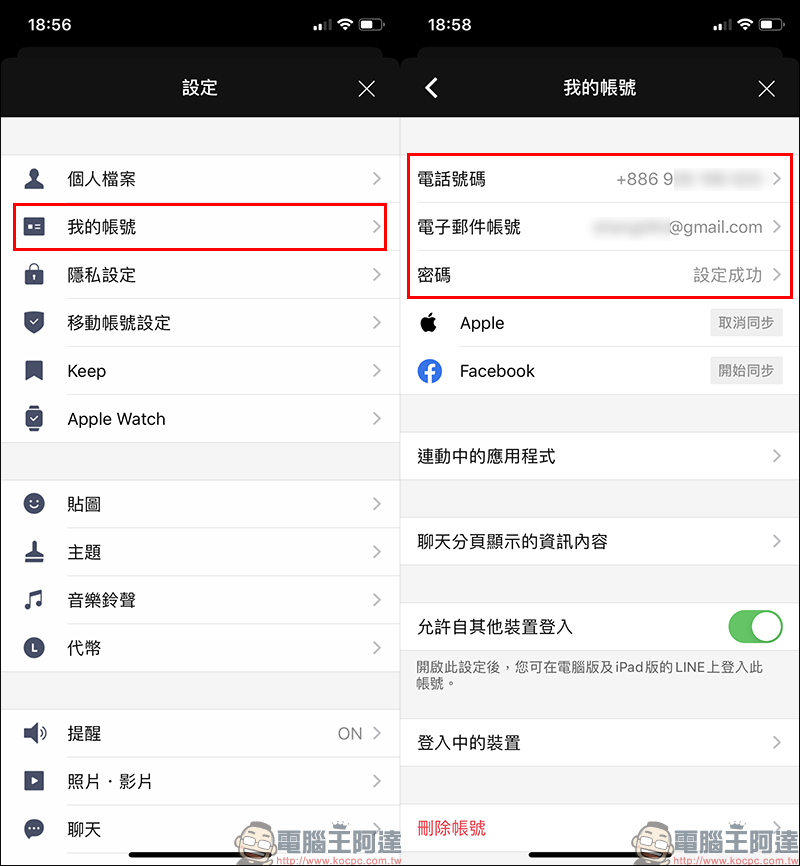
To be honest, the steps for iOS users to bind their Apple accounts are extremely simple. First, click the button in the upper left corner of the LINE homepage to go to the settings page, then select “My Account” to enter the account binding page:
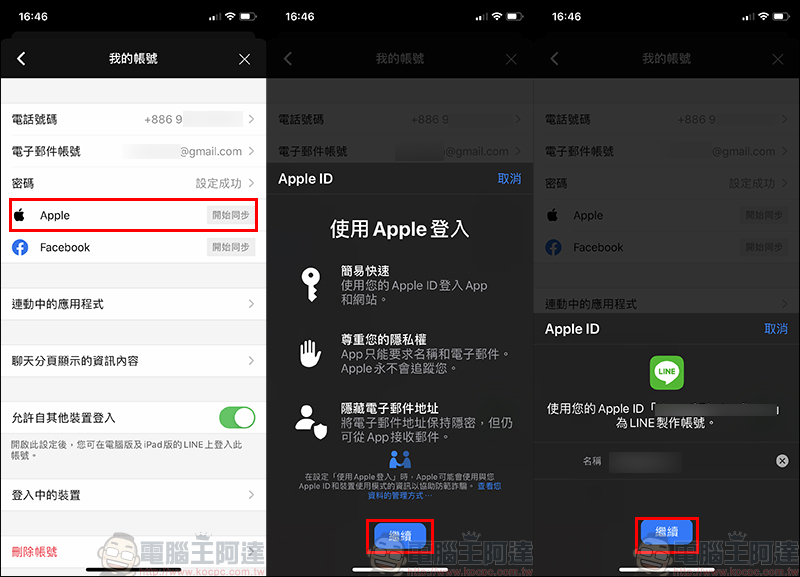
On the “My Account Page”, you will find that there is an “Apple field” after the LINE iOS 10.5.0 version update. As long as you click “Start Sync”, you only need to follow the instructions and click “Continue” to proceed to the next step:
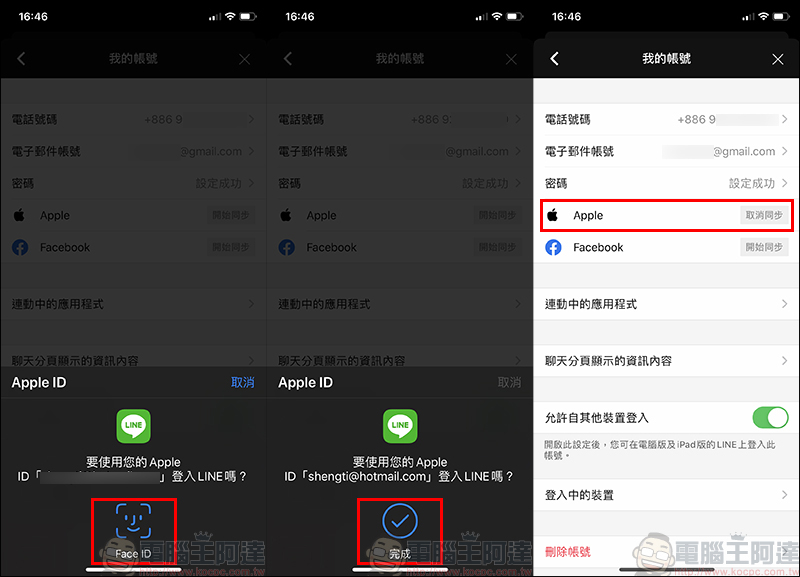
After entering the Apple ID authentication page, because the iPhone 11 Pro I am demonstrating this time is an iPhone that supports Face ID security identification, you only need to scan Face ID to complete the binding step immediately. For other unsupported models, verification can be completed through Touch ID or entering the Apple ID password.
In addition to completing the Apple account binding, the chat history and LINE phone number binding are indispensable to successfully complete the switch. Later in this article, we will also introduce how to import the backup chat history of LINE from the original mobile phone after the switch is completed.
In addition, due to the subsequent successful use of a third-party account (Apple account) to complete the phone switch and log in to LINE, in order for the system to reconfirm that the phone number of the third-party account is consistent with the user’s LINE account, the phone number must be registered again after the phone switch is successful to ensure complete account verification.
Preparations before switching Apple account
After the Apple account is bound, it becomes easier to change phones when you need to!
Next, it’s time to back up the chat history that everyone cares about most! LINE has just added a considerate “automatic backup” function to the iOS version. Detailed settings for automatic backup of chat history.Please refer to our previous articles (Click here to go)。
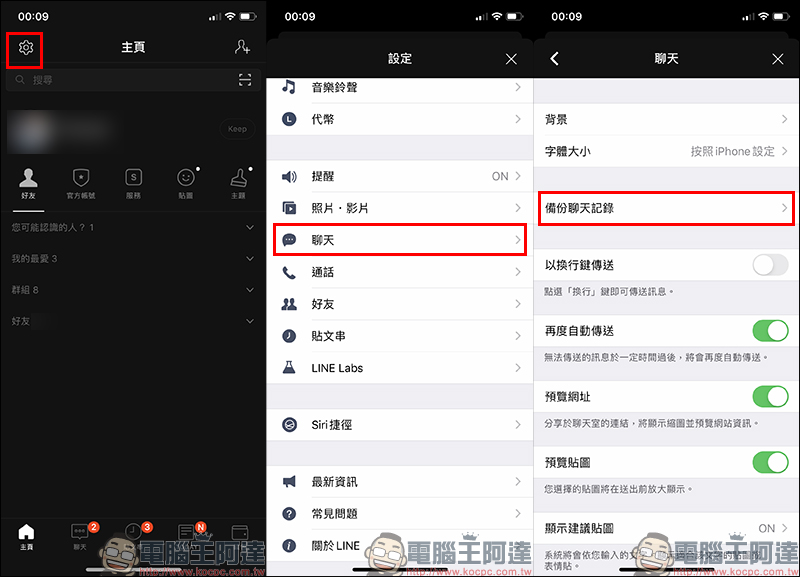
If iOS users want to back up LINE chat history, first click on the upper left corner of the LINE homepage to go to the settings page, then select “Chat” > “Backup Chat History”:
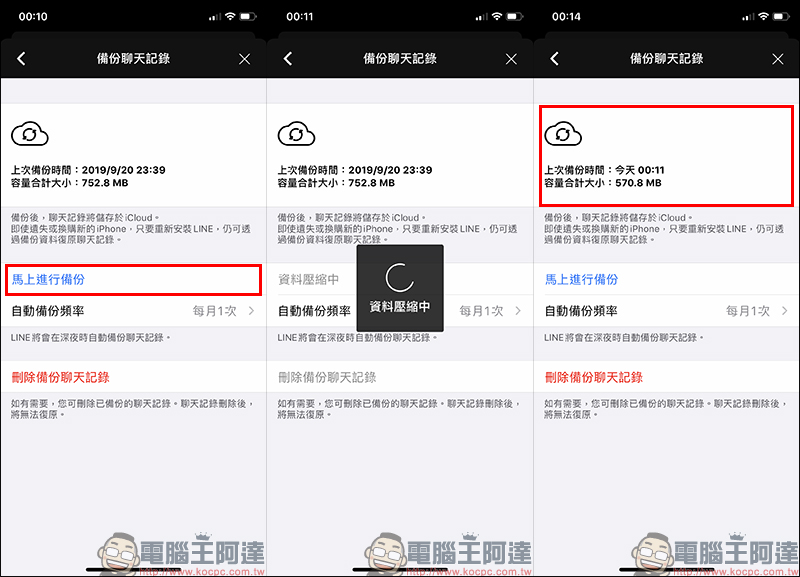
After entering the “Backup Chat History” page, click “Backup Now” to save the current chat messages to iCloud cloud space. It is recommended to do this before backing up:
- Help LINE lose weight and clear space: Before turning on automatic backup, it is recommended to clear the cache to free up space on your phone.
(Further reading: [Help LINE lose weight] Tutorial on deleting cache and freeing up phone space) - A stable Wi-Fi connection is recommended
- LINE is updated to 10.3.0 (inclusive) or above, and the iOS system version is updated to iOS 13 or above.
- Connected to charge, in charging state
- The mobile phone device is locked (cannot slide it sideways, do not open it, etc.)
- Confirm that “Background App Refresh” is turned on in the LINE App section of your mobile device’s settings.
- Read carefully[LINE Backup Official Lazy Pack] Step-by-step tutorial on the new automatic backup function (iOS first)
After completing the above steps, you can safely back up your chat history! If you try once and don’t succeed, try again!
Due to the LINE switching operation when restoring chat history on a new iPhone, if the iPhone iOS version of the restored chat history is older than the iPhone iOS version at the time of backup, the chat history will not be restored. To put it simply, the iOS system of the new iPhone that LINE is going to must be newer than the original iPhone system. If you don’t want to confirm again and again, it is actually recommended that you directly “confirm that all iOS systems have been updated to the latest version” is the fastest way.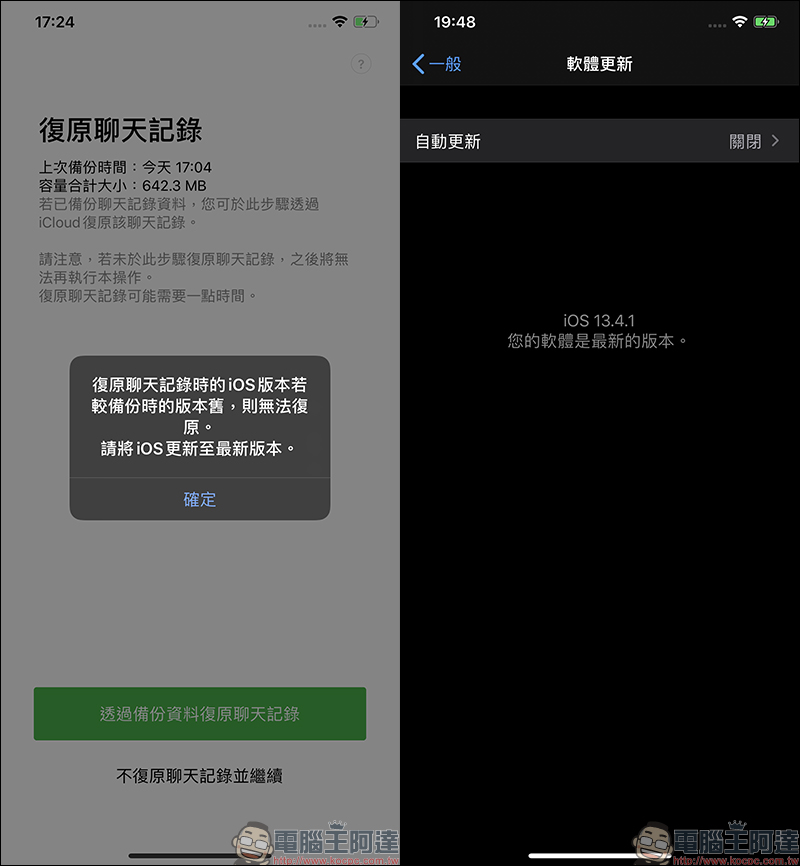
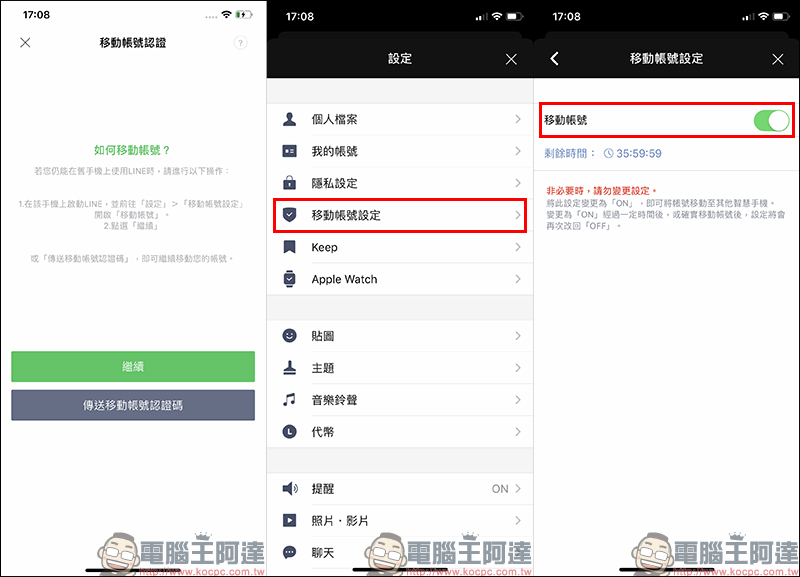
The last step to prepare before switching your Apple account is to turn on mobile account settings on your old iPhone. From “Settings” > “Mobile Account Settings” > Turn on “Mobile Account”:
Apple account replacement process
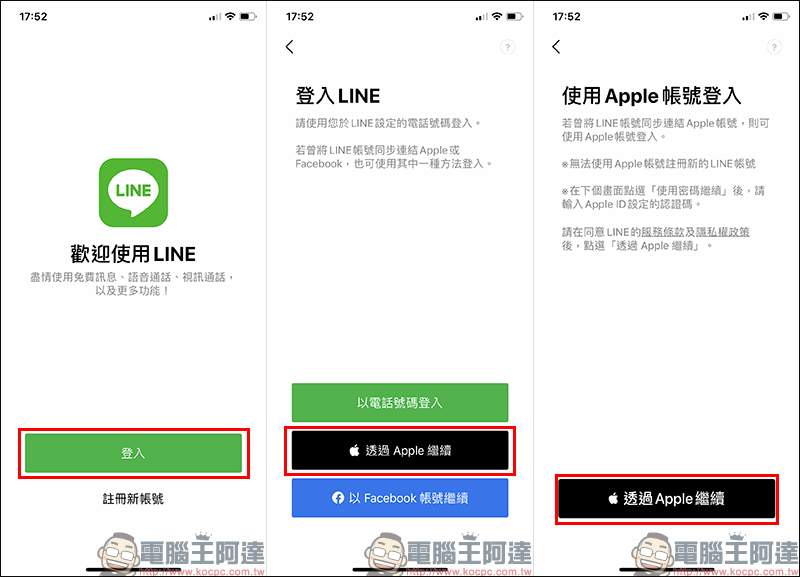
in completion LINE After the preparatory work before changing the machine, you can LINE from old iPhone Replace with new one iPhone Come on! in new iPhone turn on LINE App Select “Login”, and a “Through Apple “Continue” item Apple Account login method, you can also log in via phone number or Facebook Account to log in LINE Account (provided that the original account has been bound).
Because this time I want to share Apple Account login and switch process, so here we directly select “Through Apple Continue” to the next step:
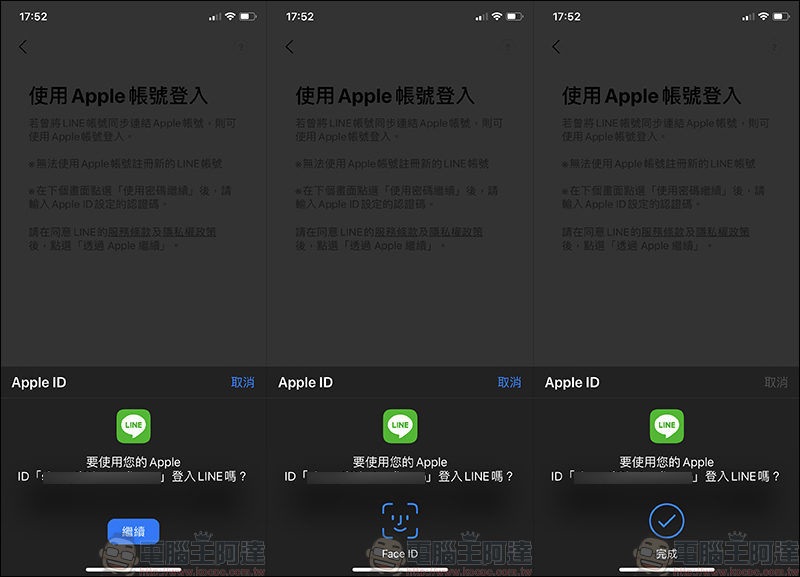
Then you will enter Apple ID Identity verification page, because the author demonstrated this time iPhone 11 Pro Yes there is support Face ID secure identification iPhone , so just scan Face ID Complete login now. If it is another unsupported model, it can also be used through Touch ID or enter Apple ID Complete verification by password:
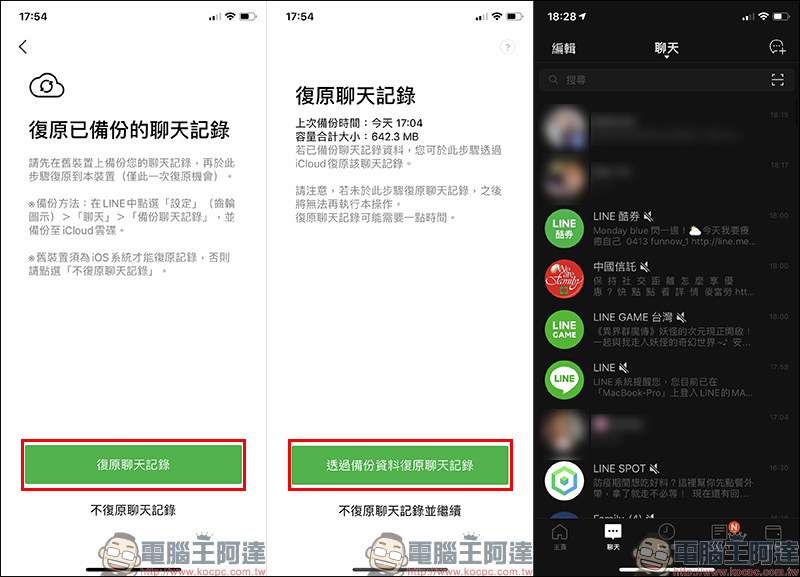
The next step is to convert the previous iPhone Back up in iCloud of LINE Restore chat history to newer iPhone Hello! After clicking “Restore Chat History”, the last backup time will be displayed. However, even if the backup was just completed earlier, the author still recommends that you double-check whether the “last backup time” displayed on the screen is correct.
If you confirm that the current chat record is the latest chat record, you can click “Restore Chat History from Backup Data”. LINE will begin to restore this chat history to a new one iPhone superior. Chat history restoration completed. Apple ID The replacement is done!
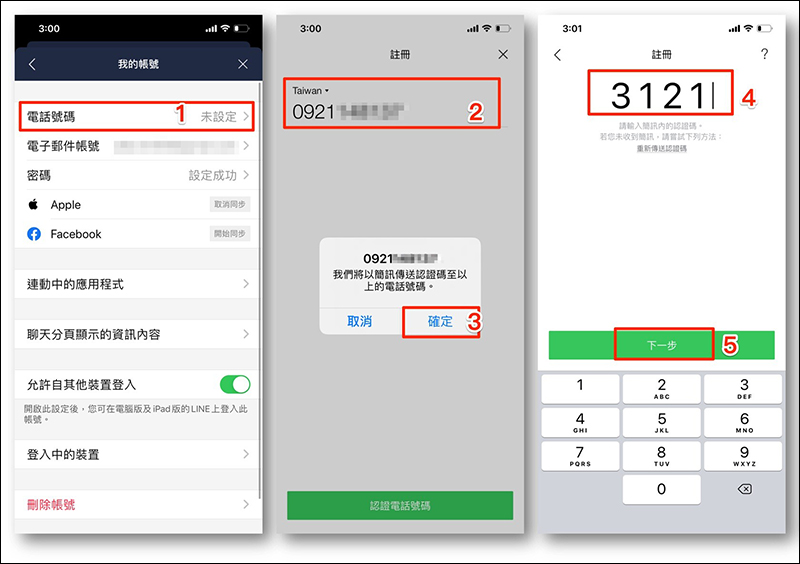
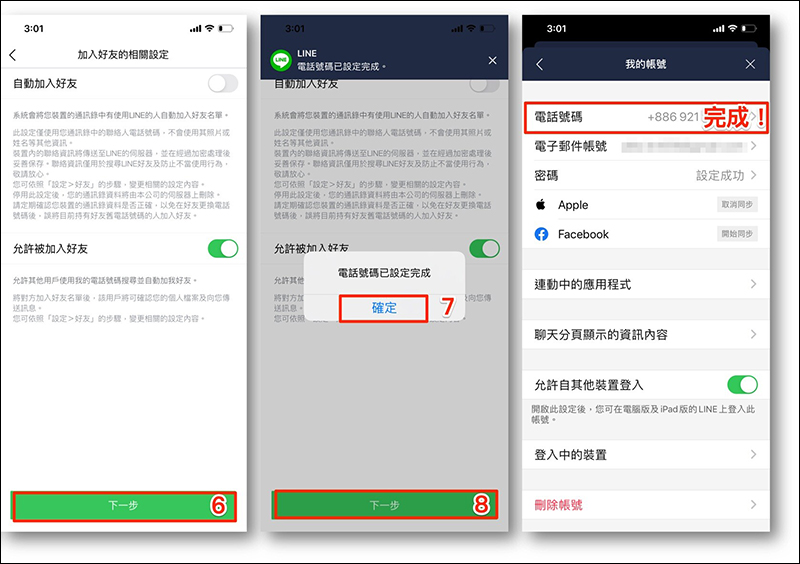
Register phone number again
After completing the phone replacement process, don’t forget to re-register your phone number! This is to allow the system to reconfirm that the third-party account is consistent with the phone number of the user’s linked LINE account. Therefore, it is recommended to register your phone number again to make the account verification more accurate and complete. If you accidentally click “Cancel” during the phone number registration step, you can still go back to LINE settings and register your phone number again!
Also shown in the same scene: Android also has an Apple account field. What is it used for?
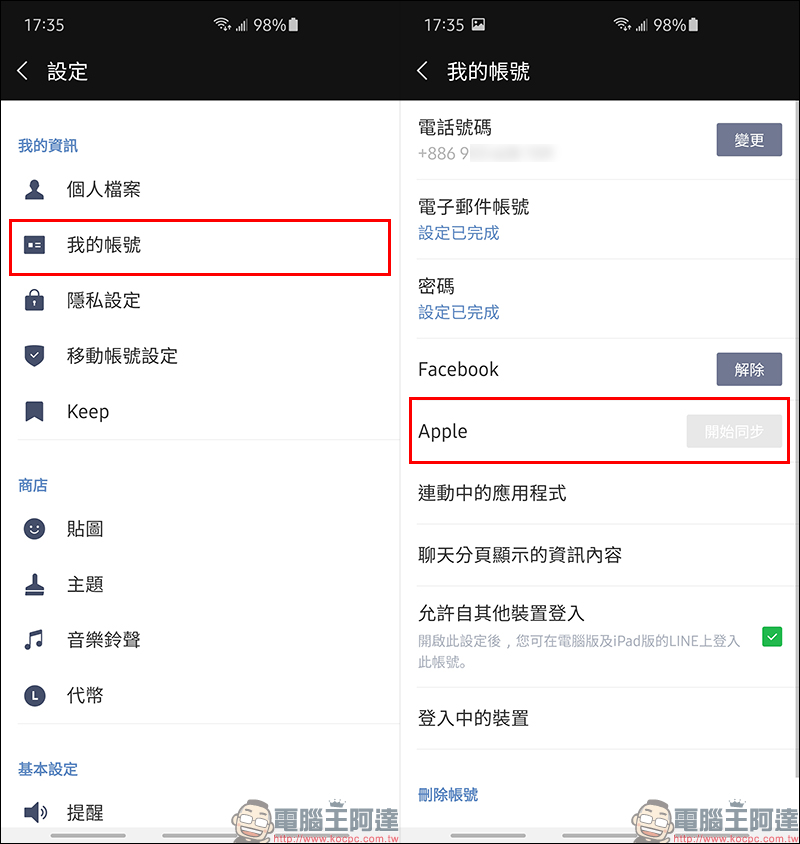
Starting from version 10.5.0 of LINE, you can log in with an Apple account and switch devices. This feature is limited to iOS users. Therefore, many readers must be very curious. Since this is limited to iOS users, why does the LINE settings also have the Apple column after the Android version of LINE is updated to 10.5.0 (inclusive) or above?
This field is mainly for Android users to click if they need to “unsynchronize Apple accounts” in the future. For example, if the user later switches from an iPhone to an Android phone and wants to deactivate the Apple account previously synchronized with LINE on the Android phone, he or she can click this button. To put it simply, this field can only be used to “cancel synchronization” in Android’s LINE settings, and cannot be used to synchronize (bind) Apple accounts through it.
If this account has not been set up with an Apple account on any iPhone device, the button on this page will be grayed out and cannot be clicked (as shown below).
LINE App download:
iOS version (App Store)| Android version (Google Play Store)
LINE official blog:
LINE officially enables Apple account login and device switching – iOS users read this article
LINE officially enables Apple account login and device switching – Android users read this article
Source: KOCPC Chinese