


The vast majority of people probably don’t like their iPhones being used casually by others without asking in advance. It’s not necessarily related to privacy (for example: there are some important information and private photos in it), it’s just a matter of respect or disrespect. If you are often troubled by this, this article will teach you how to add an iPhone alarm setting. It only needs to be done through an app. If someone steals the alarm, it will sound, vibrate, and even flash continuously, so that you can immediately notice it.
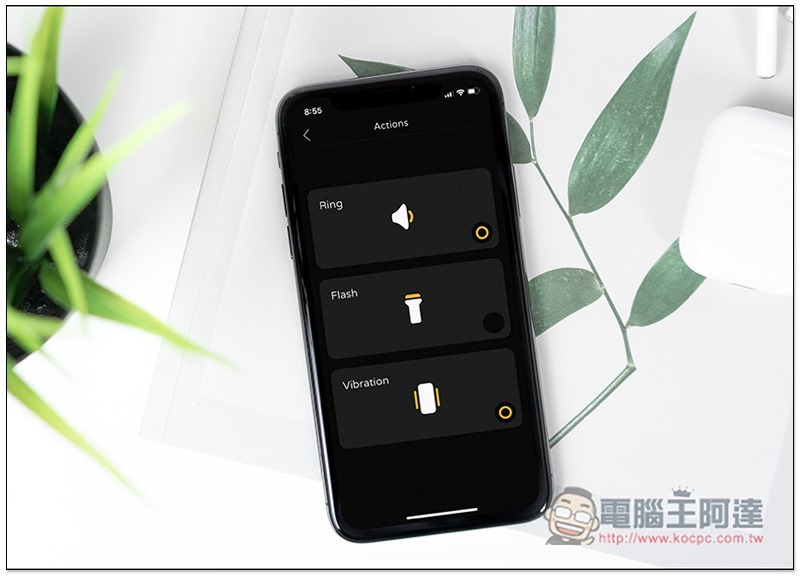
Teach you how to add iPhone alarm settings
The iPhone itself does not provide this function, so it needs to be implemented with a third-party app. Please download it from the App Store. Guard Ninja App. This app is currently not free (it was previously limited to free) and costs 33 yuan. It is recommended that you read the operation process below first and then consider buying it if you think it is good. Otherwise, you can wait and see if it is limited to free again.
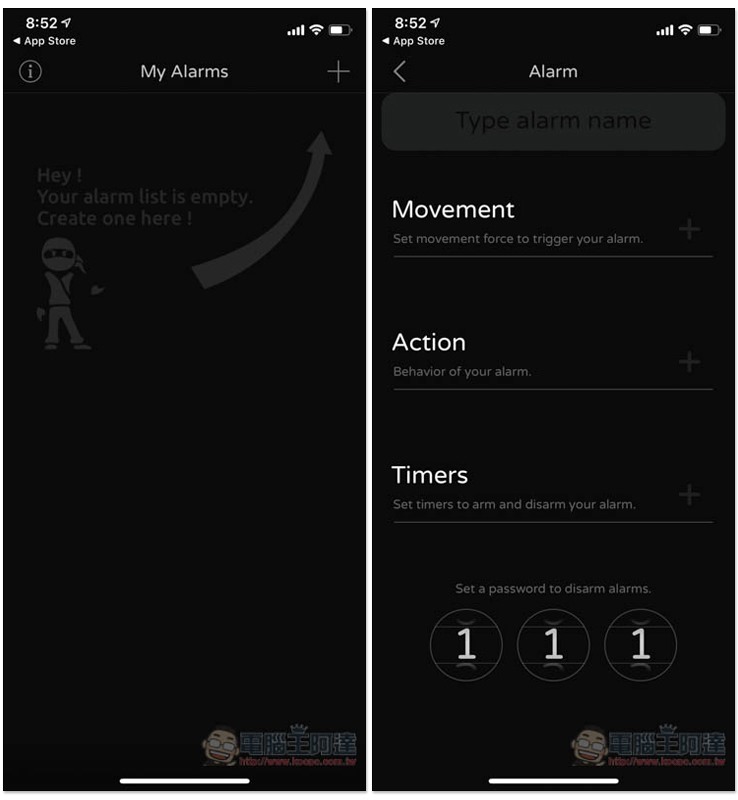
After opening, click the + in the upper right corner to add an alarm. There are three settings. “Movement” is how much the iPhone swings to trigger the alarm, “Action” is what actions to take when triggered, and “Timers” is to set the waiting time for starting and turning off the alarm:
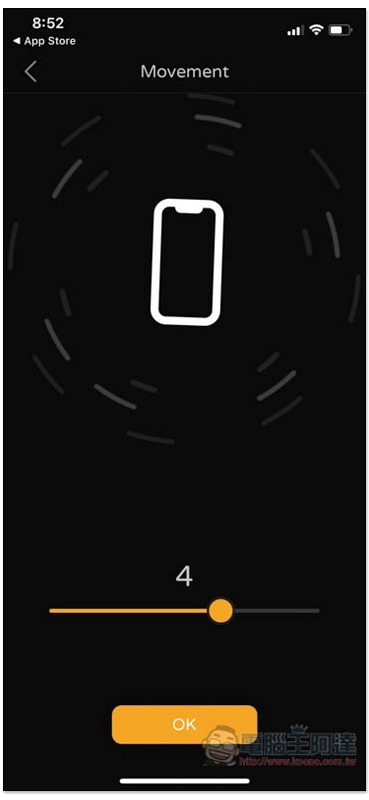
Movement simply means sensitivity. If you don’t want it to be triggered just by picking it up, you can increase the value. The default is 2:
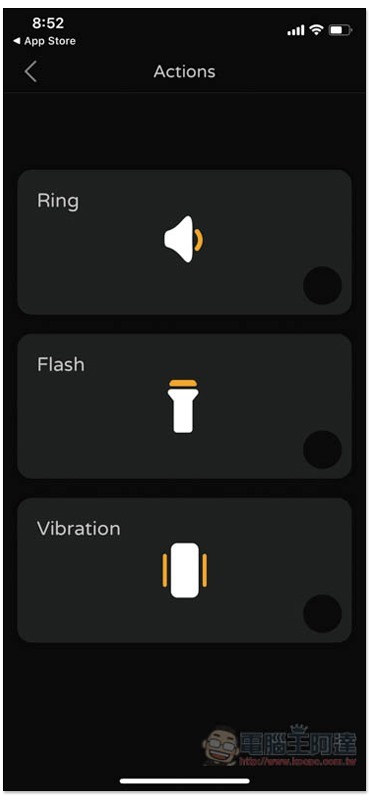
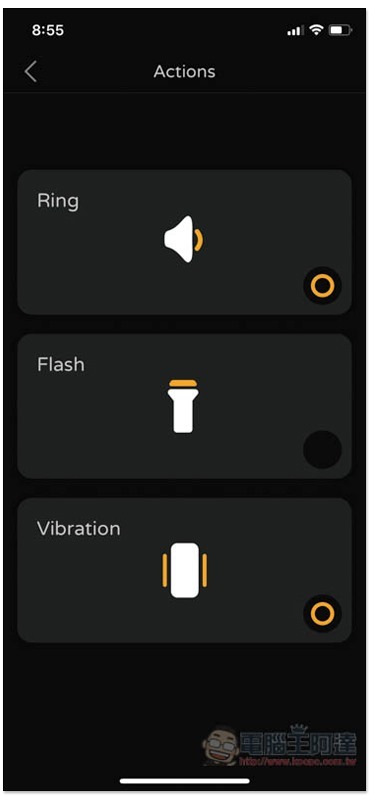
Actions can set three actions, ringing, flashing, and vibrating:
Checkable, if you want ring + vibrate, or even ring + flash + vibrate:
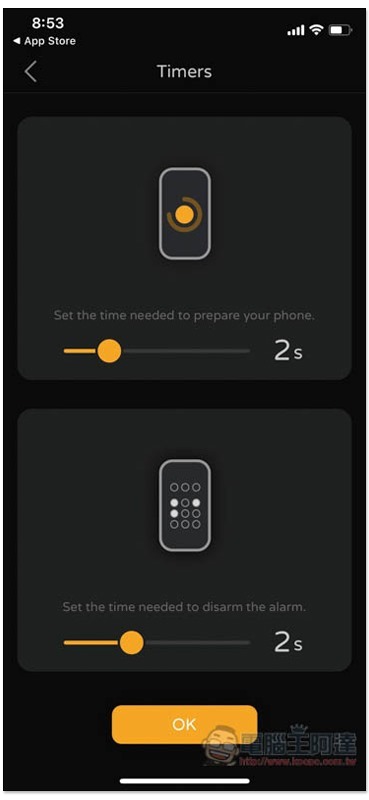
Timers Above is how much waiting time is required when you press to activate the alarm bell function (it doesn’t matter if you don’t understand it, you will understand it later in the activation tutorial). The following is the waiting time to turn off the alarm after entering the password:
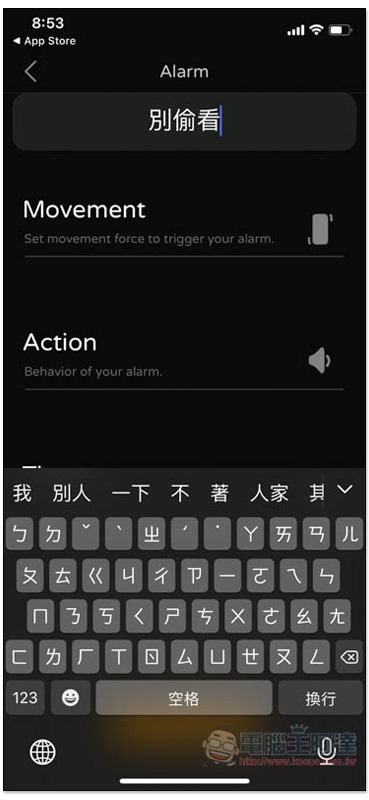
After all three options are set, enter a name for the alarm:
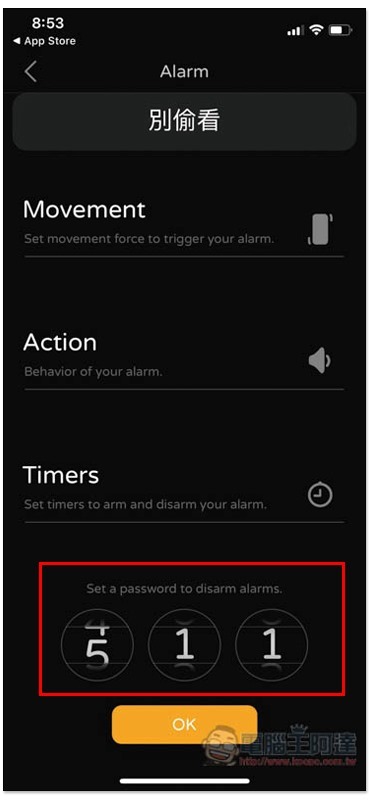
Then set the unlock password. There are three numbers in total. You can slide up and down to switch. If there is no problem, press OK to save:
You will see this alarm bell on the home page of the App. Supports setting multiple alarm bells. You can add appropriate alarm bells according to different usage scenarios:
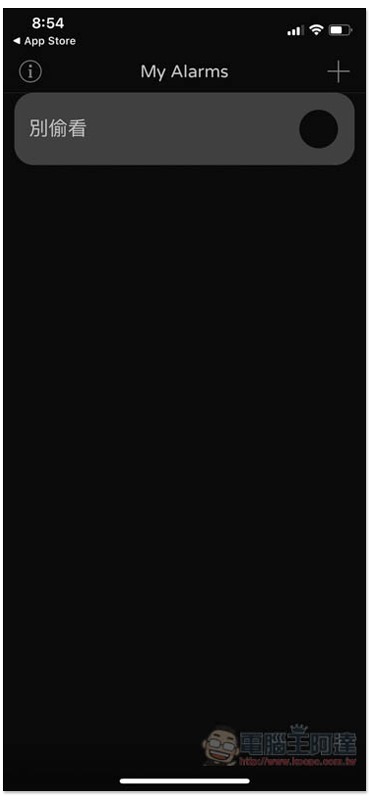
Click the circle to the right of the alarm bell and press the Ready function:
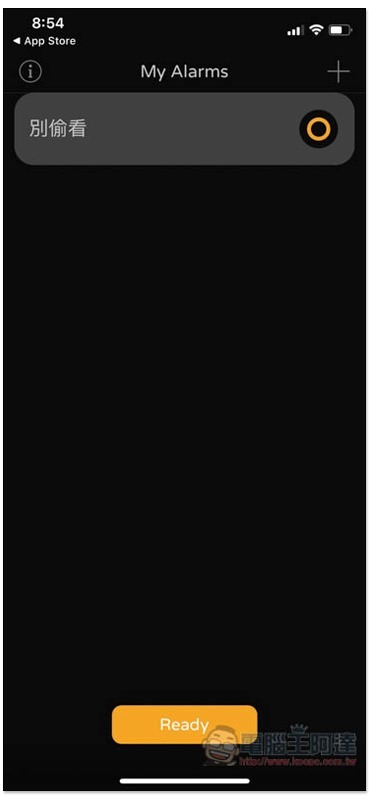
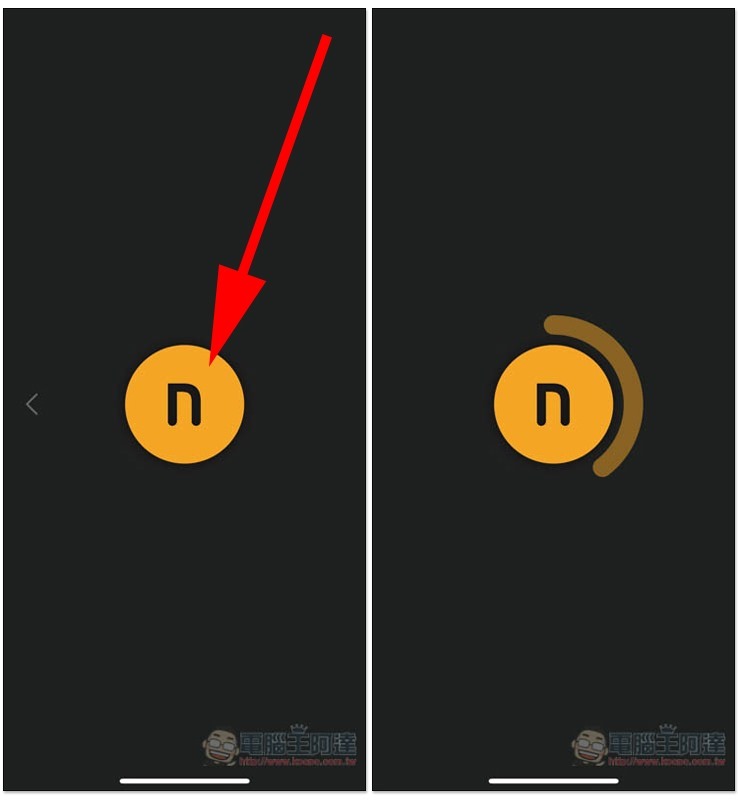
You will enter this screen. Please click on the n yellow circle in the screen. The alarm will not be officially activated until the loading of the screen is completed. in addition. The setting above Timers mentioned earlier refers to this waiting time. After enabling it, the screen will automatically turn black. Remember not to press the power button:
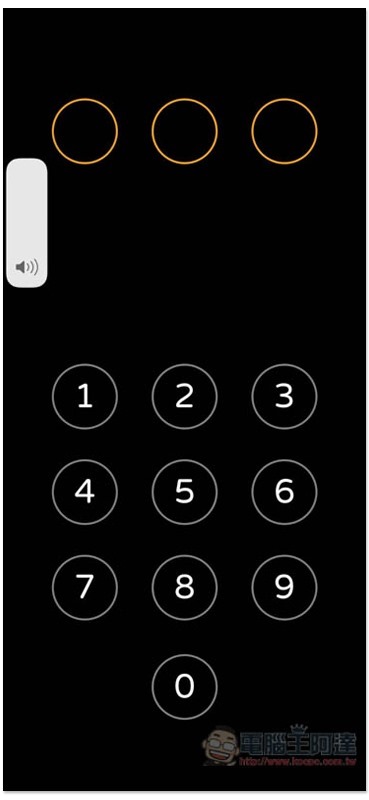
When someone picks it up, the alarm will be triggered (or the action you set), and the sound will be automatically adjusted to the loudest and cannot be lowered. You need to enter a password to stop:
However, I found that this app cannot run in the background, so if the other party is smart, they can stop it by returning to the home screen or switching to other apps. As mentioned before, don’t press the power button. The reason is the same. It won’t work in the background or standby screen, so if the iPhone becomes locked, it won’t work. It doesn’t matter how you move the phone:
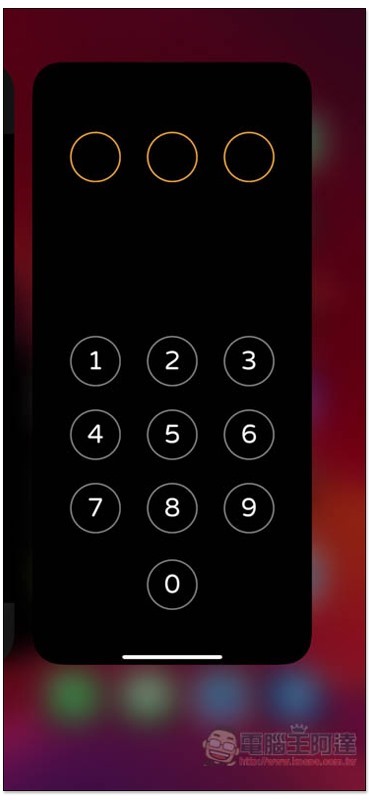
However, it will still function after unlocking and the alarm will sound immediately. But because it has been unlocked, many people will subconsciously slide down directly from top to bottom, or press the Home button (which I know how to do), indirectly turning off the alarm bell unintentionally, so I recommend not pressing the power button.
Supplementary information
Guard Ninja download page:Click here to go
Source: KOCPC Chinese