


Recently, due to the epidemic, many office workers around the world have begun working from home. However, in order to keep in touch with the company, it is still necessary to use video to hold meetings, discuss work content or report on the current progress. But if you happen to encounter a Webcam failure or loss, what should you do if you need to have a temporary emergency plan for video recording? In fact, if you have an iPhone or Android phone at hand, you can use an App called EpocCAM for emergency relief. This app is technically part of a suite of “turn your phone into an emergency WebCam”. You also need to install a special driver on the computer, so that you can use your phone as an unusable Webcam without a connection:

▲EpocCam is an App that allows iPhone/Android phones to temporarily replace Windows/macOS computers with Webcam (Image source)
Many laptops have Webcam. For people who often need video, a small Webcam can be of great help. But if one day the Webcam encounters a malfunction, or other problems affect the video, you don’t need to go to the shopping website to find a new Webcam first, because your mobile phone can sometimes not help. However, the mobile phone only shares the camera screen and microphone sound collection functions with the computer through an App. In this way, even if there is a temporary problem with Webcam, you can use your mobile phone to take over temporarily to avoid affecting important video conferences or communications.
This app is called EpocCam. Strictly speaking, although it is an app, it actually has no operating interface. The App mainly transmits the signal through the network to a computer equipped with a dedicated driver, and the computer will treat the mobile phone as a Webcam. Whether it’s a video call on Skype, LINE or other communication software, or live broadcasting to the Internet through OBS, EpocCam can do this.
However, EpocCam is still divided into free version and paid version according to functions. The free version can use relatively basic Webcam functions, but the picture is relatively poor. The resolution is only 640 x 480, and the picture is only 30fps. Webcams on the market will always have 720p, but the free version of EpocCam only has picture quality similar to VCD. If you want a better picture experience, you have to purchase the paid version (approximately NT$180 to NT$242, depending on the pricing of each platform):
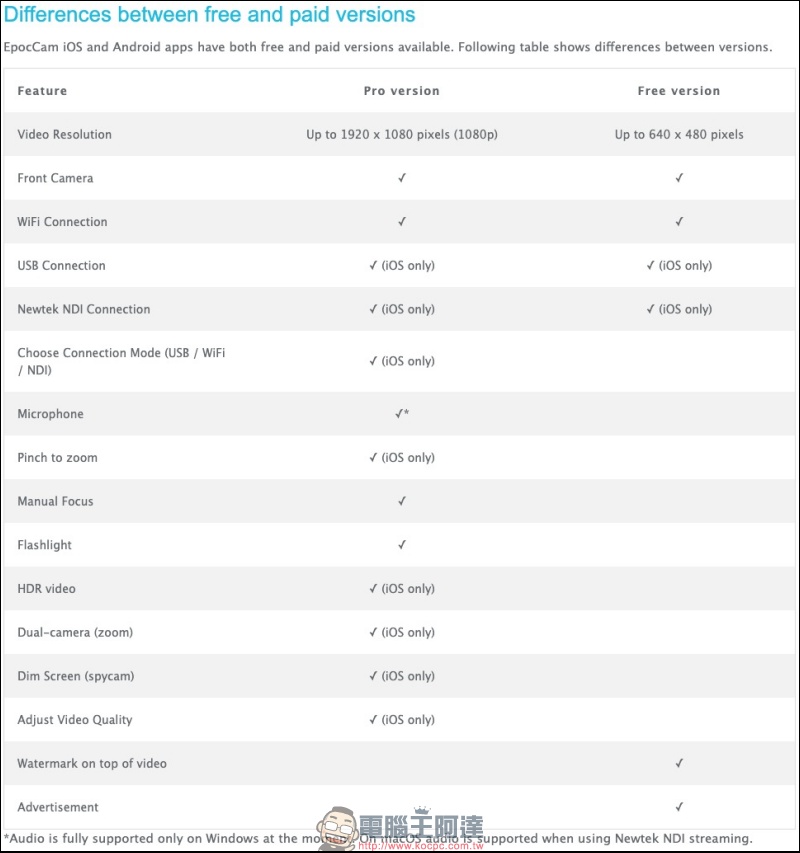
▲The paid version mainly supports video up to 1080p and removes ads. Far better than the free version in terms of additional features.
Although EpocCam is an App software, after all, the main use of the App is on a computer. In fact, you only need to connect the computer and mobile phone to the same network, and the driver can automatically obtain the camera image and microphone sound on the mobile phone from the App. There is nothing complicated about driver installation. Overall, you can probably use the software after installing it:
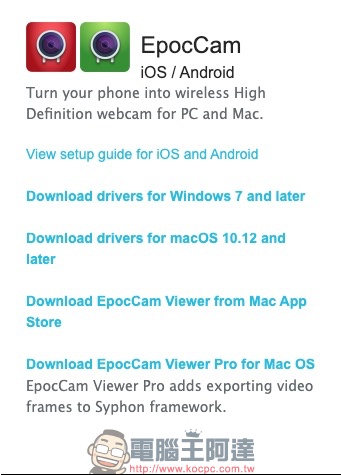
▲EpocCam requires additional driver installation for the computer.

▲The Windows part is relatively simple, just keep pressing Next.
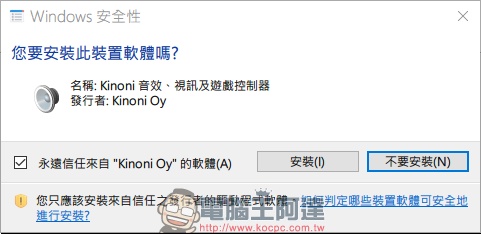
▲Some computers may see this screen. Pay attention to whether the publisher inside is Kinoni Oy. If so, you can click to install it.
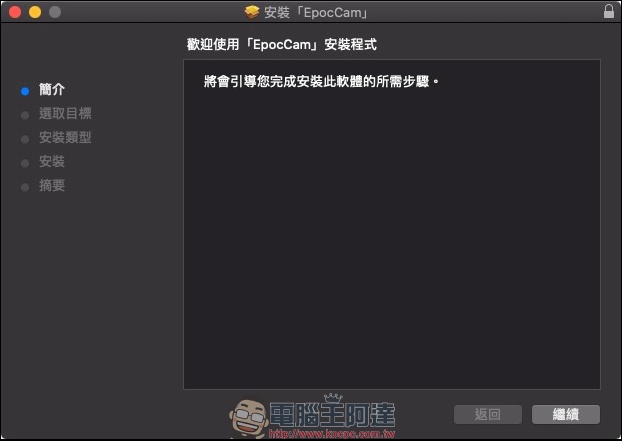
▲For Mac, just note that the installation process will ask for the administrator password.
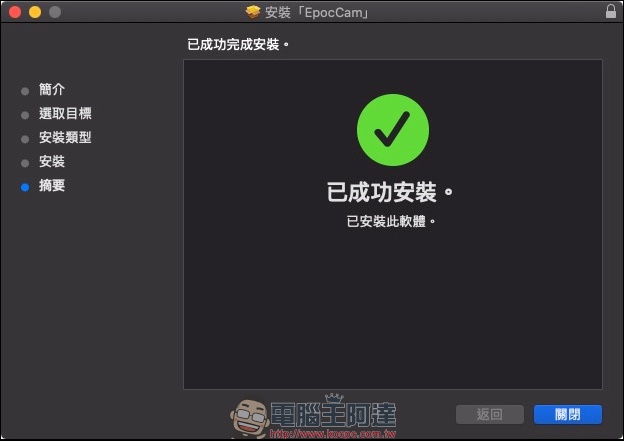
▲When you see this screen, you will know that the installation is complete.
Some people may ask, it is great that this thing does not require a mobile phone connection, but how do I know whether this substitute Webcam is useful? The original manufacturer provides a test plan. As long as you have an Internet connection and a browser, you can test it. First, you need to open a file called “WebRTC samples” webpage, test whether the Webcam really has a picture from the webpage:
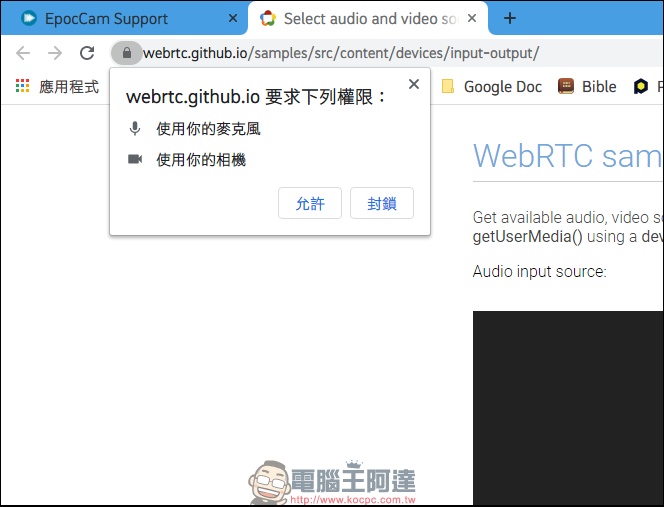
▲After entering the web page, some browsers will ask whether you are allowed to use the microphone and camera. Click Allow here to test.
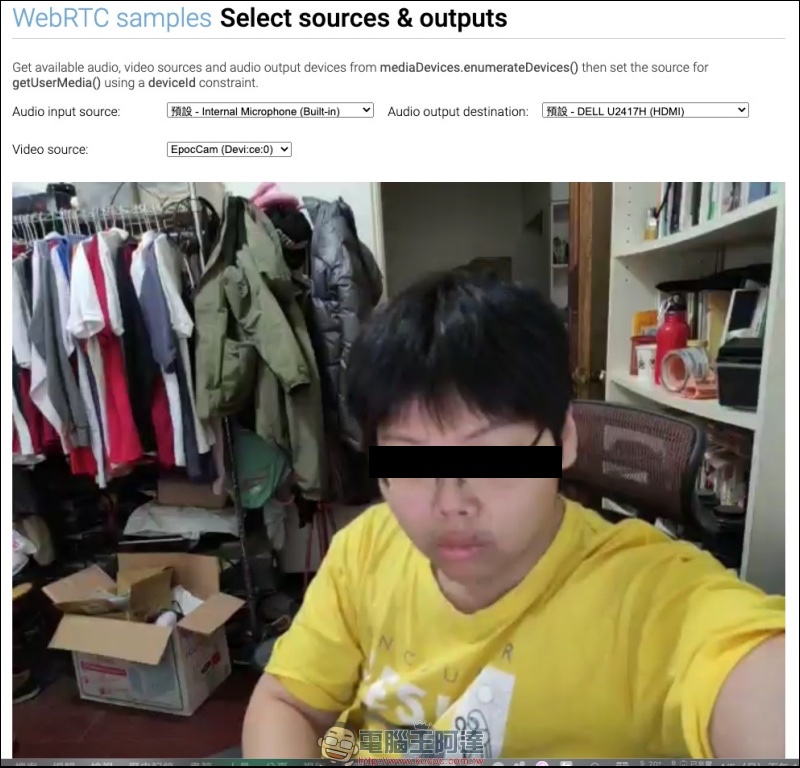
▲The recommended browser for testing is Google Chrome and the latest updates should be installed. If there is more than one Webcam, remember to select “EpocCam” in the Video source to read the screen. If it still cannot be read, the connection failed.

▲The author’s Mac computer will also jump to the notification prompt resolution
As far as emergency video solutions are concerned, it’s good to be able to share your phone’s camera lens with your computer for video without spending any money. However, the free version is only for emergencies after all. Neither the picture quality nor the microphone performance are as good as those of ordinary Webcams. In terms of software use, there is no setting page in the App part, which may not affect the average person. However, when you encounter connection problems and find out the situation, there is nothing to look for, which is a slight deduction. It is still a big advantage to be able to use Webcam without additional connections between mobile phones and computers, but the picture quality is also quite rough because it is free. How to choose between these may depend on how people use them.
EpocCam App Download:Free for iOS | iOS Paid | Android free | Android Paid
Source: KOCPC Chinese