


With the recent seriousness of the epidemic, in addition to many brands’ product launches being conducted online, even many company meetings, school classes and gatherings among friends have been avoided as much as possible. In fact, in addition to being used to connect friends through video calls, it can also be used for video conferencing! Because LINE has recently updated the LINE PC version to version 5.23.0, the “Share Screen” function, which was originally only available for one-on-one video calls, has been upgraded to support group video calls with up to 200 people.
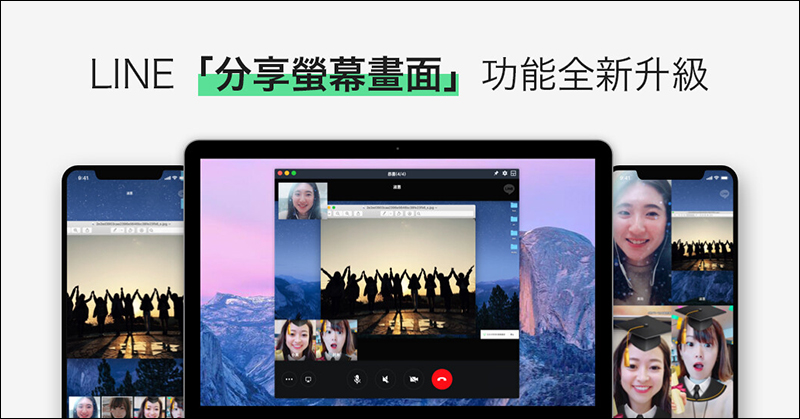
▲Picture source:LINE
LINE PC version 5.23.0 update, the “Share Screen” function supports simultaneous video calls with up to 200 people
In the past, LINE video calls had a useful feature called “share screen” that many people didn’t know about, but at that time it was only available for one-to-one video calls. With the update to LINE PC version 5.23.0, LINE users can also share their screens during “group video calls”! Many of you may be unfamiliar with “Share Screen” in LINE video calls, so here we will briefly share how to operate it! (The computer version of LINE in this article is demonstrated on Mac, and Windows is also supported!)
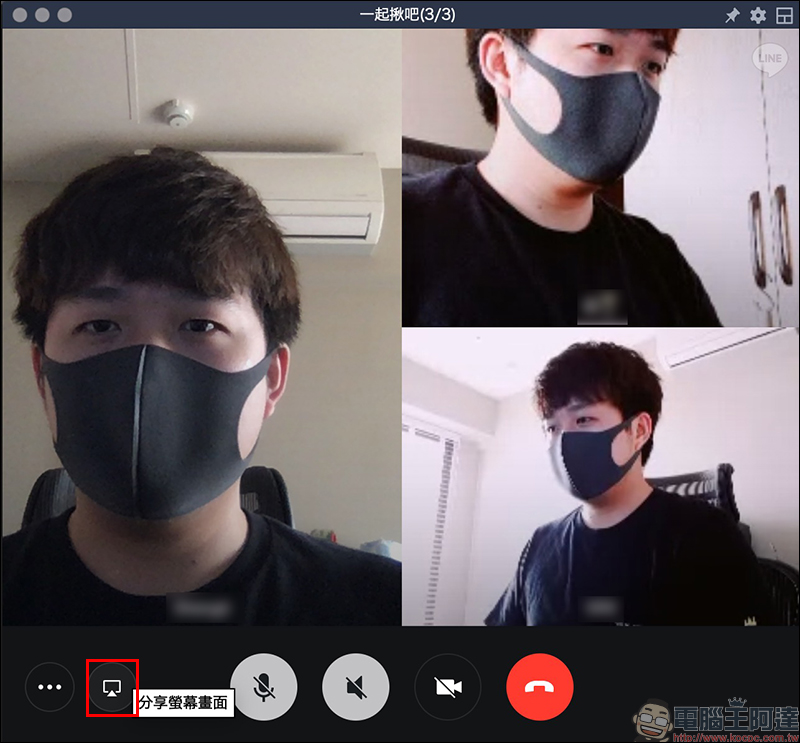
First, make a video call from the LINE group chat room (any member of the group can make the call). After opening the call, click the “Share Screen Icon” in the lower left corner of the LINE PC version of the video call window:
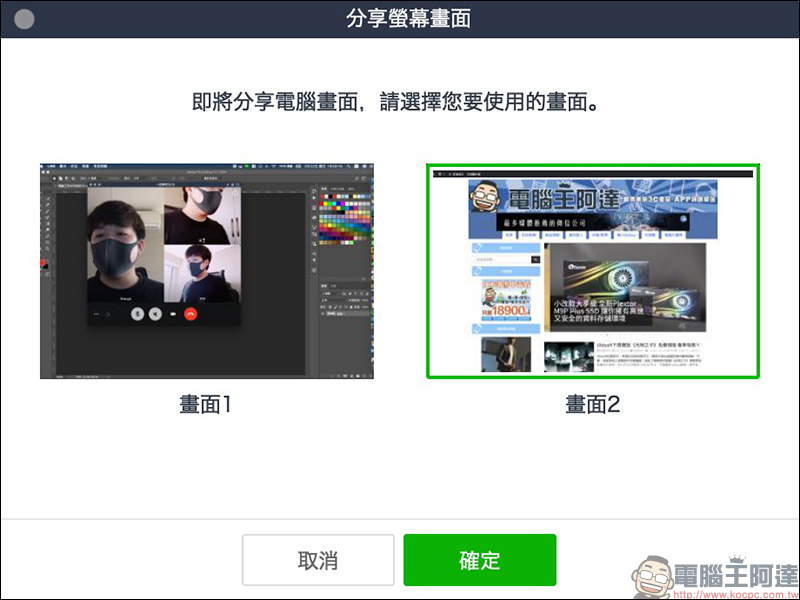
Then select the screen you want to share. If your computer is using an external monitor, you can select other screens to share with friends in the LINE group:
Once the LINE PC version sharing screen is turned on, other members participating in the LINE video call will be able to see the screen from the sharer! Users can also adjust the display ratio of each window by themselves.
As with daily video calls, the quality of the network connection during the video call is also very important. The more stable and fast the connection quality is, the clearer the picture will be when viewing the video. Therefore, it is also recommended that if you need to “share the screen”, in order to view the screen clearly, you must pay more attention to the network connection status than usual video chats between friends!

As for users who share their screen, not only will their own video screen not be displayed during this period (because it is equivalent to changing the video output screen to the screen screen), but they will also not be able to see the video screens of other users. Therefore, the “Share Screen” function is more suitable for speakers who initiate meetings, presentations, and remote teaching.

As for the “share screen” function, can it be used on mobile phones? Although LINE’s official introduction mentions that those who want to share their screen must use the computer version of LINE, the author’s actual testing found that during a group video call on an Android phone, the “Share Screen” function is also available by clicking on the upper right corner of the screen to expand the function list. However, the screen sharing feature is currently not available on iOS.
Before officially starting to share the screen, users will be reminded that “While recording or posting content, LINE may capture any confidential information displayed on the screen or played by the device, such as audio, passwords, payment information, photos, and messages, etc.” Therefore, it is also recommended that even if you are chatting with acquaintances on LINE video calls, never share important information directly on the screen!
After confirmation, click “Start Now” to immediately share your phone screen to the LINE group video call. During screen sharing on a mobile phone, the person sharing the screen cannot see the video of other members of the group.
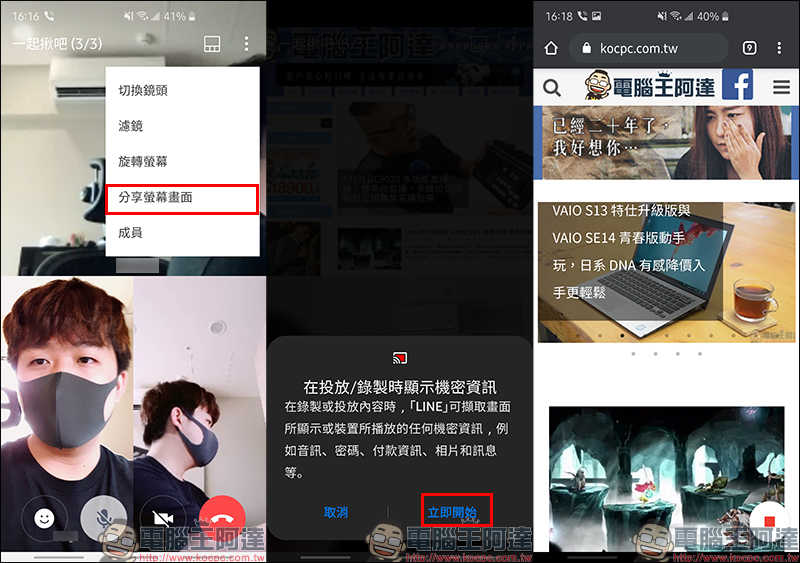
When other members in the video call group share the screen from their mobile phones, the viewing effect on the computer is as follows:
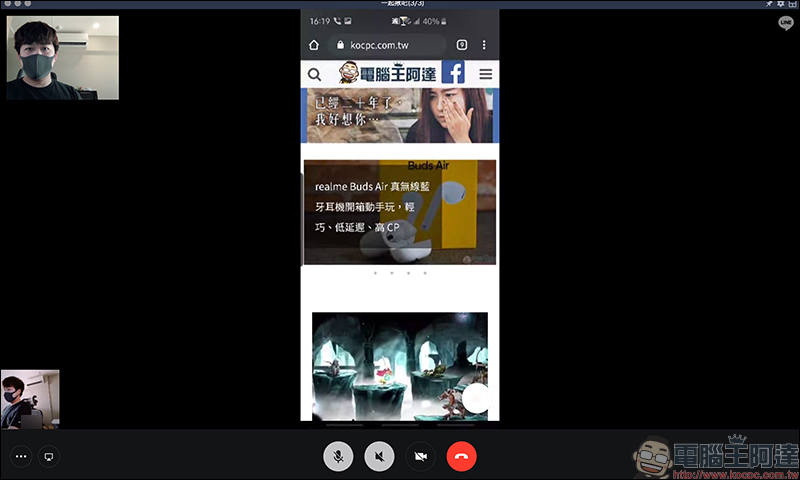
Source:LINE Taiwan official blog
Further reading:
LINE will be able to “read/send” messages through Google Assistant, and you can LINE to your friends just by speaking.
Source: KOCPC Chinese