


If you usually need to capture some video clips or merge multiple videos, and you don’t have anything like Adobe Premiere or PowerDirector…etc., more professional editing software, even if you find the software source, you will not use it because you have not learned the software. Moreover, there is only a small part or temporary demand. If you don’t want to be so troublesome, then the free video editing software “Avidemux” introduced today has simple and convenient functions and a Traditional Chinese interface, allowing you to quickly capture and merge videos. Of course…it’s not just these functions!
Avidemux allows you to quickly edit/merge videos, and the traditional interface allows you to get started faster
First, go to the official download software. The author here is using Windows 10 x64 Professional Edition, so I grabbed the Windows 64-bit version. The installation process is also quite simple. Just follow the next step: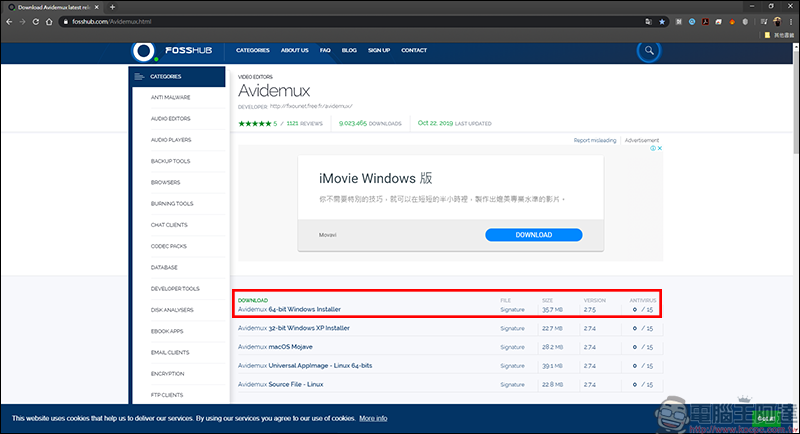
Download address
After installation, open Avidemux and give it a try!
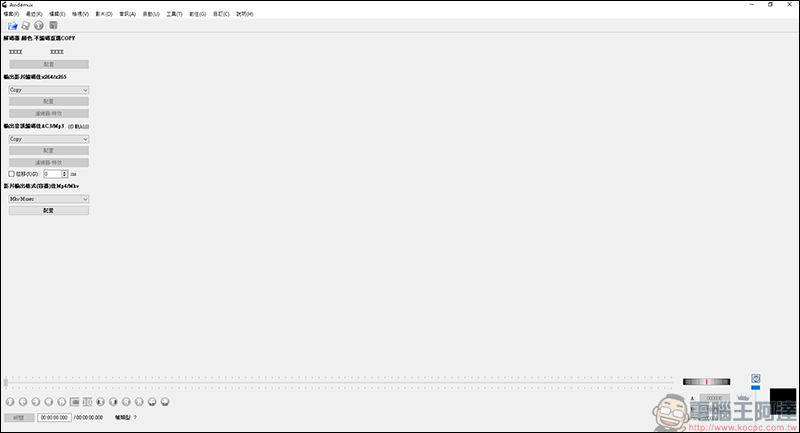
You can choose to press File → Open to select the video you want to edit, or you can directly drag the video into Avidemux: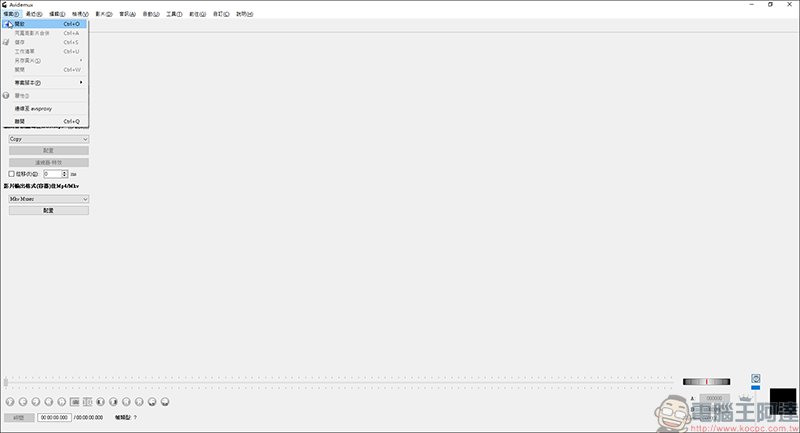
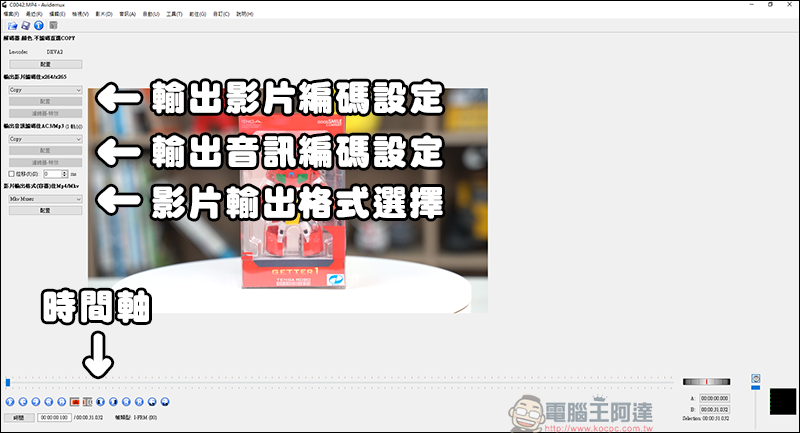
After inserting the video, the browsing screen will appear. Here we will briefly explain some common functions of the main screen:
Output video encoding settings: Here you can choose the video encoding format. It is generally recommended to choose x264/x265. You can also choose to use the original video format, but sometimes there will be problems if you use it.
Output audio encoding settings: This is the audio encoding format. Most of the time I choose the common MP3 format.
Video output format selection: You can choose the format in which the final video will be output. The most popular MP4 is recommended.
Timeline: functions such as playback, fast forwarding, etc. are all here, and the function of setting the opening and ending of the title is also here.
Editing
It is also very easy to cut out a video clip. At the number of seconds you specify, press A on the timeline to set the starting point of the video: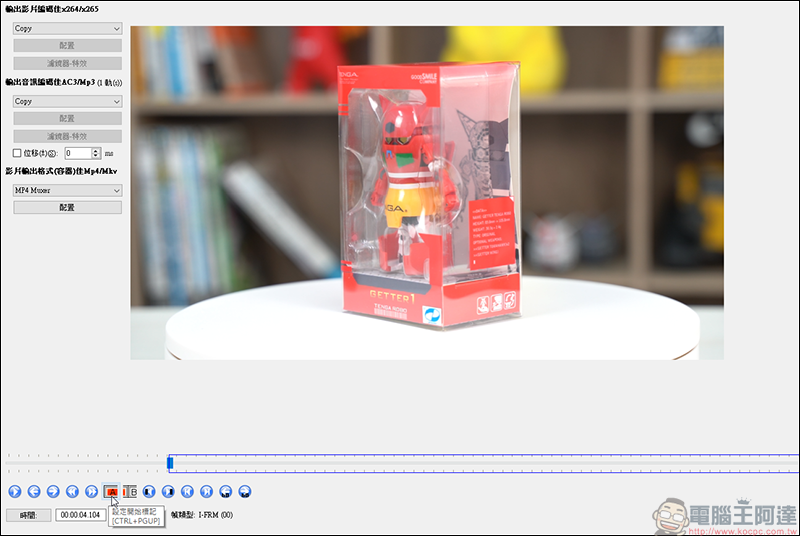
Then press B at the position of the video where you want to end, and the range of the clip is set:
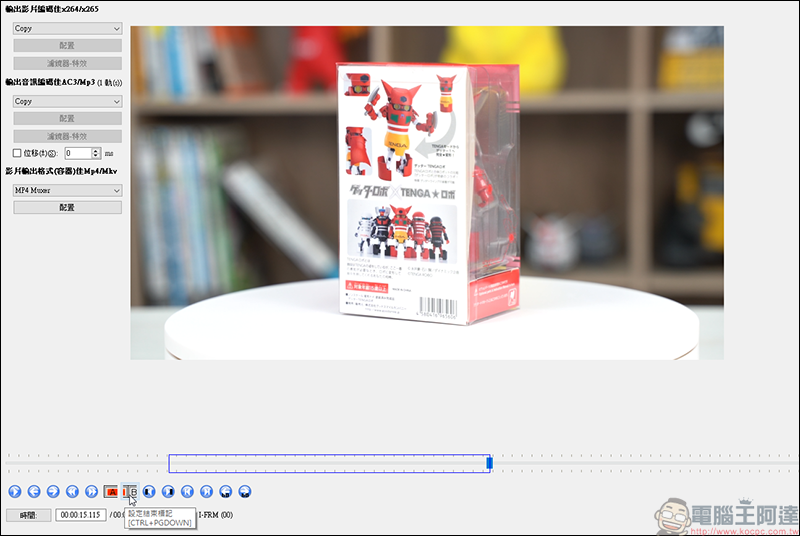
After setting, remember to select the encoding part first, and then click File → Save to save the clip you selected. Remember to save the path or name not to be the same as the original video, otherwise the original video will be overwritten: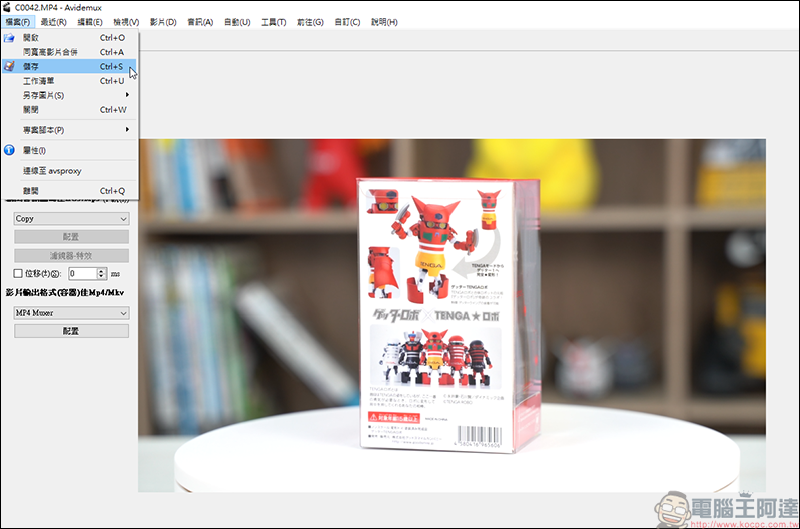
Merger
After a simple tutorial on editing, let’s learn about merging. Merging is also very simple. You can merge videos with the same width and height in File → Merge, or directly drop in other videos. However, the merge function only accepts videos of the same width and height, so videos of different sizes cannot be merged:
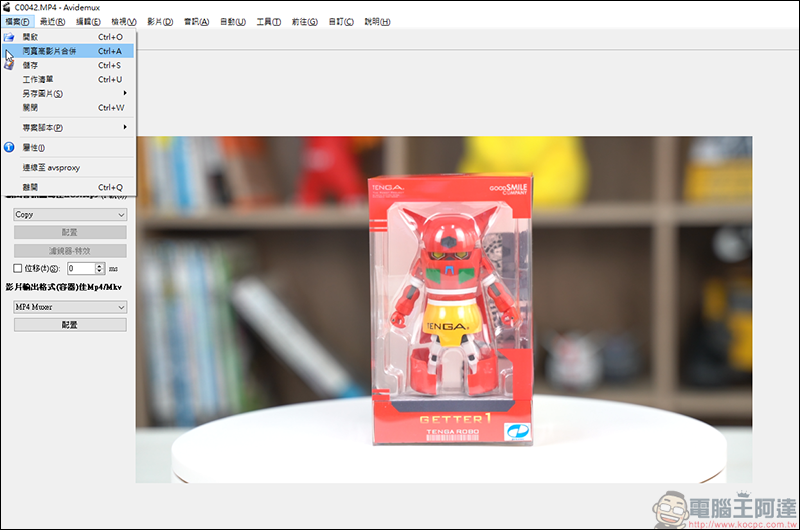
As long as you put in a new video, it will be inserted after the previous video. Just click Save and the two videos will be merged. You can first cut many videos into segments and merge them again: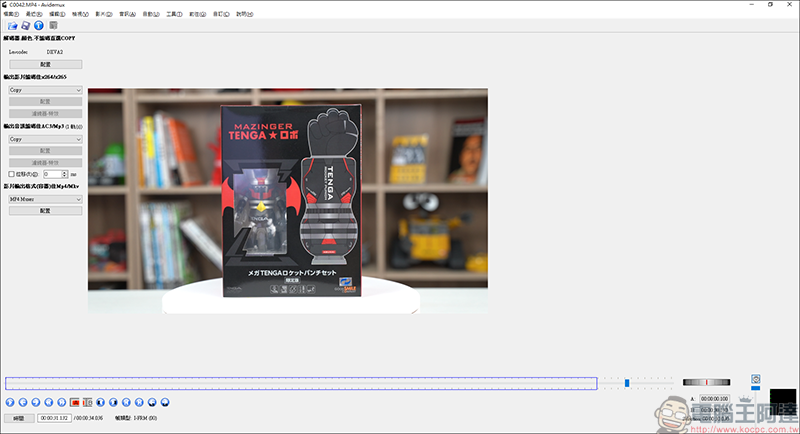
Other functions
Here is a brief introduction to the more commonly used auxiliary functions, such as this filter. Before executing the filter, you must first set the video encoding before executing it: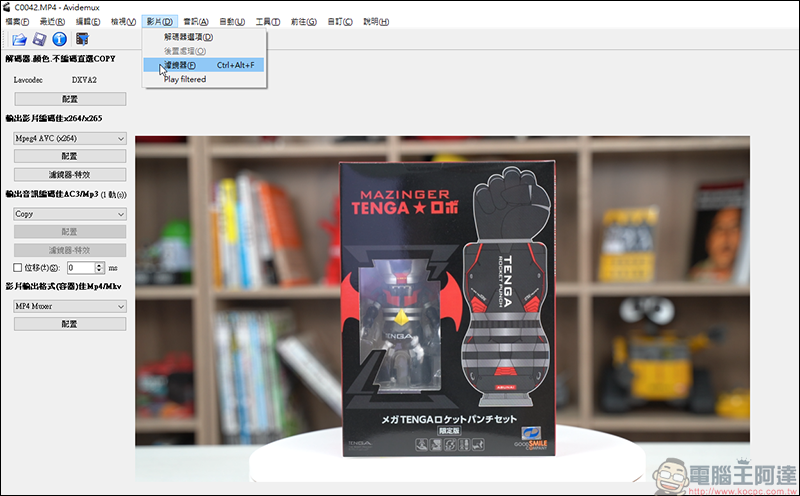
Among the more commonly used filter functions, you can choose to correct the video size, deformation, direction, brightness adjustment, contrast adjustment, etc. If you need to add subtitles to the video, you can also add them through filters: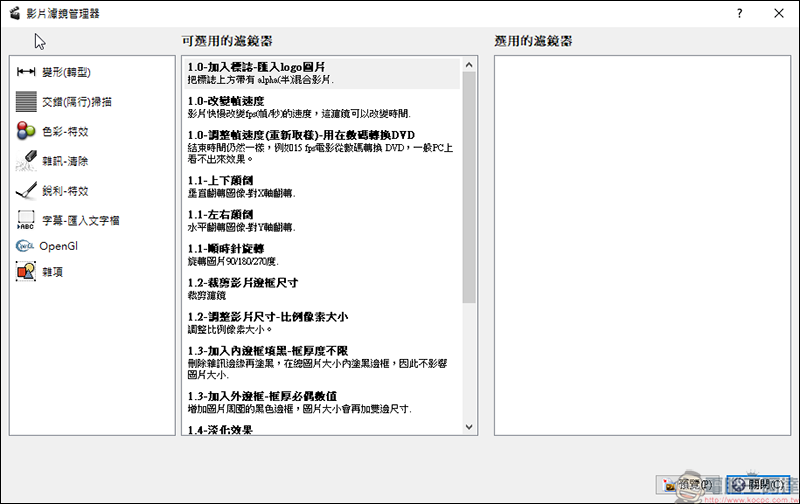
Another commonly used function is the audio part:
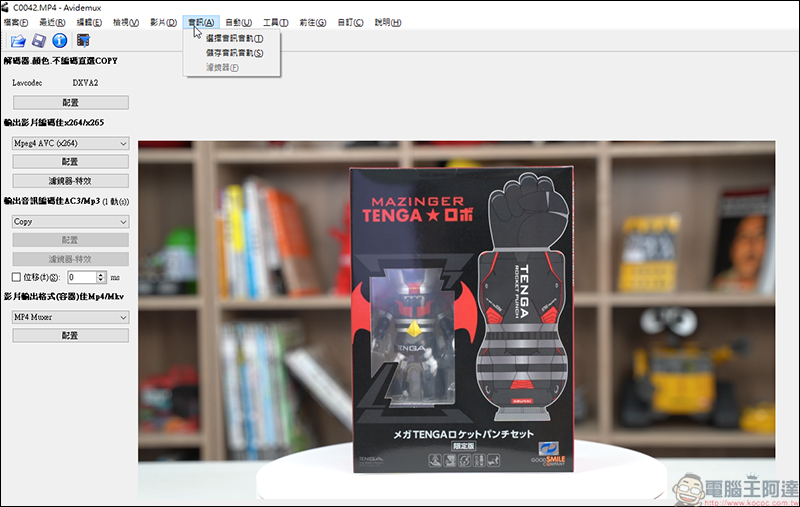
The part where you select the audio track is the audio track of the current video. You can choose to add another audio track, or replace the original audio track with another audio track: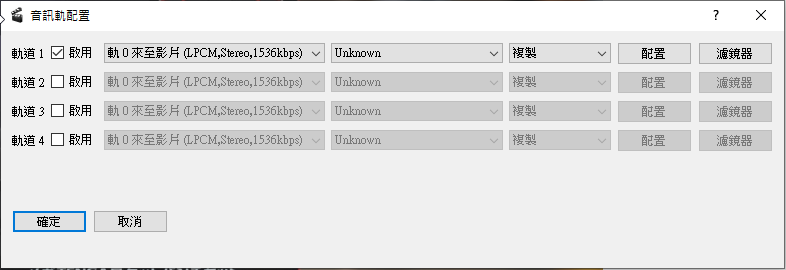
As the name suggests, saving audio track is to save the audio track of the current video. It only stores the audio track part. You can also choose the format yourself, but the main screen must be set first: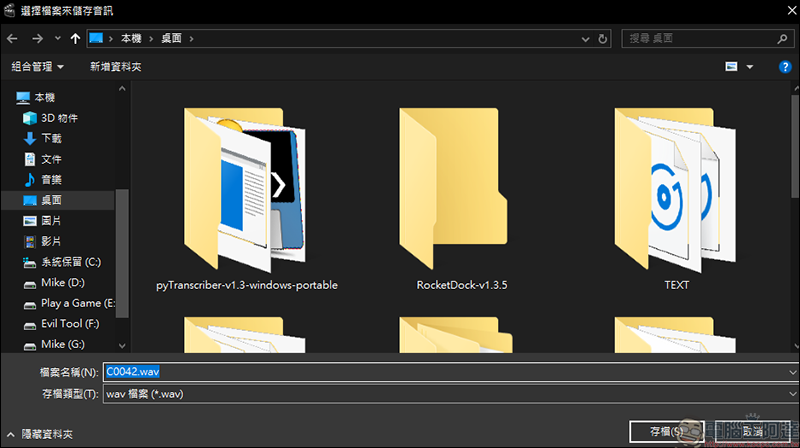
The picture and text teaching is over! If you are still a little unclear, we have a production video to explain it directly. Watch the teaching video directly:
If you have learned some new tricks after reading this article, welcomeSubscribe to Computer King Ada audio and video channel, absorb the latest unboxing and teaching information at any time.
Source: KOCPC Chinese