


I believe that many iOS users will unknowingly open a new tab every time they use the Safari browser to query information when surfing the Internet. After using it for a period of time, hundreds of web page tabs have accumulated in the background and have not been closed. Even though the iOS system is already quite efficient in memory management, mobile devices such as iPhone, iPad or iPod touch actually have a built-in function to automatically close tab paging. In addition to clearing the memory, it can also make the browser cleaner. Learn how to set it up through the iOS application tips in this article!

iOS application tips: Safari paging automatically closes schedule setting tutorial
I believe that many people, like me, often use the Safari browser to query various information. After long-term use, if you do not develop the habit of manually closing paging, the Safari browser will accumulate many web page paging, and it will inevitably occupy memory space. If you don’t want to manually close the tab every time, you can actually let the system automatically close the web tab tab of the Safari browser during the setting process through a simple setting process!

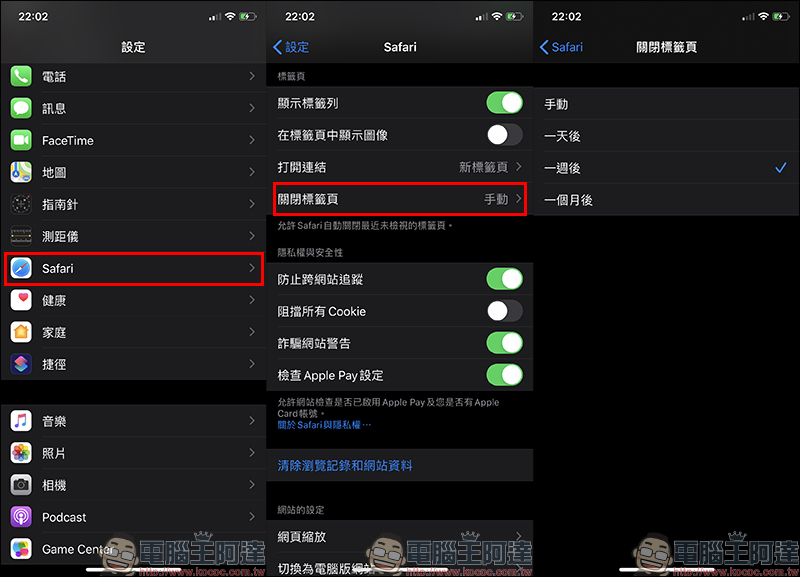
First open “Settings” and find “Safari”, then find the “Close Tabs” setting under the tab item. Usually, the iOS system will close tabs “manually” by default, but users can also choose to close them automatically on this page. The automatic shutdown schedule is divided into different time frequency options such as “one day later”, “one week later” and up to “one month later”. Taking the automatic closing of tabs “after one week” as an example, the system will automatically close the tabs of Safari browser after one week.
Unless you attach great importance to keeping the paging running in the background in a paging-free state at all times, it is recommended to set it to at least “one week later” or even “one month later”. Otherwise, you may want to review a web page you opened in the past in a few days, but find that you cannot find it.
If you still want to close it “manually”, you only need to press and hold the paging button in the lower right corner of the screen for 3 seconds, or press and hold the paging button for 3 seconds when opening the paging list, you can close all the paging at once! When the user presses the “Close xx tabs” button, the system will also remind the user whether they really want to close all these tabs.

If you set to automatically close tabs, the system will also close all tabs in the Safari browser according to the user’s settings. If you find that some tabs you browsed not long ago are automatically closed, just press and hold the “+” button at the bottom of the Safari browser for about 3 seconds, and then the screen will display all the recently closed tabs!

Further reading:
What should I do if I forget my Apple ID account password? You can reset it directly using your iPhone (tutorial)

Source: KOCPC Chinese