


Microsoft OneNote is a powerful yet underrated notebook tool that lets you take notes, organize your thoughts into notes, and view them on all your different devices. Microsoft has always added many practical tools to OneNote, but rarely publicized them widely. This time, the author compiled 6 tips for getting started with OneNote, so that you can easily become a OneNote master.
6 Quick Tips for Using Microsoft OneNote, You Can Be Awesome After Learning
Before entering the formal part, I want to make it clear that what I am talking about here is OneNote downloaded from the Microsoft Store.It is not the original OneNote 2016 in the computer, you can get it from the download method below, it’s completely free! The new OneNote interface is more streamlined and compatible with collaboration.
Windows 10 Download:Click here
Make good use of shortcut keys
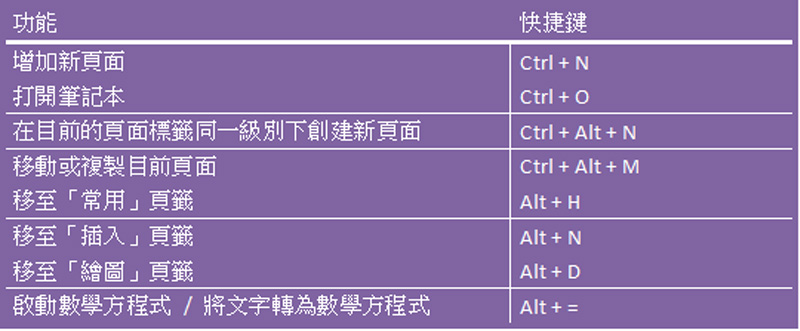
Like other applications in Office 365, OneNote relies heavily on the navigation of the ribbon. If you want to save time when you are busy, please use shortcut keys to enable some commonly used functions, saving you the time of clicking layers with the mouse. Below I have compiled some of my commonly used shortcut keys for your reference:
If you want to view all shortcut keys, you can go to Microsoft’s help pageGo check it out.
Change paper style and color
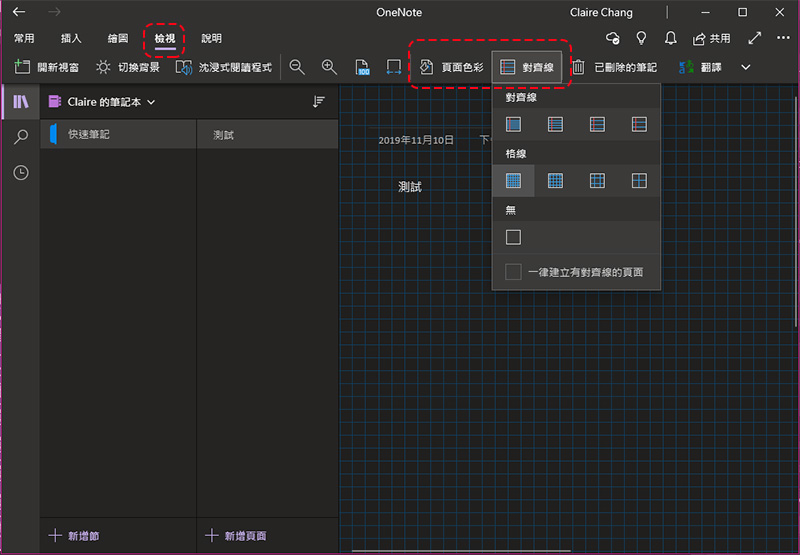
By default, OneNote provides a blank page for you to use, but under different circumstances you can choose from various default paper styles. Whether you want to draw or add note grids, you only need to select from “Alignment Lines” and “Page Color” in the “View” tab.
Switch between dark and light modes
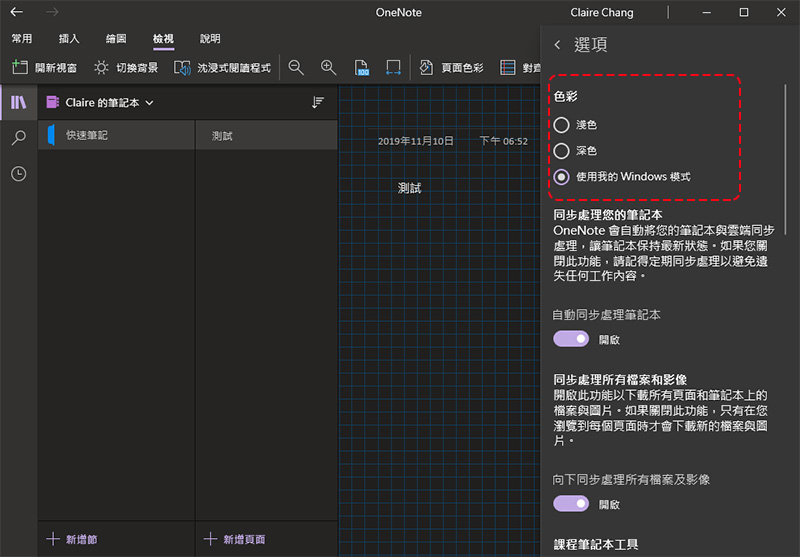
By default, OneNote will follow the mode set by your Windows, but if you want this application to be displayed in dark or light mode, you can select “Settings” from the “…” icon in the upper right corner, and then enter “Options” to customize the color mode.
Password protect your notes
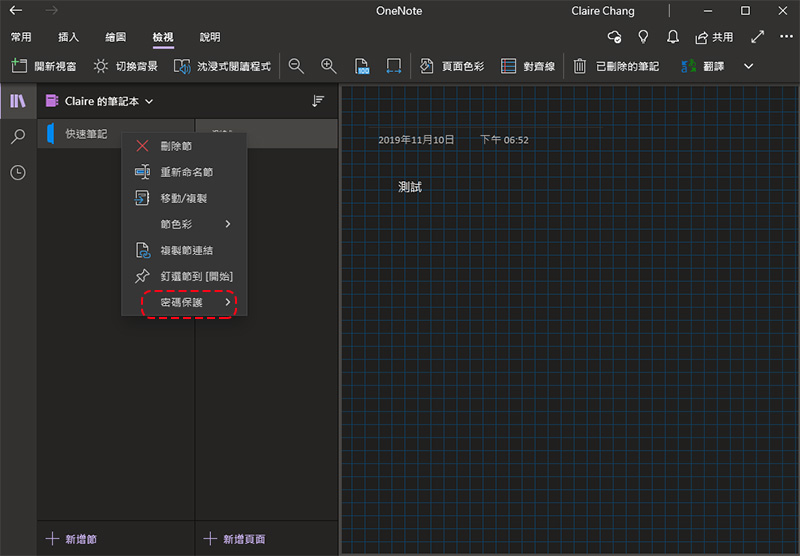
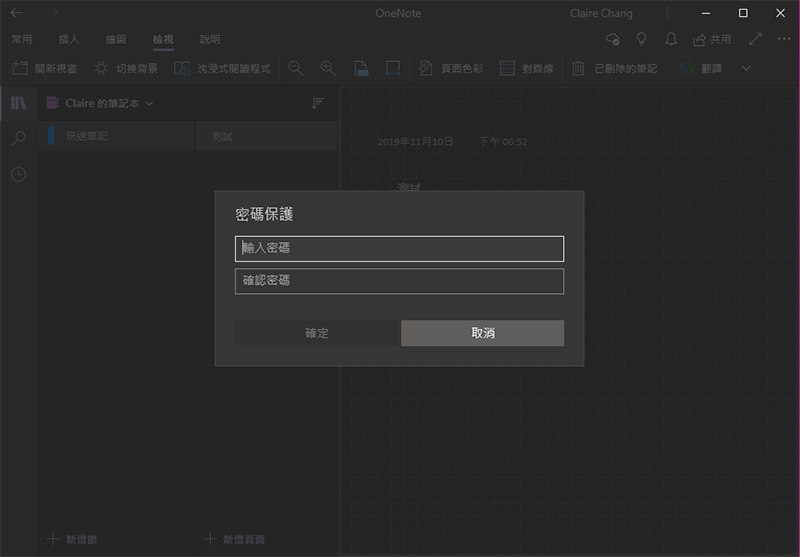
There is nothing scarier than having your notes peeked into, especially if the contents contain private diary or confidential information. Much like using Word and PowerPoint, you can password protect OneNote. You can right-click on the selected note in the sidebar, select “Password Protection”, then click “Add Password”, and then enter your custom password twice for confirmation.
Split two OneNote notes into two windows
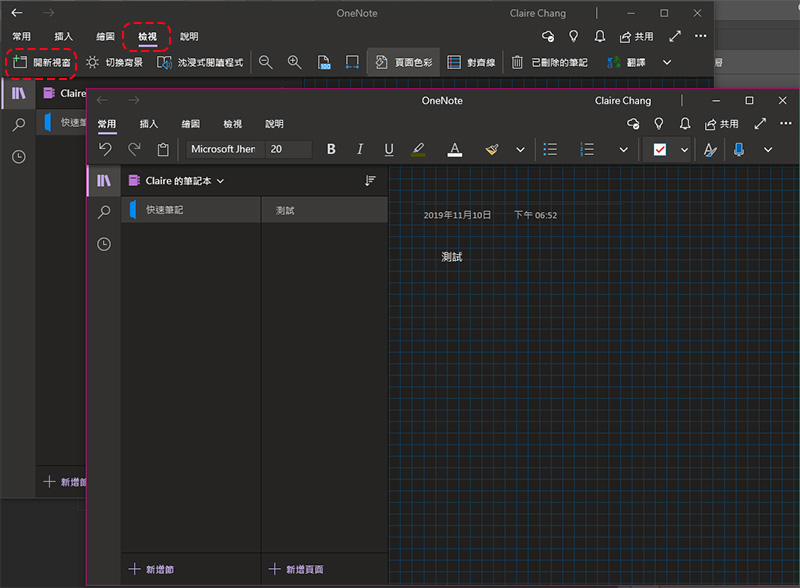
Multitasking is a good way to save time in a busy life. By opening two windows in the same application, you can compare content in pairs, or write on content in different categories at the same time. In OneNote, just go to the “View” tab and click “Open New Window” in the upper left corner to open a new page to read and write another note.
Solve math problems
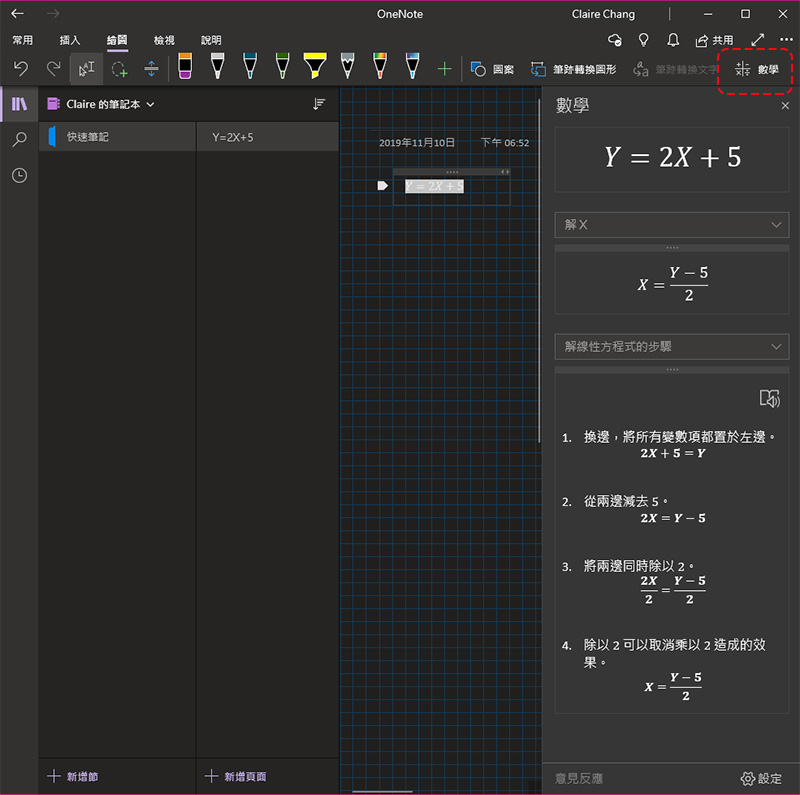
One of the most important features that makes OneNote better than competitors such as Evernote is its support for math problems. You can enter the math problems you want to solve and use it to help you solve the puzzles. Of course, OneNote cannot replace your math teacher, but it can assist you by showing you step-by-step the steps to solve the problem.
First, type in the math problem you want to solve by handwriting or typing it on the keyboard.
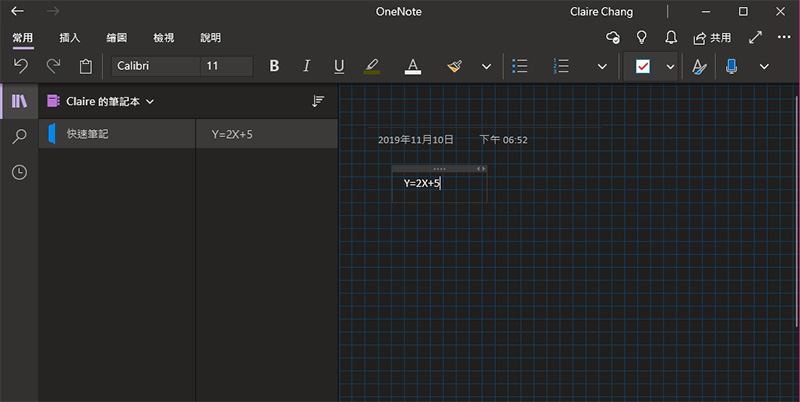
Then click the “Lasso Selection” tool on the “Drawing” tab and circle the equation you want to solve.
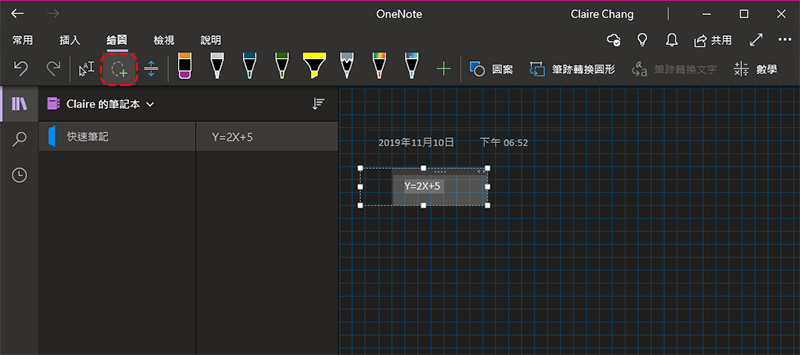
Then click “Math” on the far right. Next, you can select actions in the sidebar, and further down you can choose to display the steps for solving linear equations.
Of the 6 tips I’ll teach you this time, which one do you like best? The reason why I particularly like to use OneNote is that the notes in it can be managed hierarchically, and it is very convenient to organize them into categories. It is also great that it can be used across platforms. You can try it too!
Source: KOCPC Chinese