


Although the unique multitasking mode of iPadOS (on Apple’s mobile system) is really easy to use, the use of iPad by the elderly will be a little confusing due to some gesture operations (or the screen is not as big as the iPad mini). In fact, if you don’t use this feature that divides the screen, you will want to turn it off for simplicity. In fact, Apple provides the option to turn off this iPadOS default function. In this article, we will teach you how to turn it off. Continue reading iPad multitasking is great but not needed? Teach you how to turn off multitasking mode/gestures/picture-in-picture in iPadOS. Text of teaching report.
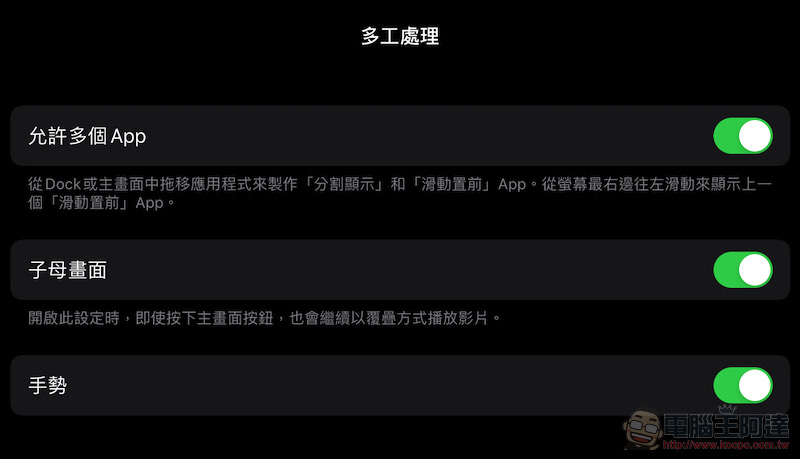
iPad multitasking is great but not needed? Teach you how to turn off iPadOS multitasking mode/gestures/picture-in-picture
Multitasking mode in iPadOS can be paused by swiping up from the bottom, or activated with the traditional four-finger swipe up gesture. The split screen function allows you to select supported applications in the Dock at the bottom and enable split screen/floating screen by dragging the app icon to the left and right sides of the screen.
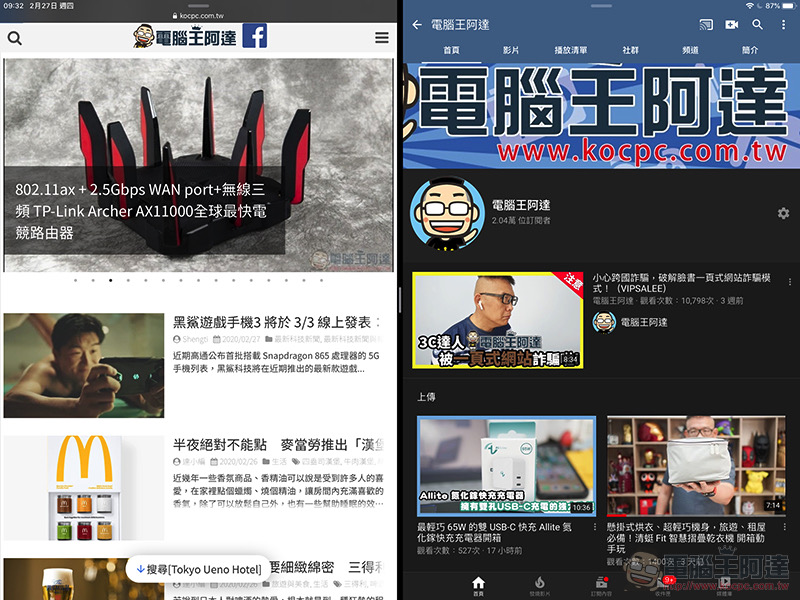
Although this function is easy to use, sometimes it is not necessary to multi-task but it is still accidentally operated and I don’t know how to cancel it. For friends who don’t know how to use it or are used to the previous iPad operations, sometimes it seems that it is better to keep it simple. Then, you will most likely need to turn off these multi-split screen functions.
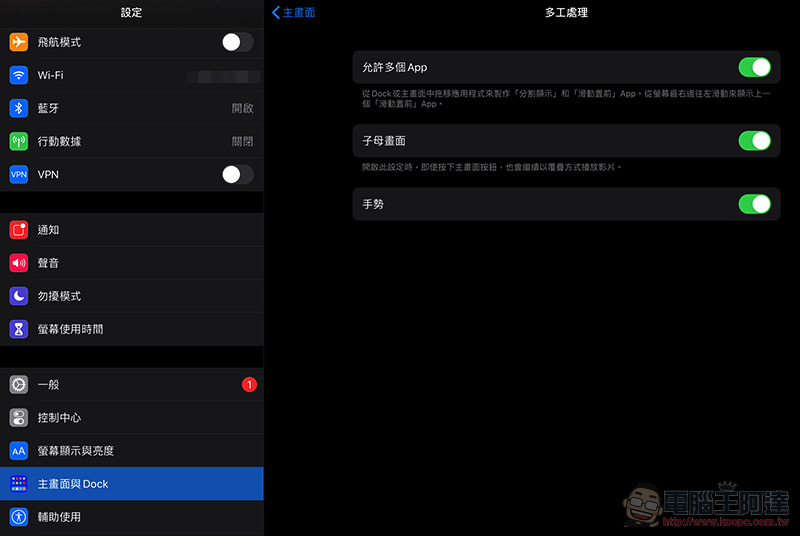
In fact, the editor has been looking for the option to turn it off for a while, and I always feel that it should be among the options such as Assisted Use or Control Center. However, it seems that it is because the application shortcut bar can be enabled from the bottom of the Dock, so Apple put these options in the settings.Home screen and Dock“Among them.
After clicking in, you can see that under the function settings of the App image, there is “multitasking” submenu. Click here to enter and you will see three options to choose from: “Allow Multiple Apps”, “Picture-in-Picture” and “Gestures” – here you can turn off the functions you want to turn off according to your needs. It is really simple. If you want to open it again in the future (after borrowing from the elder), just come back here and open it again.
Further reading:
Laptop bag redefined, SINEX 3in1 deformed laptop bag unboxing experience

Source: KOCPC Chinese