


When reinstalling a Mac, many people will make a bootable disk first, just like Windows, but in fact this is not necessary at all. As long as you make sure that you have an Internet environment, you can reinstall the Mac (the latest macOS version), and even format the hard drive and delete all files. There is no problem. Let’s teach you how to do it.
No need for USB boot disk, reinstall the most original and clean Mac system
Step 1: Back up your files
When reinstalling a Mac, I personally recommend formatting the entire hard drive, so that the reinstall makes sense and you can restore a completely clean Mac system without encountering any problems again.
Therefore, before refilling, you must first back up important data and files. You can use a flash drive or cloud space. For those with large files, it is recommended to use a flash drive, which is faster and easier. For those with smaller files, cloud space is enough.
Each Apple ID will receive 5GB of free iCloud space. You can directly turn on the iCloud synchronization function for quick backup. This way, after you reinstall the Mac system, as long as you log in to the same Apple ID, the files will be automatically synchronized.
If the space is not enough, you can also back up part of it to Google Cloud space. Each account has 15GB of free space.
Step 2: Restart your Mac
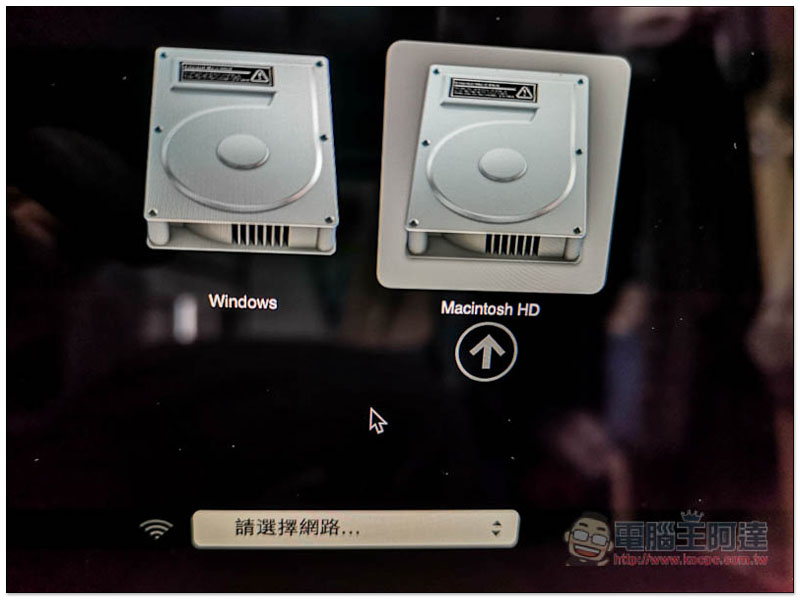
After making sure that all important files are backed up, you can restart your Mac by holding down option while restarting.
You will then enter the hard drive selection screen, select your Mac hard drive, and then press Command + R to enter recovery mode:
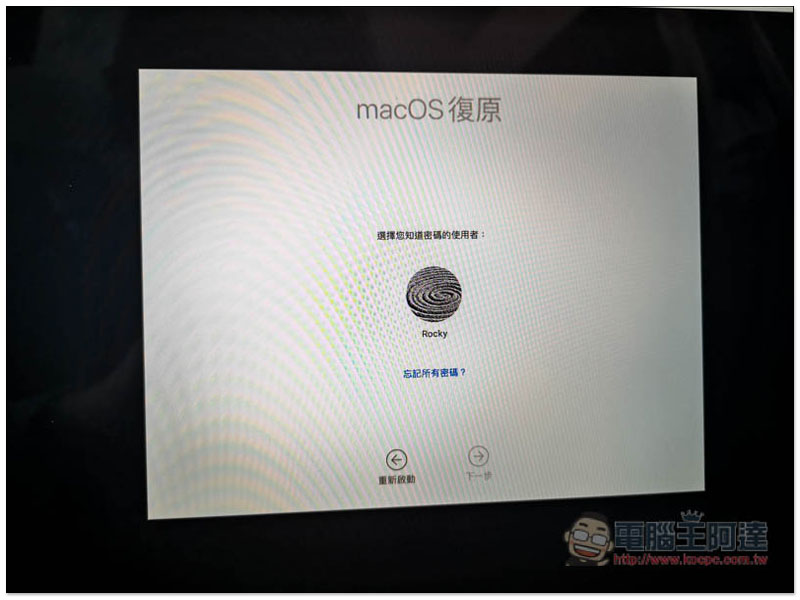
You may be asked to enter your login password:
Step 3: Format the hard drive (this step is not necessarily required, but recommended)
You will then enter the macOS utility program screen. If you do not want to format the hard drive and just want to reinstall macOS, you can skip directly to the next step.
The steps to format the hard drive are very simple, enter the “Disk Utility”:
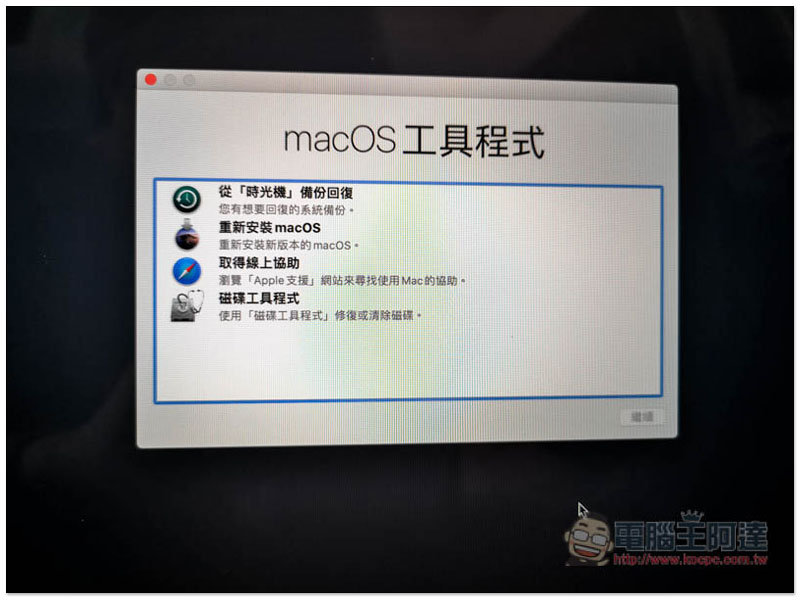
Select the Macintosh HD – data hard drive (if you have not changed the hard drive name, it will be this one by default), and then click the “-” function above. You will be asked if you want to delete it, just click delete. In addition, remember not to click “File Group” in the query window, and do not delete the Macintosh HD drive:
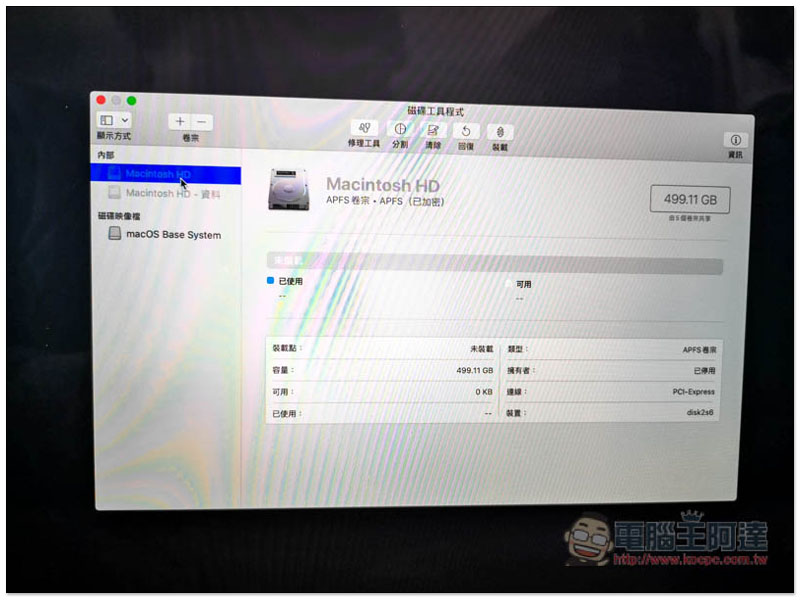
After deleting “Macintosh HD – Data”, please select “Macintosh HD” on the left, then click the “Clear” button above, enter a name, such as: “Macintosh HD”, and then click “Clear”. The system may ask you to enter your Apple ID.
After the cleanup is complete, return to the main screen of the macOS utility program.
Step 4: Install macOS system
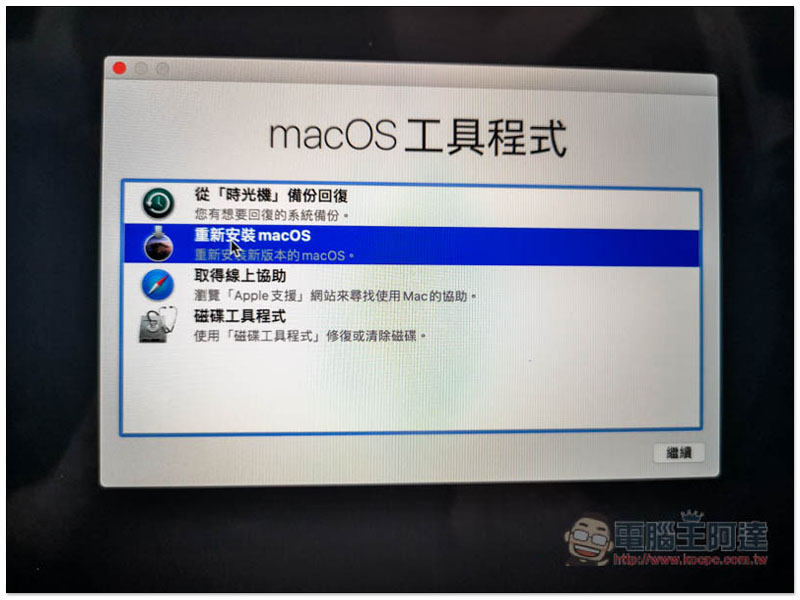
Click to reinstall macOS and click Continue to start downloading the installation file. After restarting, you will see the familiar Mac settings screen:
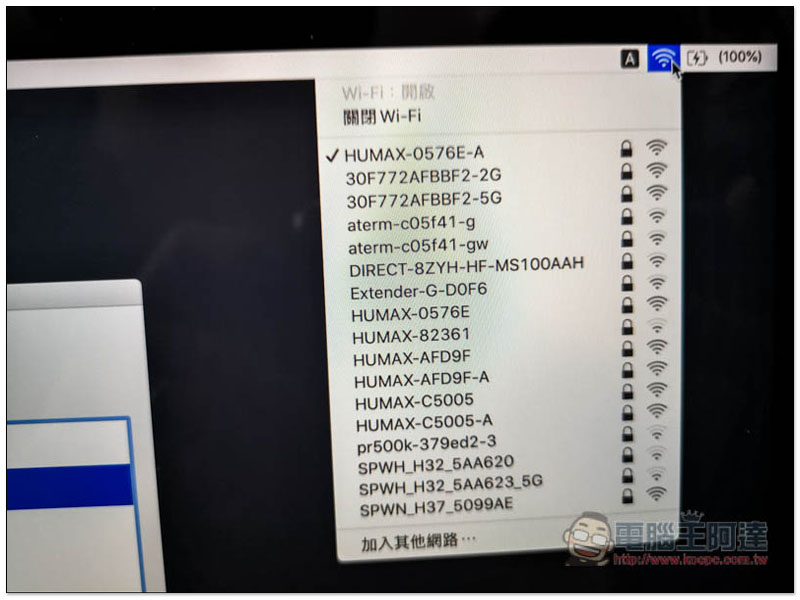
Remember to make sure you are connected to a Wi-Fi network:
in conclusion
There are many ways to refill a Mac, but I personally like this one the best. The only disadvantage is that it must be in an environment with a network. If not, you can only boot it through a USB boot disk.
Source: KOCPC Chinese