


Compared to Windows, macOS has a lot more hidden operating techniques. You may already know some of them, but many people don’t know the 7 hidden operating techniques of macOS that I will introduce in this article. When you learn them, you will definitely wonder why they are so easy to use. Keep reading!

7 macOS hidden tricks and useful features
1. Quickly view detailed information about Wi-Fi networks
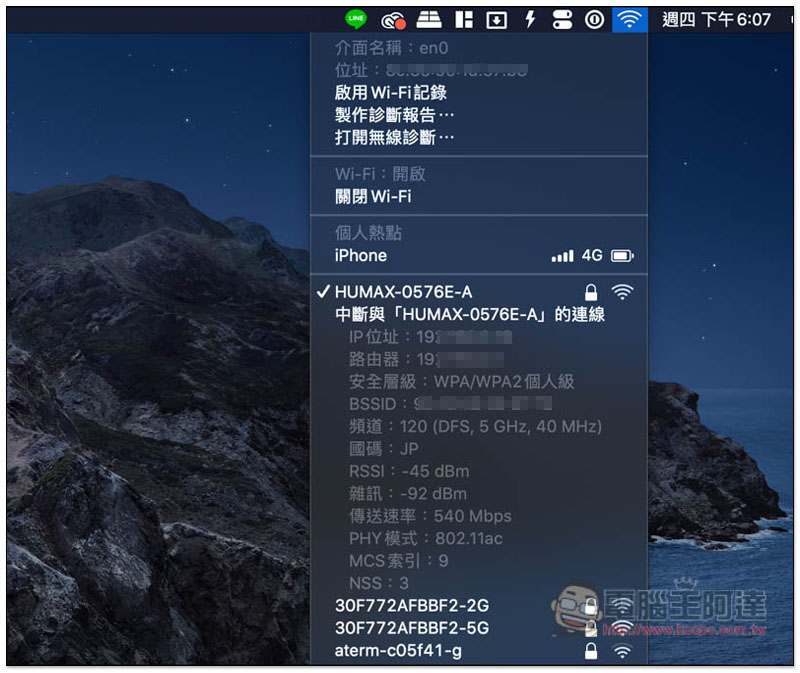
In order to view the detailed information of the Wi-Fi network, many people will download tools such as hardware from the App Store or the Internet. In fact, Mac itself has this function. Before clicking the Wi-Fi icon in the upper right corner, press the option key on the keyboard. The detailed Wi-Fi information will be displayed below, such as: IP location, router, security level, BSSID, transmission rate, etc.:
2. Find the file location through Spotlight
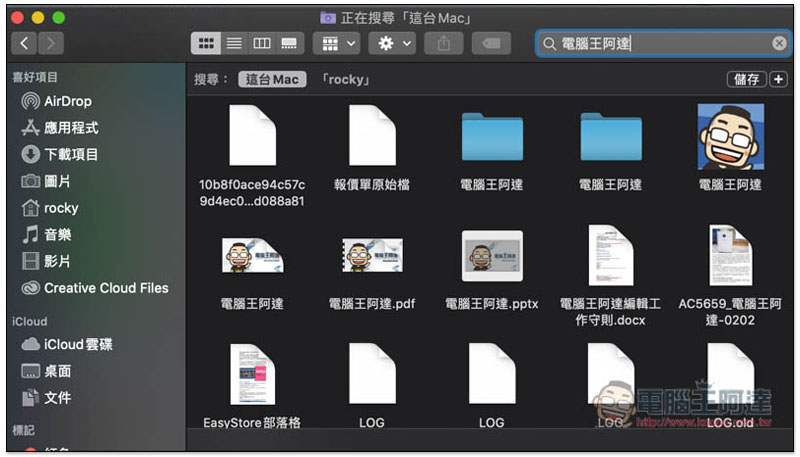
When looking for files, most people should open Finder and then enter the file name or keywords in the search field on the upper right. In fact, there is a faster way, which is through Spotlight:
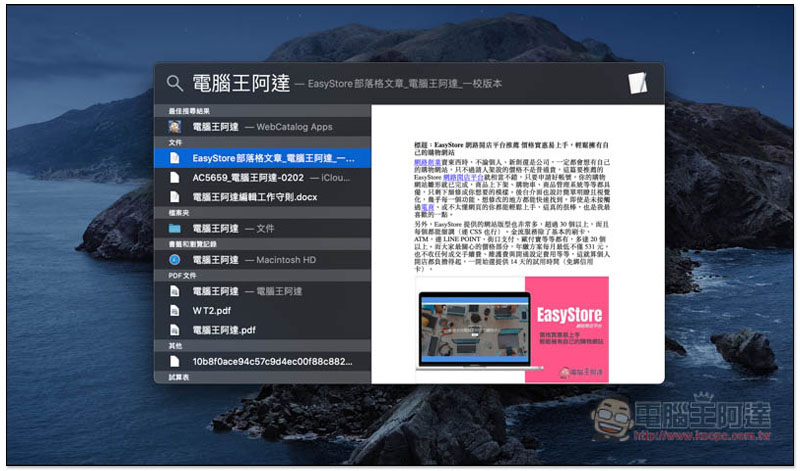
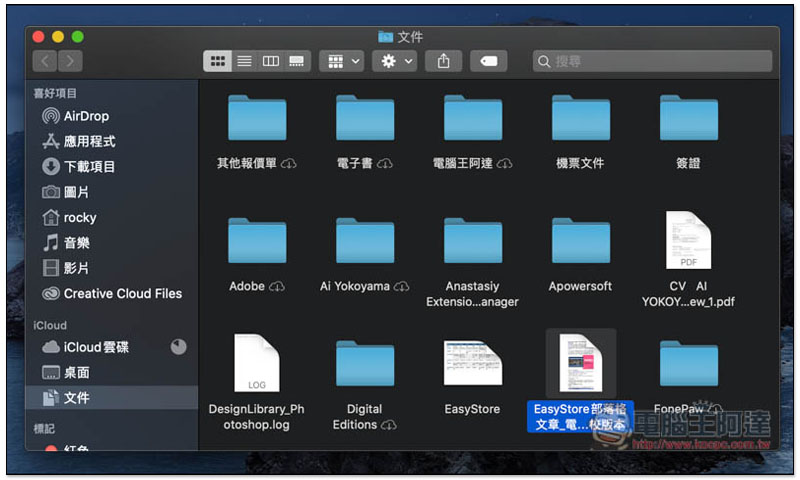
Spotlight can also quickly search for files on your computer. You may already know this, but pressing Enter will directly open the file and not the location:
At this time, as long as you press the Command key, the file location path will pop up in the lower right corner, and then press Enter:
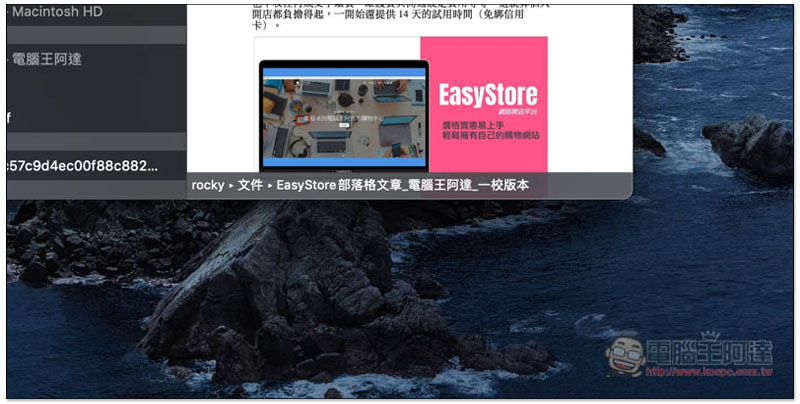
It will open the folder where the file is located:
3. Hide other windows with one click and keep only the selected window
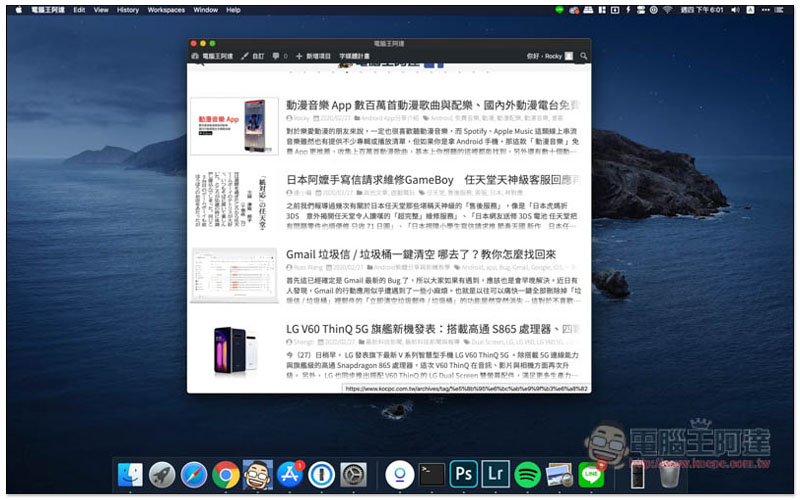
When using a Mac, many software windows will be opened. At this time, if other windows are not used temporarily and you want to focus on the current window screen, press Command + option + H to quickly hide other windows and only keep the windows you are currently working on. There is no need to hide them one by one:
4. Move the rear window without covering the current window
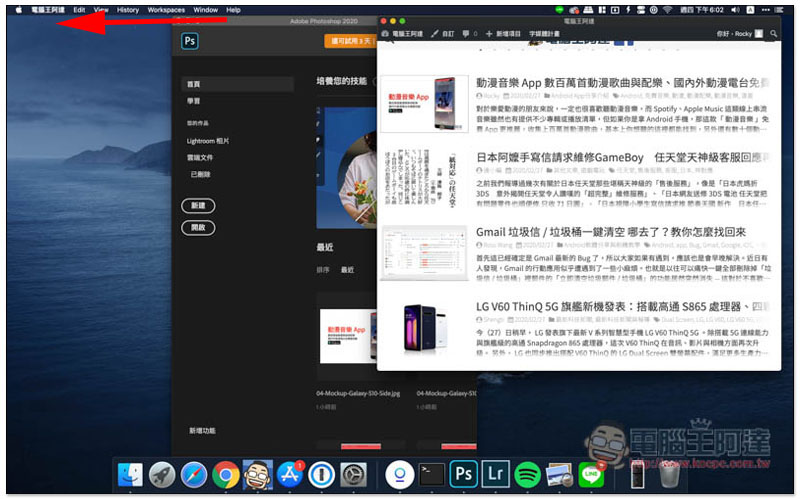
When working with multiple windows, if you just want to move the rear window out a little for easier reading, etc., press and hold Command + the left mouse button to move the rear window without affecting the current working window. Simply put, the current working window is also on top:
5. iPad-like dual-window full-screen operation
If you are a user who jumped from Windows to Mac, you must really miss the shortcut key function of arranging windows in Windows. Although Mac also has related tools to achieve this, you need to download it separately, and even the useful ones have to be paid.
In fact, Mac also has this function, but there are fewer choices.
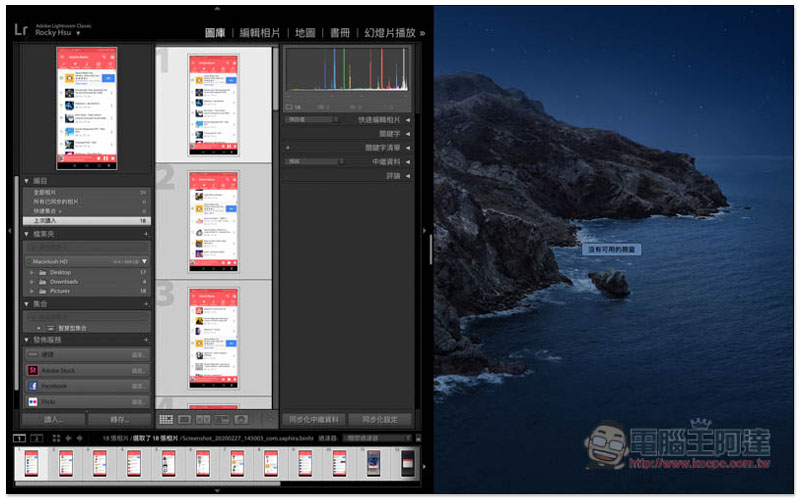
Move your mouse to the green dot in the upper left corner of the software window (the one that enlarges the screen), and hold it for one second. A window arrangement selection will pop up. You can specify whether this window is located on the left or right side of the screen:
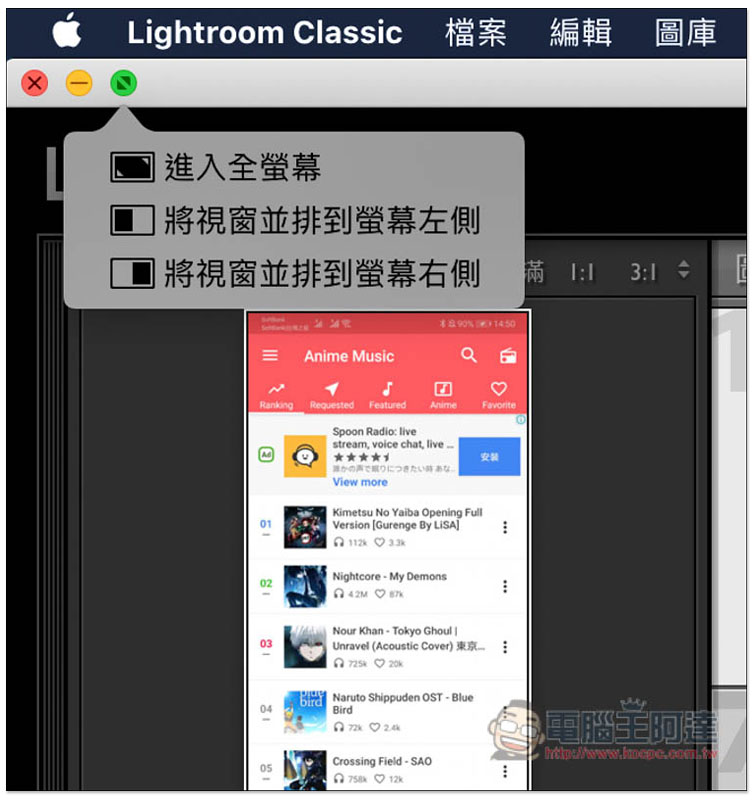
As shown in the picture below, the other side will also let you choose which window to put, just like the iPad, the black bar in the middle can adjust the display range on the left and right:
6. Quickly select all the browser’s address bar
I love this feature so much and use it almost every day. Pressing Command + L on a web page in any browser will instantly select the entire address bar, so you can paste the URL you want to go to or enter what you want to search for without having to click with the mouse:

7. When uploading something, drag it directly into the selection window
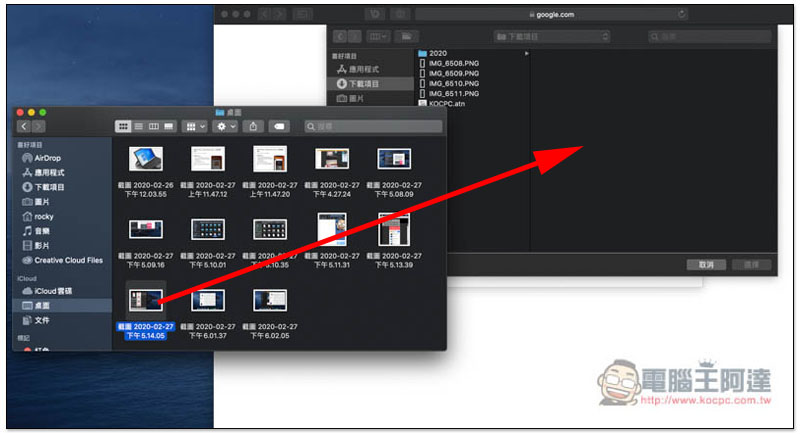
Although the upload functions of many websites now support dragging files directly, there are still some that do not. For example, Google’s image search function requires you to manually select the file you want to upload.
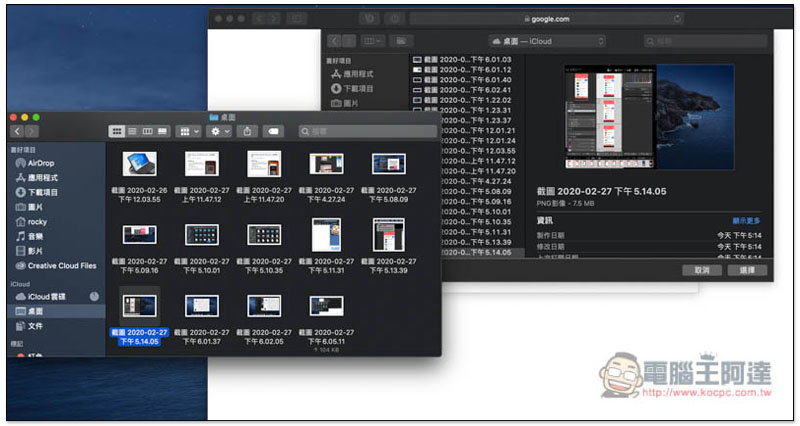
When this happens, if you have the Finder window open for the file location, just drag the file into the upload window:
It will be automatically directed to this file without having to search through the layers:
Source: KOCPC Chinese