


When using a computer, you will often encounter situations where it is impossible to shut it down, such as uploading/downloading things, calculating graphics, outputting videos, etc. Although it is not bad to not shut down the computer occasionally, it is still not good for the environment and will also increase some electricity bills. At this time, it is highly recommended to use a free tool such as Wise Auto Shutdown for automatic shutdown scheduling. As long as you set the time, it will automatically shut down when it comes. It also provides restart, sleep, or logout modes.
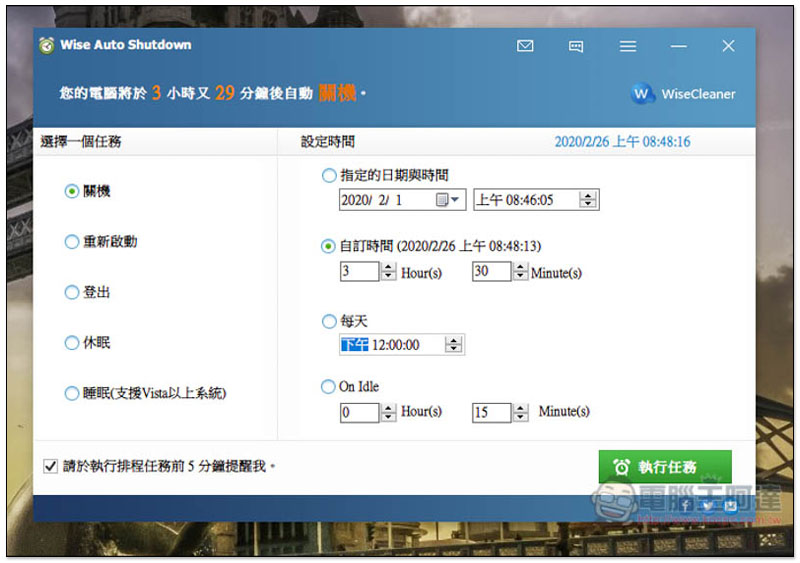
Introduction to Wise Auto Shutdown automatic shutdown scheduling free tool
Click here to enter the Wise Auto Shutdown official website, click Free Download to download. Although the official website has an English interface, this set supports Traditional Chinese language, so you don’t have to worry about not being able to understand it.
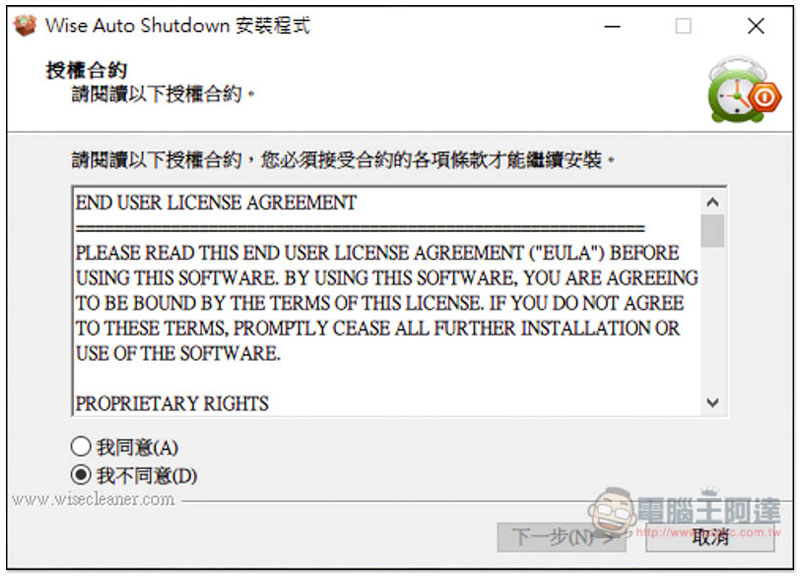
Just keep pressing Next during the installation process, and other programs will not be installed secretly:
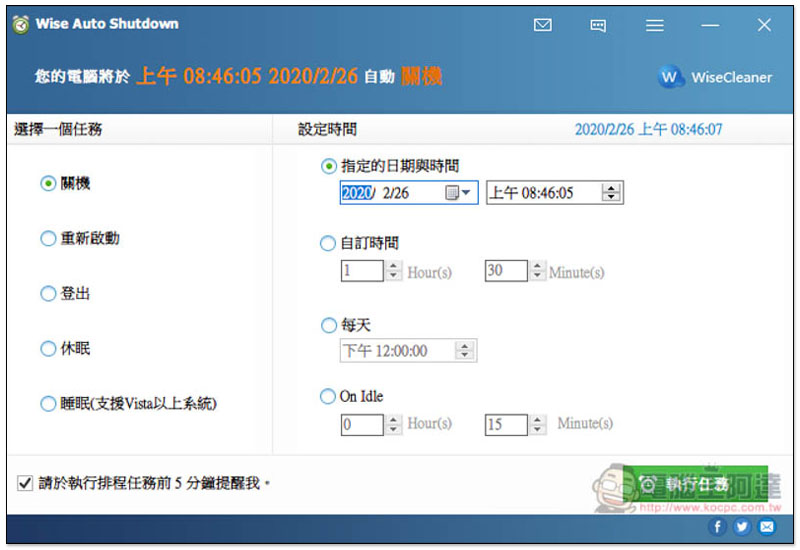
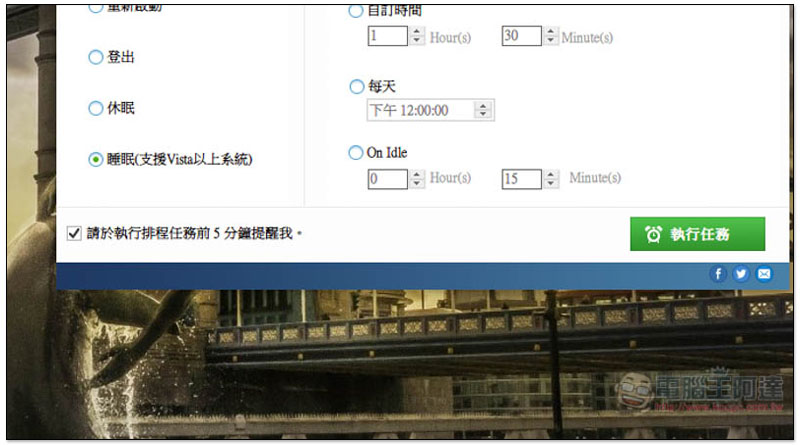
The interface is very simple. Select the task mode you want to use on the left, such as: shutdown, restart, log out, hibernate or sleep (only supports Vista and above systems), and then set the time information on the right:
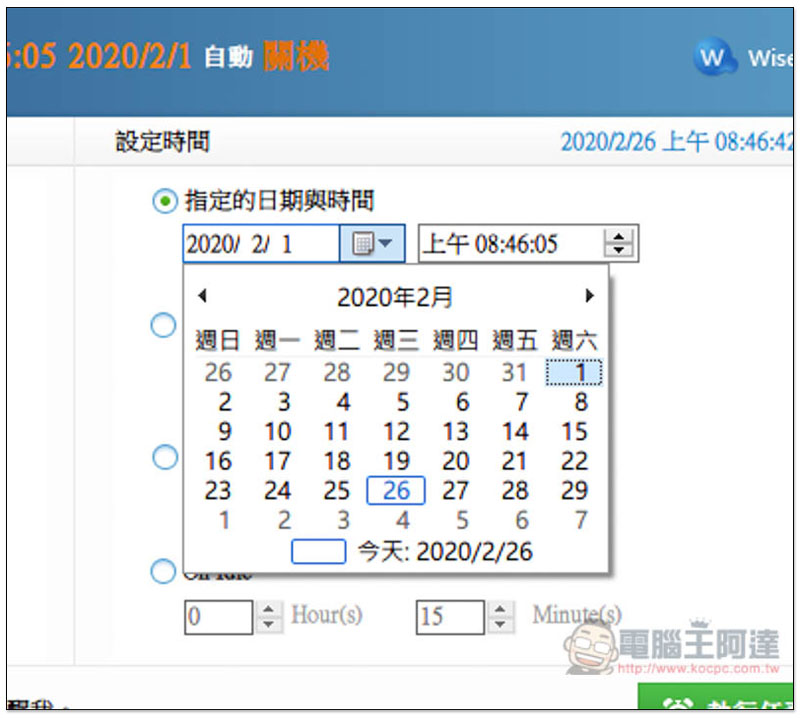
- When you are going on a long trip and the computer is currently processing work that has not yet been completed, you can “specify the date and time”
- If it’s the same day, select “custom time”
- If you are too lazy to shut down the computer manually every day, the time after using the computer is basically fixed.
- It also provides a “daily” scheduling function, which will automatically shut down at this time every day.
- On Idle is idle time
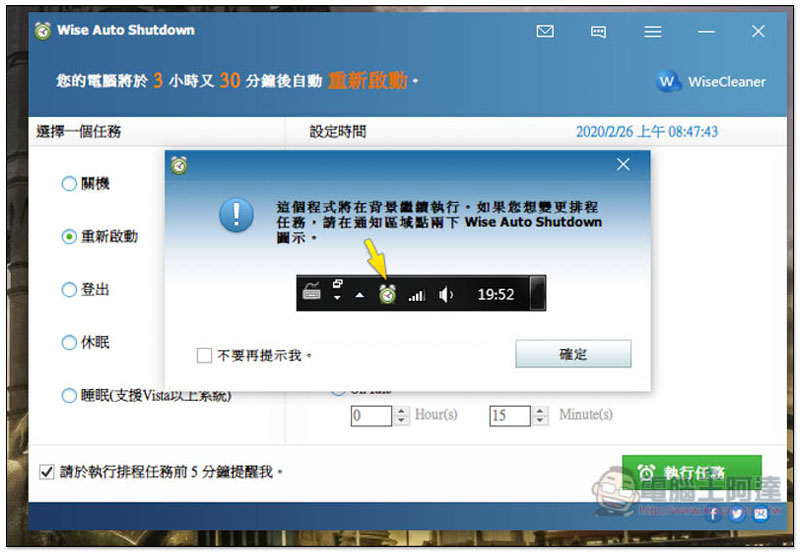
No matter which task mode it is, remember that this set must be turned on and run in the background. If you turn it off, the automatic shutdown (or other) settings will not work properly:
There is a “Please remind me 5 minutes before executing the scheduled task” in the lower left corner. It is checked by default. I think this function is very good. At least I don’t have to worry about forgetting that the scheduled time is approaching, causing the computer to shut down suddenly:
After the settings are completed, press the lower right corner to perform the task. This set of tools will shrink and hide in the menu in the lower right corner:
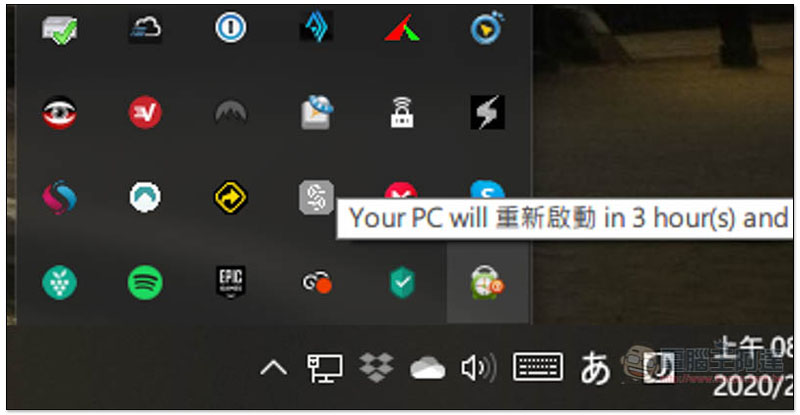
The green alarm clock icon, when you move the mouse over it, will also prompt how long it will take to shut down, restart, or other task modes you specify:
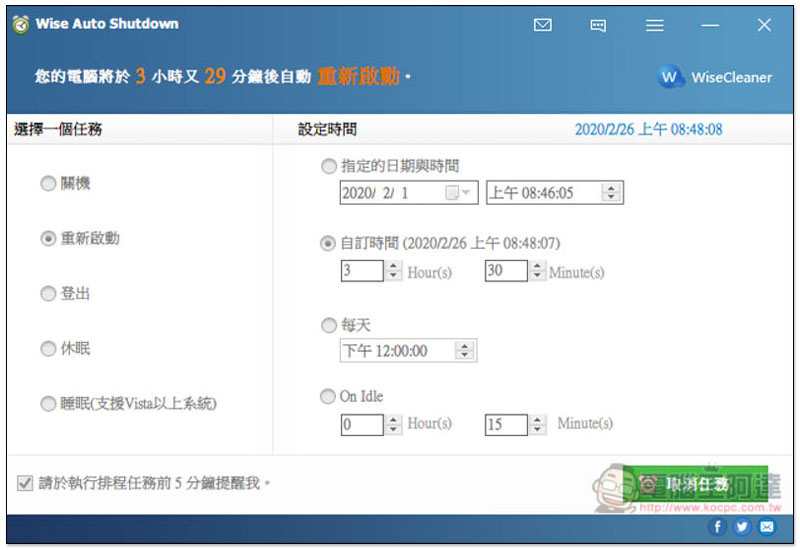
Of course, you can also cancel or pause the set tasks at any time. After opening the tool, you will see the “Cancel Task” function in the lower right corner:
Supplementary information
Wise Auto Shutdown official website:Click here to go
Source: KOCPC Chinese