


Friends who have Android phones basically use the Chrome browser to surf the Internet. Many people think that the Chrome mobile version does not have as many skills and functions as the computer version. In fact, there are many. This article has compiled 7 practical tips and tutorials on the Android version of Chrome that you may not know. Continue reading.
7 Practical Tips and Tutorials for Chrome on Android
1. Save web pages as PDF files
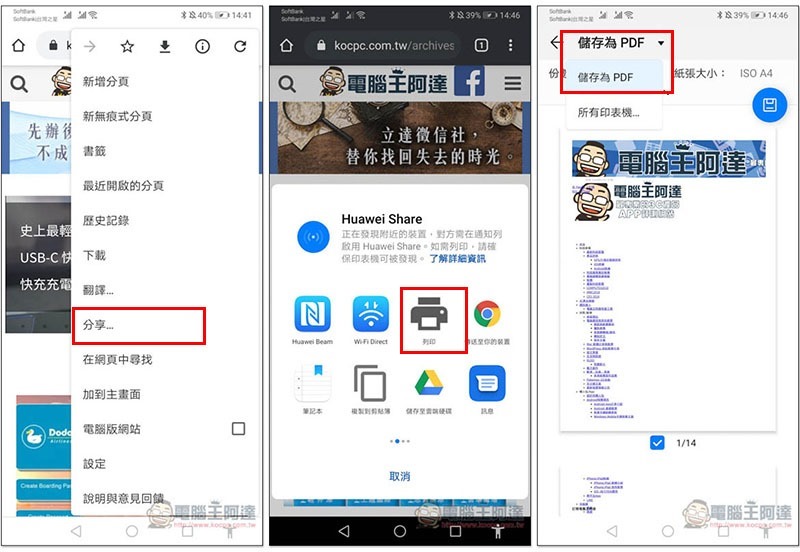
When you see a good article or webpage on the Internet, you may want to save it. Some people may take screenshots, but if the page is too long, you will have to take many screenshots. The Android version of Chrome is the same as the desktop version. The printing function also provides a “Save as PDF” option. Just click it and you can directly save the entire web page as a PDF file. Not only is it easy to save, but it is also convenient to print it out in the future.
Open the menu in the upper right corner, click “Share”, find “Print” in the icon, and you will see the option to save as PDF in the upper left corner:
2. Enable dark mode
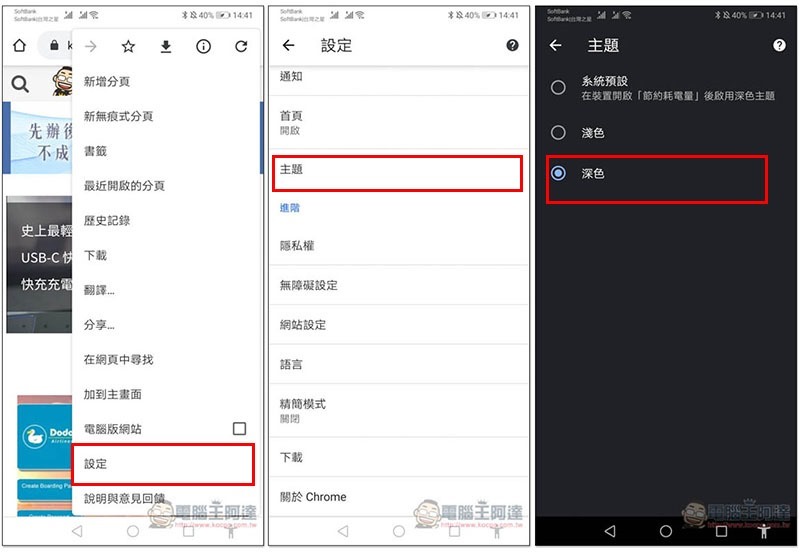
After the system is upgraded to Android 10, the Chrome browser will change the theme according to the mode set by the phone. For example, the dark mode will become the dark theme. However, for phones before Android 9, this feature must be changed manually. If you still don’t know how to do it, I’ll teach you below:
Open the menu in the upper right corner, go to Settings –> Theme, and you will find the “Dark” feature. The dark theme will not only turn Chrome’s own menus, function bars, etc. into dark colors, but if the website also provides it, Chrome will also automatically switch to a dark theme instead of the general white background color scheme:
In addition, Chrome Android version now also provides an experimental feature that can force web pages to become dark themes (even if they do not provide it). Those who are interested can enter chrome://flags#enable-android-web-contents-dark-mode Enabled.
3. Click on the word to search directly
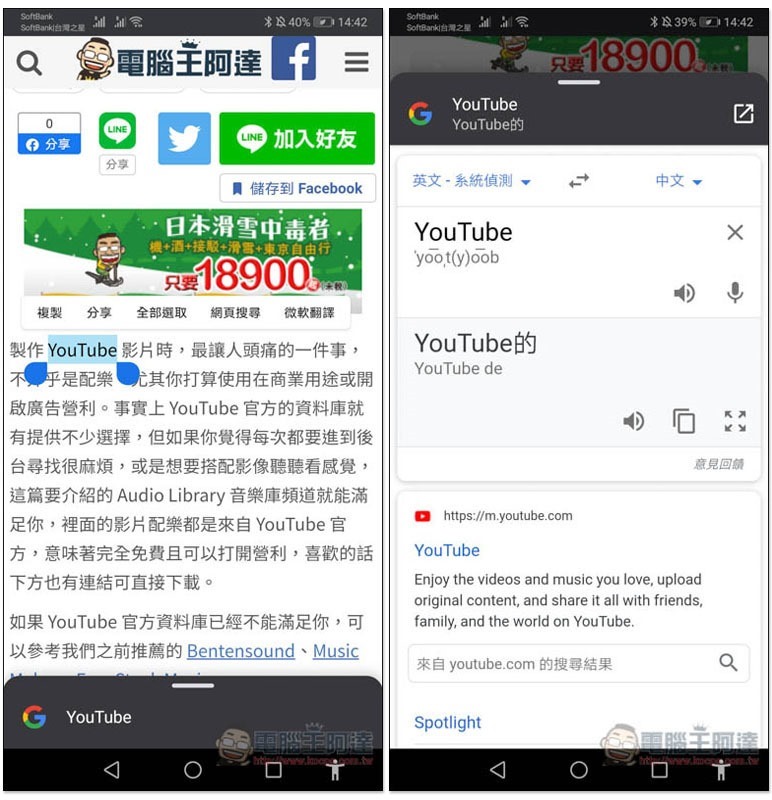
To find the keyword you want to search on Google on any web page, you only need to long press it to select it, and the Google search results will pop up below. There is no need to open a separate Google page search. Swipe up the panel to expand the entire panel:
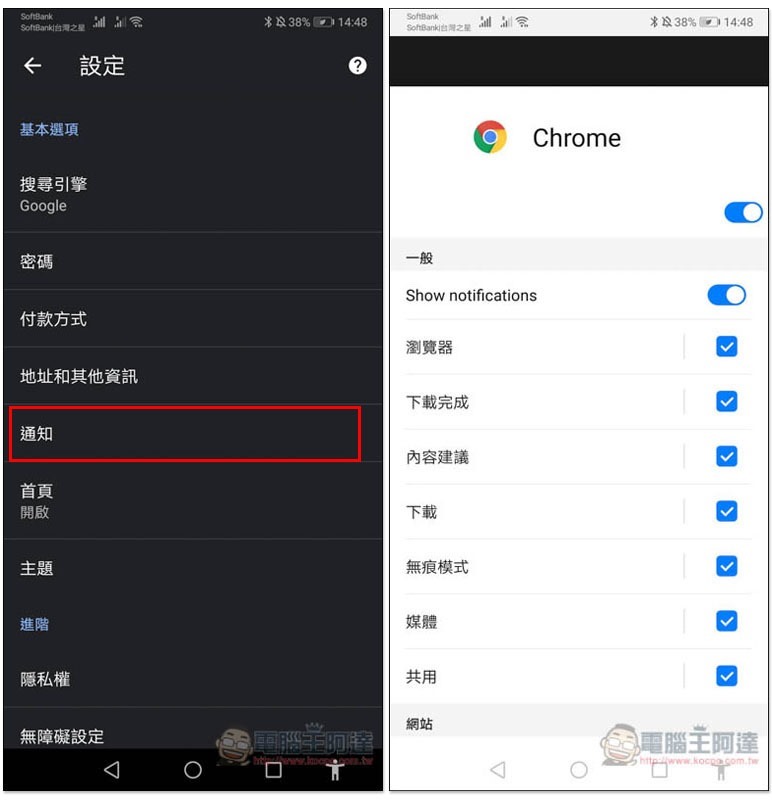
4. Manage Chrome notifications
Whether it is notifications about download completion, content suggestions, or you accidentally allowed a certain website, if you no longer want to receive related messages, you can turn them off by going to the notification options in settings, and you will no longer receive any notification messages in the future:
5. Close information on specified or all websites
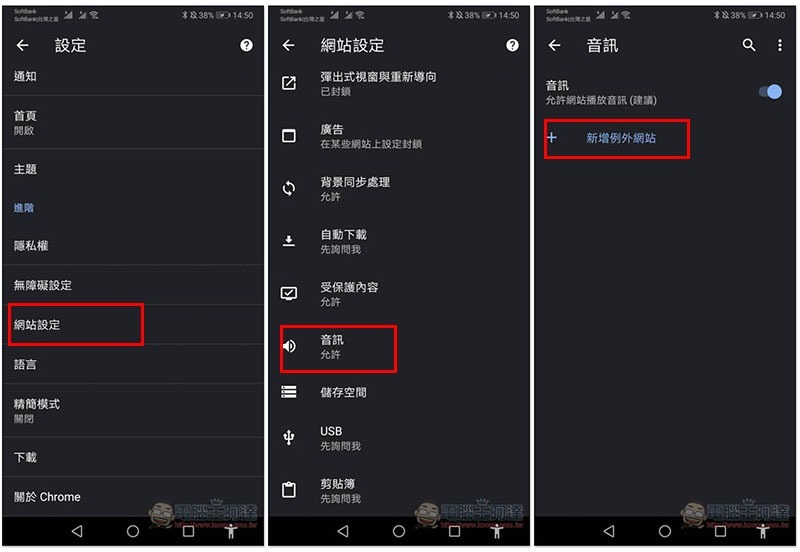
Many websites now automatically play audio, such as websites with video ads and Facebook. People who find it annoying can go to Settings –> Website Settings –> Audio and turn off “Allow websites to play audio”:
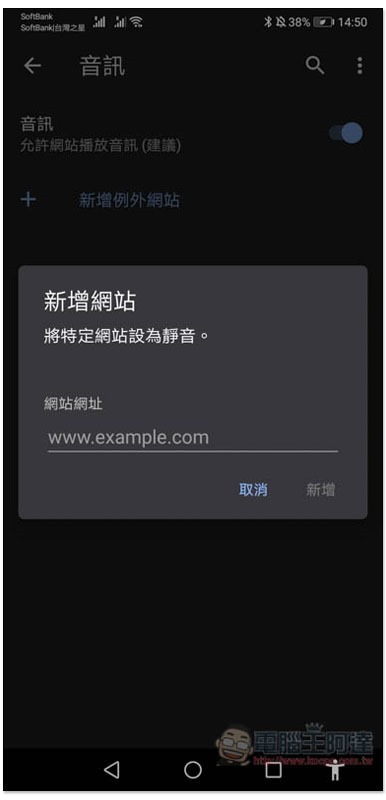
You can also add the URL of a specific website:
6. Change other search engines
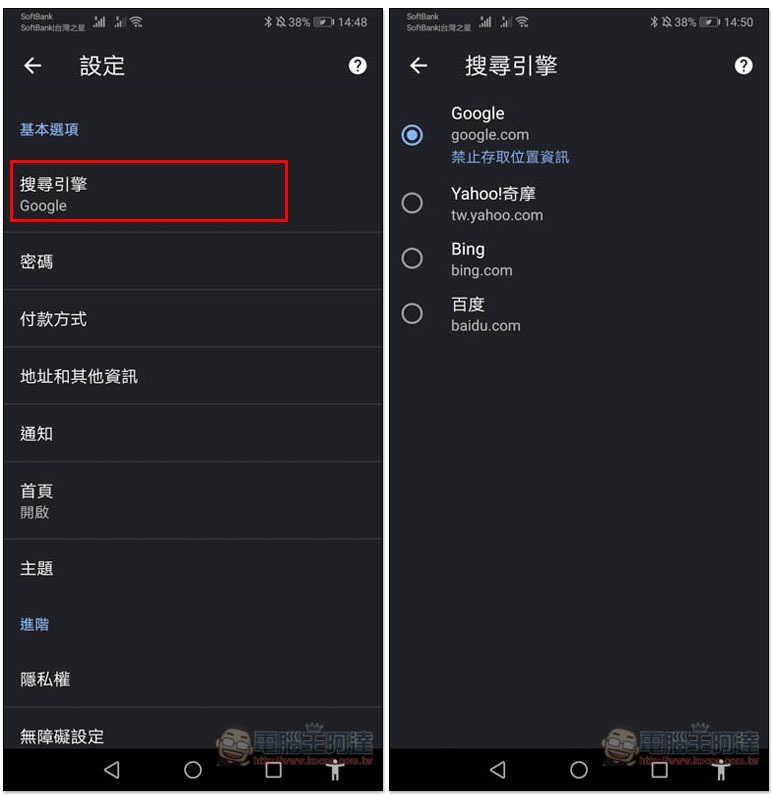
Although most people should use the Google search engine, there are still some people who are more accustomed to Yahoo! or Bing. Chrome actually provides the function of changing the search engine. After entering the settings, you will see the search engine options. After selecting the search engine you want to use, any future searches will use this service instead of Google:
7. Quickly switch to other tabs
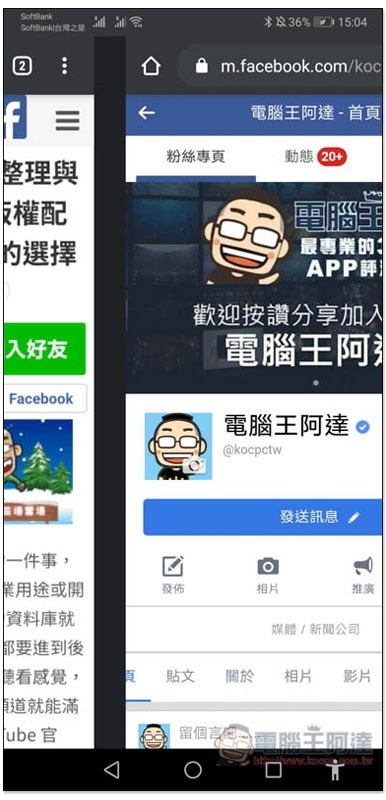
I think this technique is very important. If you need to switch between two web pages, just slide the address bar at the top left or right without having to enter the multi-tasking screen:
Source: KOCPC Chinese