


Even though Facebook Messenger, LINE, Telegram and other communication software have become the main channels for people to communicate, there are still times in life when you need to make voice calls. Today’s iOS application tips will teach you how to make calls faster and easier. In fact, as long as you use it properly, making phone calls is quite convenient!

iOS App Tips: Four Tips for Making Quick Calls
Tip 1: Set “frequently used contacts” and use the shortcut menu to quickly enable dialing
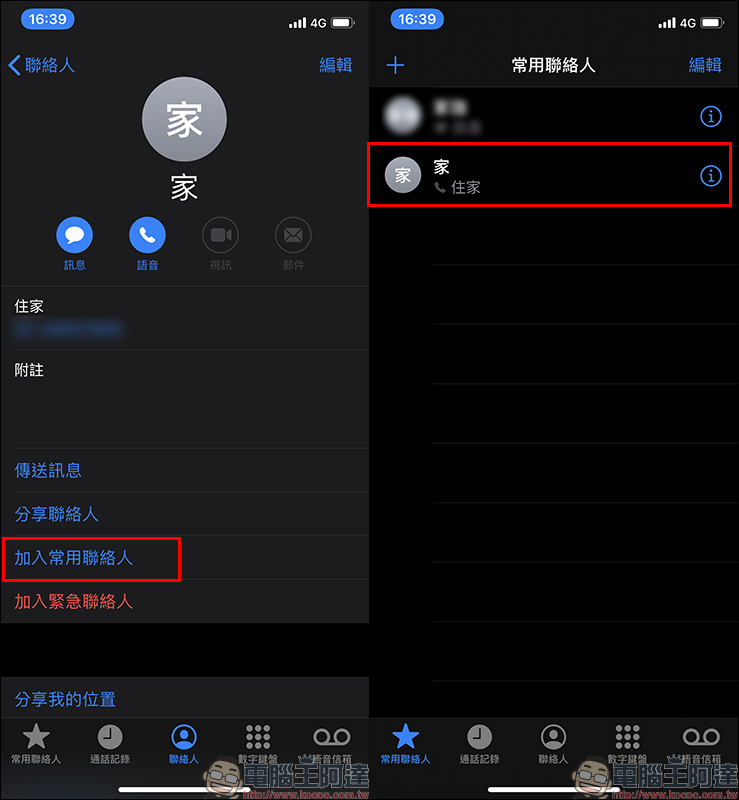
The first method requires setting the contact as a frequently used contact first. iOS users can “add a specific contact to the Frequent Contacts” on the Contacts page in the Phone App. Frequently used contacts will also be displayed independently in the Frequently Asked Contacts page:
Then you can open the shortcut menu of the Phone App through the home screen for speed dialing. iPhone 11 series and other models that support Haptic Touch (models that do not support 3D Touch) can open the shortcut menu with a “long press”; iPhone XS and other models that support 3D Touch can wake up with a “hard press”. After activating the quick menu, frequently used contacts will appear on the menu homepage.
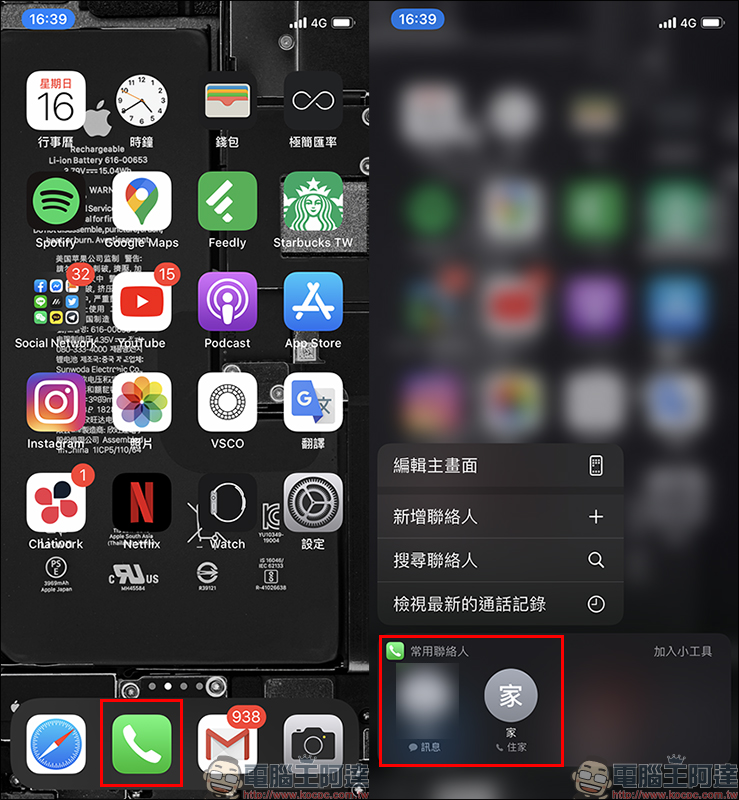
Tip 2: Add contacts to the desktop through “shortcuts”
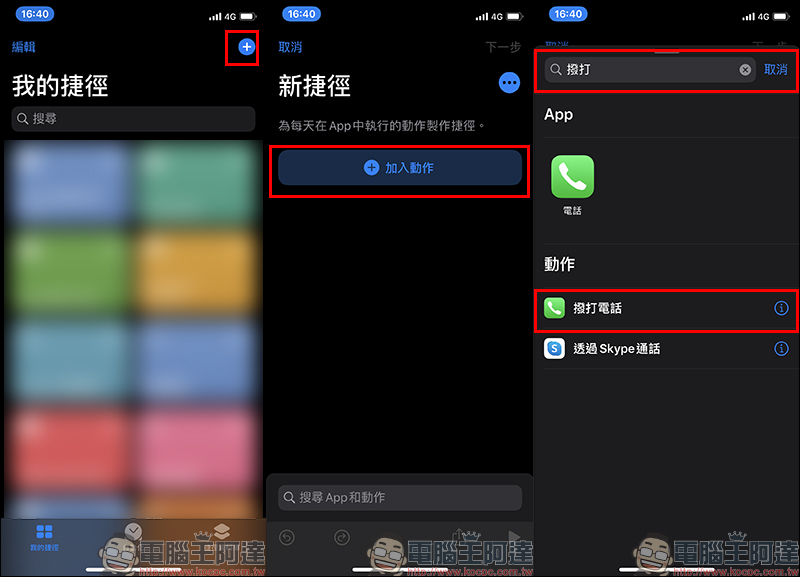
Use the “shortcut” script to add contacts to the desktop icon. To make calls in the future, you only need to open the app directly on the desktop. This is also a technique that the author highly recommends to everyone. First, open the Shortcuts App and click the “+” button to create a new shortcut, then click “Add Action” and enter “Play Call”:
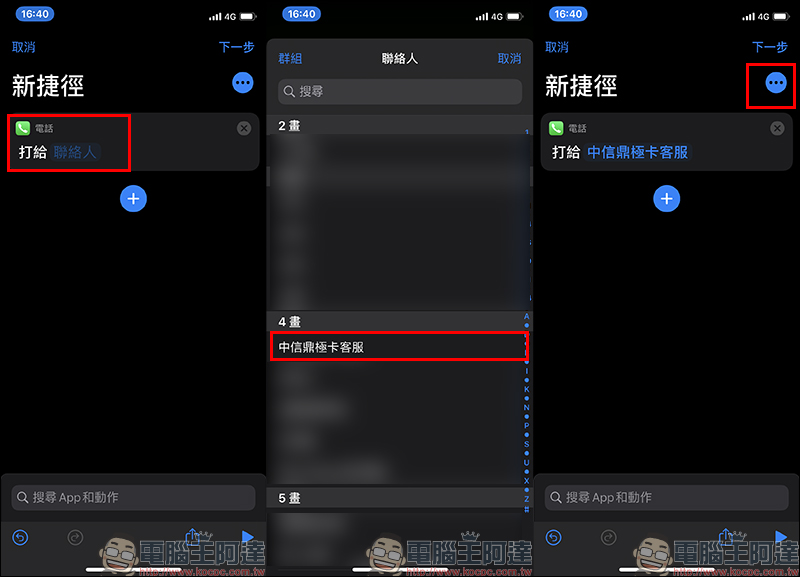
Go to the next step and select the contact you want to set. After selecting the contact, click “Don’t” directly to next step. Click the “…” button to add this shortcut to the main screen more quickly:
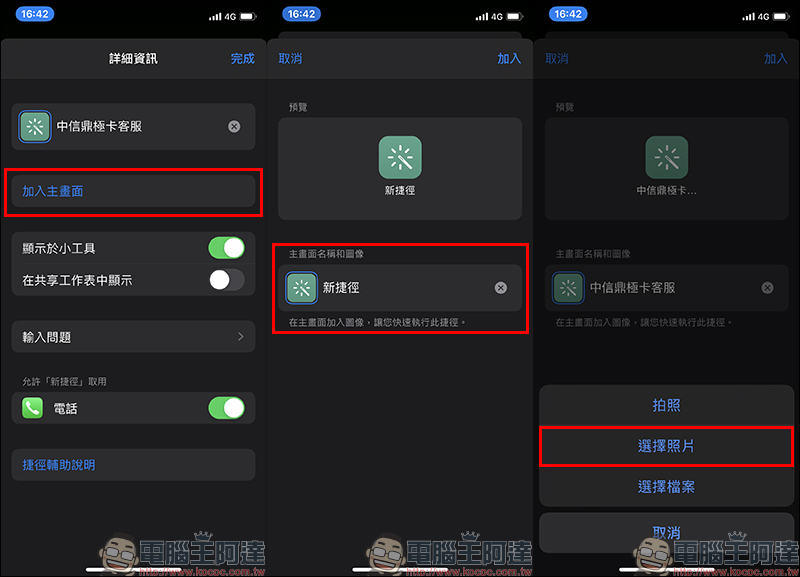
On the detailed information page, users can first edit the name of the shortcut, then click “Add to Home Screen” to edit the name and picture of the icon displayed on the home screen. For detailed instructions on this step, please refer to our previous article: (Further reading:Modify the App name & icon to create a unique App appearance icon!)
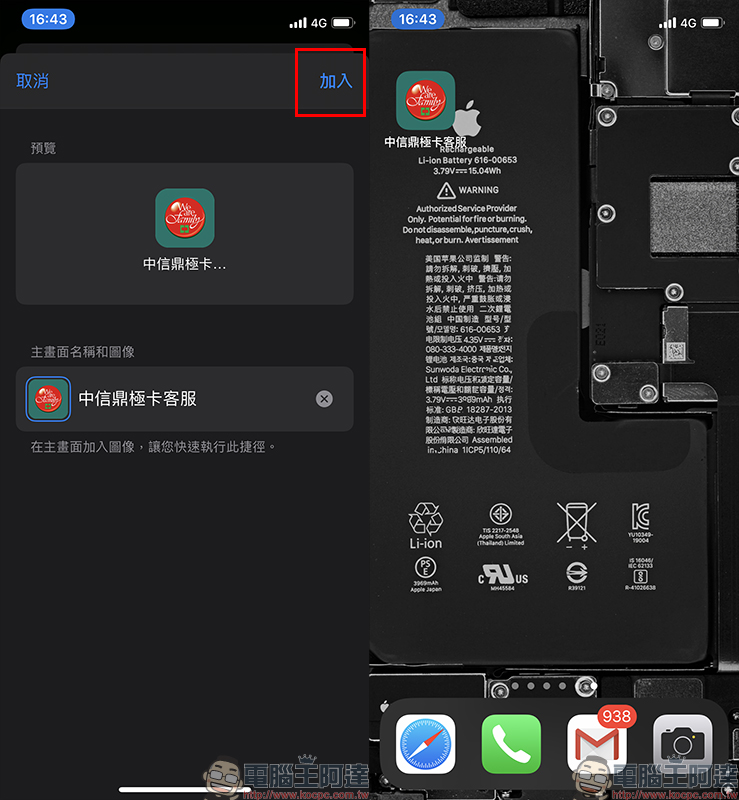
After setting the name and icon, click “Add” to add this contact to the iOS home screen!
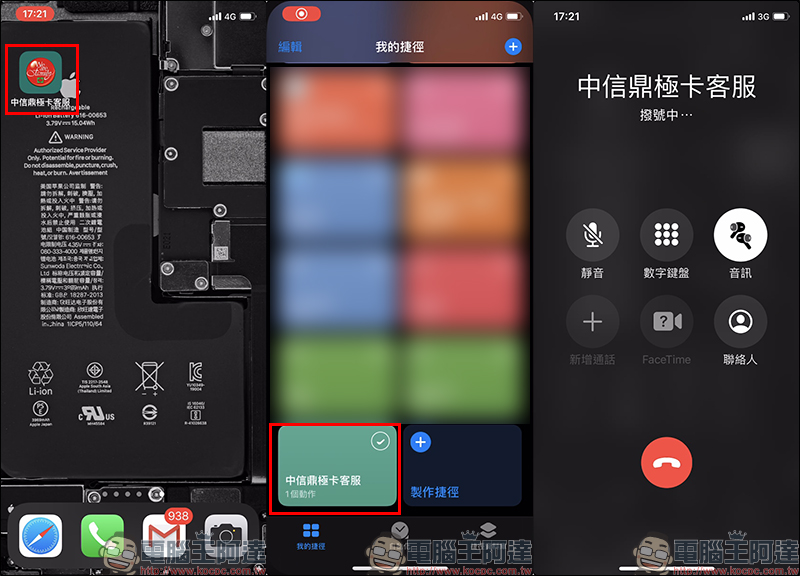
Then just click on the icon, and the shortcut script will automatically start to call the contact:
Tip 3: Click the dial icon to automatically fill in the last dialed phone number
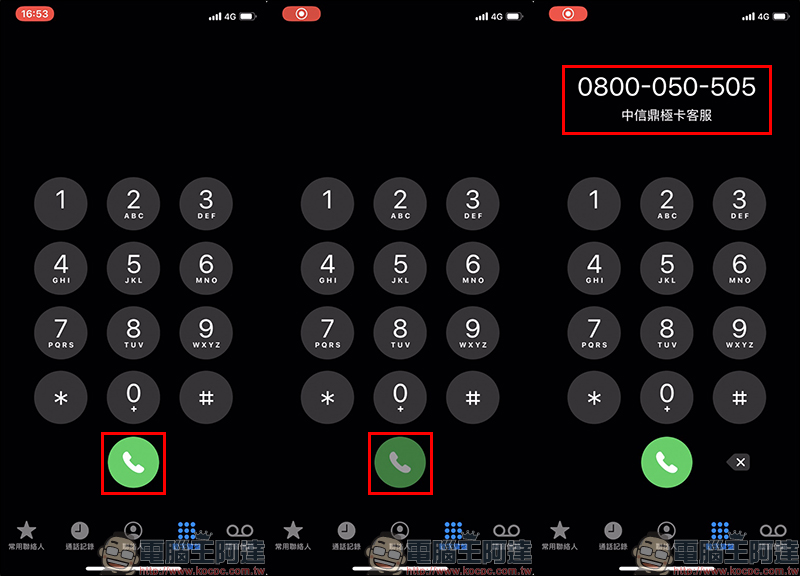
If you want to dial the last dialed phone number, you only need to click the green dialing icon directly on the dialing interface. The system will automatically fill in the last phone number dialed. However, it is important to note that this function will only automatically fill in the “phone number for which the phone number was entered last time”. If the previous call was made by directly clicking on the contact to dial, clicking the dial icon will still only automatically fill in the phone number for which the phone number was entered last time.
For example: I entered the customer service phone number of CITIC Dingji Card last time, and then called my family directly from the contact person last time. When I clicked the dial icon, the customer service number of CITIC Dingji Card was automatically filled in instead of the contact number:
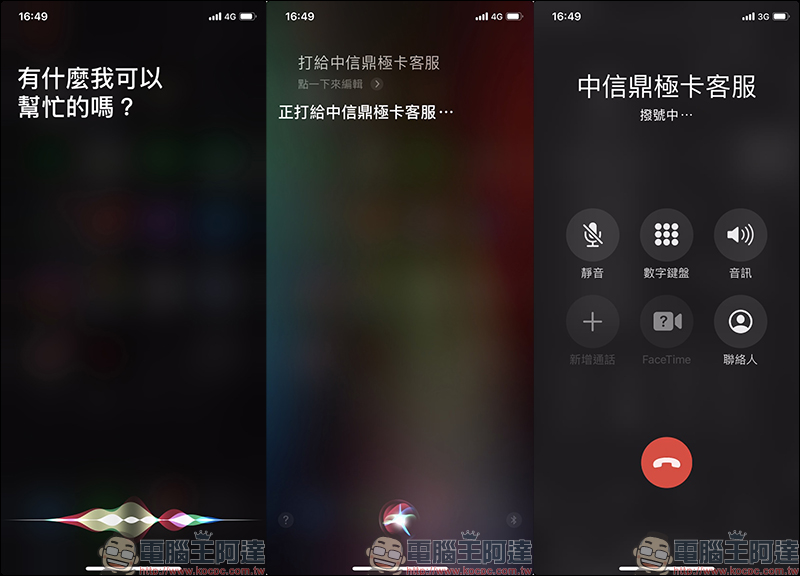
Tip 4: Use Siri to help you make calls
The last resort is to use Siri voice assistant directly to help make calls! The user only needs to shout “Hey Siri call (someone)” while the screen is awake, and then Siri will play a call to the specified person in the contact for the user. In addition, in addition to waking up the voice assistant to make calls through the iPhone, other Apple peripherals such as AirPods, Apple Watch and even HomePod also support the Siri call function.
Further reading:
iOS application tips: “Read” text on web pages and apps to avoid eye fatigue caused by staring at the screen for long periods of time!

iOS application tips: Modify the App name & icon to create a unique App appearance icon!

Source: KOCPC Chinese