


After Microsoft’s new Edge browser developed based on Chromium was launched on 1/15, concerns about privacy followed. There are tools to block first-party cookies (used to keep you logged in or remember items in your shopping cart) and third-party tracking cookies (used to track your browsing activities) in Edge. Today I will tell you how to change settings, view and delete cookies, etc.
How to make good use of built-in settings to protect personal privacy when using the Edge browser?
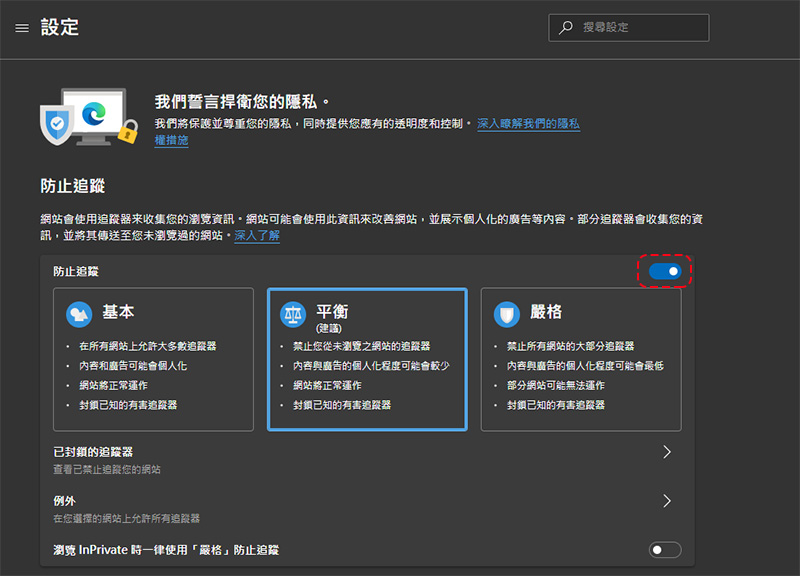
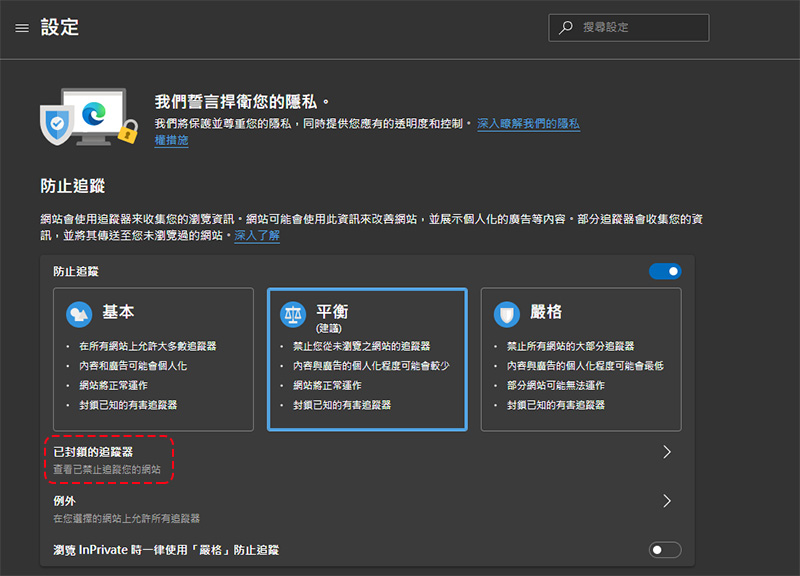
By default, the new version of the Edge browser will use three different levels of measures to block trackers, namely basic, balanced (default) and strict. The differences between the three modes are written below:
Basic – Provides looser controls, blocking only trackers that Microsoft has classified as malicious.
Balance – Consider the websites you visit frequently and organizations that may have multiple sites to reduce and prevent tracking from commonly used organizations.
Strict – will block most cross-site trackers.
Changing settings is easy:
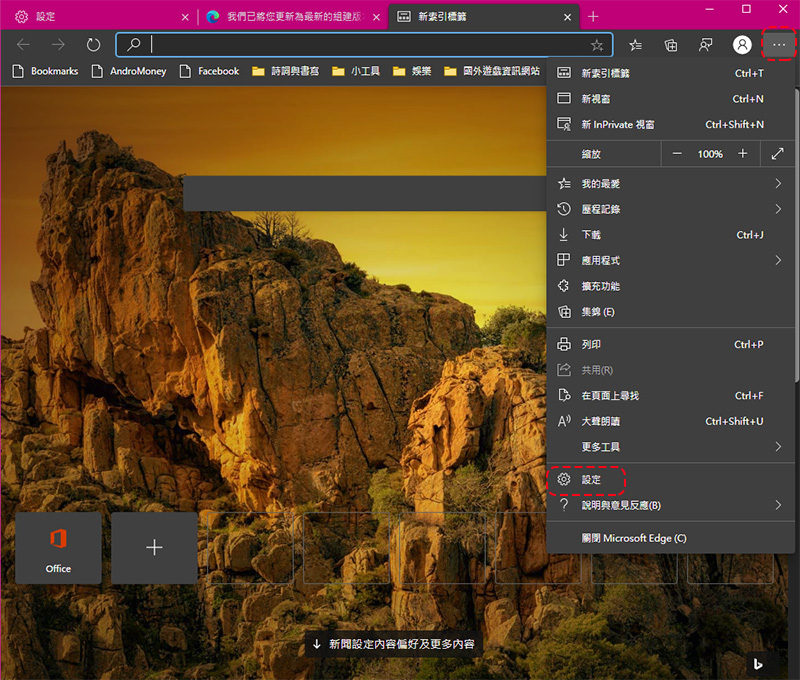
1. Click the three dots in the upper right corner of the browser and select “Settings”.
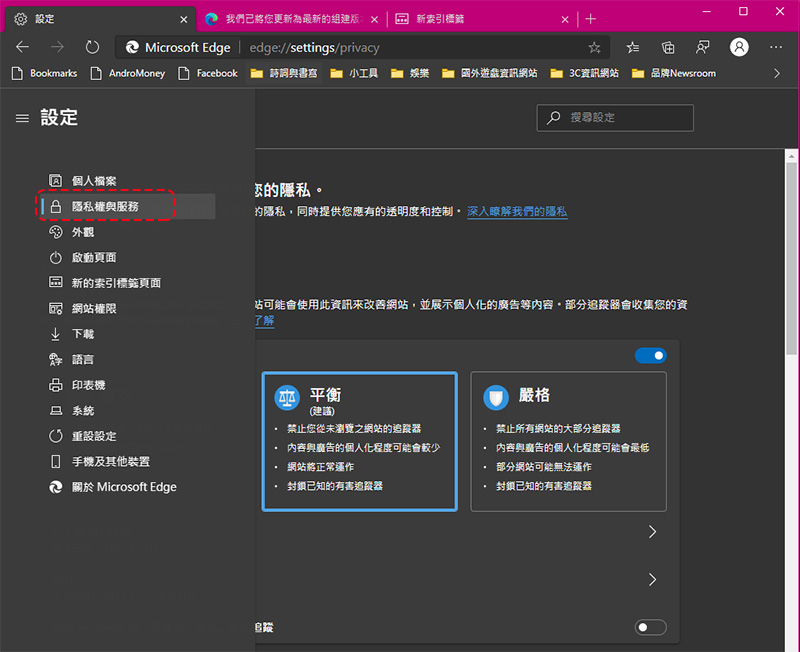
2. Switch to the “Privacy and Service” item.
3. Make sure it is turned on and select your desired level. It is recommended that you still use the “Balance” option to ensure a more stable environment when browsing the website.
★Advanced – adjust your tracking settings
Although the above three simple settings are provided originally, you can still have a deeper understanding of which trackers are listed as blocked by the system and set exceptions for specific websites.
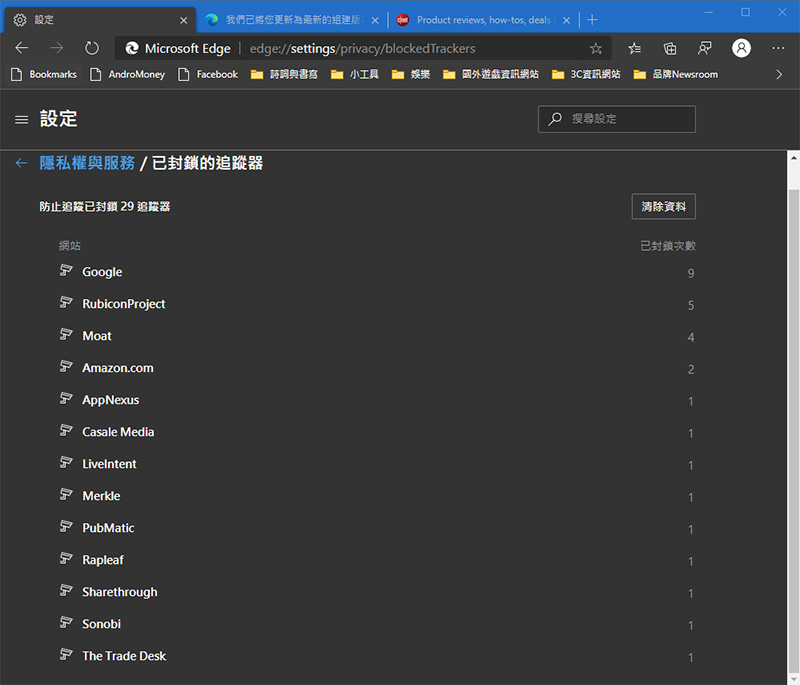
1. View blocked trackers: Go to the “Privacy & Service” item, and click “Blocked Trackers” under the three basic settings to prevent tracking.
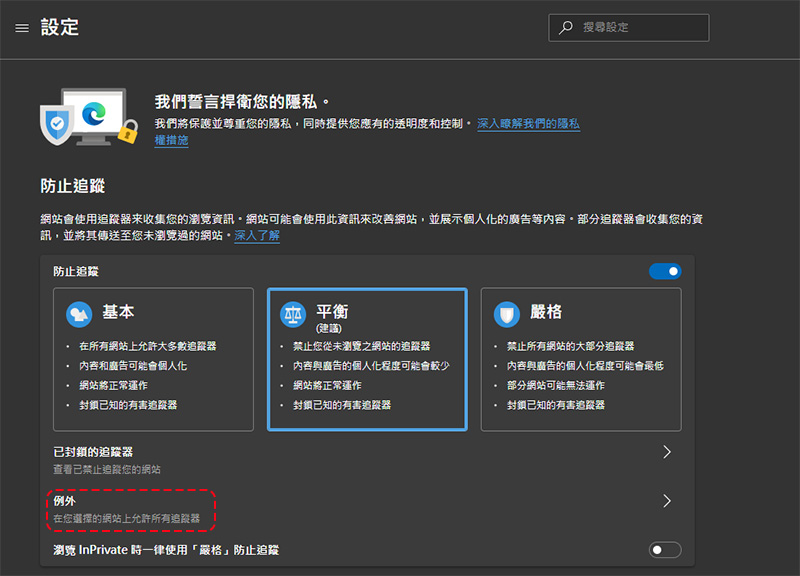
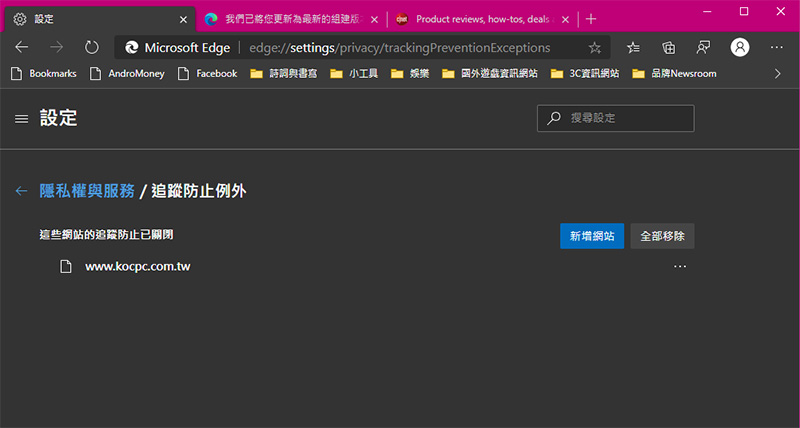
2. Set exception websites: Some websites may be needed for your work or daily life. You can add them to the whitelist in the “Exceptions” item.
★Advanced – clear your cookies
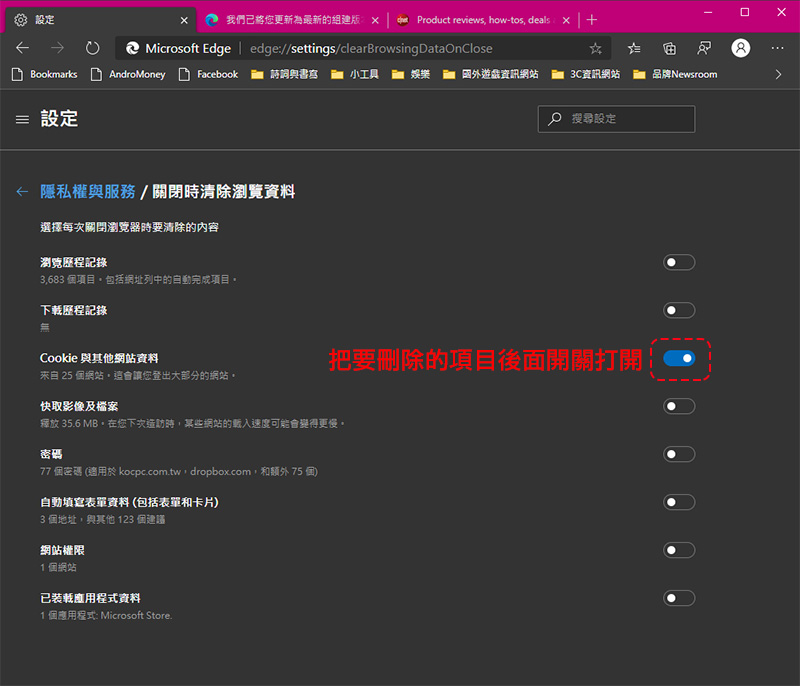
As long as you make some simple settings, Edge browser can easily delete private content including browsing history, passwords, and cookies every time you close it.
1. Go to the “Privacy and Services” item and find the “Clear Browsing Data” item, and click “Select what to clear each time you close the browser.”
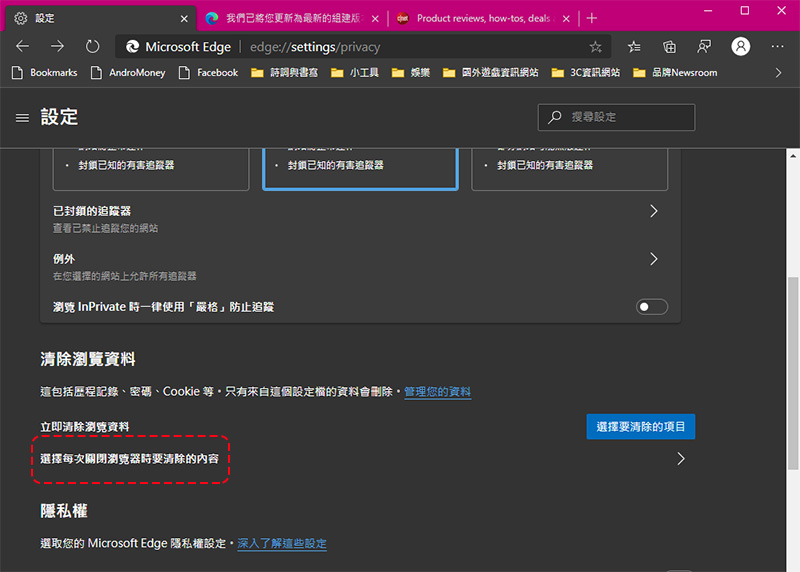
2. Turn on the switch (it turns blue) behind the item that you want to automatically clear when you close the browser.
Today’s simple tutorial on privacy protection for the new Edge browser ends here. People must first know how to protect themselves in order to prevent unscrupulous people from taking advantage of the opportunity to sneak attacks. I hope it can be helpful to you!
Source: KOCPC Chinese