


Although everyone knows that as long as you concentrate, work can be completed quickly, but for computer workers, there is too much information on the Internet and it is easy to be tempted, especially social networking sites such as Facebook and Instagram, and they can unknowingly scroll for more than ten minutes or even an hour, thus wasting a lot of time. If you often encounter this problem, the free Motion expansion plug-in recommended in this article can help you.
It can set the websites you want to temporarily block for work. If you accidentally touch these websites again in the meantime, a warning will pop up immediately. In addition, there is also a very useful auxiliary function that can record how long you spent on a certain work content. I will introduce it to you quickly below.
Introduction to Motion free expansion plug-in
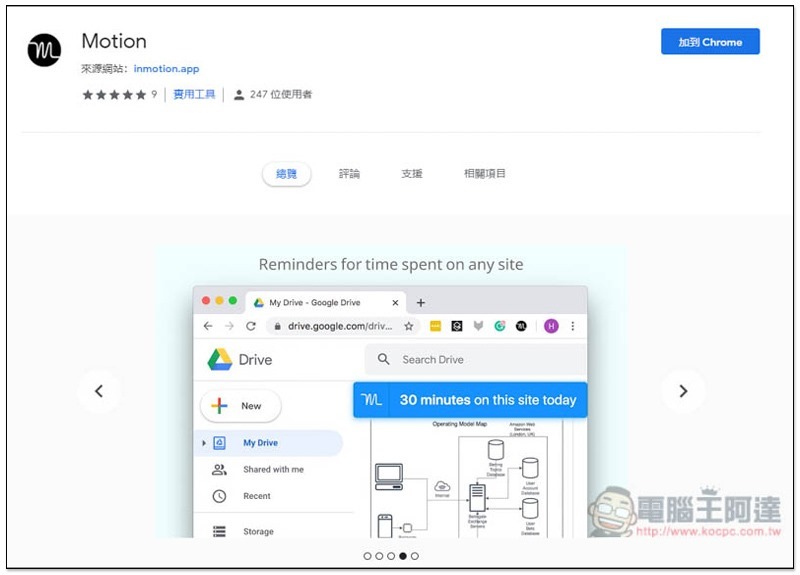
This set of Motion is a free extension for Chrome, so it needs to be used with the Chrome browser.Click me to enter the expansion store page, press “Add to Chrome” in the upper right corner:
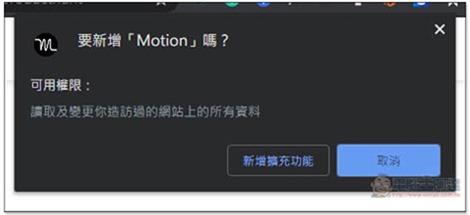
This window will pop up above, click “Add extension”:
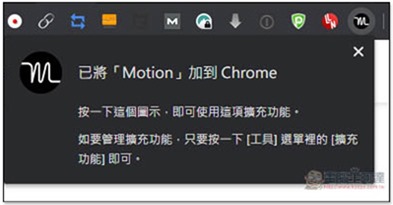
When this message appears in the upper right corner, it means it is complete:
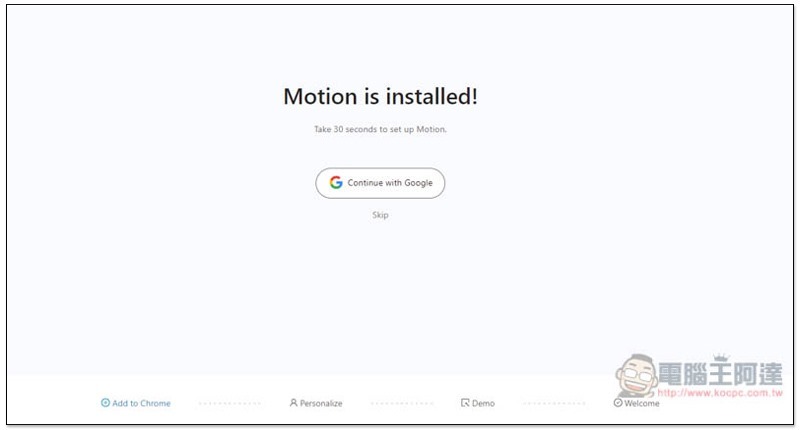
After clicking on this tool icon, you will enter the settings screen. You can select the link to register an account (through Google), so that the data can be synchronized when you log in with the same account later. Those who do not want to register can click Skip below:
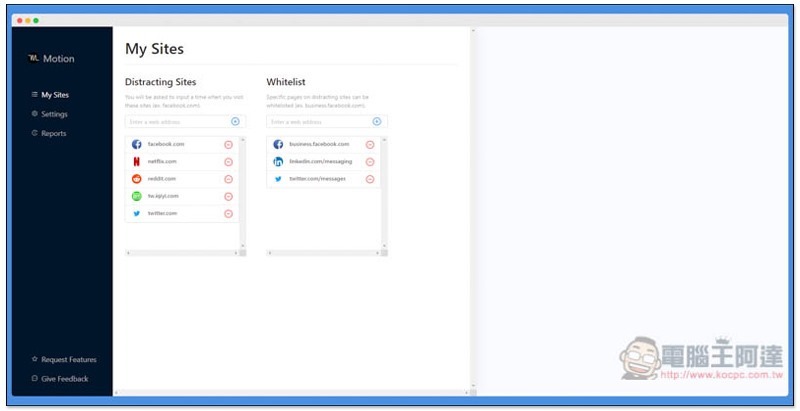
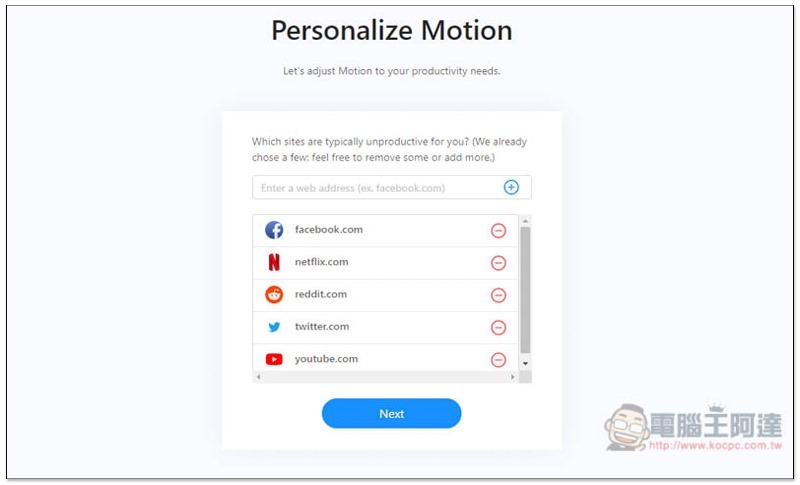
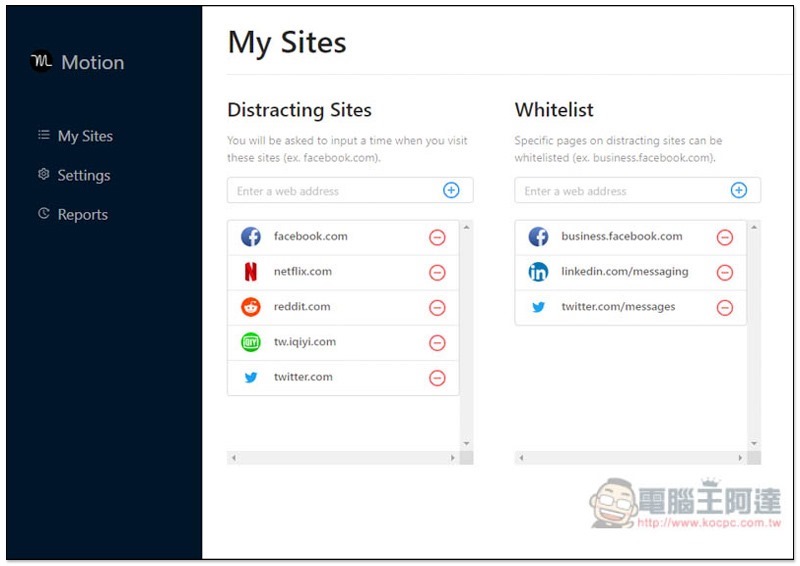
The next step is to set which websites you want to temporarily lock during working hours. Facebook, Netflix, Reddit, Twitter and YouTube have been preset. If there are websites you don’t want to lock, just click next to – Remove:
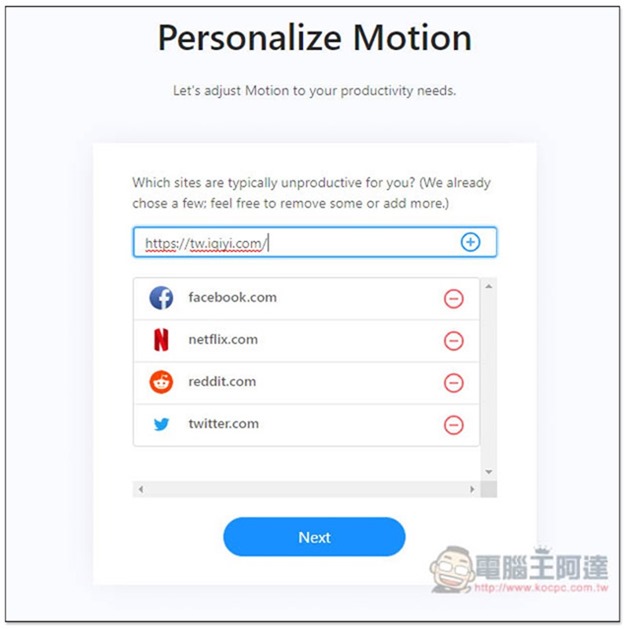
To add manually, paste the URL in the field above and press + on the right:
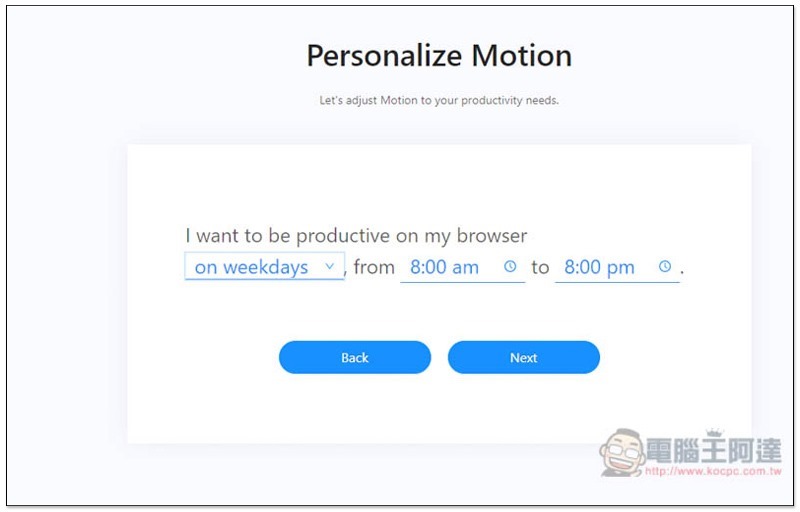
Next comes your working time:
This setup is basically complete. The screen will briefly introduce the features of this tool. Those who are interested can take a look:
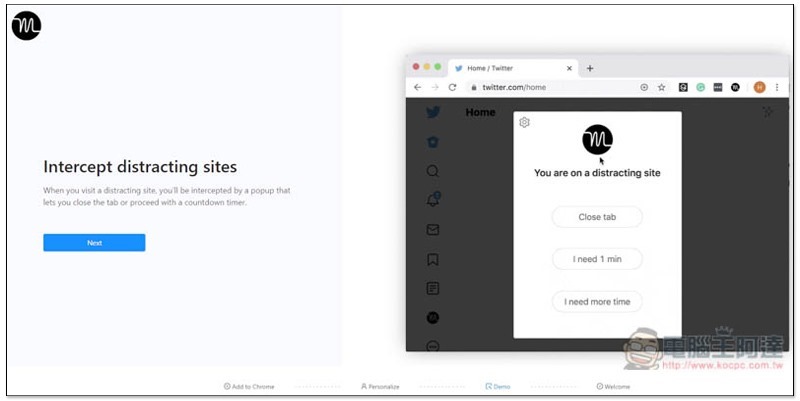
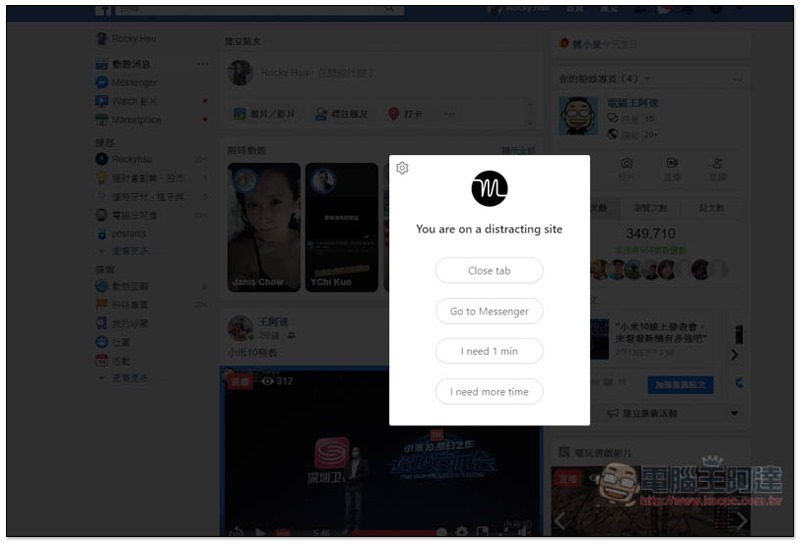
When you enter your locked website during future working hours, this warning window will pop up. Press Close tab to directly close the paging. If it is FB, there will be an additional option to jump to Messenger (of course, if you also lock FB Messenger, this window will still appear again after the jump). In addition, this set is not forced to be locked. When you really need it, you can click “I need 1 min” or “I need more time” below, so that you can continue browsing normally within the specified time:
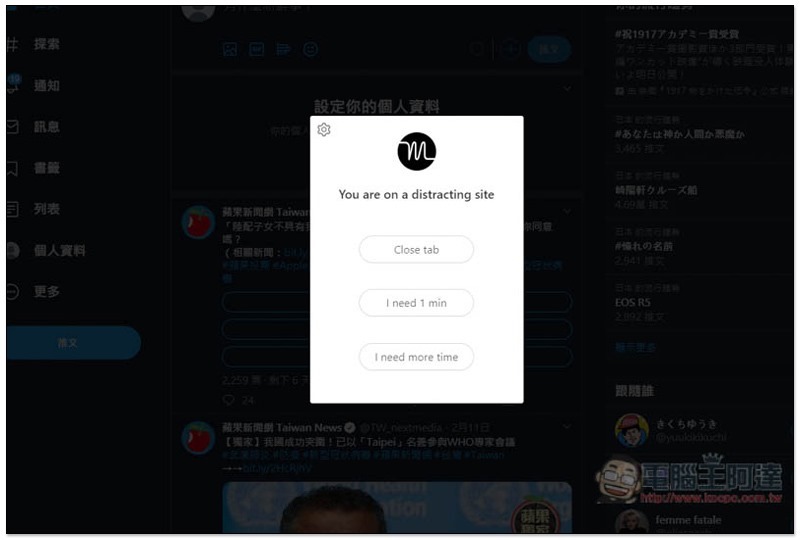
There are only three Twitters, minus Go to messenger:
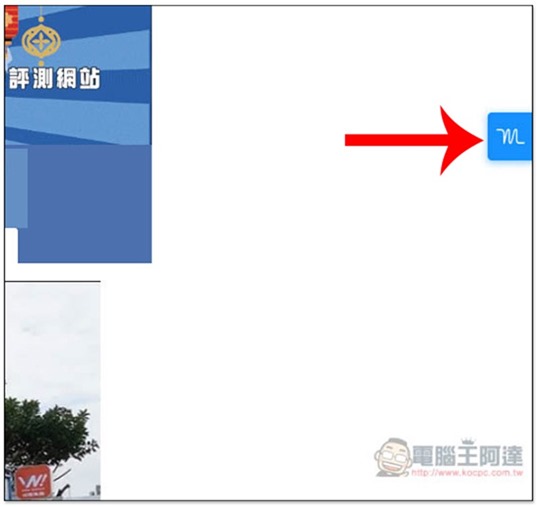
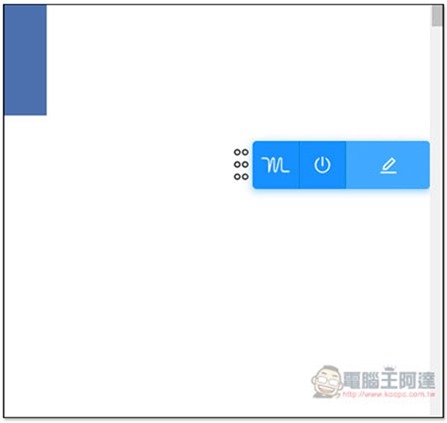
On any web page, there will be this tool icon on the right side:
Move the mouse over to expand it. It mainly has one function to set the work you are currently doing:
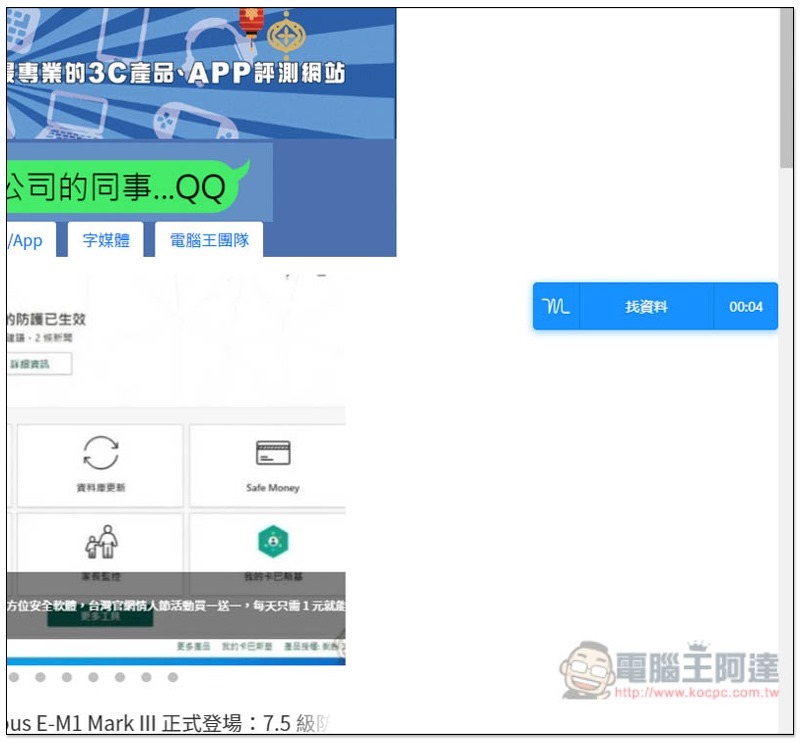
When I type in information, the timer on the right will start counting, and it will appear and continue to time for each page page, making it easier for me to control my working time:
Click the tool icon in the upper right corner to enter the backend:
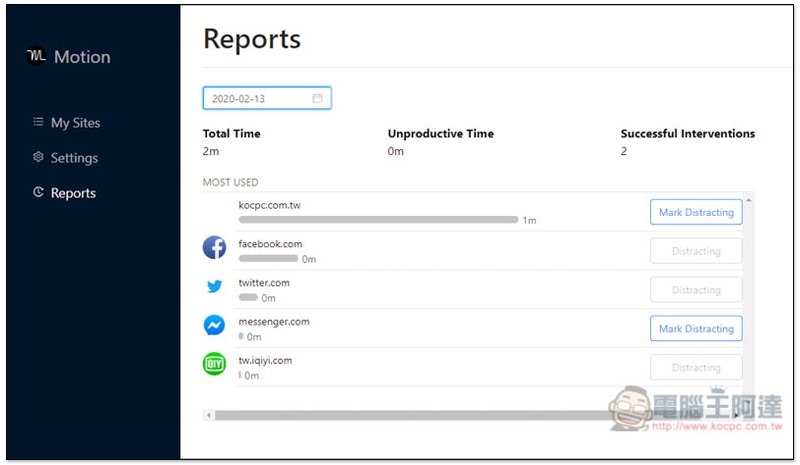
There is also a reporting function (Reports), which will record the time you use each web page, allowing you to track:
Supplementary information
Motion expanded plug-in store page:Click here to go
Source: KOCPC Chinese