


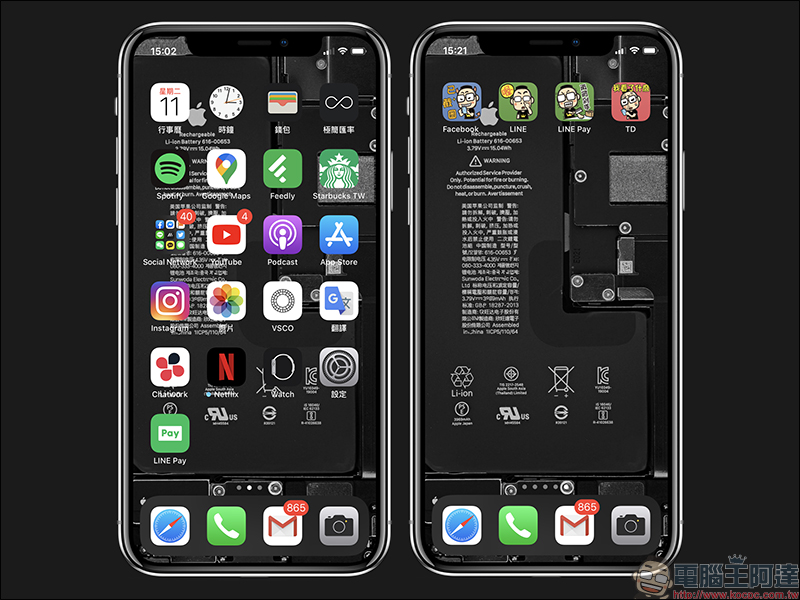
In the past, the iOS system provided users with limited customization functions, but with the launch of the Shortcut App, it has brought many new “games”. However, many users may not be familiar with clean application methods. Today I will share a practical iOS application tip to teach you how to make full use of the functions of the Shortcut App and modify the App icon and name. In addition to making the App icons distributed on the desktop look more unique, it can also be used to hide apps that you do not want others to discover.

iOS application tips: Modify the App name & icon to create a unique App appearance icon!
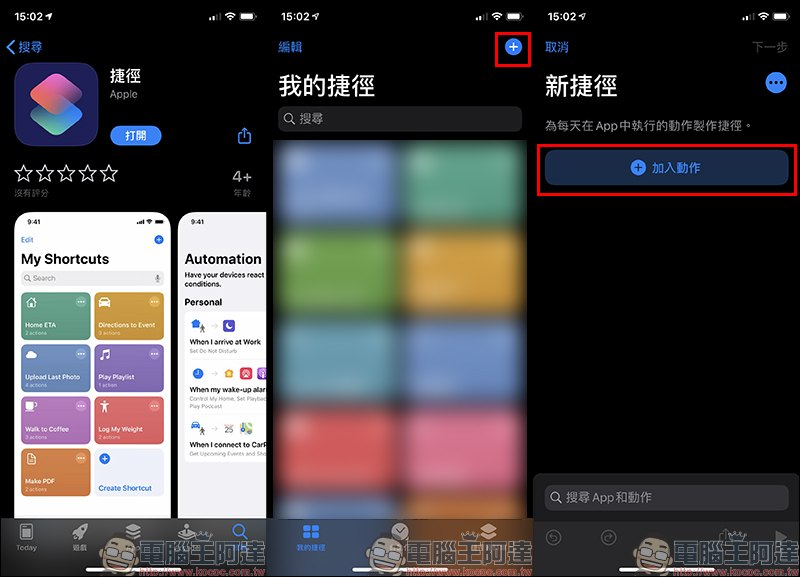
First of all, if you have not downloaded the “Shortcut” App, you can go to the App Store to download it (Or click me to download directly). After opening the Shortcuts App, find the “+” in the upper right corner of the screen to create a new shortcut, and then select “Add Action”:
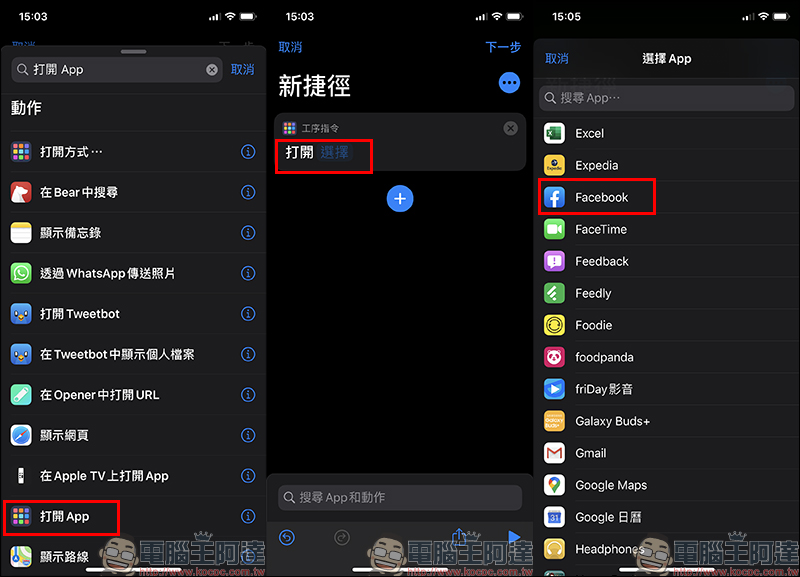
Type “Open App” in the field at the top of the screen to find the corresponding “Open App” command, then click “Select” to select the App you want to set. Here we take Facebook as an example:
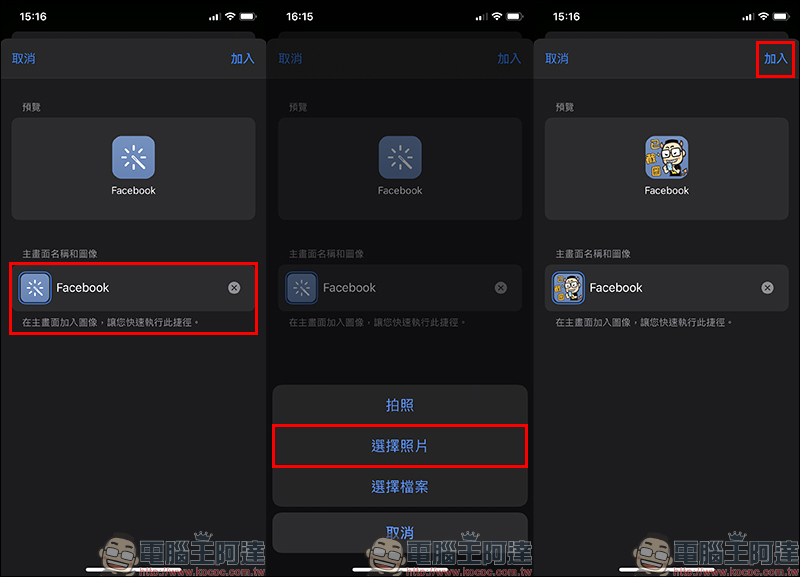
After selecting the app, click “…” under Next to edit the details. If the icon icon to be selected later is not full-screen, the background color may still be displayed in the background of the image, so you can select the background color of the App icon in this step. In addition, the user needs to enter the “shortcut name” in this step. What is entered here is only the name of the shortcut, not the name displayed in the App! After completing the background color and shortcut name settings, click “Add to main screen” to proceed to the next step:
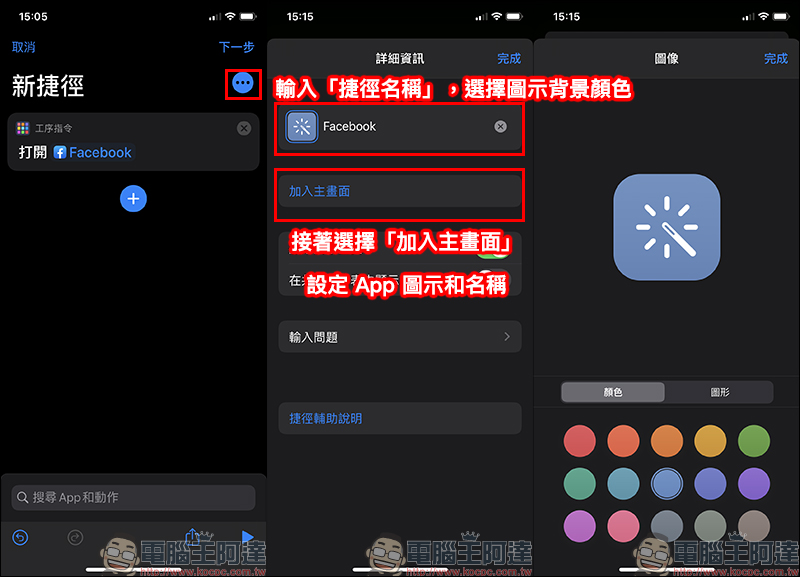
The setting step at this stage is the page that actually allows users to customize the icon and name of the App displayed on the home screen. Users can click on the icon to select the icon displayed on the home screen of the App. In addition to directly opening the camera and “taking a photo” as the icon, they can also “select photo” or “select file” to read a picture stored in the device as the home screen icon.
If you want to change the App name, you can edit it yourself at this stage. When all settings are ready, click “Add” in the upper right corner of the screen to add this app with a customized icon and name to the main screen!
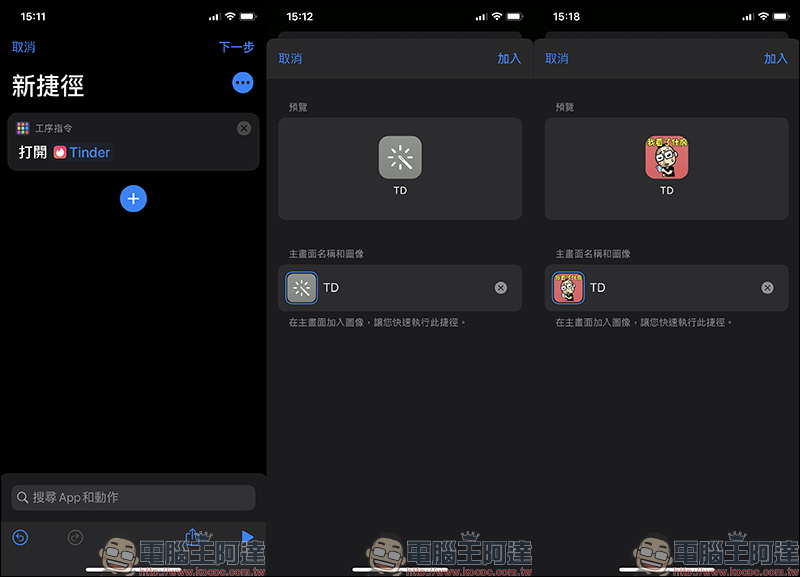
As mentioned at the beginning of the article, this method can be used to hide some apps (such as dating apps) that you don’t want others to easily discover. In fact, as long as you modify the icon and name of the app, it will not be easy for other friends to find it when they borrow the iPhone to play! Of course, if you choose content that is too easy to make others suspicious when setting up, you will still be cheating. (laugh)
Shortcut App download:Or click me to download directly
Further reading:
iOS 13.4 public beta debuts: new mail toolbar and CarKey API in place
Source: KOCPC Chinese