


After waiting for a long time, the iOS version of the Google Translate App has finally officially welcomed the dark mode. As long as you update to the latest version, your iOS defaults to dark mode, then Google Translate will automatically display in dark color, while the light mode will have the same white background as before. Friends who don’t know how to use it, please continue reading below.
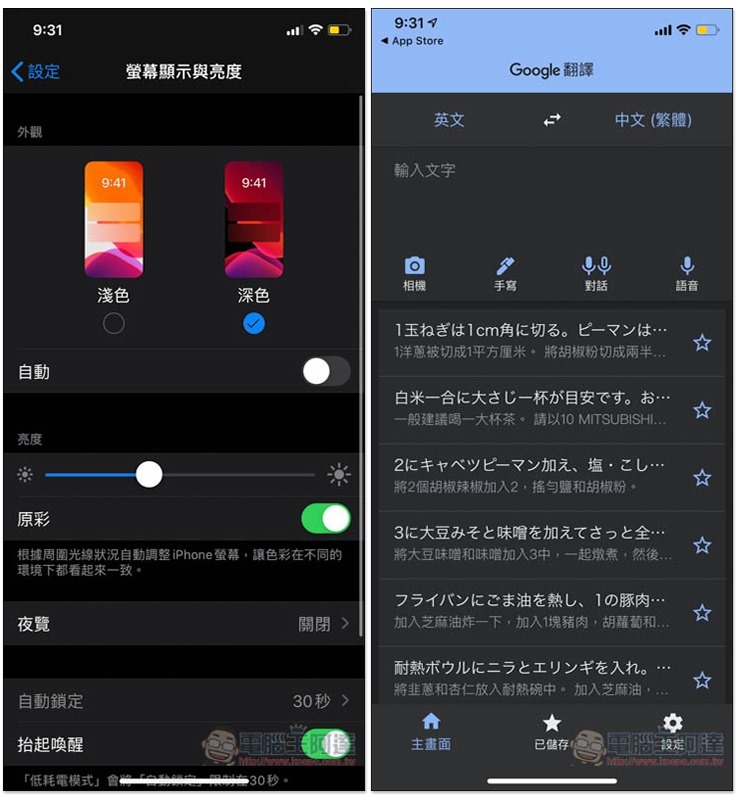
Google Translate officially supports dark mode on iOS
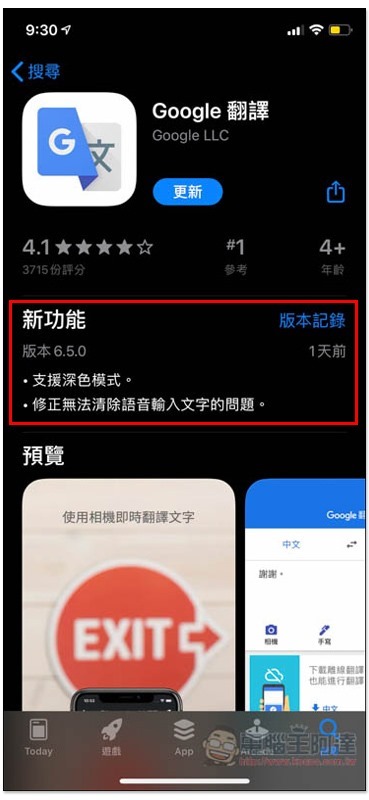
Now open the App Store and enter the Google Translate page. You will see that the introduction of the latest version 6.5.0 states “Supports Dark Mode”. It also fixes the problem of being unable to clear voice input text:
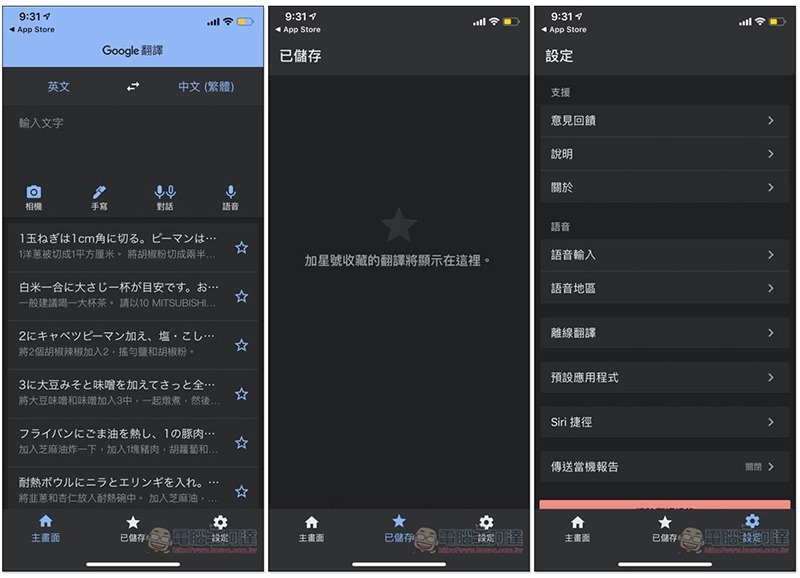
After the update, if your iOS is set to dark mode, the Google Translate interface will look like this, which is quite nice:
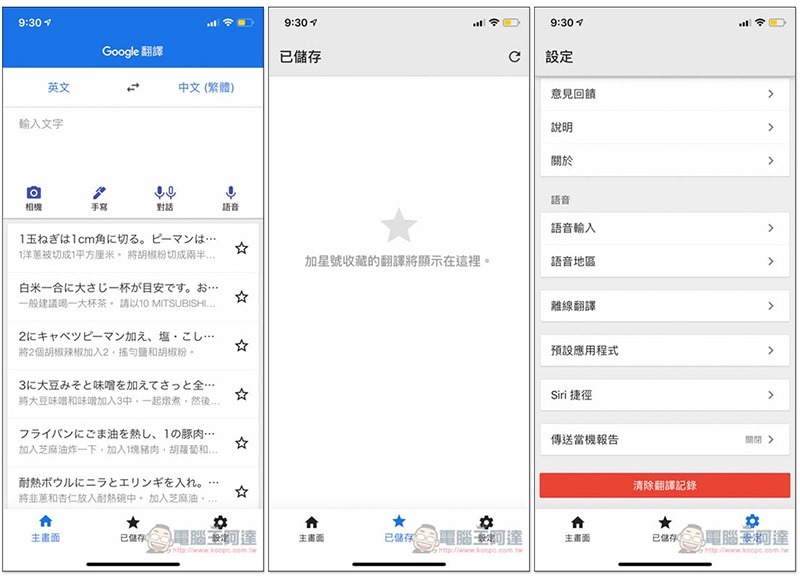
Original light mode color matching:
How to turn on dark mode in iOS
If you still don’t know how to switch to dark mode, let me teach you below. There are three ways, whichever one you like.
Switch to dark mode in settings
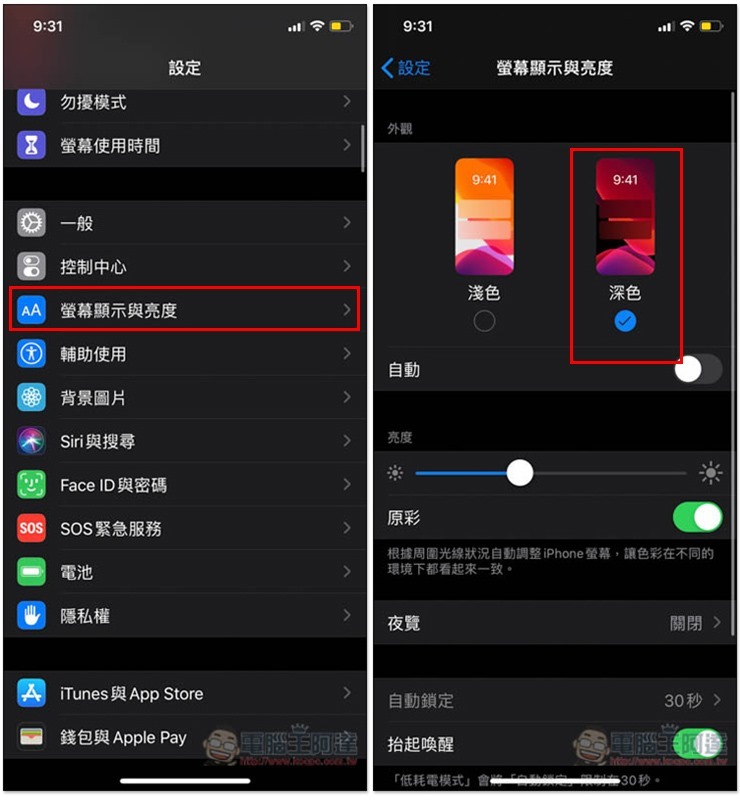
This method is a little more troublesome, and you need to go into the settings to turn it on. After entering Settings -> Screen Display and Brightness Options, you will see light and dark modes at the top. Click on the mode you want to switch to:
Enable Dark Mode using the screen brightness lever in the Control Center menu
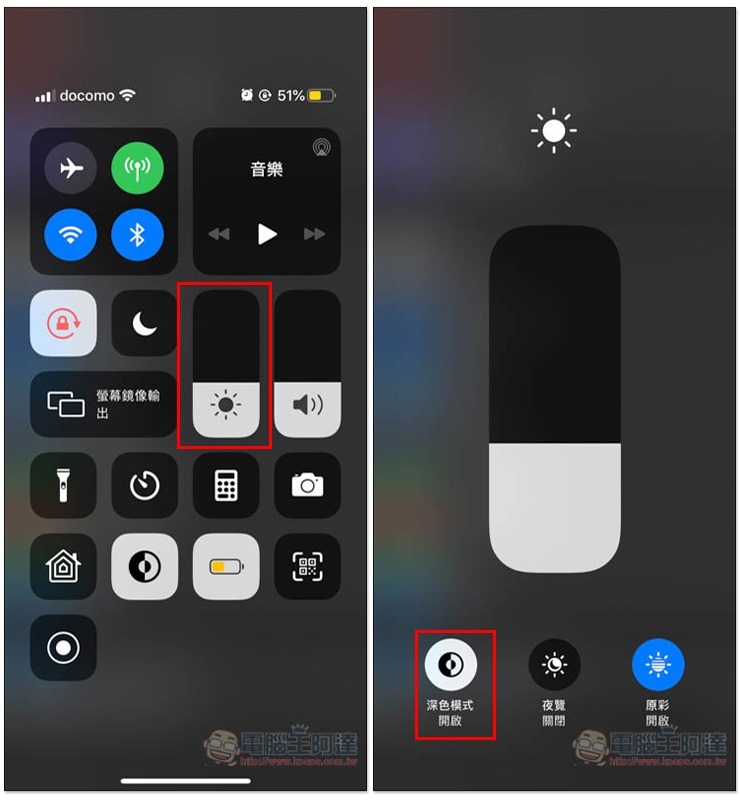
This method is simpler than the above. After opening the control center, slide down from the top left or slide up from the bottom (depending on which iPhone you use). Press and hold the screen brightness adjustment lever on the screen to enter the inner page. You will find the dark mode icon in the lower left corner. Click once to complete the switch. Click again when you don’t want to use it, and it will return to light mode:
Add dark mode to control center
Although this method takes time to set up for the first time, once it is completed, you can directly open the control center to quickly switch in the future, which is faster than the above two.
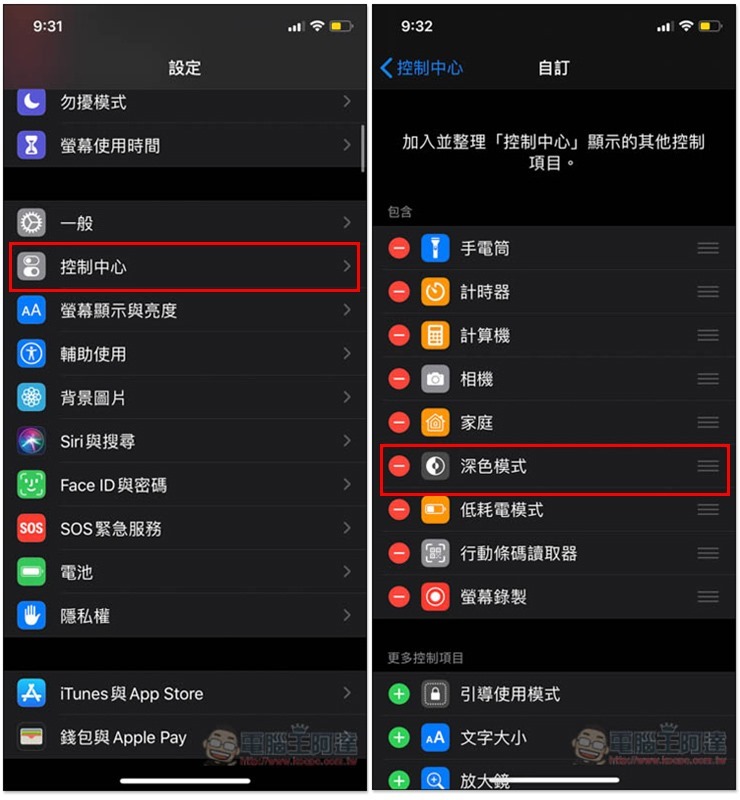
Enter the control center in settings, find “Dark Mode” from the more control menu below, click Add on the right, and it will appear in the included menu:
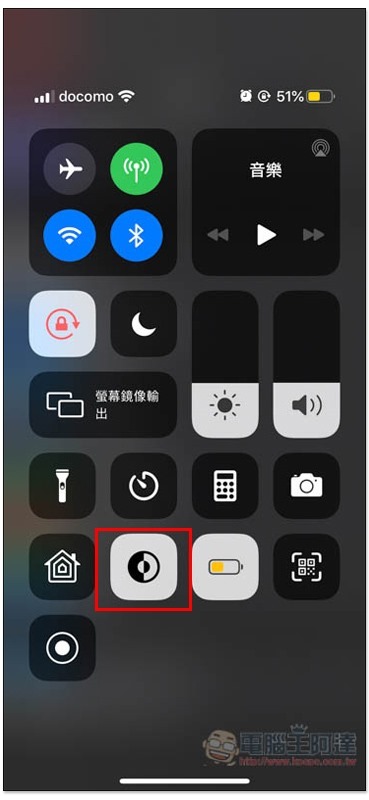
When you open the Control Center menu later, you will see the dark mode icon. There is no need to go to the screen brightness adjustment lever:
Supplementary information
Google Translate App Store page:Click here to go
Source: KOCPC Chinese