


For computer workers, they will definitely want to continuously improve their work efficiency to shorten their working time. As for time management, project management and other methods, I believe many people know that shortcut keys are actually a very good trick. The Wise Hotkey Pro introduced in this article allows us to customize the shortcut keys for the applications to be opened, such as: ALT+1 to open the Chrome browser, ALT+2 to open Photoshop When you want to use these applications in the future, you can save the time of scrolling and clicking. It may seem short, but in the long run it is actually a lot. In addition, the latest professional version 1.2.6 is currently available for free download, and the original price is US$16.45 (annual subscription).
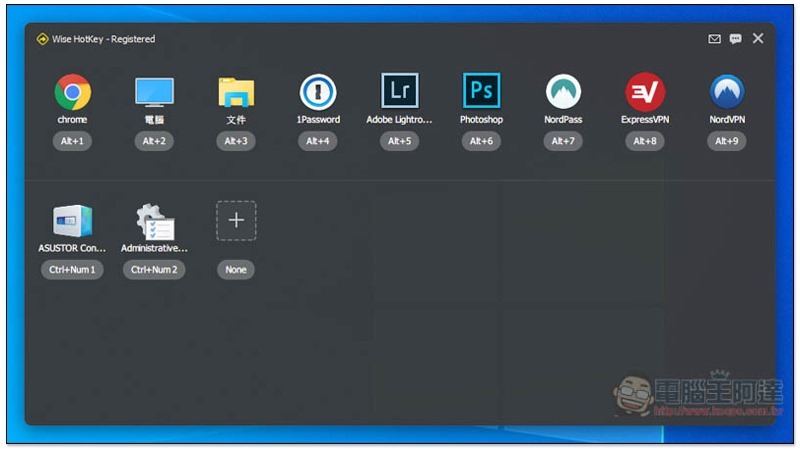
Introducing Wise Hotkey Pro, a tool that can customize application opening shortcut keys
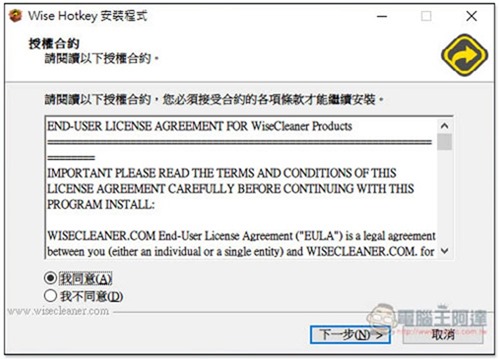
Wise Hotkey Pro limited free promotion is sponsored by Giveaways Networks The website is launched and will be automatically activated after installation. There is no need to enter any serial number or other information. However, when obtaining the installation file from the Giveaways Networks website, you need to enter basic information. If you don’t want to give it to me, I will provide download points for other cloud spaces. Just click Next during the installation process. Traditional Chinese is supported:
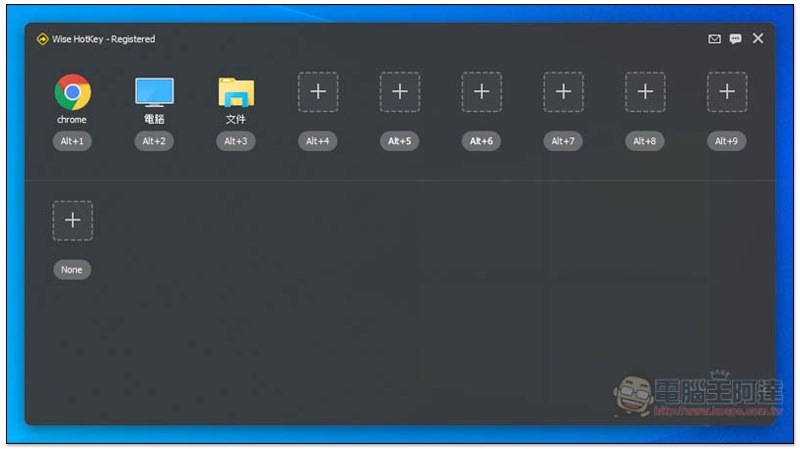
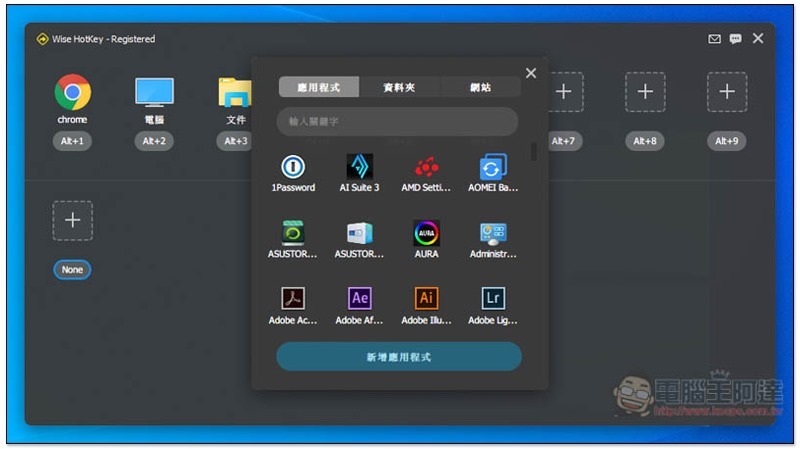
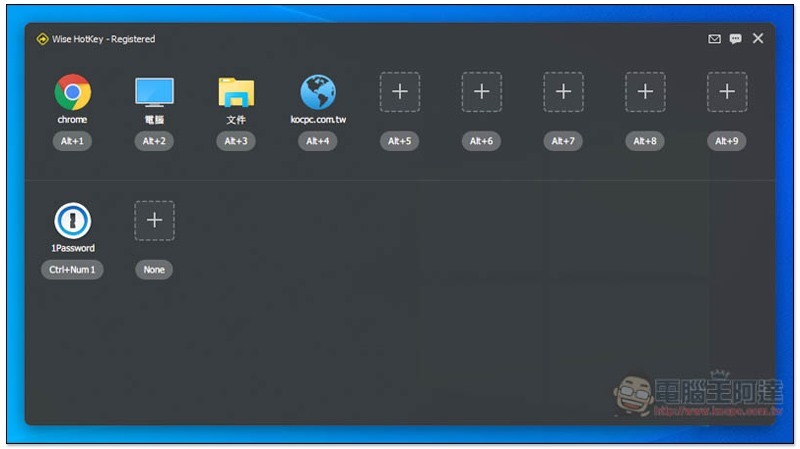
The picture below shows the interface of this tool. You can notice that Registered is written on the far right of the name above, which means registration is completed. Then you can start defining the application shortcuts you want to use, press + above to select:
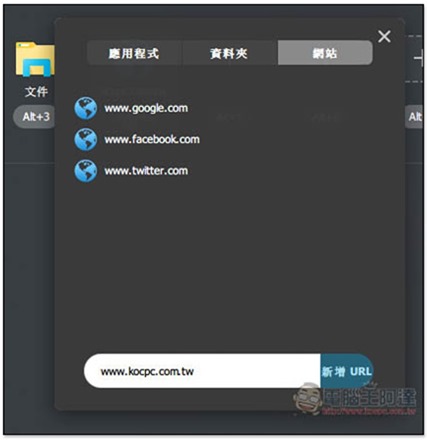
In addition to applications, shortcut keys can also be defined to open folders and websites:
Any website will do, and it will be opened with your system’s default browser:
As shown below, I defined the URL of our website as the Alt+4 shortcut key. In the future, you can quickly enter by pressing this shortcut key:
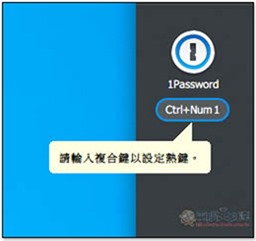
Click the shortcut key combination below to change it to another:
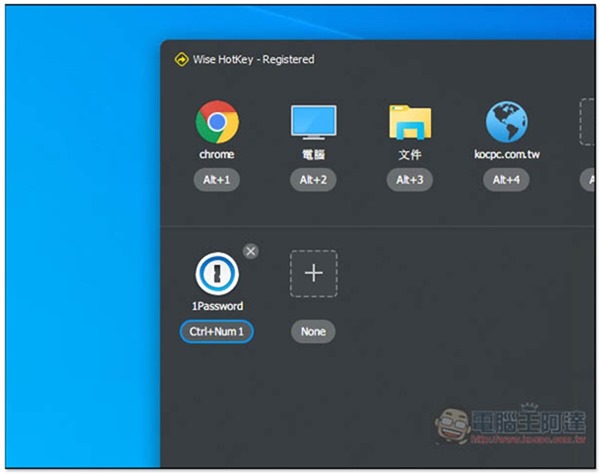
To delete, move the mouse to the upper right corner and you will see the X function:
Officially produced instructional video. After watching it, you should have a clearer understanding of how to use it:
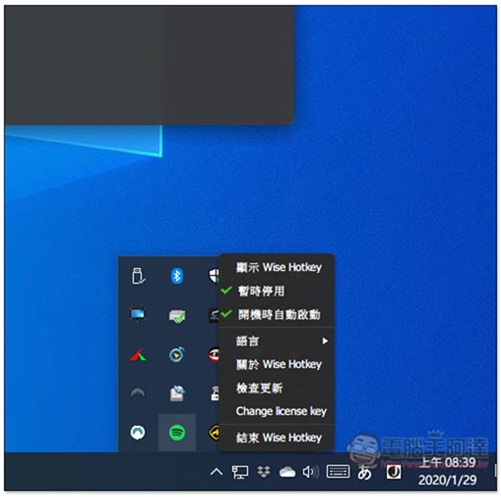
When the window is closed, it will continue to work in the background and can be found in the hidden icon menu in the lower right corner. I’m not sure if the limited-free version offered this time will be updated in the future, but at least it’s the latest version for now:
Supplementary information
- Giveaways Networks limited free page:Click here to go
- Google Drive download location:Click here to go
- Wise Hotkey official website page:Click here to go
Source: KOCPC Chinese