


It can be said that there are more and more services for converting videos to subtitles and converting sounds to subtitles on the Internet. However, most of the good ones found in the past require payment, or the free version has a minute limit. The recently discovered pyTranscriber video speech to subtitle tool is not only completely free, but also has good speech recognition accuracy. The most important thing is that the processing speed is super fast. A 30-minute video can be processed in about 2 minutes, which is quite amazing. It is supported by most languages, including Traditional Chinese. Available for Windows, Mac, and Linux.
Introduction to pyTranscriber, a free video voice to subtitle tool
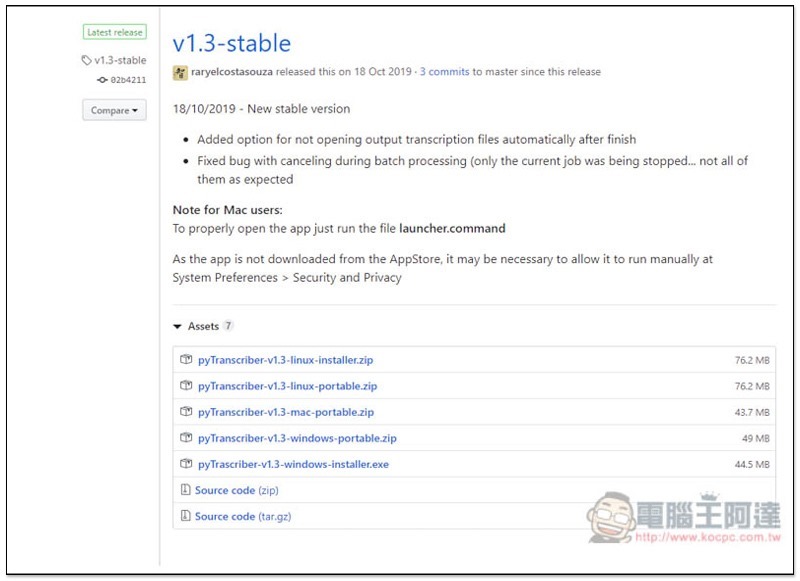
pyTranscribe is a tool for converting video speech to subtitles using open source code. GitHub websiteThe code can be found on the website, and those who are interested can study it. The latest version is v1.3. Under the Assets project, you will find the installation and installation-free files for each system version. Portable represents installation-free, and installer is the installation file. I take the Windows version of the installation-free file as an example:
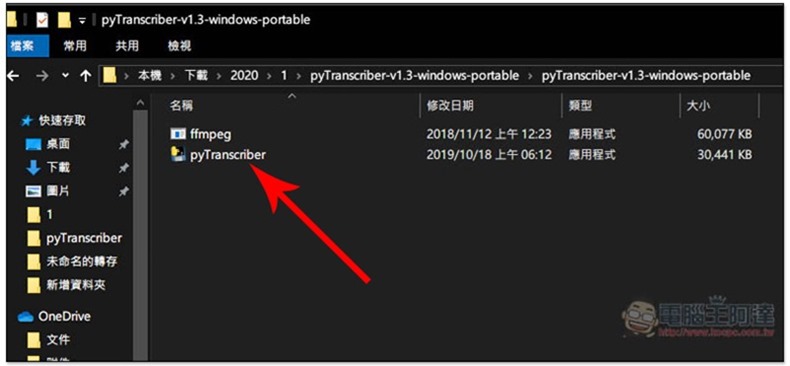
After downloading and decompressing, you will see two files. Click twice to open pyTranscriber:
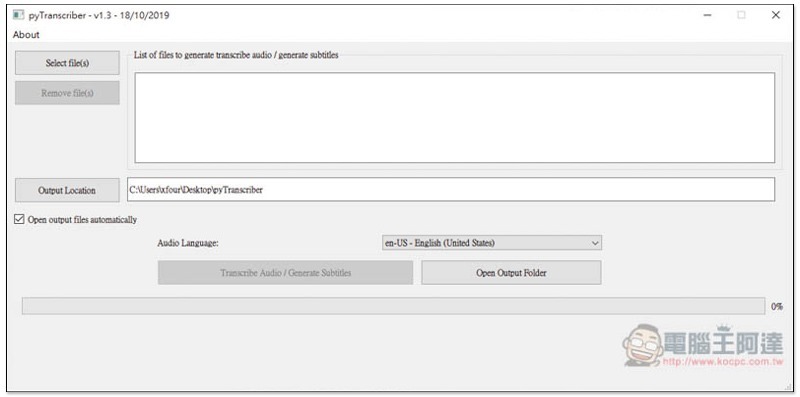
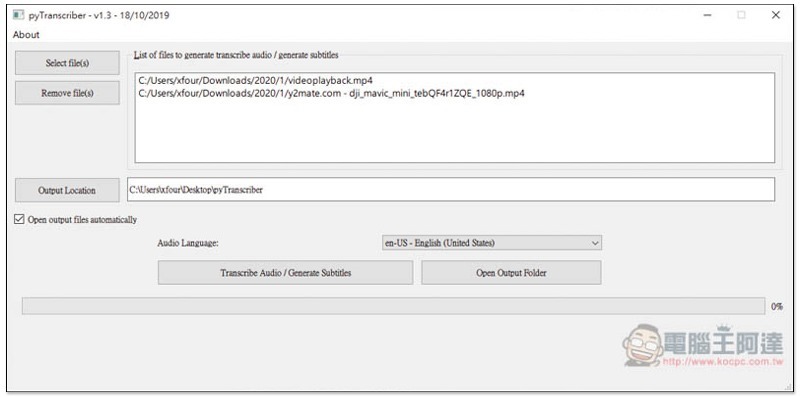
Although the operation interface currently does not support Chinese, you don’t have to worry too much about not being able to understand it. The operation is very simple. First, click Select file(s) in the upper left corner and select the video you want to convert to subtitles:
Supports batch processing, that is, you can select multiple videos at one time. If you select the wrong part, just click on the file and click Remove file(s) on the left to remove:
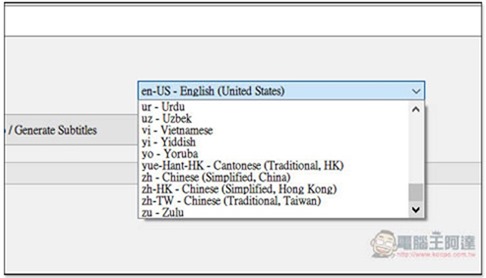
The second step is to open the language conversion menu in the lower right corner. Scroll to the bottom to find Traditional Chinese (zh-Tw – Chinese Traditional). The Chinese section also includes Chinese Simplified Chinese, Hong Kong Simplified Chinese and Hong Kong Traditional Chinese:
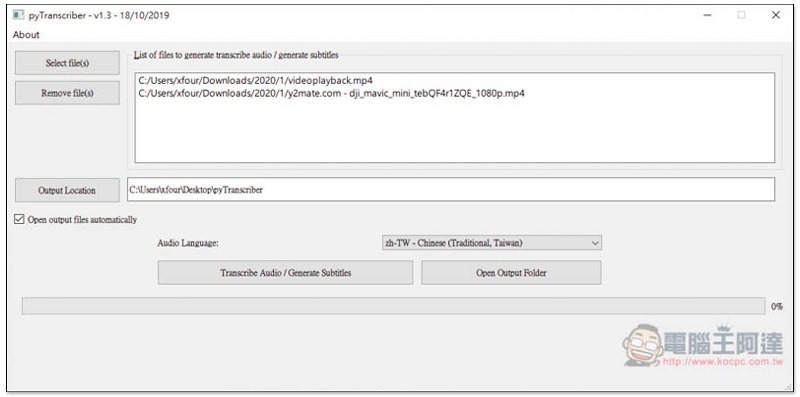
Confirm whether the location where Output Location is converted into subtitles and stored is what you want. The default is the pyTranscribe folder on the desktop. After everything is done, click Transcribe Audio / Generate Subtitles below to start the conversion:
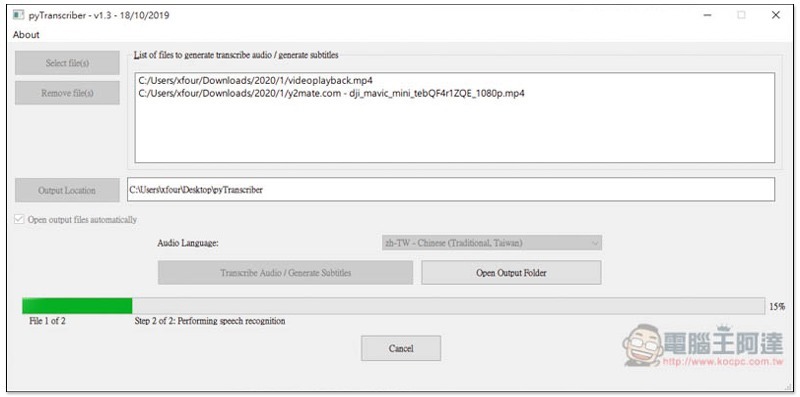
There are two steps in total. The first is to convert all videos into FLAC sound files:
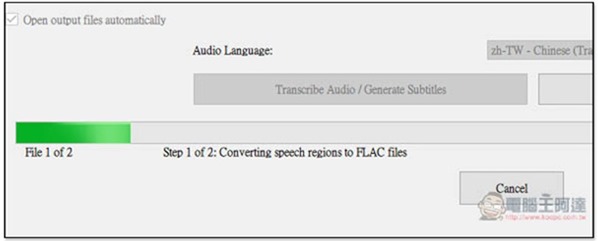
Then perform speech recognition and convert to subtitles. Although it is a two-step process, the processing speed is very fast. The total time for these two videos is about 50 minutes, and it only takes less than 4 minutes to complete:
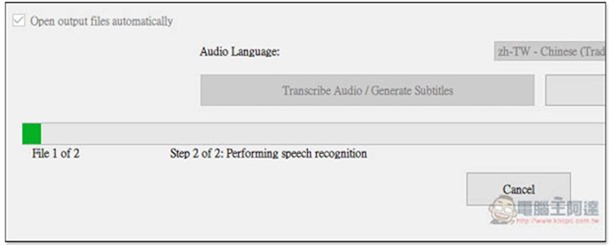
But I don’t know if there is a problem at the moment or something else. I chose Traditional Chinese, but it was recognized as Simplified Chinese. Readers can try it on their own. If the same, you can try it later or tomorrow. I think other people have correctly recognized Traditional Chinese:
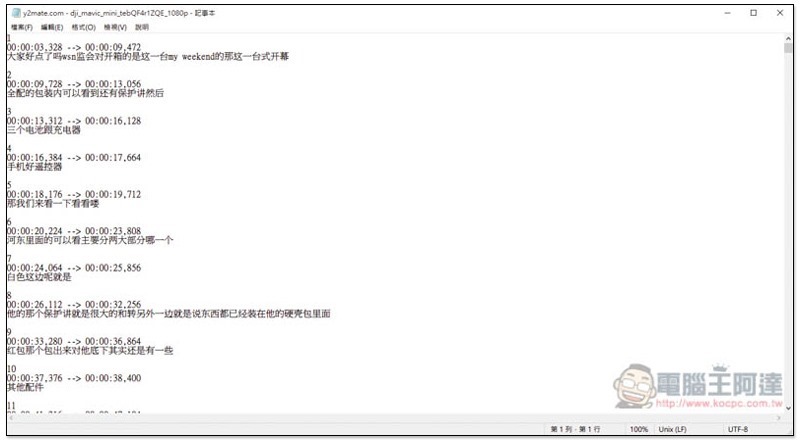
The time part is very accurate. Of course, the subtitles still have some errors, but they are not too outrageous. You still need to check and modify them yourself in the future.
Compared with doing it all by yourself, this system can save a lot of time in terms of time alone. Even if inspection and modification time are included, the efficiency is increased by at least 50%.
If there is a mix of Chinese and English, it will also recognize it, which is quite good.
Supplementary information
pyTranscribe download page:Click here to go
Source: KOCPC Chinese