


There is a personal pain that almost everyone will encounter on Windows 10, that is, it is not very convenient to adjust the volume of each application and software. For example, if you are watching a movie at a high volume and suddenly someone sends a Facebook message, the sudden loud volume notification will really startle you. The third-party tool EarTrumpet I will introduce today allows you to adjust the volume of each application independently, which is super convenient!

Windows 10 volume adjustment tired of the world? EarTrumpet makes your operation more convenient
Although there is indeed a function in the Windows 10 system that can independently adjust the volume of each software, the path is a bit multi-layered. You have to right-click the volume icon in the lower right corner of the screen and then proceed from the volume synthesizer. Is there a way to directly adjust the volume of media and mobile notifications as intuitively as on a mobile phone? EarTrumpet is a third-party tool that can be downloaded from the official Microsoft Store. It can perfectly solve the above problems after trying it.

Microsoft Store Download:Click here
The basic functions of this app are free, and in-app payment is available to unlock full functions, but I think the free version is enough for me. After downloading and installing it, start it. You will see a volume icon next to the volume control in the lower right corner, or it may be hidden in the menu. You can pull the original volume icon back to the menu and pull down the EarTrumpet icon to replace the original icon.
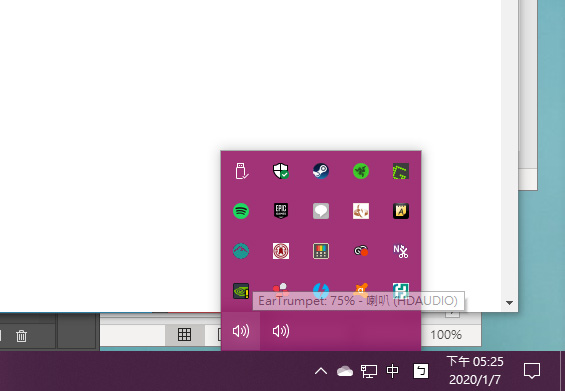
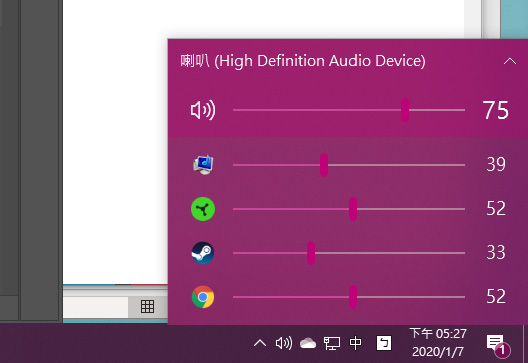
Next, click on the icon belonging to EarTrunpet to see all the volume controls you currently have open, whether they are running in the background or the independent volume control slider of the application software on the desktop. You can adjust the volume of the application individually by dragging it.
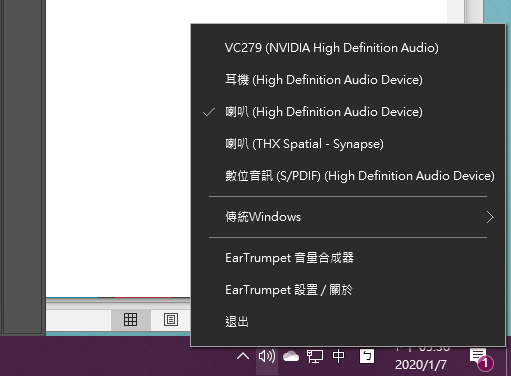
You can also quickly select the audio device you want to use at the moment.
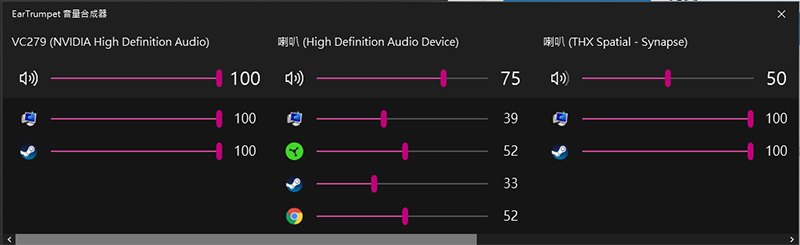
In addition, you can also enter EarTrunpet’s volume synthesizer to independently adjust the volume of all audio devices connected to the computer.
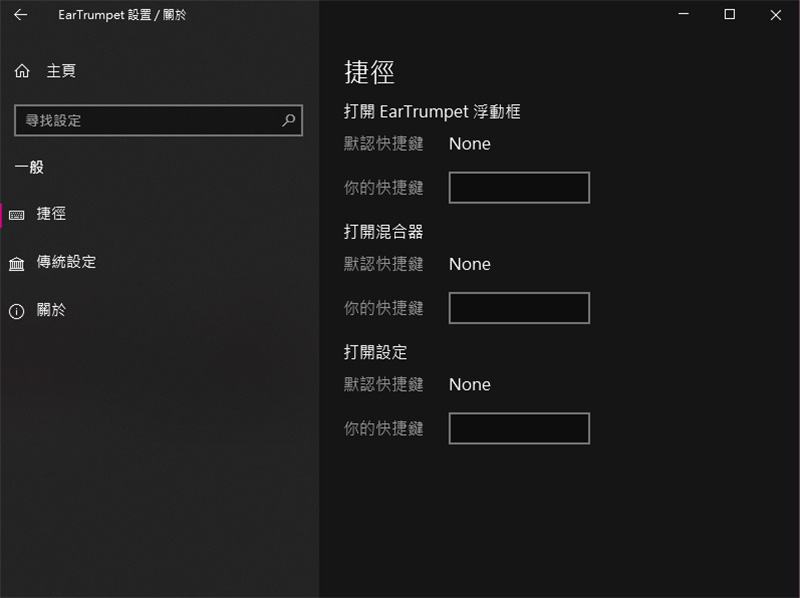
In the settings, you can also customize the shortcut keys for opening the mixer, floating windows and setting functions, which is a very convenient gadget.
In this way, you don’t have to worry about the message or system sound that suddenly pops up or the system sound being too scary when you are watching a horror thriller. You are not scared by the movie but are frightened by the system notification. It is very useful. Share it with everyone!
Source: KOCPC Chinese