


The LINE iOS update released not long ago added support for Dark Mode. This update was launched as early as the LINE Android version update on October 7 last year. This time after the LINE iOS version update, iOS 13 users can also automatically switch to dark mode in LINE according to the system display appearance. I believe many readers will be very curious. How does this update differ from LINE’s built-in “Extreme Black” theme? This article also provides you with a direct comparison of the interface display differences between dark mode and extreme black theme.
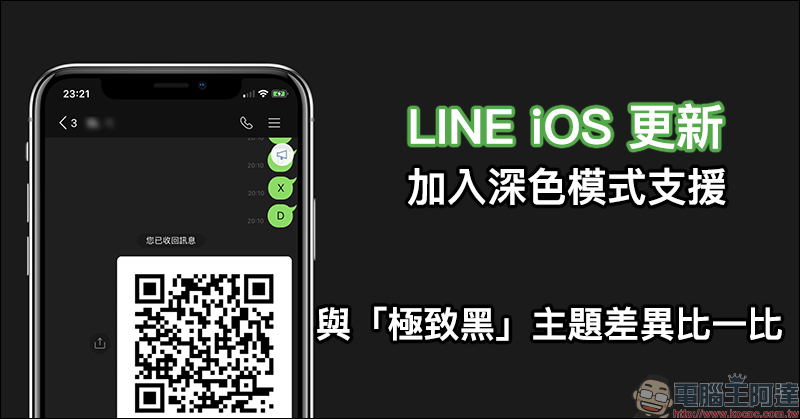
LINE iOS update: Added dark mode support, compare the differences with the “Extreme Black” theme
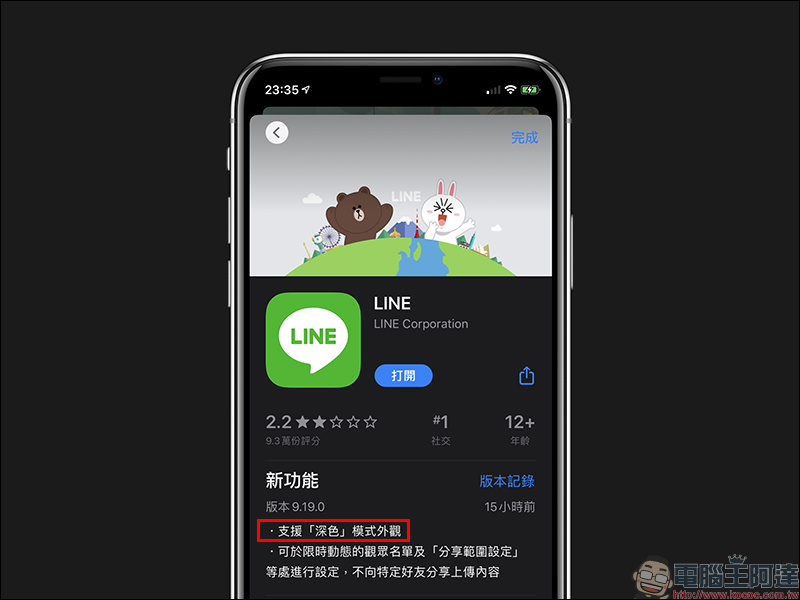
In the LINE iOS version 9.19 update, “Dark Mode” support is added, allowing iOS 13 users to directly use the system’s built-in Dark Mode application to display in the LINE App.
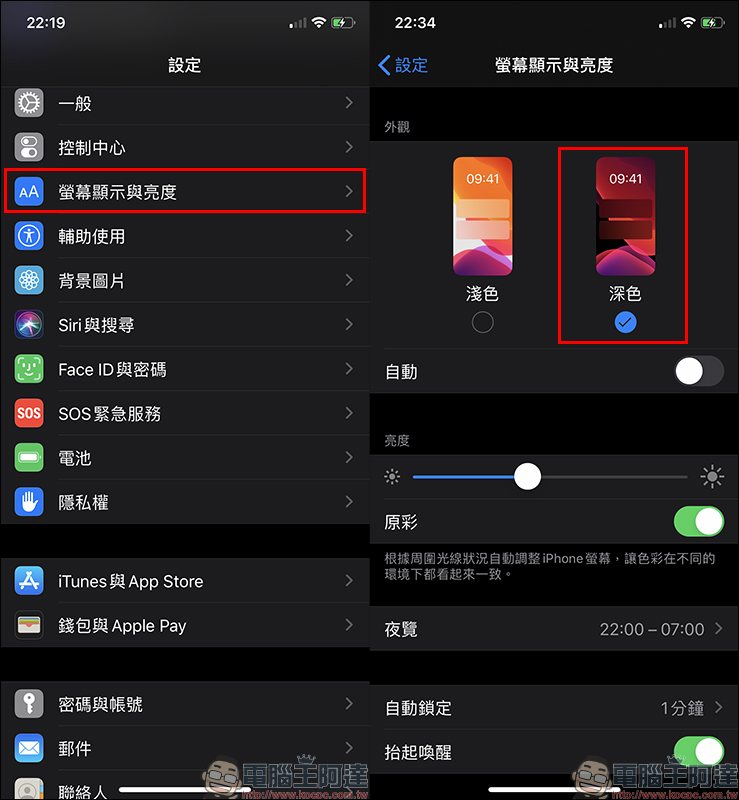
In order to display the effect of this LINE dark mode normally, the iOS device system must be upgraded to iOS 13 and switch the “Appearance” of the screen display and brightness to “Dark” in the settings page:
Then select “Basic Theme” in the theme set in LINE App. If you use other themes, the effect will not be displayed:
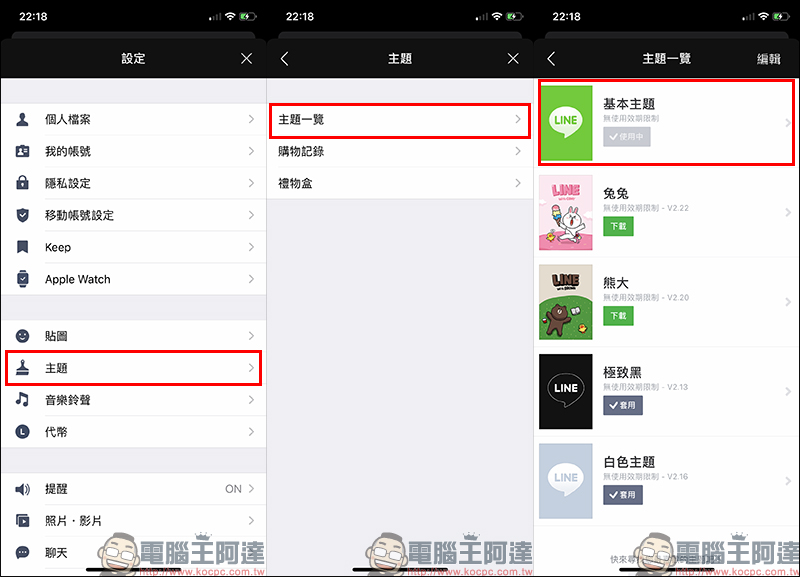
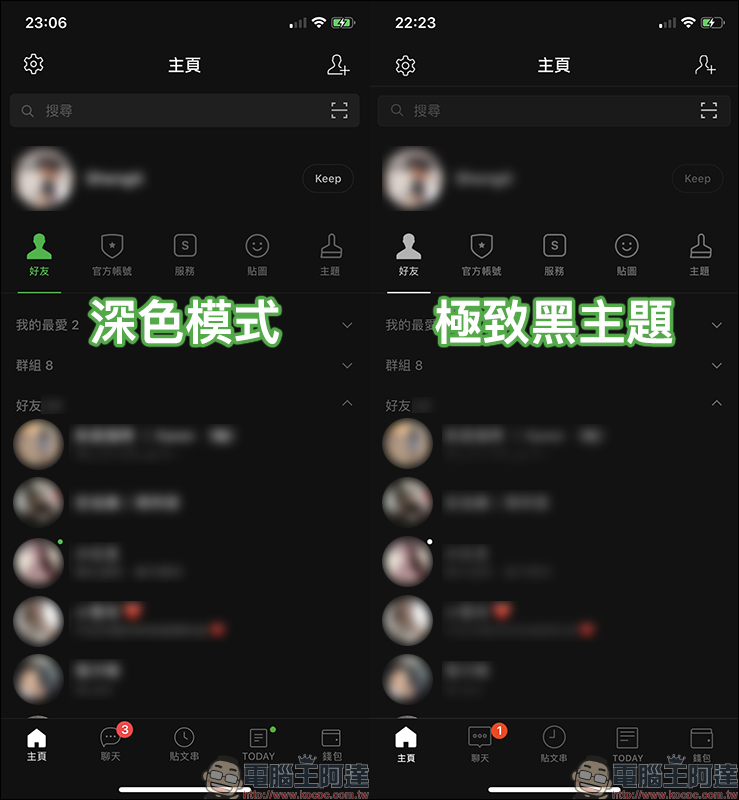
However, LINE has provided a free “Ultimate Black” theme for a long time. I believe that many users who prefer a dark and black interface have been using this theme for a long time. What are the detailed differences in display between the “Dark Mode” and “Extreme Black” themes this time? The first thing you can see at a glance is the icons of each menu button at the bottom of the LINE screen. Then the color of some buttons remains the default “green” in dark mode, but is “off-white” in extreme black theme:
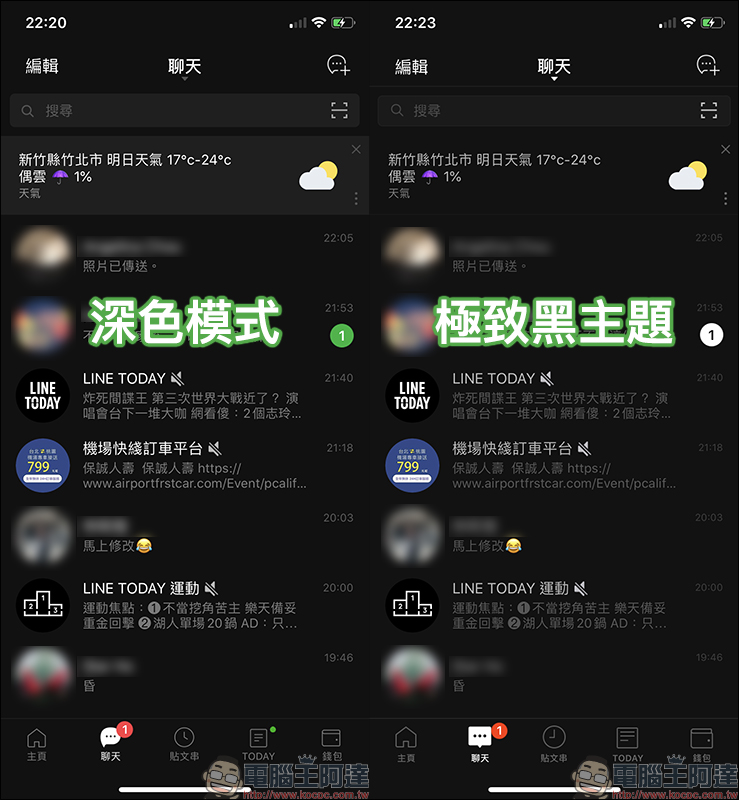
On the chat page, unread messages will be displayed in “green” in dark mode, while in extreme black, they will be gray and white. The background color of the search box at the top of the screen and the information displayed on the chat tab are both lighter gray, while Ultra Black is a dark gray similar to the background color:
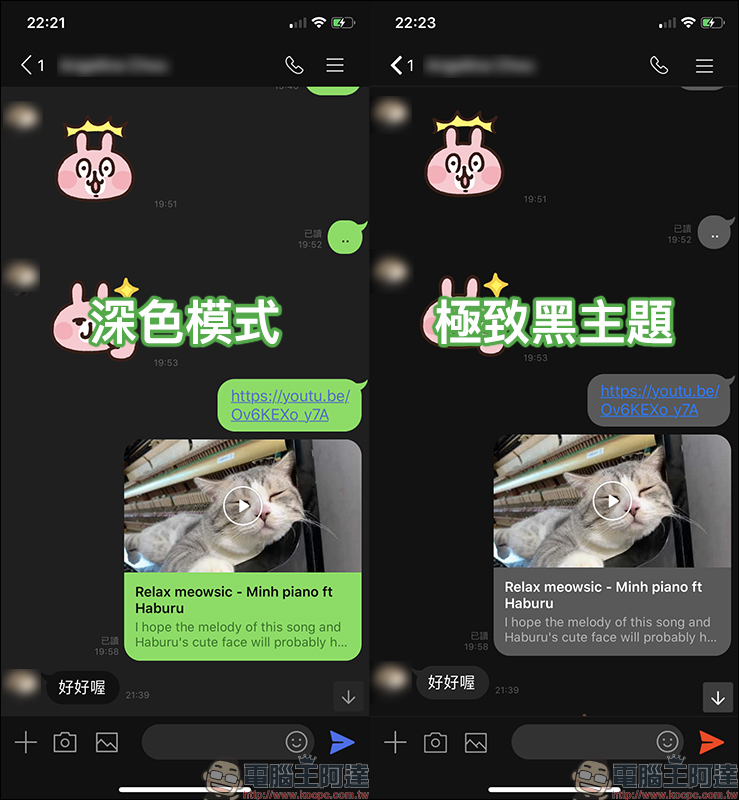
The difference is more obvious on the chat room page. In dark mode, the text message box sent by the user is the default green, while in extreme black, the text box is gray. In addition, the chat room background has a lighter gray background color in dark mode, and a black background color in extreme black mode:
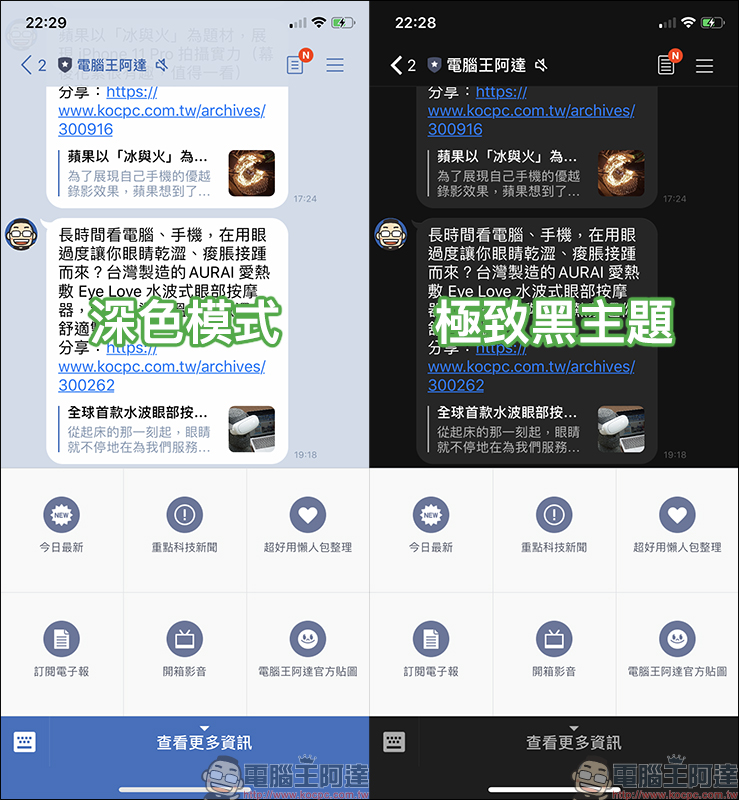
In addition, the chat room background of the official LINE account will still maintain the account’s default theme in dark mode, but the chat room background in the ultimate black theme will be the same black and gray color combination as the chat room backgrounds of other general users:
On the post string page, the “+” button for adding a new post string is a green button in dark mode, and a gray button in extreme black theme:

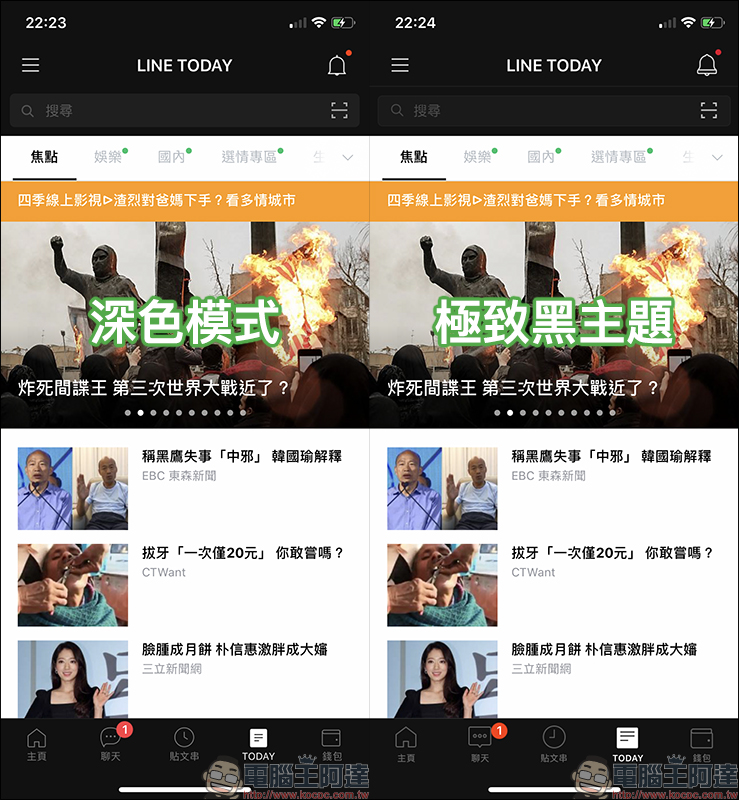
On the LINE TODAY page, the dark mode adopts a consistent black style at the top of the screen, while the extreme black theme has an additional gray dividing line above the search box (although it is not obvious):
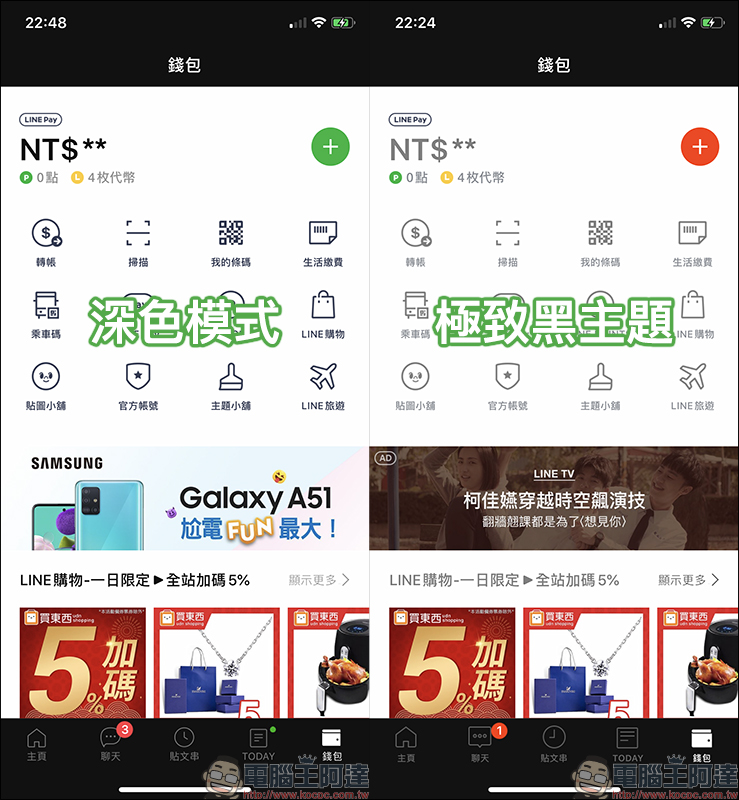
In the dark mode of the wallet page, the text and buttons are darker and clearer to read, and the LINE Pay button is green; in the extreme black theme, the text and buttons are light gray, and the LINE Pay button is red:
After comparing the differences between “Dark Mode” and “Ultimate Dark Theme”, I wonder which display effect you prefer? The author personally recommends that if you want to get a better reading effect, it is recommended to choose the LINE basic theme with the dark mode effect of the iOS system; if you want to have a more consistent “dark black” in the chat room and other LINE applications, you can choose the “Extreme Black Theme”. In addition, users whose iOS version has not been upgraded to iOS 13 and want to experience LINE’s dark display interface can directly download the “Ultimate Dark Theme” app.
LINE App download:iOS version (App Store)| Android version (Google Play Store)
LINE extreme black theme download:Click here to go
Further reading:
Comprehensive collection of LINE application tips: 28 must-learn practical skills. After reading this article, you will become a LINE expert!
Source: KOCPC Chinese