


In addition to connecting the mail box to computer software such as Outlook, Gmail users must open a webpage if they want to read letters on the computer. However, sometimes it is difficult to find the tab when there are too many tabs open (tongue twister). This time I found a super useful extension “Checker Plus for Gmail”. No matter what tab is opened in your browser, you can quickly click on the small icon to read, write, and manage letters. It is so convenient that you can’t put it down!
Checker Plus for Gmail extension plug-in, you can quickly check emails without opening the Gmail web page (Chrome / Firefox)
The plug-in introduced this time is particularly useful for people who often need to send and receive letters. Especially when you are using the browser to do other things, it is actually a bit annoying to open or return to the Gmail web version or open Outlook from time to time. Next, let’s see how useful this plug-in is!
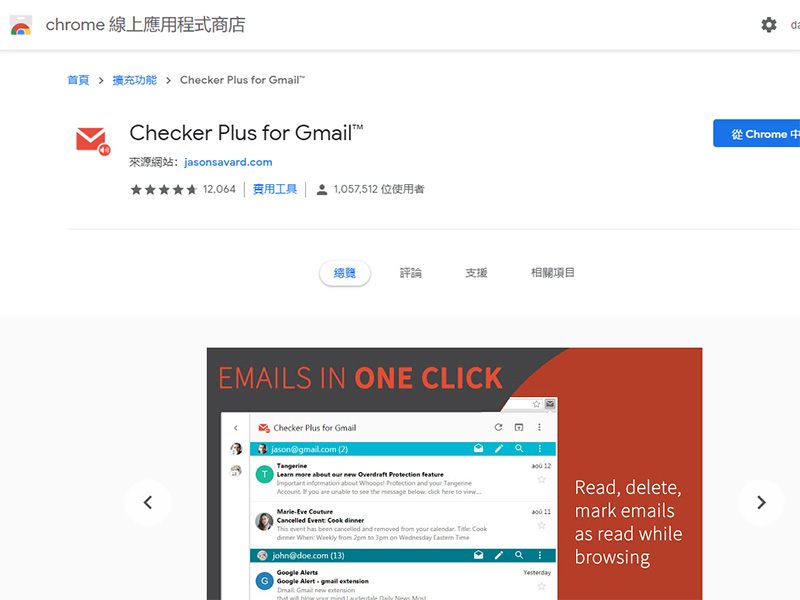
[Extended installation:Chrome / Firefox】
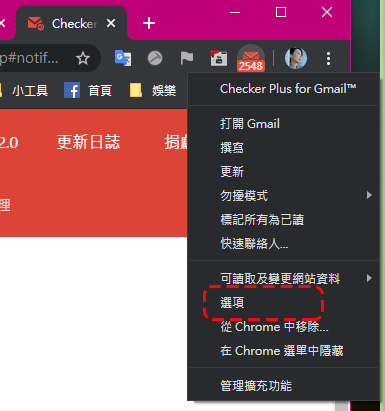
Here, I will not talk about the user interface first, but I must start with its rich setting options. Right-click on the small icon to see “Options” and click to enter the settings page.
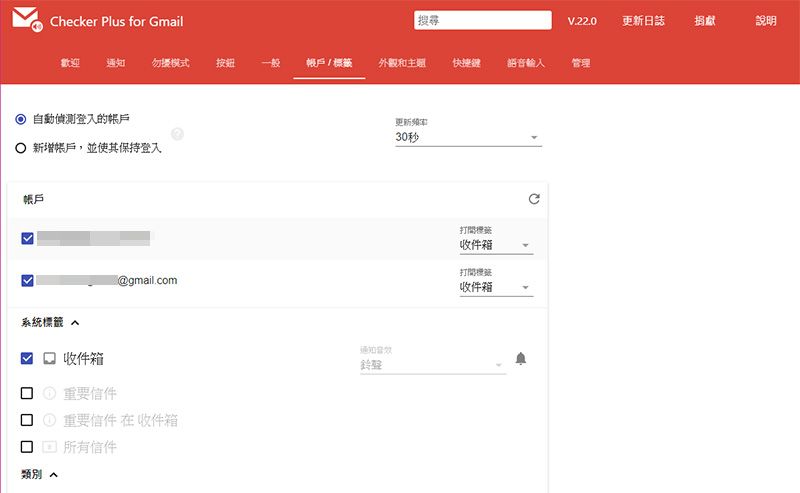
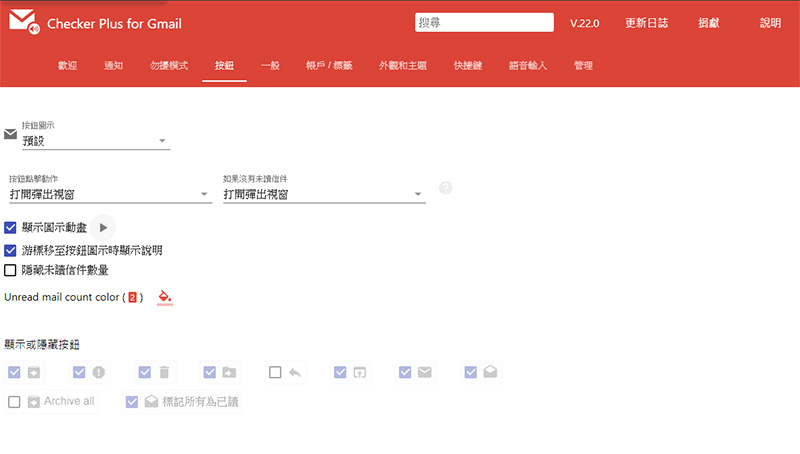
Here you can set the notification ringtone, the display of incoming messages, the timing of automatic activation of Do Not Disturb mode, the button to act on messages, the appearance theme, etc. You can set these parts yourself. What I want to talk about is also the most important part. This plug-in allows you to manage the mailboxes of multiple accounts. You only need to set it in the “Account/Label” tab. In addition to automatic detection, you can also manually add new accounts and stay logged in. In addition, you can also set the automatic update frequency of the mailbox.
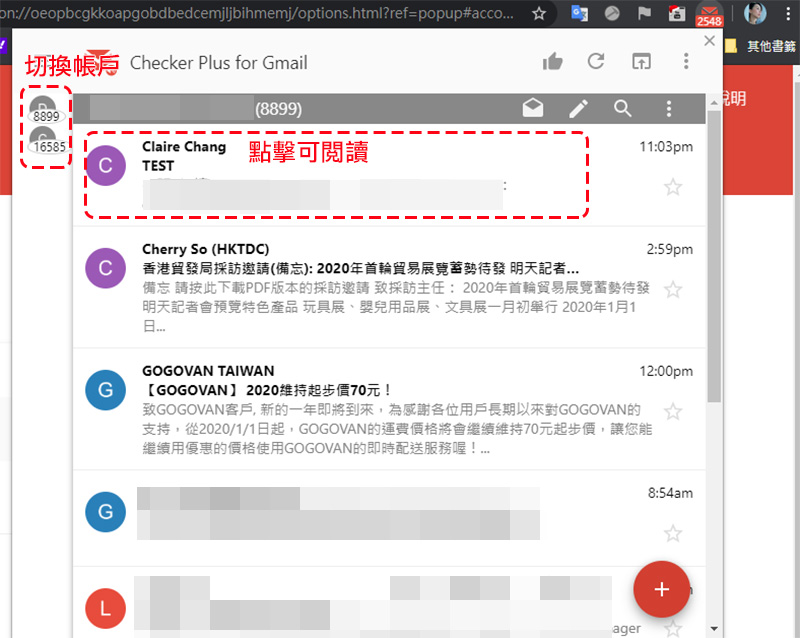
After setting everything up, let’s take a look at the interface. The small icon in the upper right corner will display the current number of unread letters. Press the left button to see the unread letters in the current inbox. Simply click on the title of the letter to expand it and read it. On the left, the accounts you have currently set up to be linked are displayed. Click the circular icon to switch between accounts. If you want to write a letter, click the red circle + sign in the lower right corner to open the writing window to write a letter!
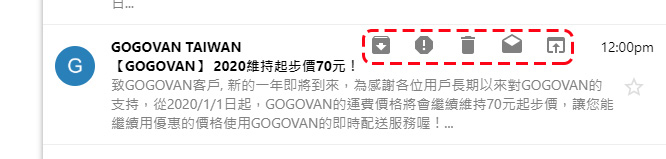
Here you can directly manage the mail. Move the mouse to the mail, and the control items will appear, including archive, mark as spam, delete, mark as read, and open Gmail. For these control items, you can customize the display buttons in the “Buttons” in the settings interface.
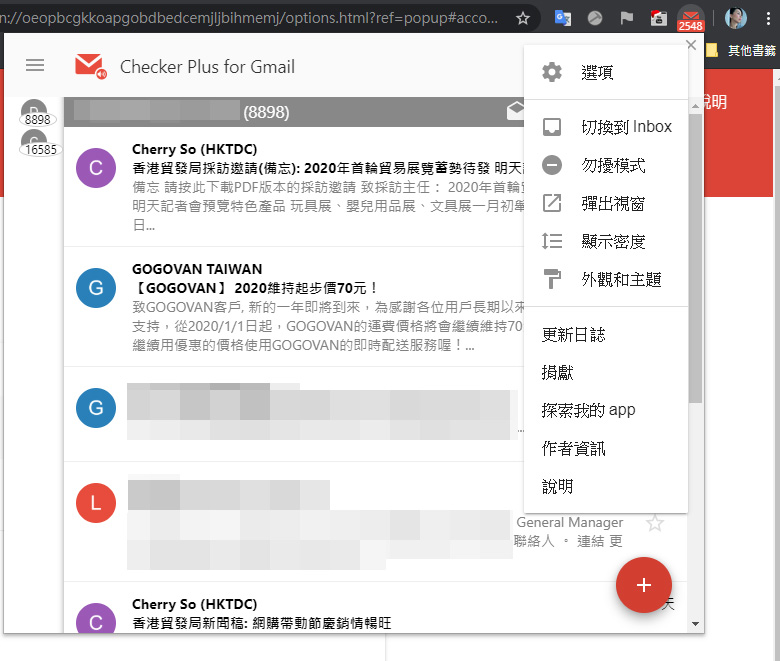
In the letter reading interface, click the 3-dot menu in the upper right corner to make other settings, such as pop-up windows, manually turning on Do Not Disturb mode, etc.
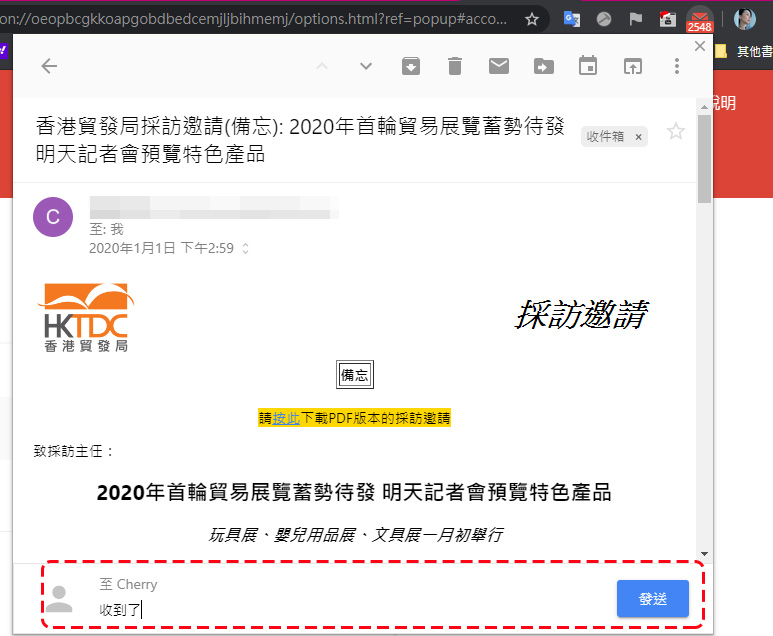
It’s not a problem if you want to reply directly to the letter. After clicking on the title of the letter to open the letter, you can directly enter the content of the reply below.
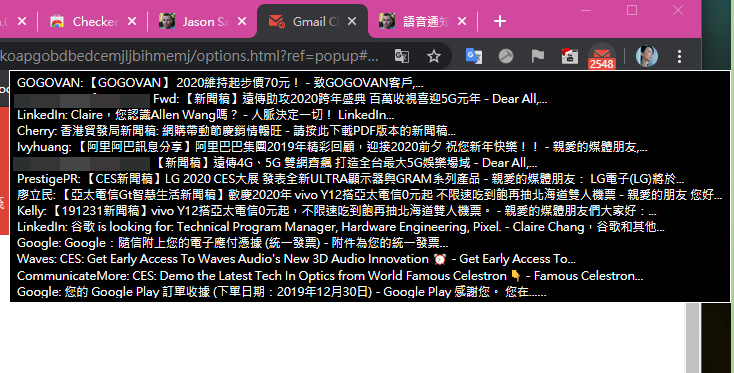
In addition, if you don’t want to click on it and just want to see what messages have come in, you can move your mouse over the small icon to see the titles of recent unread messages.
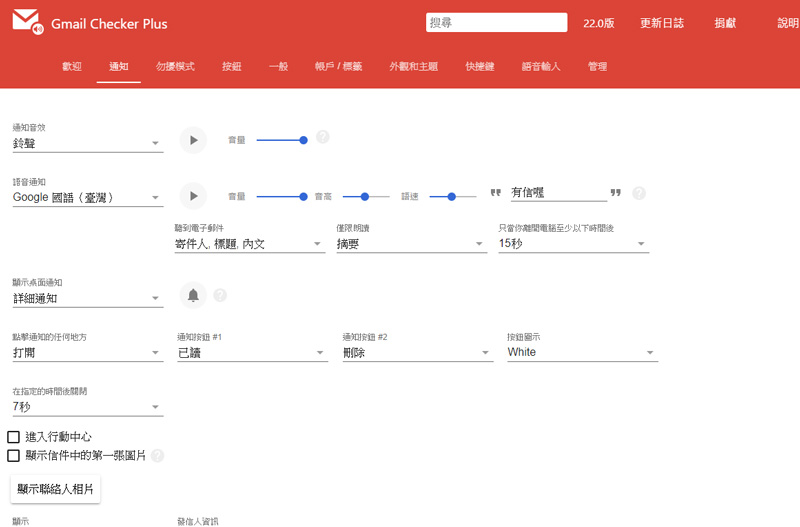
When a new message comes in, the small icon will also shake as a reminder. You can also set sound effects or voice prompts in the options. There are also various ringtones and languages to choose from, and you can also enter the desired prompt content.
This plug-in is especially useful for people who are used to opening many windows. When you want to go back and find the Gmail page, it may not be so easy. As long as you install it, you can check new messages without interruption even while watching YouTube!
Source: KOCPC Chinese