


Last year, Microsoft put forward a clear vision: documents should actively deliver value to users, rather than forcing people to spend time managing them. Building on this idea, Microsoft rethought the role of OneDrive—it is no longer just cloud storage, but an intelligent layer that understands content, facilitates collaboration, and connects the entire Microsoft 365 workflow. Today, OneDrive is smarter, more collaborative, and more deeply woven into daily work.
This spring,Microsoft will officially launch the next-generation OneDrive.It brings together intelligence, collaboration, cross-platform experience, and enterprise-grade governance in a single product, helping individuals and teams move smoothly through their entire workflow—from creating their first file to delivering final results. This year’s core direction is clear: enabling users to move faster from “documents” to “outcomes,” and to manage their work with confidence and peace of mind, anywhere and on any device.
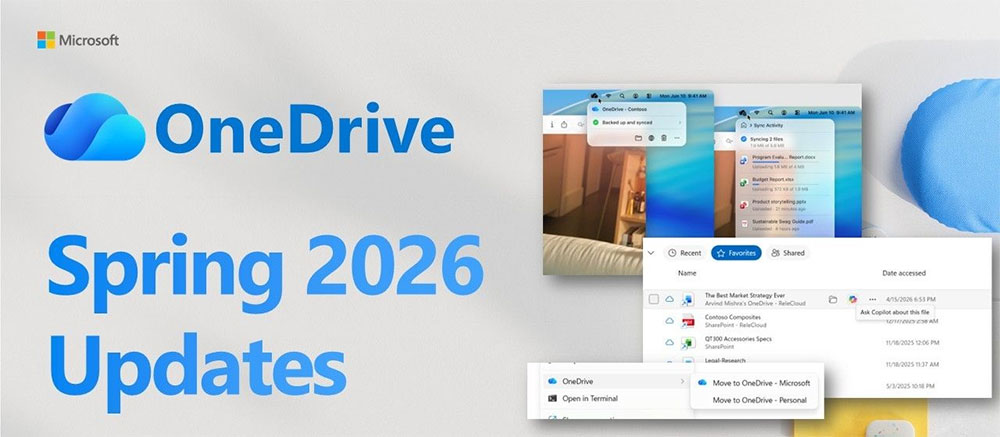
Microsoft announces the AI-driven strategic direction for OneDrive going forward.
Understand and apply your content
Late last year, Microsoft added an “AI Actions” button to SharePoint document libraries, allowing users to find content faster, get answers, and act on documents using natural language. This March, Microsoft further advanced SharePoint’s AI capabilities, enabling users not only to understand content, but also to build and manage systems around it, including pages, lists, libraries, and structured workflows. Building on that foundation, Microsoft is expanding these capabilities again so users can find the right content faster, understand information more effectively, build more organized content structures, and share results with confidence:
- Capture and reuse shared context within the organization
- Create reusable skills for multi-step processes
- Generate documents, presentations, spreadsheets, and other structured output directly from SharePoint content.
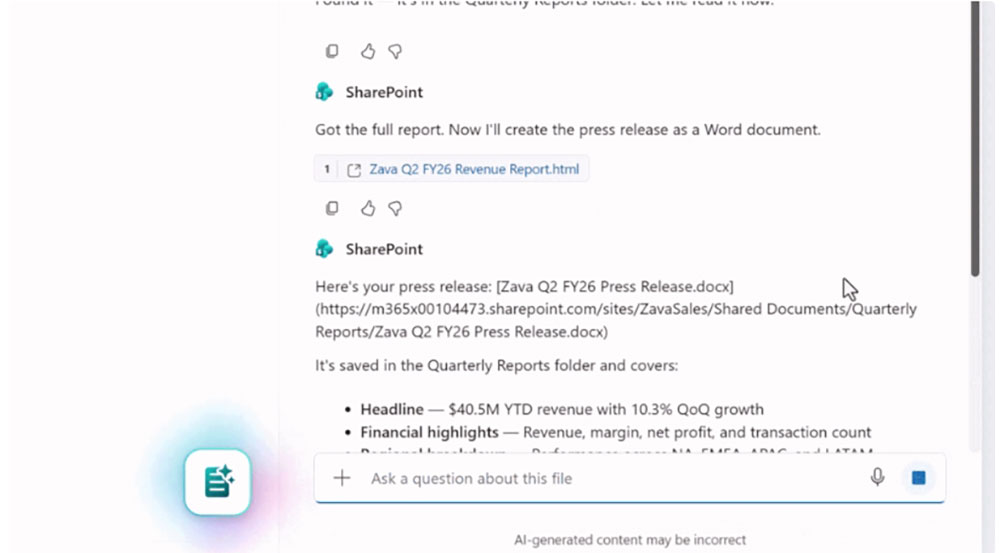
Experience the power of AI in OneDrive
OneDrive is now fully integrated with Copilot, bringing AI into your everyday file workflows. Whether you’re reviewing PDFs on the web, using OCR on your phone, locating files with semantic search, or using Ask Copilot in File Explorer, AI helps you find and understand content faster, and take action without breaking your workflow. Through the Copilot icon in OneDrive, you can:
- Instantly summarize documents, presentations, PDFs, and images
- Ask questions and get answers related to the document content.
- Compare versions
- Review the meeting recording
- Extract key points from whiteboard photos

Comprehensive Upgrades to Markdown, PDF, and OCR
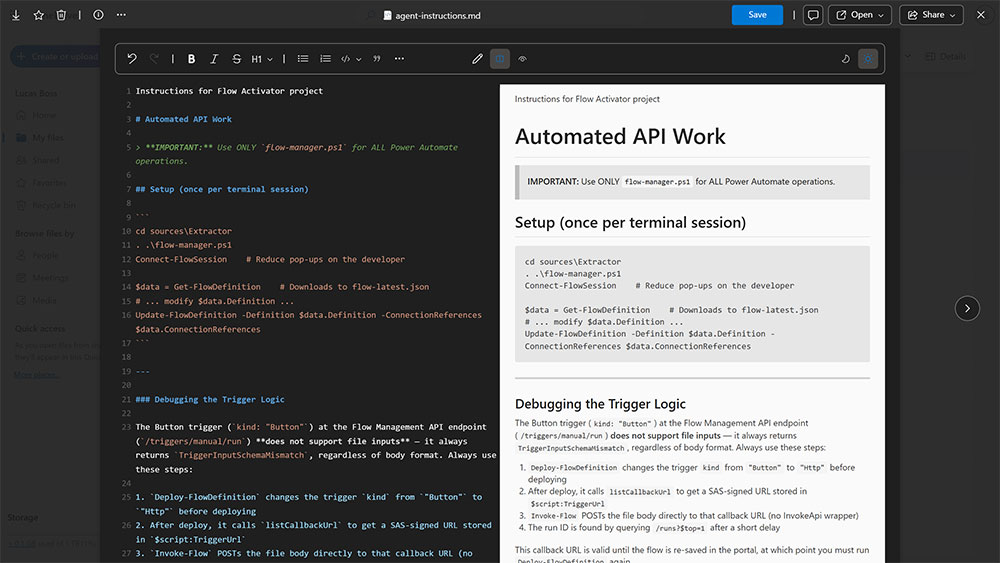
- Markdown Support
OneDrive and SharePoint now fully support Markdown, so you can create, view, and edit .md files directly in your browser and display them alongside other files.
- Copilot in PDF
Copilot is now officially integrated into the PDF viewer in OneDrive and SharePoint. Select text to use AI actions, or enter your own prompts for more in-depth assistance.
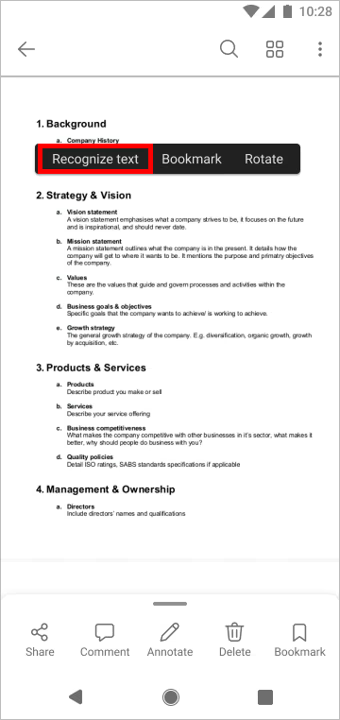
- Mobile OCR
OCR is now built into the OneDrive Android and iOS apps, helping you capture information, speed up document workflows, and search content more easily.
Find content faster: Offline search and semantic search
- Offline search on iPad
Even without internet, you can still quickly search offline-stored files by filename, so there’s no need to dig through folders manually. - Semantic search on Windows
On Copilot+ PCs, you can search for files by describing what’s in them, without having to remember the file names. Semantic search matches both local and cloud-based OneDrive files and shows results directly in File Explorer. - Ask Copilot in File Explorer
Windows Insiders can now preview the “Ask Copilot” floating icon on the File Explorer home page to get summaries and key information about recently used files, or even generate email drafts.
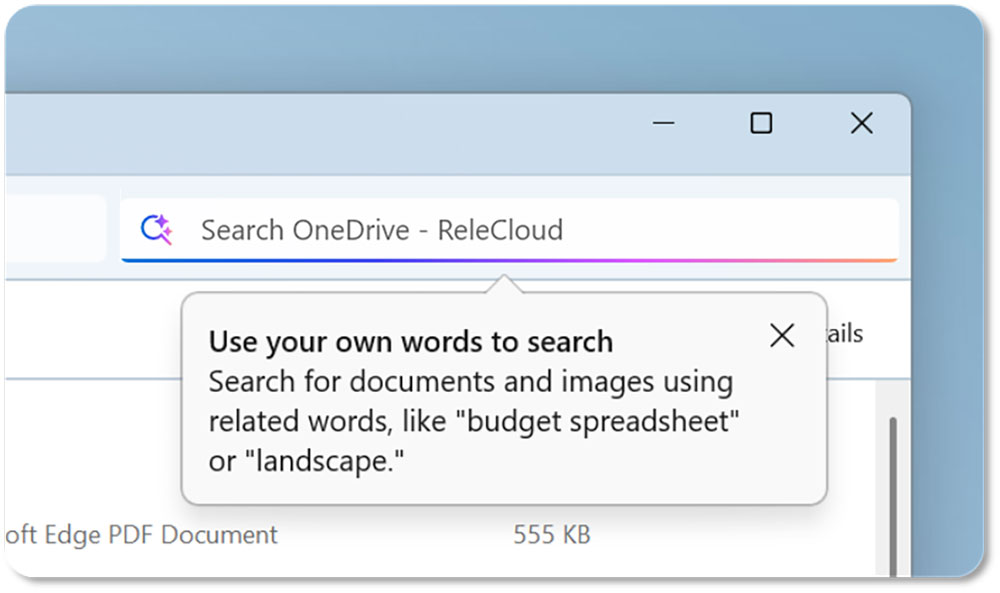
Simpler, safer collaboration
- Hero Link and a brand-new shared experience
Launched last year, Hero Link lets users manage document permissions with a single link. This summer, Microsoft will introduce a new sharing interface that makes sharing and permission management more intuitive and consistent.
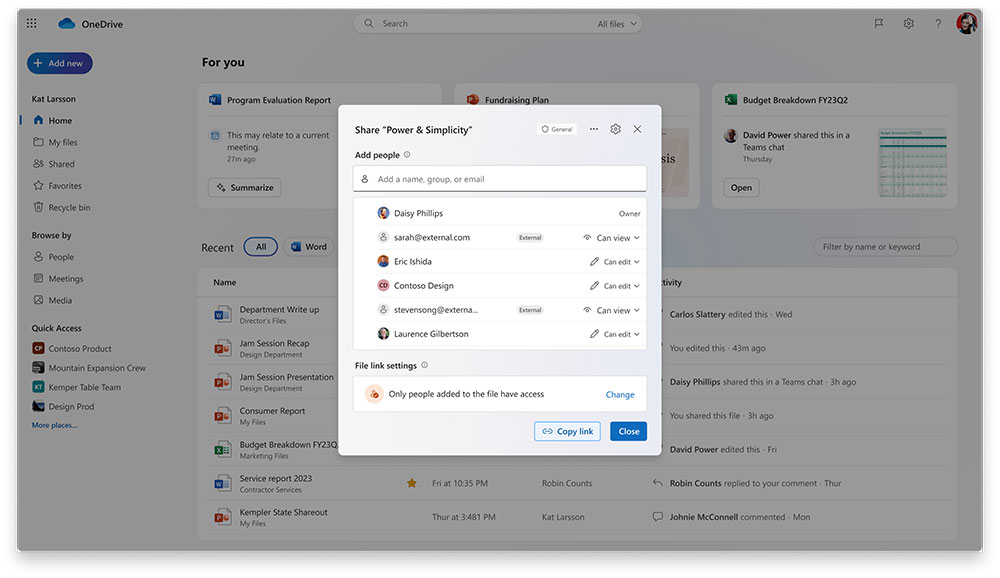
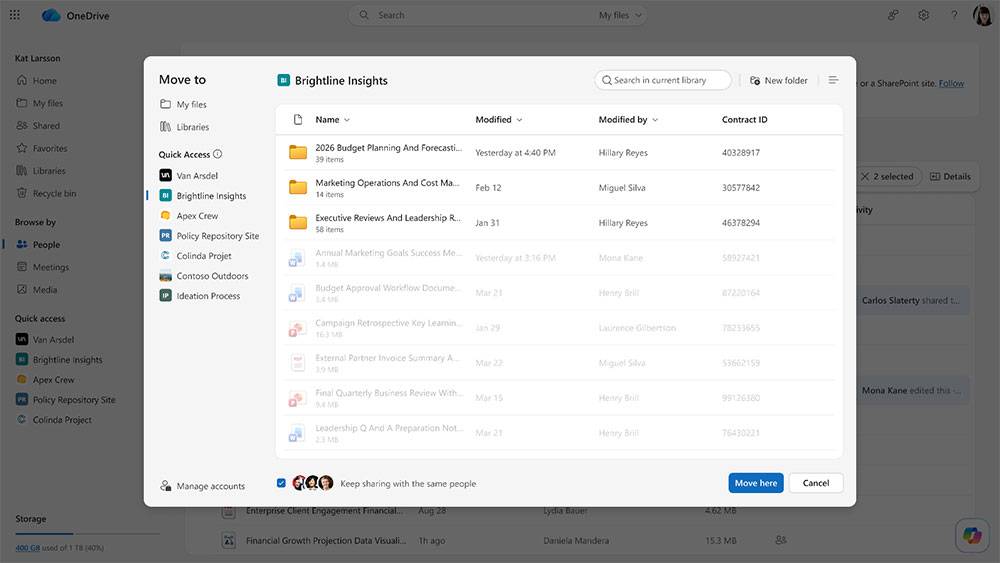
- Improved ownership transfer
The new ownership transfer experience will roll out fully over the coming weeks, helping teams maintain continuity when members leave. Admins can filter documents by sharing status, preserve existing permissions, and take action through updated notifications.
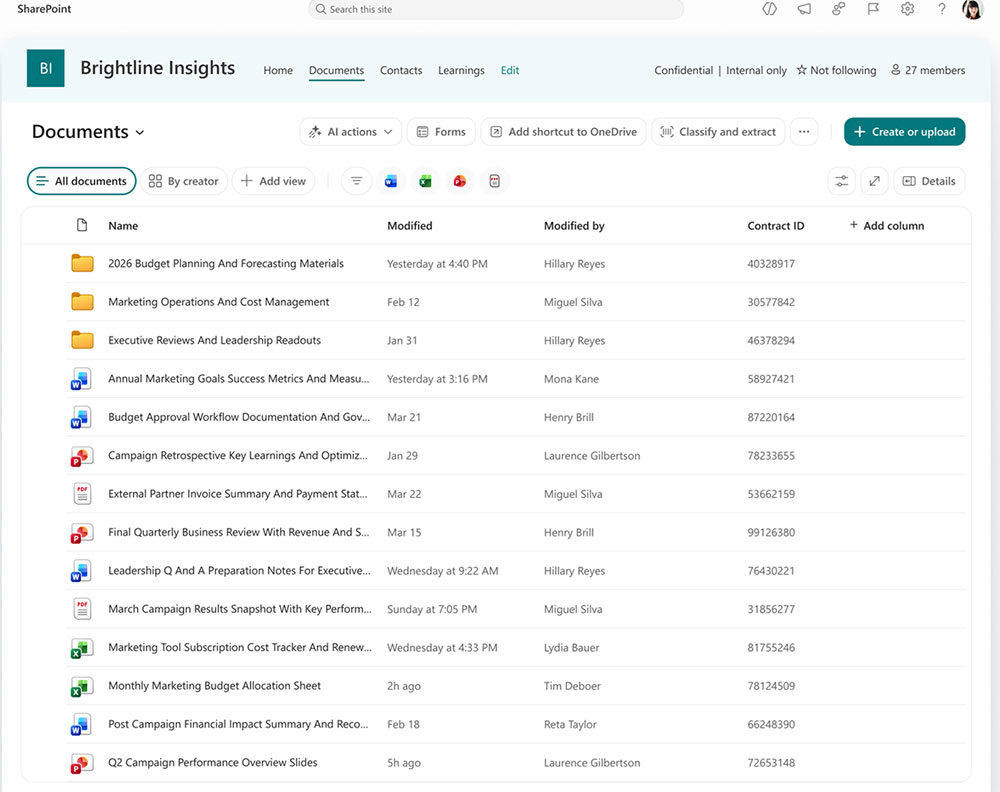
- SharePoint Document Library Update
The new document library offers more intuitive custom views, filters, and a streamlined command bar, making frequently used actions easier to access. Conditional formatting and metadata organization are also integrated into a cleaner settings interface.
Stay productive no matter where you are.
- Windows: Sync limit increased to 1 million items
The OneDrive Sync public preview now supports syncing up to 1 million items, helping large teams manage large document libraries. Devices that do not meet the hardware requirements will keep the 300,000 item limit and remain unaffected. - macOS: All-New Visual Design
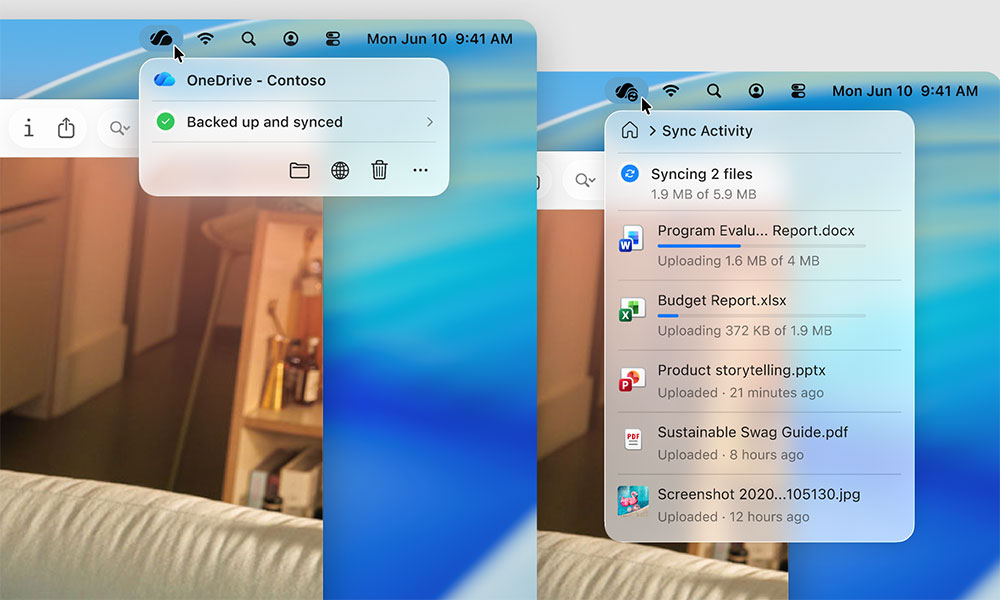
OneDrive for macOS gets a brand-new design, including a redesigned Activity Center and system dialogs, built with SwiftUI and the macOS Liquid Glass design language, delivering a clearer and more responsive syncing experience.
- iOS: All-New File Previewer
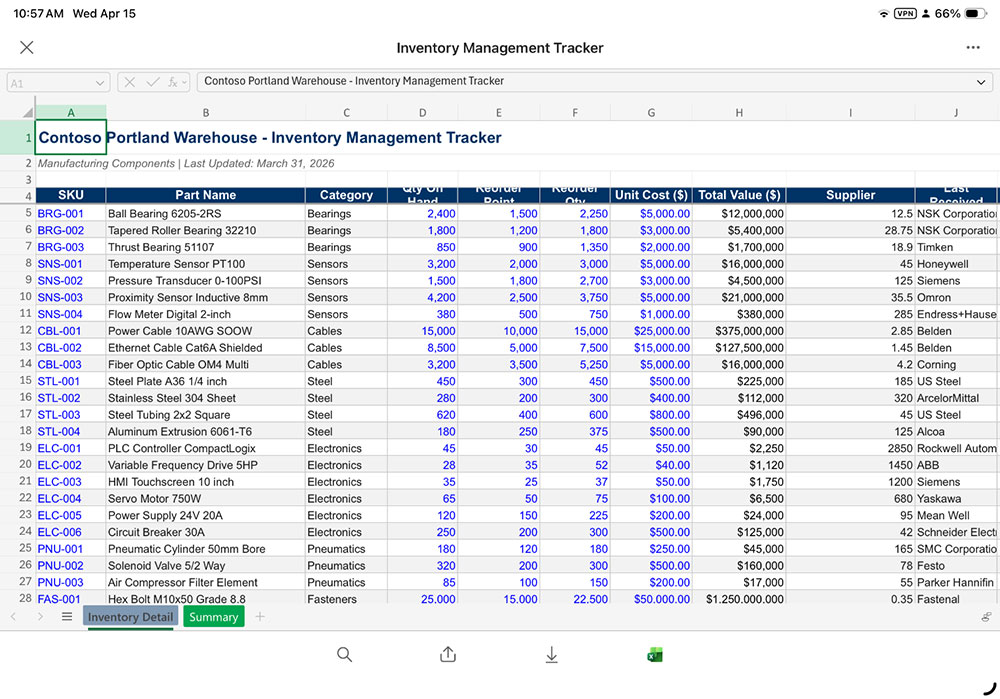
The iOS version of OneDrive now lets you preview Word, Excel, and PowerPoint files directly within the app without downloading them, while maintaining Microsoft 365 security.
- Move local folder to OneDrive
You can now right-click an entire folder in File Explorer and move it to OneDrive, keeping the original structure and making it easier to back up large numbers of files.

- Customize OneDrive folder name
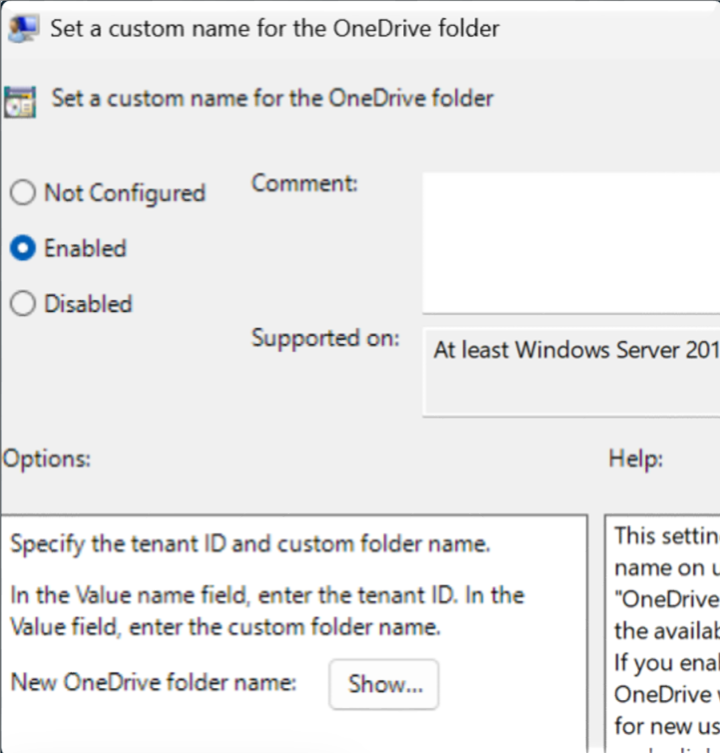
IT admins can set a shorter custom name for the local OneDrive sync root folder to reduce issues with Windows path length limits. More related improvements are coming soon.
Security and Governance: More Granular Control
- SharePoint file-level archiving
Microsoft 365 Archive now supports archiving individual files, moving inactive content to lower-cost storage without affecting site operations. - Expired “Organization Members” Link Strategy
New admin policies can automatically set “People in your organization” links to expire after a specified period, such as 30 or 90 days, balancing collaboration convenience with security.
Source: KOCPC Chinese