


when you feel iPhone When the Internet slows down, app downloads freeze, or photo backups keep spinning, the first reaction of most people is to open Speedtest. Speed test. But in fact Apple A simple and ad-free speed test tool has been hidden in its official app for a long time. Not only is this feature free, but the measured data is closer to your actual experience using Apple services.
The point is, there’s no need to install a bunch of additional third-party tools. Many people use iPhone every day but don’t know this feature exists. Today I will take you through how to open it, how to read the data, and what is the difference between it and general speed testing apps.
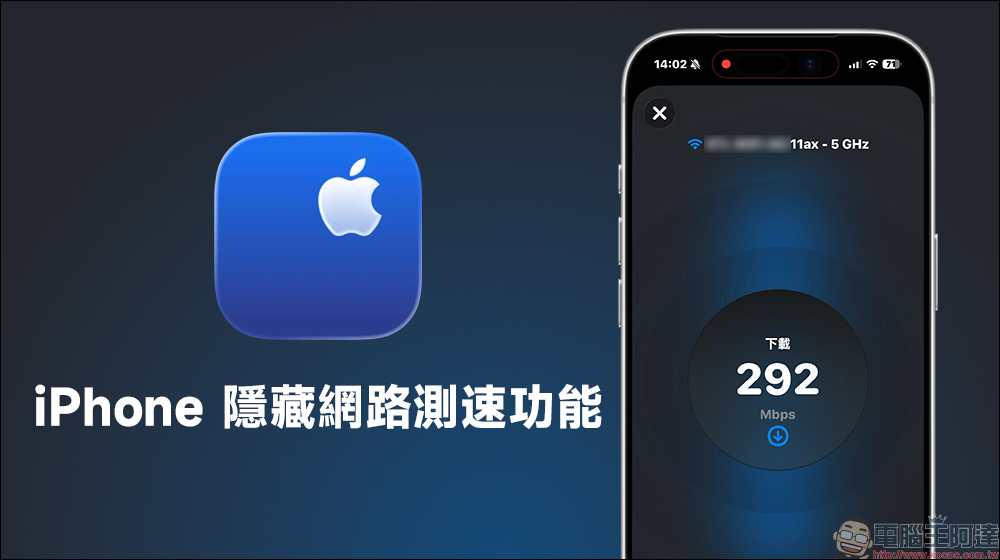
What to do if iPhone network lags? Apple official app can measure speed
If you want to test the Internet speed of your iPhone or iPad, besides using Speedtest, is there an ad-free and more convenient option? The network testing tool I’m going to introduce today is actually hidden in the official Apple Support App. As long as your iPhone or iPad has been updated to the latest iOS/iPadOS and downloaded from the App Store “Apple support” App, you can use it.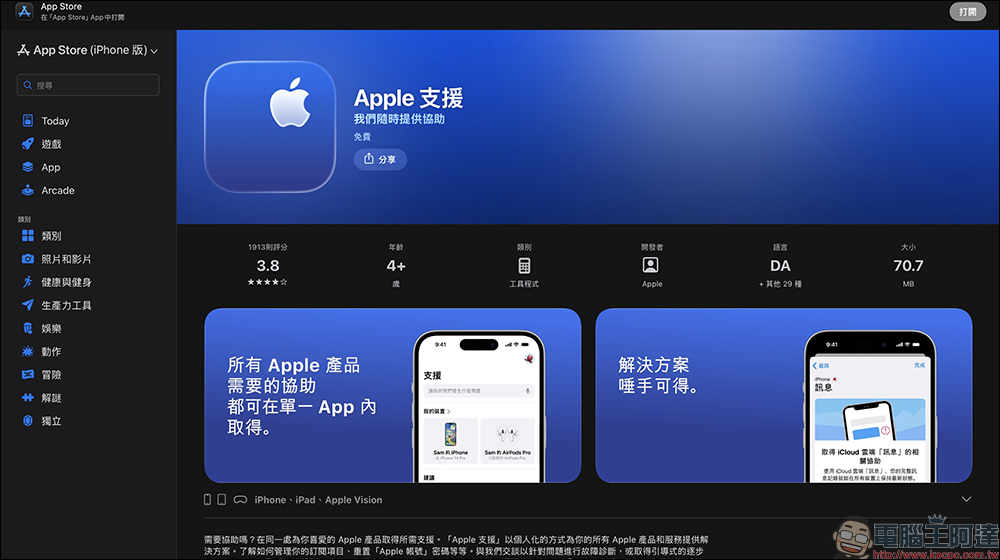
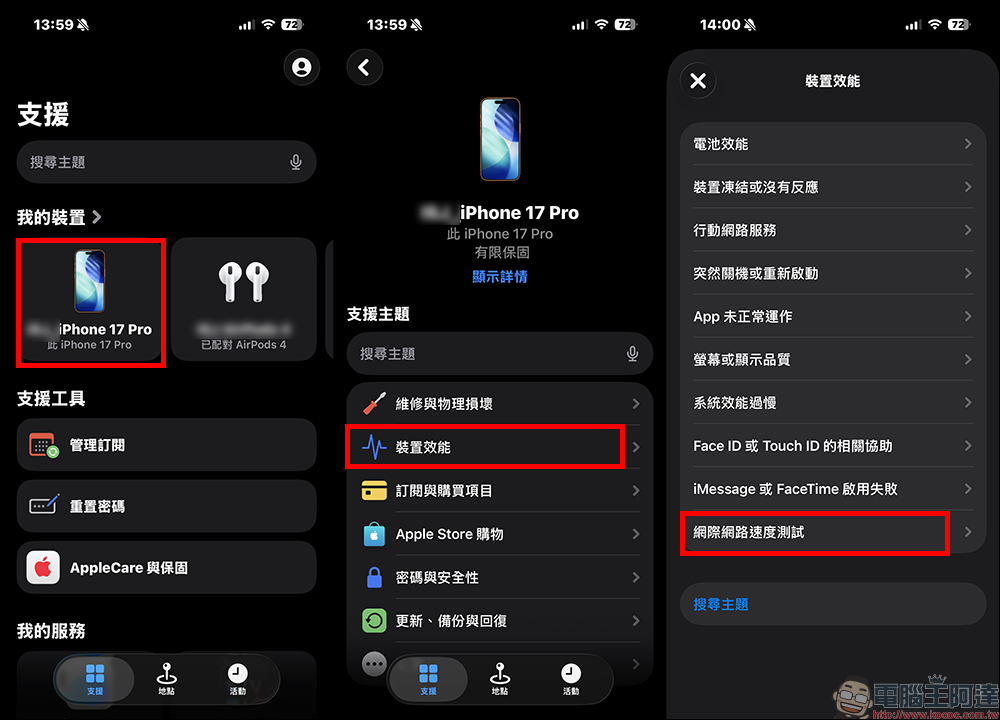
The steps are actually very simple. First, open the Apple Support App and select the iPhone you are currently using in the “My Devices” list. Then scroll down the page and find “Device Performance”. After clicking in, you can see “Internet Speed Test” at the bottom of the menu.
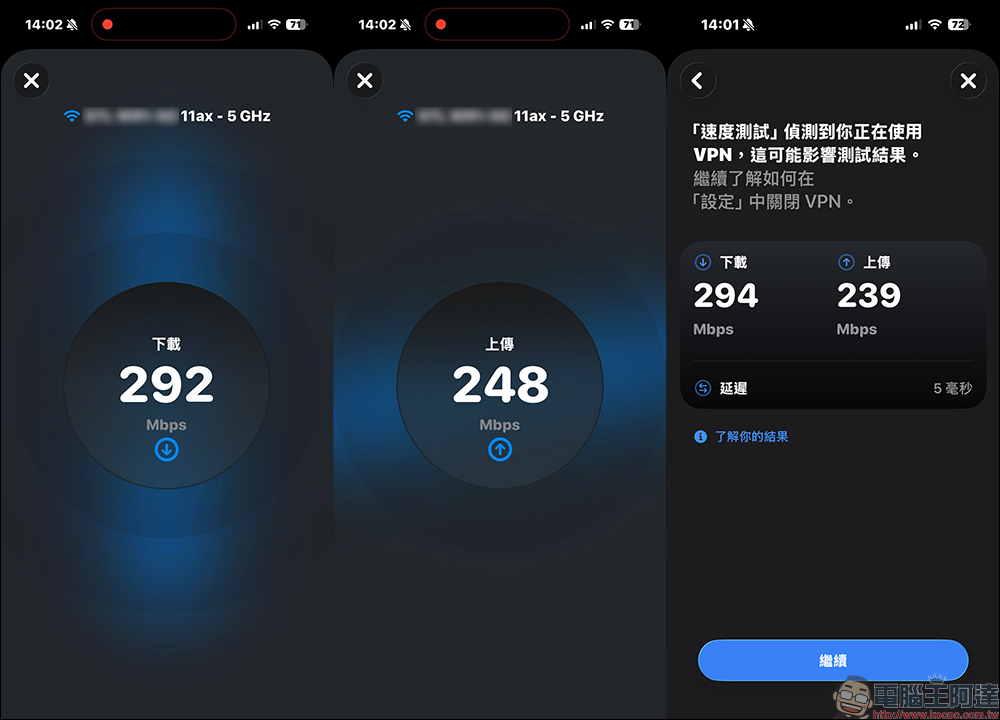
After clicking, press “Continue” and agree to the relevant terms. The system will automatically start measuring the current download speed, upload speed, and latency value, which is Ping.
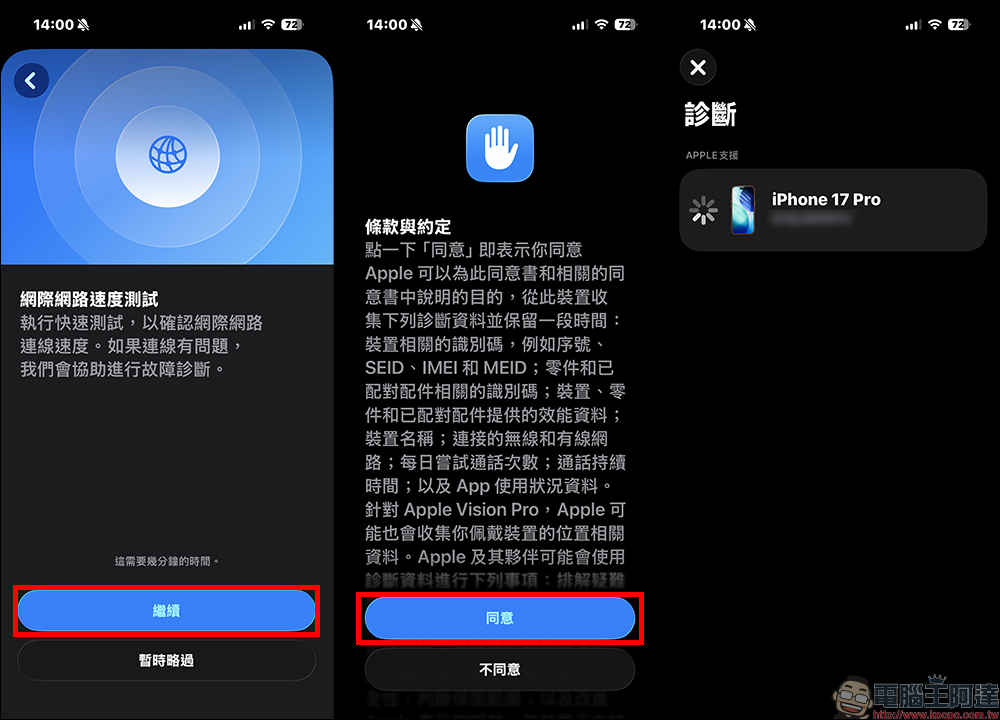
The whole process can be completed in tens of seconds, the picture is clean and simple, there are no advertisements, and there is no additional push interference. After the measurement, you will see the complete data and can further view the instructions.
How to read the speed test results?
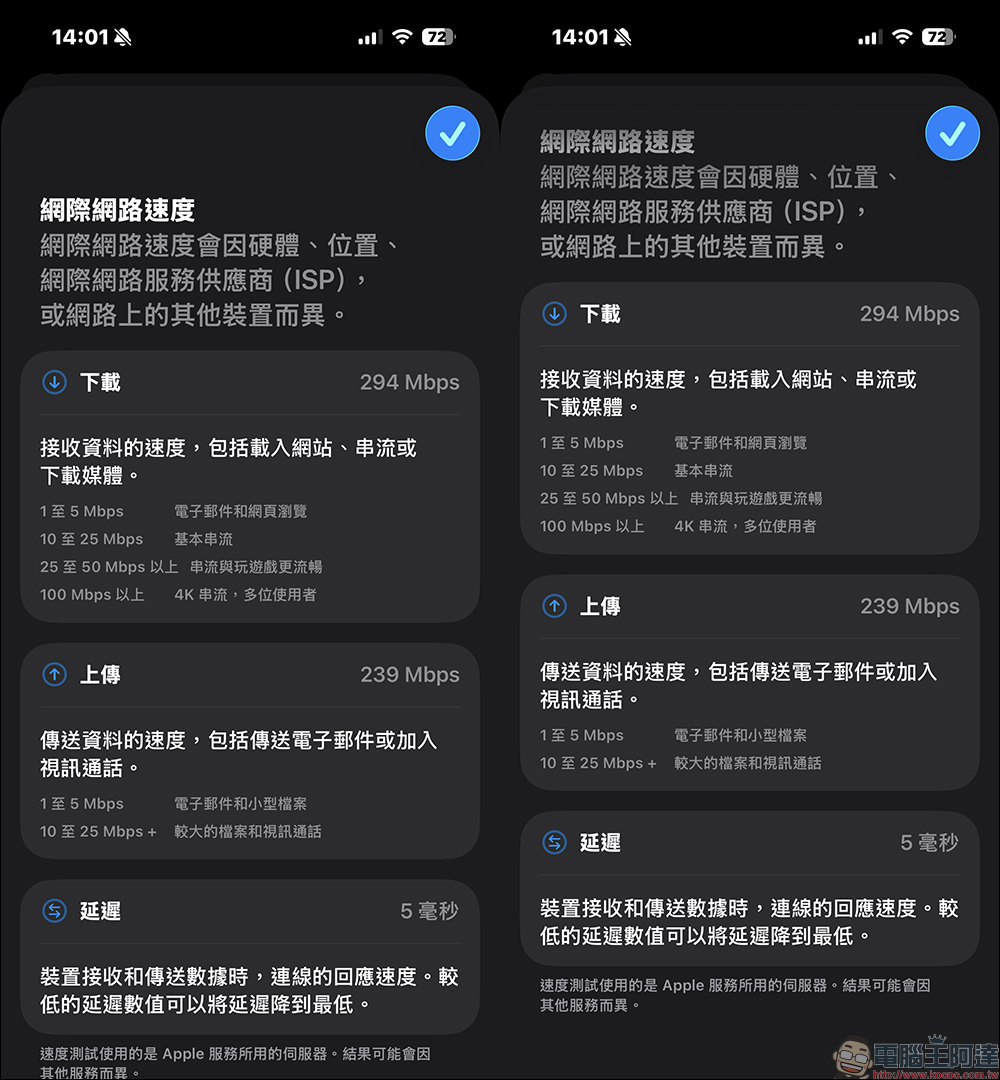
On the results page, click “Understand your results” and the system will provide usage scenario references for different network speeds. For example:
- Recommended for email and general web browsing 1 to 5 Mbps
- Recommended 10 to 25 Mbps for basic video streaming
- 25 to 50 Mbps or above recommended for smooth streaming and online gaming
- 100 Mbps or above is recommended for 4K streaming or simultaneous use by multiple people
These numbers can help you quickly determine whether your current network is adequate for your needs. If there are many people in your home watching TV shows, playing games, and video conferencing at the same time, then 100 Mbps or more will be more secure.
Why are official speed test data different?
Many people will find that the speed measured by the Apple Support App is sometimes lower than Speedtest. This is not because your network is slow, but because the testing methods are different. Generally, third-party speed measurement software will automatically connect to the nearest telecommunications computer room server with the lowest delay, and the measured speed is often the theoretical limit speed. Simply put, it is how fast your route can run under optimal conditions.
However, the speed test supported by Apple is directly connected to Apple’s own service server. In other words, the measured data is closer to the connection quality when you actually use iCloud, App Store, Apple Music or FaceTime.
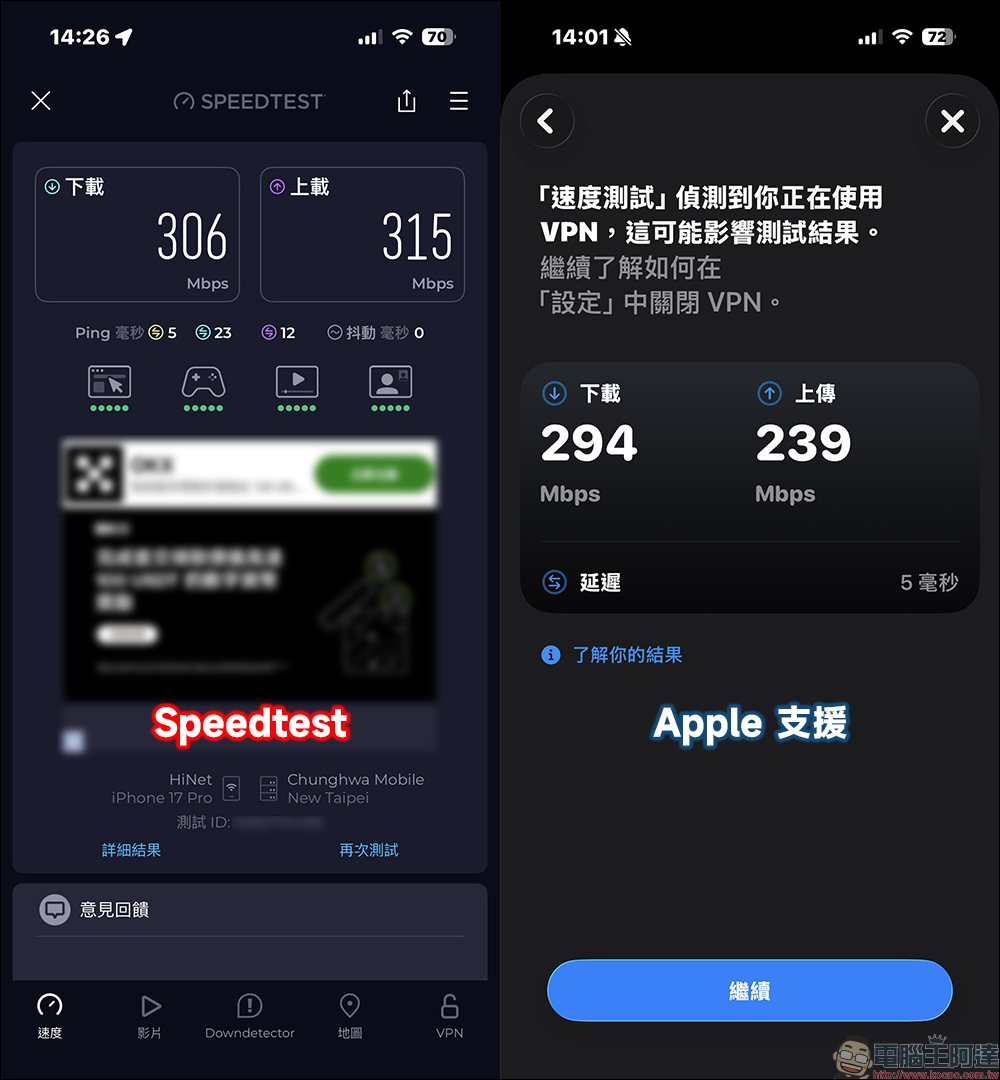
In other words, this data does not depend on how fast your network can run, but on how you feel when connected to Apple ecosystem services.
When is it especially useful?
This feature is particularly useful in certain situations. The first situation is that you use Speedtest to test quickly, but backing up photos to iCloud keeps getting stuck. At this time, if the speed measured by Apple Support is low, it means that the route to the overseas Apple server may be congested, rather than a problem with your home WiFi.
The second situation is that downloading the app is very slow. Suppose your 5G signal is full and Speedtest also shows 300 Mbps, but the App Store download speed is slow. Then through the official speed test, you can more clearly determine whether the connection path on the Apple side is blocked by traffic jams, or whether the mobile network fluctuates momentarily.
Another thing to understand is that because the Apple data center is not necessarily in Taiwan, when the physical distance is far away, the speed test numbers may naturally be lower than the local test. This is normal and does not mean the network quality is poor.
Conclusion
When many iPhone users encounter network problems, they first suspect WiFi or telecommunications providers. But in fact, sometimes the real bottleneck is the process of connecting to a specific service endpoint. Apple supports the built-in speed test function of the App, which provides a reference data that is closer to the daily Apple service experience.
Next time if you feel that your backup is stuck, your downloads are slow, or your FaceTime is intermittent, you might as well open this official tool to test it first. By cross-comparing the results of different tests, you will have a better idea of whether to restart the router or simply wait for the server to become smoother. A small hidden function can save you a lot of unnecessary mistakes.
Apple supports App download (App Store)
Further reading:
Source: KOCPC Chinese